
How to convert, shift and fix subtitle files in your browser
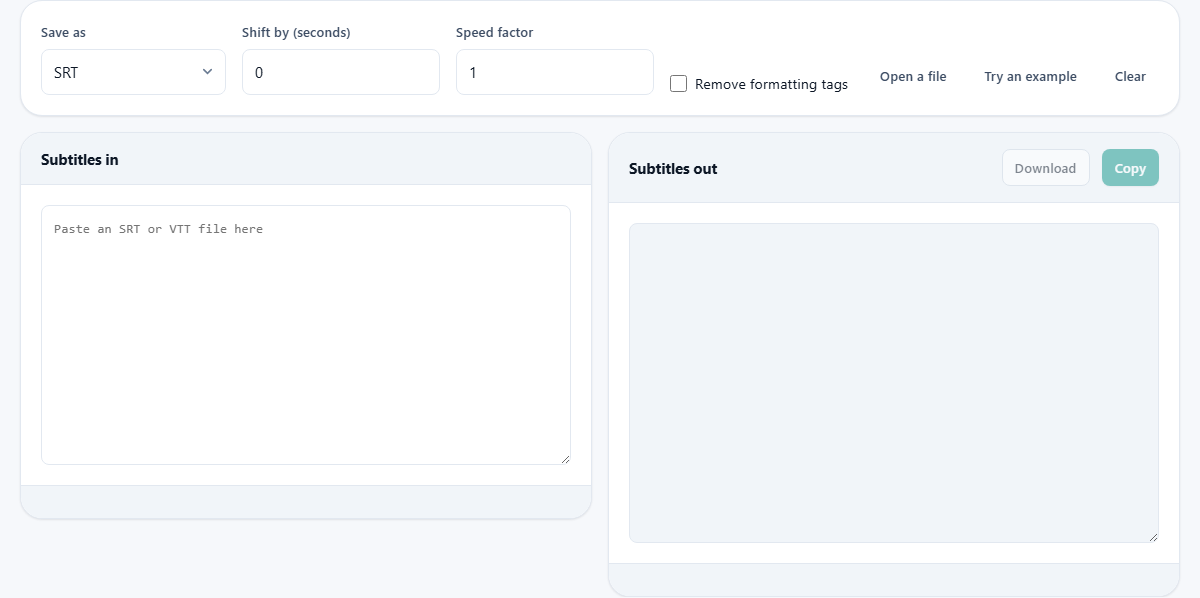
Subtitles that play too early, too late or in the wrong format are one of the most common video headaches. This article walks through each control on the subtitle tool, shows you how to tell a timing shift from a speed mismatch, and gives a step-by-step example of fixing a file that drifts out of sync as the video plays.
The two subtitle formats you actually meet
SRT and WebVTT cover almost every subtitle file you will find in the wild. SRT is older and simpler. Each block has a sequence number, a time range, and one or more lines of text. Desktop players like VLC, PotPlayer and MPC all read SRT without trouble. It is the format most subtitle sites hand out.
WebVTT looks similar but starts with a WEBVTT header and uses a slightly different time separator. The important difference is that HTML video tags only accept WebVTT. If you are building a web page, embedding a course video, or adding captions to a player that runs in the browser, VTT is the format you need. This tool reads either one and writes either one, so the conversion between them is instant.
Getting subtitles into the tool
There are two ways to feed in a file. You can paste the raw text straight into the Subtitles in box on the left. The tool figures out whether it is SRT or VTT by looking at the content, so you do not have to tell it. You can also press the Open a file button and pick a file from disk. Both routes lead to identical results once the text is in the box.
If you have never opened a subtitle file before and want to see the layout, press Try an example. It loads a short sample so you can experiment with the controls before touching your own file. The Clear button empties both panes and resets everything.
Choosing what comes out
The Save as dropdown has three choices. SRT gives you a standard subtitle file that works in most desktop video players. WebVTT gives you the format web video needs. Plain text, no timings strips all the numbers and time codes and leaves just the spoken words, one line each.
Plain text is handy when you need a transcript. You might want to search through a long interview for a phrase, or paste the dialogue into a document. Choosing this option drops the structure and gives you only the words people said.
The result updates live as you change the dropdown. You do not have to press a button. Switch between SRT and VTT to compare the two formats side by side and pick the one your player expects.
Fixing subtitles that are a few seconds off
The most common problem is a flat offset. Every line appears two seconds too late, or every line appears one second too early. The gap is the same at the start and at the end.
The Shift by (seconds) field handles this. Type a positive number to push every line later. Type a negative number to pull every line earlier. The step is 0.1 seconds, so you can nudge by a tenth at a time. If the words appear after they are spoken, put in a negative number like -2.0 to bring them forward. If the words appear before they are spoken, use a positive number like 1.5. The output pane updates as soon as you change the value, so you can check immediately.
Fixing subtitles that drift further out over time
A flat shift will not help when the subtitles start roughly right but fall further behind as the video plays. That is a different problem. It happens when the subtitle file was written for a copy of the video running at a different frame rate.
The classic case is a film timed at 25 frames per second being played from a copy at 23.976 frames per second. The gap is small at first, but after ninety minutes it grows to several seconds. The Speed factor field fixes this. Divide the frame rate of the video you are watching by the frame rate the subtitles were made for. For the example above, 23.976 divided by 25 gives 0.959. Put that in the Speed factor box.
After applying a speed correction, check the very first and very last subtitle. If the first is now right but the last is still off, the factor needs a small adjustment. If both ends are close, you are done.
Removing formatting tags
Some subtitle files contain HTML-like tags such as angle-bracket i or angle-bracket b to mark italic or bold text. Players that support them display the text in the right style. Players that do not show the tags as raw characters on screen, which looks broken.
Tick Remove formatting tags to strip all of these out. The output will contain only plain text inside each subtitle block. This is useful when you are moving a file to a simpler player, or when you want clean text for a transcript.
You can combine this checkbox with any output format. Convert from SRT to VTT and strip the tags in the same pass. The formatting is removed before the format conversion happens, so the result is a clean file in the format you chose.
Worked example: a downloaded file that plays two seconds late
You download an SRT file for a film. You play it in VLC. The first line of dialogue appears two seconds after the actor stops speaking, and every other line has the same delay. The offset is constant, so this is a shift problem, not a speed problem.
Open the subtitle tool. Press Open a file and pick the SRT. The text appears in the left pane and the output appears on the right, already converted to whatever the Save as dropdown says. Leave Save as on SRT since VLC reads SRT fine.
In Shift by (seconds) type -2. The output updates instantly. Every time stamp in the right pane is now two seconds earlier than the left. Press Download to save the corrected file. Rename it to match your video and reload the subtitles in VLC. The words now line up with the actors.
Common mistakes and how to avoid them
Shifting when you should be scaling is the biggest trap. If you fix the first five minutes with a shift, the last five minutes may still be wrong. Always check both ends of the video.
Forgetting the sign of the number is another one. A positive shift pushes subtitles later. If they already appear too late, a positive number makes things worse. Use a negative value to bring them earlier.
Pasting only part of a file causes odd numbering in SRT output. The tool renumbers the blocks, but if you accidentally left out the last few lines, those subtitles will be missing from the output. Compare the block count shown in the status bar to make sure it matches what you expect.
When this tool is the wrong choice
If you need to write subtitles from scratch, you need a subtitle editor that lets you play the video and tap out timings. This tool converts and retimes existing files but does not create new ones.
If your subtitle file is in a format other than SRT or VTT, such as SSA, ASS, or SUB, you will need to convert it to SRT first using another tool. This page handles the two most common formats only.
For burning subtitles permanently into the video frames so they cannot be turned off, you need a video renderer. This tool works with the text files themselves, not with the video.
Privacy and where your data goes
Subtitle files are plain text, but they can still carry information you would rather not share. Film titles and dialogue may hint at what you are working on. This tool runs entirely inside your browser. The text you paste or open never leaves your device and is not sent to any server. You could disconnect from the internet after the page loads and every feature would still work exactly the same way.
There is no account, no sign-up, and no limit on how many files you process. Every conversion and every timing correction happens in the page itself using straightforward text manipulation.