
How to loop a video so a short clip plays over and over
This article explains the tool that takes a short video clip and repeats it, so one pass becomes a longer file that plays the same few seconds again and again. You will learn why only short clips work well, what the memory limit does and does not constrain, how to trim so the join between plays does not show, and what happens to the sound. A worked example turns a three-second clip into a twelve-second loop.
What a looped clip is used for
A three-second clip is often too short to be useful on its own. A screen recording of a button animating, a candle flickering, a logo settling into place: each says what it has to say in a second or two, and then the file ends before the viewer has finished looking at it.
Repeating it fixes that without asking anyone to film anything again. A background video on a web page wants to run for half a minute, not for three seconds. A clip going into a slideshow needs to fill the time the slide is on screen. And some platforms play a video once and stop, so a clip meant to loop has to arrive already looped.
The alternative is asking the player to repeat it, which works only where you control the player. A looped file works everywhere, because the repetition is in the video rather than in the settings around it.
Why short clips are the only option
Nothing in a browser will take a video file and stitch it to itself. The clip has to be decoded into frames and encoded again as a new, longer file, and that decoding step is where the limit comes from: every frame of one pass is held as raw pixels while the writing happens.
Each frame at 1080p is about six megabytes of raw pixel data. Ten seconds at 30 frames per second is 300 frames, which is roughly two gigabytes. A browser tab does not have unlimited memory, and once the frames fill what is available the tab crashes or the machine starts swapping to disk and everything crawls.
The page shows an estimate as soon as you load a file. If it warns that the clip is too large, trim it shorter. Lowering the frame rate helps too, because fewer frames means fewer megabytes held at once.
The number of plays is free, the length is not
It is worth being clear about which of the two numbers costs you anything, because the obvious guess is wrong. Asking for ten plays instead of two does not multiply the memory by five. One pass of frames is captured and then written out over and over from that same pass, so the memory cost of ten loops is the memory cost of one.
What grows with the number of plays is the export time and the size of the finished file, both roughly in proportion. Ten plays of a three-second clip is thirty seconds of video to encode and thirty seconds of video to download.
What constrains you, then, is the length of the pass rather than the number of passes. A two-second clip looped ten times is comfortable. A forty-second clip looped twice may not be, even though the finished video is shorter.
Setting how many times it plays
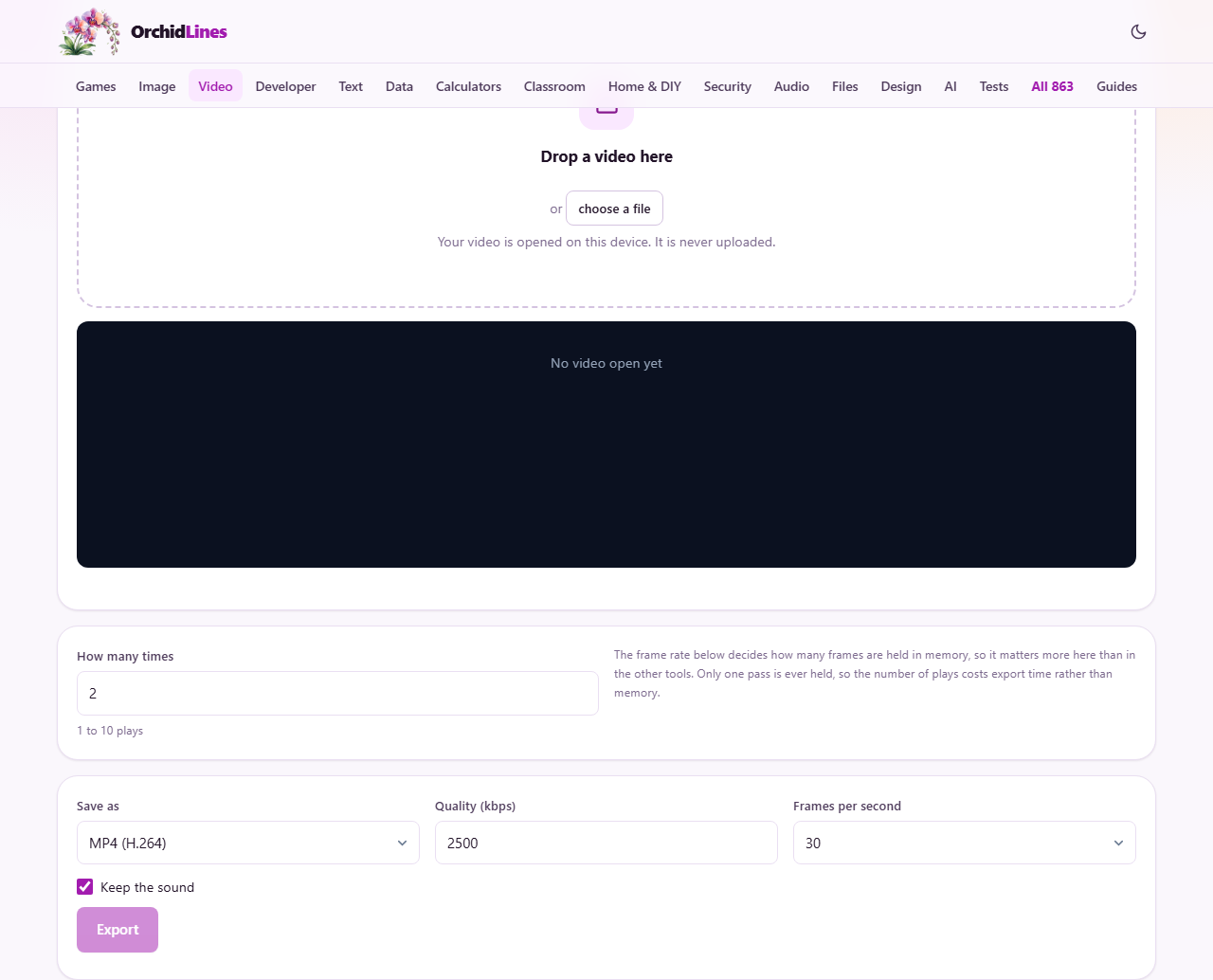
The field labelled How many times accepts a number from 1 to 10 and starts at 2. Two means the clip plays through twice: the whole pass, then the whole pass again. Ten means ten plays in a row.
The estimate line updates as you change it, and it is worth reading before you export. It shows the number of frames being held, the size they are being held at, and the length of the finished video. That last number is the one people get wrong: a four-second clip set to six plays is a twenty-four-second file, which is longer than many people intend when they reach for a loop.
Trimming so the join does not show
The trim bar appears when you open a file. Use it to cut the clip down to the moment you want repeated. Press Start here and End here while the video plays, drag the handles, or type exact times into the Start and End fields.
Trimming does more for a loop than it does for most tools, because a loop has a join in it. When the last frame of the pass cuts back to the first frame of the next one, any difference between those two frames shows up as a jump, and it shows up once per play rather than once in the video.
So choose the start and the end for how alike they look, not only for where the interesting part begins. A pendulum caught at the same point of its swing at both ends joins invisibly. The same pendulum caught at opposite ends of the swing jumps every time round. The checkbox labelled Keep looping the selection lets you watch your trimmed section repeat before you commit to exporting it, which is the quickest way to find out whether the join reads.
Export settings and what they change
Save as lists the video formats your browser supports. Quality in kbps ranges from 200 to 20000 and starts at 2500. Frames per second offers 24, 30 or 60.
The frame rate matters more here than in other video tools, because it decides how many frames are held. Dropping from 30 to 24 saves a fifth of the memory. Going up to 60 doubles it, and doubles the chance that a longer clip has to be captured at a reduced size. Unless the motion is fast enough that 30 looks choppy, there is a real cost and no benefit.
Match the frame rate to your source if you can. A clip filmed at 24 frames per second exported at 30 cannot gain the six frames it is short of, so one frame in five is held twice over, and on a moving shot that reads as a slight stutter that repeats with every loop. Exporting the same clip at 24 gives one output frame per source frame and no held frames at all. Most film and a lot of downloaded video is 24 or 25; phone video is usually 30. If you are not sure and the result looks uneven, try 24 before you change anything else.
Quality changes the file size rather than the picture size. If the finished loop is larger than you want, lower the quality number first: a loop repeats the same footage, so it compresses better than most video of the same length and can usually take a lower number than you would expect.
Worked example: a three-second sign loop
You have an eight-second clip of a neon sign flickering. The part worth keeping runs from about two seconds to about five.
Drop the file in. Use the trim bar to select from 2 seconds to 5 seconds, and tick Keep looping the selection to watch the join. The sign is lit at both ends of that range, so the cut back to the start does not read as a jump. Set How many times to 4. Leave Frames per second at 30 and Quality at 2500.
The estimate now reads 90 frames and a result of 12 seconds. Press Export. The tool reads 90 frames, which takes a few seconds because seeking runs faster than real time, and then writes 360 frames from them. You get a twelve-second file of a sign that flickers steadily for as long as anyone watches it.
Why the result sometimes looks softer than the original
When a clip is long enough that holding every frame at full size would exhaust the memory available, the tool captures each frame at a reduced size instead. The estimate says so when it happens. This keeps the export from crashing, but the finished video is noticeably less sharp than the source.
The fix is always the same: trim to a shorter pass. A two-second clip is captured at full size and stays crisp. A twenty-second clip may be captured at half size and looks soft. Note that adding more loops does not make this worse, because the loops reuse the pass that has already been captured. It is the length of the pass alone that decides how sharp the result is.
What happens to the sound
Keep the sound is ticked by default, and the audio is looped along with the picture: each play carries the same few seconds of sound, lined up with the frames it belongs to.
This needs the faster of the two writers the tool can use, because that is the one that muxes an audio track into the file. On a browser without it the checkbox is hidden rather than left on screen doing nothing, and the loop comes out silent. If the file you opened has no sound in it, or has sound in a form the browser cannot decode, the export still succeeds and the page tells you it came out silent.
The join applies to sound as much as to picture. Music cut mid-bar will click audibly at every repeat, and a voice cut mid-word repeats the fragment. If the sound matters, trim on a beat or a pause; if it does not, untick the box and loop the picture alone.
What makes a clip loop well
The best loops are continuous motion with no clear beginning or end. A flame, falling snow, a rotating object, a crowd from a distance, water moving. Nothing in them announces where the pass started, so the join has nothing to give away.
Motion that travels in one direction is the hard case. A car crossing the frame ends with the car gone and restarts with it back where it began, which reads as a jump no matter how carefully you trim. Either pick a different moment, or accept the cut as part of the effect.
- Good: a flame, rain, a spinning wheel, a screen animation that returns to its starting state
- Hard: anything that travels across the frame, a zoom, a person walking out of shot, a fade to black
Common mistakes and how to avoid them
The most common mistake is trying to loop a clip that is too long. A full minute at 30 frames per second is 1800 frames, and the tool refuses beyond that point rather than crashing the tab. Trim to the few seconds you actually want repeated.
The second is expecting the loop count to be the problem when the export is slow or the picture is soft. It is not: both follow from the length of the pass. Cutting the clip in half helps with both. Halving the number of plays helps with neither.
The third is not watching the join before exporting. Tick Keep looping the selection and let the trimmed range run round a few times. Ten seconds of watching saves an export you were going to throw away.
The fourth is forgetting how long the result will be. Ten plays of a six-second clip is a minute of video. The estimate says so before you start, and it is worth a glance.
When this tool is the wrong choice
If you control the player, loop it there instead. A video element with the loop attribute, or a background video on your own page, repeats with no file to build and no quality lost to a second round of encoding. This tool is for the cases where the file itself has to arrive already looped.
If your clip runs longer than about a minute, desktop software that writes to disk will handle it better than a browser holding frames in memory. And if what you want is the clip running forwards and then backwards, or simply running backwards, that is a different effect from a loop and this tool no longer offers it.
Privacy and where the frames go
Every frame is decoded, held, repeated and encoded entirely on your device. The video is never sent to a server. There is no upload step, no cloud processing and no account. The file stays local from the moment you open it to the moment you download the finished result. Because everything is held in your browser's memory rather than on a remote machine, there is nothing to delete afterwards and no third party ever sees your footage.