
How to convert an animated GIF into a smaller video file
This guide explains every setting in the GIF to Video converter, walks through a real example, and shows why a video version of the same animation is almost always a better file to share. You will learn how to handle transparency, scaling, loop counts, and output quality.
What the converter does and why you would use it
The GIF to Video tool takes an animated GIF and turns it into a real video file, usually MP4 or WebM. The result is typically five to twenty times smaller than the GIF, plays more smoothly, and shows better colour because video is not limited to 256 shades per frame.
You would use this when a GIF is too heavy for where it needs to go. Email providers often strip or block large GIFs. Social media platforms accept video more willingly and compress it less harshly than they compress a GIF. Websites load faster when a looping animation is served as a short video instead of a multi-megabyte GIF.
- Shrinking a GIF that is too large to email.
- Replacing a slow loading GIF on a web page with a video that starts playing sooner.
- Preparing an animation for a platform that prefers video over GIF.
- Getting better colour out of an animation that suffers from banding in GIF form.
Dropping in the GIF and reading its details
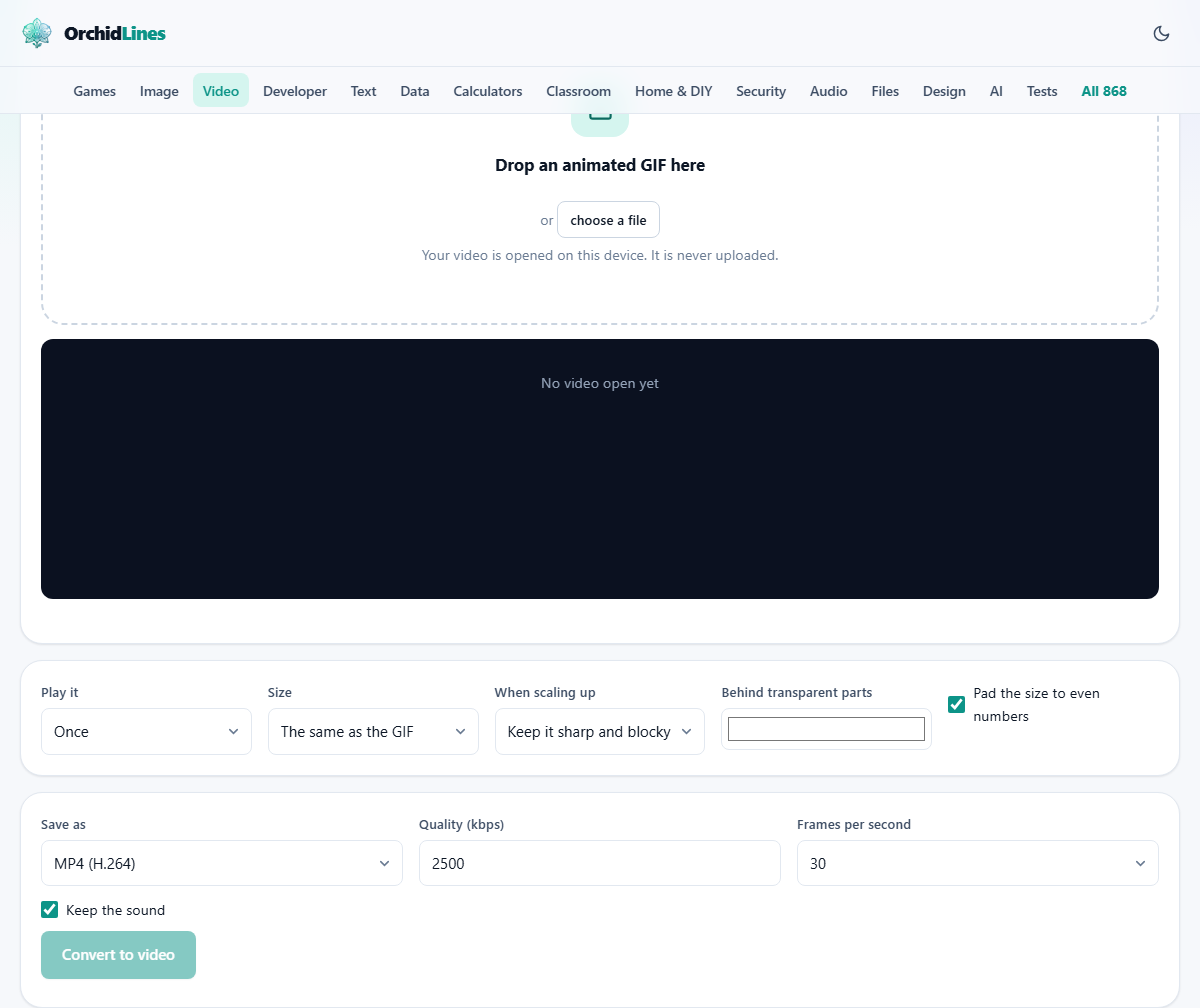
Drag the animated GIF onto the drop area, or press choose a file to browse. Once it opens, the page shows the GIF playing in a preview. Below the preview sit the width and height in pixels and how long one loop takes.
These numbers help you decide what to change. A GIF that is 200 pixels wide will look soft on a modern phone screen, so you may want to scale it up. A GIF that loops every two seconds but needs to play for twenty seconds needs to be repeated several times inside the video.
Controlling how many times it plays
The dropdown labelled Play it sets how many times the animation is baked into the video file. The choices are Once, Twice, Three times, Five times and Ten times.
A GIF loops by itself in most places because the format has a built in loop flag. Video does not have the same kind of flag, so not every player will loop it. The workaround is to repeat the content inside the file. If one loop is three seconds long and you set it to play five times, the video is fifteen seconds long, and the animation runs five times through without relying on the player to loop it.
The trade off is time. The conversion takes as long as the video it produces. One loop of a three second GIF played five times means a fifteen second video, so the conversion takes about fifteen seconds.
Scaling the picture up
The Size dropdown offers five choices. The same as the GIF keeps the exact pixel count. Twice as big and Three times multiply both the width and the height by that factor. Up to 720 across and Up to 1080 across scale the GIF so that its wider side reaches that number, without going past it.
Most GIFs are small. A 200 pixel wide GIF looks tiny on a phone with a 1080 pixel wide screen. Doubling or tripling it before converting gives a video that fills more of the screen and does not look soft.
When you scale up, the When scaling up dropdown matters. Keep it sharp and blocky preserves the crisp edges of pixel art and text. Smooth it out blends the pixels together, which looks better on photographs and real world footage but turns pixel art into mush. Pick the one that matches your content.
Handling transparency and padding
Some GIFs have transparent areas. The background of a sticker, for example, is often see through. Video formats do not support transparency, so those areas must be filled with a solid colour.
The control labelled Behind transparent parts is a colour picker. It defaults to white. Click it to choose any colour. If the GIF will play over a dark page, pick a dark background so the filled areas blend in.
A checkbox labelled Pad the size to even numbers adds a single pixel of padding when the width or height is an odd number. Video encoders need even dimensions to work correctly. Leaving this ticked avoids a class of encoding errors that produce a garbled last row of pixels.
Output format, quality and frame rate
The Save as dropdown offers the video formats your browser can write. MP4 is the safer choice because it plays on almost everything. WebM is often smaller but not every app or device supports it. When in doubt, use MP4.
Quality (kbps) sets how much data is spent on each second of video. The default is 2500. Lower numbers make smaller files but may show blocks or softness. For a simple animation with flat colours, 1000 is often enough. For a photograph based GIF, stay at 2000 or above.
Frames per second controls how many frames the video holds for each second. The choices are 24, 30 and 60. The original GIF may run at an odd rate like 12 or 8 frames a second. The converter plays it at its native speed and records it into the frame rate you pick. Thirty is a safe default. Sixty is overkill for almost every GIF.
A worked example: shrinking a product demo GIF
You have a product demo GIF that is 400 pixels wide, loops every four seconds, and weighs 8 megabytes. You want a video version to put on a landing page.
Drop the GIF in. Set Play it to Three times so the video runs twelve seconds. Under Size pick Up to 720 across so it looks sharp on a phone. Leave When scaling up on Smooth it out because the demo has real screenshots. The GIF has no transparency, so the colour behind transparent parts does not matter.
Set Save as to MP4, Quality to 2500, and Frames per second to 30. Press Convert to video. The progress bar runs for about twelve seconds. The result is a 720 pixel wide MP4, roughly 600 kilobytes - about a thirteenth of the original GIF. It looks sharper, loads faster, and the colours are richer.
Things that catch people off guard
A few surprises come up often enough to list.
- The conversion seems slow. It runs at the speed of the video it is making. A GIF played ten times at four seconds per loop means forty seconds of waiting. Cut the repeat count to test settings first.
- The transparent areas look wrong. The default fill is white. If your GIF is meant for a dark background, change the colour to match.
- The video does not loop in the browser. HTML video elements need a loop attribute. The video file itself just plays through. Setting a higher repeat count works around this.
- The edges of pixel art look blurry. You left the scaling mode on Smooth it out. Switch it to Keep it sharp and blocky for anything with hard lines.
- The file is larger than expected. The quality was set too high for a simple animation. Drop it to 1000 kbps and compare.
When this tool is not the right fit
If you need the output to loop silently and inline on every possible device, a GIF still does that more reliably. The trade off is size. If the GIF is already small - under a few hundred kilobytes - converting it to video saves little and adds a player dependency.
If you want to go the other way, turning a piece of video into a GIF, the Video to GIF tool on this same site does that. And if you need to trim, resize or adjust a video rather than convert a GIF, the other video tools are the place to start.
Nothing leaves your device
The GIF is not uploaded to any server. Your browser reads the file, plays it frame by frame onto an internal canvas, records the canvas as a video, and gives you the download. You can turn off your internet connection after loading the page and everything still works. The conversion happens entirely inside the browser's own encoder.
There is no watermark on the output, no account to make, and no limit on how many files you convert. The result belongs to you and is never stored on any remote machine.