
Making sure your camera works before the call starts
A quick webcam check before a video call saves you from the awkward minute where everyone else can see and hear each other but you are staring at a black rectangle. This page shows your live camera feed, tells you the real resolution and frame rate your camera is producing, and lets you take a snapshot. Everything happens inside your browser, and nothing is sent anywhere.
What a webcam test actually tells you
A webcam test answers three questions. First, does the camera produce a picture at all? That sounds obvious, but privacy shutters, disabled drivers and other programs holding the camera can all produce a blank screen that looks the same from the outside. Second, what resolution is the camera actually delivering? Most cameras claim a maximum, but what they give depends on the lighting, the USB port, and which resolution the browser asks for. Third, how many frames per second are you really getting? A camera that claims thirty frames per second will often drop to fifteen or lower in a dim room.
Knowing these numbers before a call means you can fix problems while there is time to fix them. Adding a lamp, closing another video program, or plugging into a different USB port all take a few seconds, but none of them are things you want to try while a meeting is waiting.
Starting the camera and granting permission
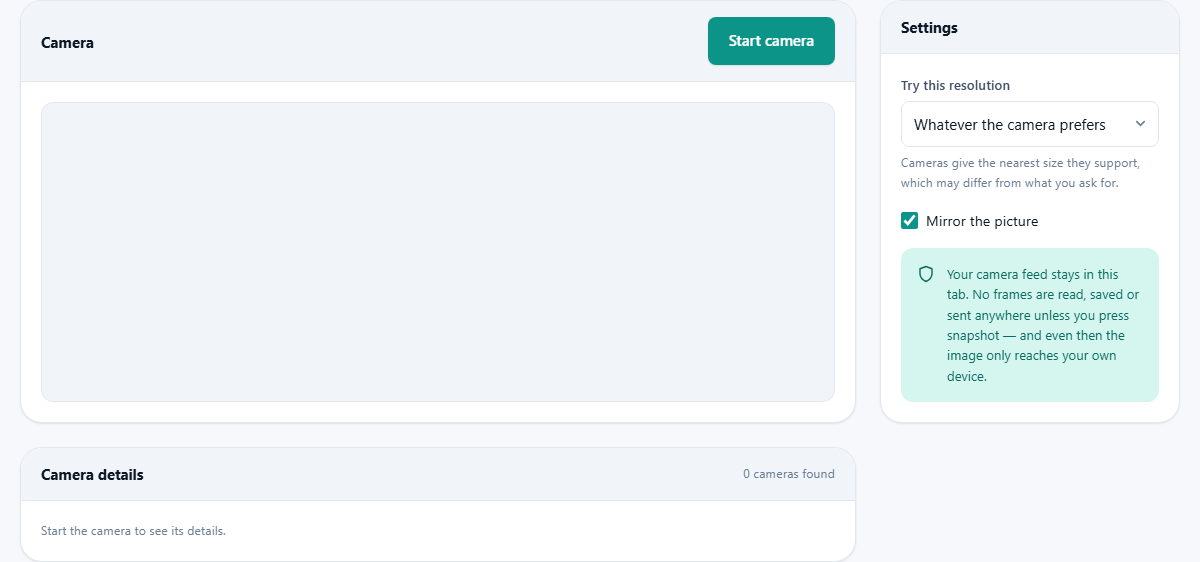
Press the Start camera button and your browser will show a permission prompt. Allow it and the live feed appears immediately. If you have used the page before and already granted permission, the feed may start without asking again, depending on your browser settings.
If you deny the permission, the page cannot access the camera at all. That is not a limitation of the page; it is how browsers protect you. Every site that wants camera access must ask, and every browser must let you say no. If you denied it by mistake, you can usually fix it by clicking the small camera icon in the address bar and changing the setting, then reloading the page.
Choosing a camera and a resolution
The Settings panel on the side has two controls. The Which camera dropdown appears once you have at least two cameras available, which is common on laptops with a built-in webcam and an external one plugged in. On a phone you will typically see both a front and a rear camera listed.
The Try this resolution dropdown lets you ask for a specific size: 640 by 480, 1280 by 720 for HD, 1920 by 1080 for Full HD, or 3840 by 2160 for 4K. You can also leave it on the default, which lets the camera choose whatever it prefers. The important word is ask. Cameras give the nearest resolution they actually support, and the details panel below the feed shows what you really got. If you asked for 1080p and the camera only supports 720p, you will see 1280 by 720 reported there, not the number you picked.
Reading the details panel
Below the live feed, the Camera details panel reports facts that the camera itself provides. You see the device name, the real resolution it is sending, and the measured frame rate. The frame rate shown here is not the number the camera advertises; it is a count of how many frames actually arrived over a recent window of time.
This measured number is the one that matters for call quality. A camera might say it runs at 30 frames per second, but if the room is dark the camera holds the shutter open longer to gather more light, which forces it to send fewer frames. If the measured figure is much lower than expected, adding more light to the room is almost always a better fix than blaming the hardware.
The mirror toggle and how mirroring works
A checkbox labelled Mirror the picture is on by default. Mirroring flips the feed left to right, like a bathroom mirror. Most people find a mirrored view easier to use because moving your hand to the right makes the hand on screen move to the right as well.
Video call applications do the same thing. They show you a mirrored version of yourself, but they send the un-mirrored version to everyone else. That means text on your shirt reads correctly on their screens even though it looks backwards on yours. The mirror toggle here works the same way. It only affects what you see on this page. It has no effect on the actual image data, and turning it off does not change the resolution, the frame rate, or anything the camera is doing.
Taking and saving a snapshot
While the camera is running, a Take a snapshot button sits at the bottom of the feed panel. Press it and a still image appears in a separate Snapshot panel below. The image is captured at the full resolution the camera is delivering, not at the smaller size the preview might show on screen. A Save picture button on the snapshot panel downloads it as a file.
This is useful for more than just testing. You can use it to grab a quick profile picture with good lighting, to check whether the camera's focus is sharp enough for a document scan, or simply to see what the camera sees at full size rather than in a small preview window. The snapshot stays in the page until you take another one or close the tab.
Common problems and what to do about them
A black picture is the most frequent complaint, and the answer is almost always physical. Many laptops have a small sliding shutter over the camera lens. Some have a keyboard shortcut, often a function key with a camera icon, that disables the camera entirely. Check both before assuming a software problem.
An error saying the camera is already in use means another program has it open. Video call applications are the usual cause. Closing the window is sometimes not enough, because the application may keep running in the background. Fully quit it and try again.
A grainy or dark picture is nearly always a lighting problem, not a camera problem. Face a window or a lamp so that the light falls on your face, and avoid having a bright light directly behind you. Backlighting makes the camera darken the whole frame to stop the bright area from blowing out, which leaves your face in shadow.
Getting a better picture for calls
Once the camera is working, a few small adjustments make a noticeable difference. The biggest one is light. A single desk lamp pointed at the wall behind your monitor fills the room with soft, even light and removes the harsh shadows that overhead lighting creates. Natural light from a window is even better, as long as the window is in front of you rather than behind.
Position matters too. The camera should be roughly at eye level. A laptop on a desk points upward at your chin, which is rarely flattering. A small stand or a stack of books fixes that. If you are using an external webcam, mount it on top of your monitor so you appear to be looking at the other person when you look at the screen.
Background clutter is worth a glance. The camera sees everything behind you, and a tidy background is less distracting for the people you are talking to. You do not need a blank wall, but moving the laundry basket out of frame takes three seconds and lasts all day.
Using the test on a phone or tablet
The page works on phones and tablets in the same way. Grant the camera permission when prompted and the feed appears. On most phones you will see both the front and rear cameras in the selection list, and you can switch between them to test both.
Phones usually have fixed cameras that cannot change resolution the way external webcams can, so the Try this resolution dropdown is less useful on a phone. The details panel still shows what the camera is actually producing, which is worth checking before a mobile video call to make sure nothing unexpected is going on.
Privacy and how the page handles your feed
The camera feed goes straight from your hardware into a video element on this page. The page does not read individual frames from that feed, copy them, or send them anywhere. Even the snapshot feature only draws one frame onto a canvas inside your own browser, and the resulting image never leaves your device unless you choose to save it and share it yourself.
You can verify this by disconnecting from the internet after the page loads. The camera feed, the details panel, and the snapshot feature all keep working, because none of them depend on a server. There is no account, no upload, and no recording. The page forgets everything the moment you close the tab.