
Finding out whether your microphone actually works
How to check a microphone from the browser, what the level meter and waveform tell you, why recording yourself back is the step most people skip, and what to do when the bar refuses to move.
Why people end up testing a microphone
A voice call starts and nobody can hear you. You recorded a podcast and the file is silent. A new headset arrived and you want to know it works before the meeting in ten minutes. These are all the same problem: something between your mouth and the software is broken, and you need to find out which part.
The operating system has a sound settings page, but it buries the input meter under several clicks and rarely lets you hear yourself. Most people only discover their microphone is dead when somebody else tells them. A quick test before the call saves the scramble.
Granting permission and starting the meter
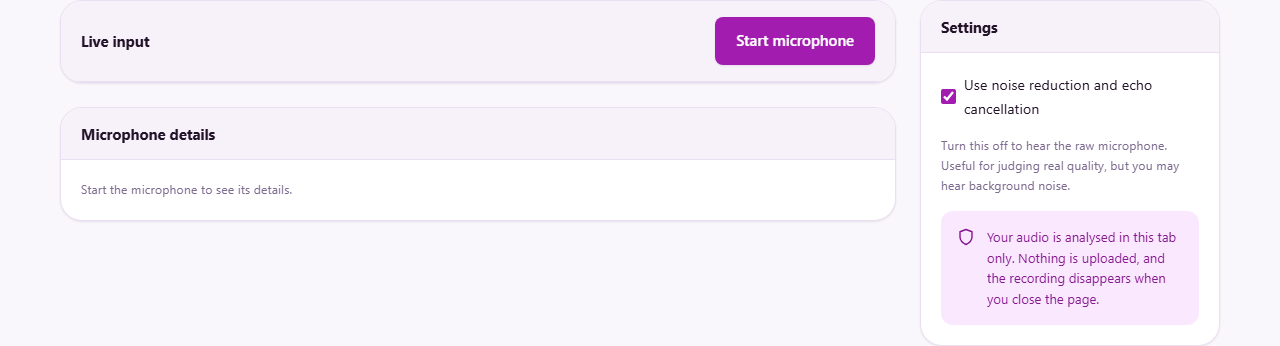
Press Start microphone. The browser will show a permission prompt, usually near the address bar. You have to allow it. Without permission the page cannot listen to anything, and nothing will happen until you say yes.
If you allowed it once and then blocked it later, click the padlock icon in the address bar and set the microphone back to allow. Some browsers remember the choice per site, so you only need to do this once.
Once permission is granted, the page opens the default microphone and starts drawing. Two things appear at the same time: a green level bar and a waveform. Both move in real time as sound reaches the microphone.
Reading the level bar
The green bar under the label Level -- speak now is the simplest check. It jumps when you talk and drops when you stop. A number next to it shows the level in decibels, counting down from zero. Zero is the loudest the microphone can report. A normal speaking voice at arm's length usually lands somewhere around minus 20 to minus 30.
If the bar moves at all, sound is reaching the browser. That already rules out a dead connection, a muted device, and a broken cable. It does not yet tell you whether you sound good, only that you exist.
A bar that sits at the bottom and never moves means no sound is arriving. That is either a permissions problem, the wrong device selected, or another program holding the microphone. The troubleshooting section below covers each of those.
The waveform underneath
Below the bar is a waveform. It draws the shape of the sound wave as it comes in, refreshed many times a second. A flat line means silence. A spiky line means noise. A smooth, fat wave when you speak means a healthy signal.
The waveform does something the bar cannot: it shows you the texture of the sound. A microphone picking up a loud hum will show a repeating pattern even when you are not talking. Crackling from a loose connection appears as sharp spikes scattered at random. If you see either of those, the microphone is working but something nearby is interfering.
Once the page sees a signal above silence, a green notice appears: Your microphone is working. Sound is reaching the browser. That is the first confirmation, but not the last one you need.
Recording and playing it back
A moving bar proves that audio data is arriving. It says nothing about how you sound. The second step matters more: click Record 5 seconds, wait, and then play the clip back through your speakers or headphones.
This is where real problems show up. A tinny, distant voice means the laptop microphone is being used instead of the headset you plugged in. A voice buried in fan noise means the gain is too low and the room is too loud. Echo means speakers are feeding back into the mic. None of those faults move the level bar any differently from a clean signal, which is why the bar alone is not enough.
After the recording plays, a Save clip button appears. It downloads the short clip as an audio file. That can be useful if you need to send it to someone for comparison, or if you want to listen on a different device.
Choosing a different microphone and changing the settings
The Settings panel on the right side has two controls. The first is a dropdown labeled Which microphone. It lists every input device the browser knows about. If you have a USB headset, a webcam with a built-in mic, and the laptop's own microphone, all three will appear here. Pick the one you want and the page switches to it without restarting the test.
Device names may look blank at first. Browsers hide them until you grant permission. Once you allow the microphone, the real names fill in and you can tell which is which.
The second control is a checkbox labeled Use noise reduction and echo cancellation. It is on by default. These filters clean up the sound for voice calls by removing background hum, reducing echo, and smoothing out sudden noises. That makes speech clearer but noticeably flatter. Turn the checkbox off if you are testing a microphone for recording music or judging its raw quality. Leave it on if you just want to know whether a call will sound acceptable.
A full test from start to finish
Plug the headset in. Open the page. Press Start microphone and allow when the browser asks. The green bar starts moving.
Say a few words at normal volume. The bar jumps to about minus 24 and the waveform draws a clean shape. The green notice appears: the mic is working.
Now press Record 5 seconds. Count to five while speaking normally. The clip appears in a small player. Press play. Your voice comes through the speakers, clear and recognisable, with no echo and no hum. The test is passed.
Switch to the laptop microphone using the dropdown. Record again. This time the voice is thinner and there is a fan whirring underneath. That tells you the headset is the better input for your next call.
Turn off noise reduction and record once more with the headset. The voice is fuller but there is a faint hiss from the room. That is the raw microphone, before the browser cleans it up. For a podcast you might want an external audio program with finer controls. For a video call, the cleaned version is fine.
When something goes wrong
The most common problems have simple fixes, and nearly all of them sit outside the browser.
- Nothing happens when you press start. The browser is waiting for permission. Look for a small prompt near the top of the window. If you dismissed it, reload the page and try again.
- The page says the microphone is already in use. Another program has it. Video call apps like Zoom, Teams, and Discord can hold a microphone so tightly that nothing else can open it. Close them and try again.
- The bar moves but the sound is quiet. The input level is too low. On Windows, open Sound settings, then Input, then Device properties, and raise the slider. On a Mac, go to System Settings, then Sound, then Input.
- No sound comes from the speakers during playback. That is a speaker or headphone issue, not a microphone one. Check your output device and its volume separately.
- The recording has echo. Your speakers are feeding sound back into the microphone. Use headphones, or move the microphone further from the speakers.
- Your device is not in the list. Check that it is plugged in and enabled in the operating system sound settings. Some headsets need to be set as the default input device before the browser will show them.
Your audio never leaves your device
The sound is processed entirely inside your browser tab. The level bar, the waveform, and the short recording all happen in memory on your own machine. Nothing is uploaded, saved to a server, or transmitted anywhere.
You can verify this yourself. Load the page, unplug your internet cable or turn off Wi-Fi, and then press Start microphone. Everything works exactly the same, because there is no server involved. The recording disappears the moment you close or reload the tab. For a microphone test that necessarily asks to listen to you, that felt worth spelling out.