
Finding faulty pixels and what to do about them
How dead, stuck and hot pixels differ, how to spot each one against the right background colour, what the flicker tool can fix and what it cannot, and the practical steps for testing a new or secondhand screen.
What a pixel is and how it breaks
Every screen is a grid of tiny light sources called pixels. A typical laptop panel has over two million of them. Each pixel is made of three even smaller parts, called sub-pixels, that glow red, green and blue. By mixing those three colours at different strengths the pixel can show any shade you ask for.
Manufacturing a panel with millions of perfect transistors is difficult, and occasionally one fails. When it does, a single dot on your screen stops behaving. Against a busy desktop wallpaper you will never notice it. Against a plain block of colour it stands out instantly, which is the entire idea behind a dead pixel test.
The three kinds of faulty pixel
A dead pixel receives no power at all. Its transistor has failed permanently, so the dot stays black no matter what the rest of the screen shows. On a white background it is a tiny dark speck. No software can fix it because the hardware is broken.
A stuck pixel is jammed showing one colour. Its transistor is holding a charge it should have released. A red stuck pixel, for example, shows a bright red dot on a black background but vanishes on a red one. This kind is sometimes fixable because the transistor still works, it is just frozen.
A hot pixel is permanently white. It is the opposite of a dead pixel: all three sub-pixels are on at full power. It is most obvious against a black or dark background.
Running the full-screen colour test
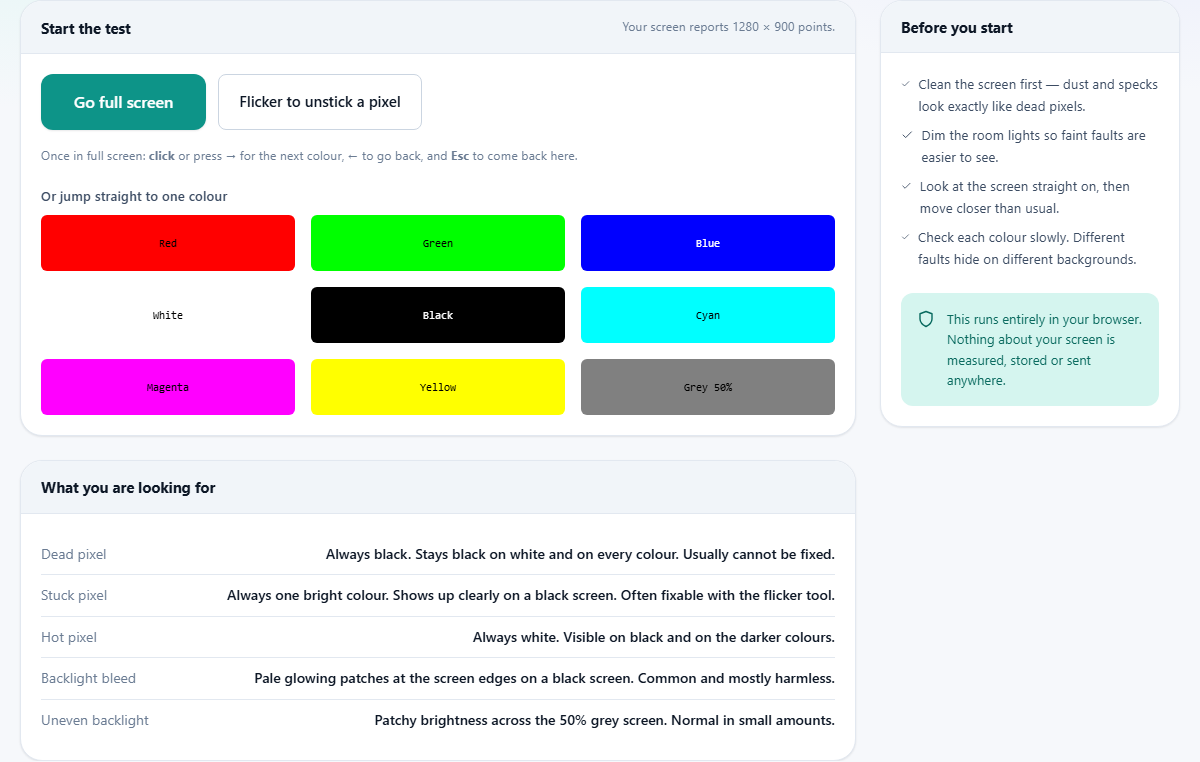
Press Go full screen. The page takes over your entire display and fills it with a single solid colour. Click anywhere or press the right arrow to move to the next colour. Press the left arrow to go back. Press Esc to return to the page.
The test walks through several colours: red, green, blue, white, black and others. Each colour is chosen to expose a different fault. A dead pixel stands out on white. A stuck red sub-pixel hides on a red screen but appears on every other colour. A hot pixel is most visible against black. Going through the full set takes less than a minute and catches anything that is there.
You can also jump to a single colour using the swatch buttons below the main controls. That is useful when you already know roughly what you are looking for and want to check one background quickly.
Backlight bleed and uneven brightness
While you are on the black screen, look at the edges and corners. Most LCD panels show a faint glow there, especially along the bottom. This is backlight bleed, and it happens because the backlight sits behind the liquid crystal layer and leaks around the seal.
A small amount is normal and does not affect everyday use. If the glow is strong enough that you notice it while watching a dark movie, the panel may be faulty. Comparing two screens of the same model side by side is the clearest way to tell whether yours is worse than average.
Switching to a mid-grey screen reveals uneven brightness across the whole panel. Dim or bright patches that move with the screen, rather than staying in one spot, are a backlight problem rather than a pixel fault.
Preparing the room and the screen
Clean the screen first with a dry microfibre cloth. A speck of dust looks exactly like a dead pixel and has caused many false alarms. Wipe gently over the whole surface before starting.
Dim the room lights or pull the curtains. Faint faults are much easier to see in a darker room because your eyes are not competing with reflections on the glass. Look at the screen from straight on and then lean in closer than you normally would. A stuck sub-pixel is small enough to miss at arm's length.
On a phone or tablet, turn off auto-brightness before you start. If the screen dims halfway through the test, a faint pixel fault can disappear and then reappear when you come back to it.
The flicker tool and when it helps
If you find a stuck pixel, press the Flicker to unstick a pixel button. The screen fills with rapidly alternating colours, cycling several times a second. The idea is that the rapid changes can jolt the frozen transistor back to normal operation.
It does not always work, but it works often enough to be worth trying. Leave it running for ten to twenty minutes. Some people run it for an hour. There is no harm in letting it go longer, though if twenty minutes has not helped, an hour rarely will either.
Do not bother flickering a dead pixel. A dead transistor is physically broken, and no amount of colour cycling will bring it back. The distinction matters: a stuck pixel is one bright dot of colour, a dead pixel is one permanently dark dot. Knowing which you have tells you whether the flicker is even worth attempting.
Pressure tricks and why to avoid them
You may find advice suggesting that pressing a damp cloth firmly over a stuck pixel can unstick it. This occasionally works on older panels, but pressing too hard can permanently damage the liquid crystal layer, creating a larger fault than the one you were trying to fix.
Try the flicker tool first. If that fails, gentle pressure with a soft cloth over the stuck spot while the flicker runs is the most that is safe. Never use a fingertip, a pen cap, or anything hard. If the pixel does not recover after reasonable effort, it is better to live with a single dot than to risk cracking the panel.
Warranty rules and buying a new screen
Most manufacturers set a threshold before they consider a panel defective. A common policy allows up to three dead pixels before a replacement is offered, and some brands set the number even higher. A single stuck pixel on a brand-new monitor is frustrating but usually within the stated tolerance.
Run this test on a new screen on the first day. Return windows are short. A dead pixel found in week one is a simple exchange at the shop. The same pixel found three months later becomes a warranty claim, which is slower and less certain.
When buying a secondhand screen, run the test before paying. Ask the seller to leave the browser open on the black and white screens while you look closely. It takes thirty seconds and saves an argument later.
OLED screens and how they differ
An OLED panel lights each pixel individually. There is no backlight, so a black pixel is truly off and backlight bleed does not exist. Dead pixels on an OLED are therefore invisible on a black background but still appear on any other colour.
A few minutes of solid colour will not hurt an OLED. The risk with OLED is burn-in, where a static image left showing for many hours leaves a ghost. A quick dead pixel test does not come close to that threshold, so run it without worry.
On OLED you might also see slight colour shifts between the centre and the edges of the screen, especially on large panels. That is a viewing angle effect, not a pixel fault. Tilt your head and if the shift moves with you, the panel is fine.
A step-by-step walkthrough on a laptop
You wipe the screen with a cloth, dim the desk lamp, and press Go full screen. The first colour is red. You scan slowly from corner to corner and see nothing unusual. Click. Green. Nothing. Click. Blue, white, black. On the black screen you notice a faint glow along the bottom edge. That is backlight bleed, not a pixel fault.
Then on the white screen you spot a tiny dark speck near the top right. You press Esc, wipe that area, and run the test again. The speck is still there. It is visible on white, green and blue but not on red or black. That pattern points to a dead sub-pixel rather than a fully dead pixel. A single sub-pixel fault is barely noticeable in daily use, and it falls within the tolerance of most warranty policies.
The test runs entirely on your own machine
Nothing about your screen is measured, stored or sent anywhere. The page simply fills your display with a solid colour, which is exactly what your screen does all day long with different pictures. There is no data to collect and no server involved. Closing the tab ends everything.