
Finding the keys that stopped working
How to walk through every key on a keyboard with a visual map, spot the ones that do not respond, tell a dead key from a browser shortcut, and understand what the test log shows.
Why bother testing a keyboard
A keyboard has somewhere between eighty and a hundred and ten separate switches. Each one is a tiny mechanism that closes a circuit when you press it and opens it again when you let go. They wear out. They collect crumbs. They get a drop of coffee inside them and start sticking three weeks later.
Most people only notice a bad key when it bites them in the middle of typing. The letter simply does not appear, or it appears twice, or it takes more force than the ones around it. By then the frustration has already happened.
Walking through every key once, in order, takes about a minute and catches the fault before it matters. That is what this page is for.
Give the page focus first
A web page can only hear your keys when it is the thing the browser is paying attention to. If you have just switched from another tab or another program, the first key press may go to whatever you were using before.
Click anywhere on the page before you start. That puts focus on it. From that point on, every key you press is caught and shown on the diagram. You will know it is working the moment the first key lights up.
If you accidentally click somewhere outside the page, like the address bar or another window, focus leaves and key presses stop registering. Just click back inside the page and carry on from where you left off.
Working through every row
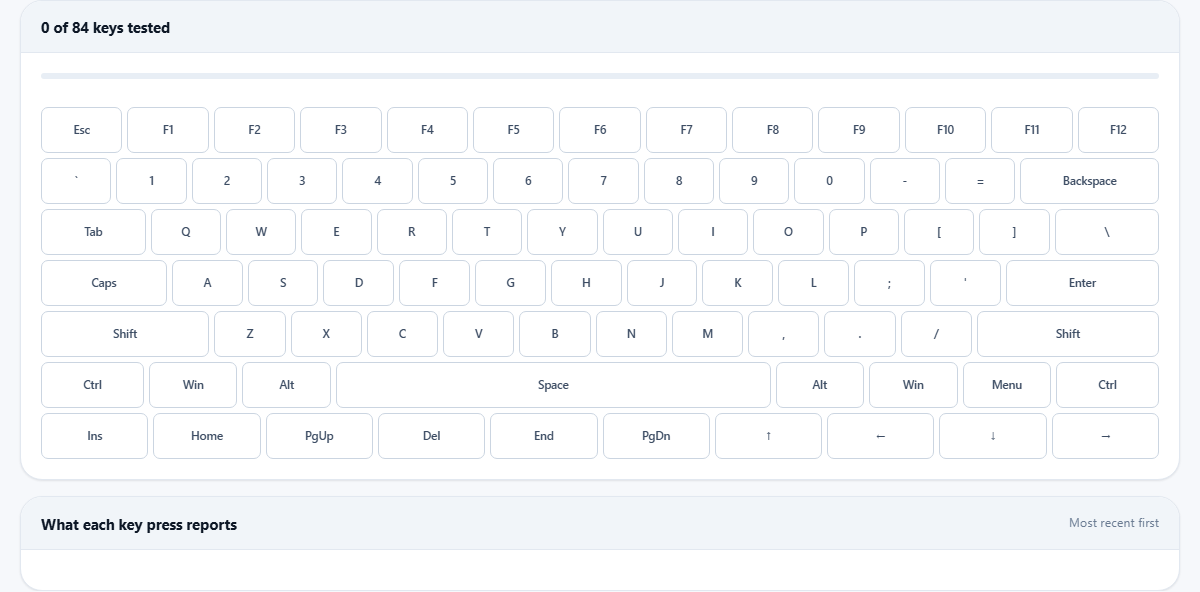
Start at the top left and work to the right, row by row. Each key lights up solid while you hold it and stays highlighted after you let go. A key that is still grey when you have passed it did not register.
Press each key firmly, but you do not need to hammer it. If it registers at all, it registers. What you are looking for is the gap in the pattern: the one grey square in a row of coloured ones.
Do not forget the spacebar. It is the widest key on the board and gets hit harder than anything else. It is also held in place by a stabiliser bar that can bend or pop loose. Press it on the left end, the right end, and the middle. If one end does not register, the stabiliser is the likely culprit.
Remember that left and right modifier keys are separate switches. It is common for one Shift key to fail while the other one works fine. Press both. The same goes for both Ctrl keys and both Alt keys. Each side has its own switch and can wear out on its own.
The progress bar and the diagram
A progress bar at the top fills in as you go. It counts how many of the keys shown on the diagram you have pressed at least once. When every one has been pressed, the bar reaches the end and the sweep is complete.
The diagram shows a standard keyboard layout. If your keyboard has a number pad, those keys are not drawn on the diagram, but they still register. When you press one, a note appears telling you that the key was received even though it has no place on the picture. Media keys, volume keys, and other special buttons work the same way. They are picked up and reported in the list underneath even if the diagram has no square for them.
Press Start over at any time to clear all the highlights and run the sweep again from nothing.
Keys the browser will not hand over
Some keys belong to the browser or the operating system, and a web page is not allowed to intercept them. F5 refreshes the page. F11 toggles full screen. F12 opens developer tools. Key combinations like Ctrl+W close the current tab.
These keys will not light up no matter how many times you press them. That is not a fault in the keyboard. The keys are working. They are simply grabbed before the page ever sees them.
Volume keys and brightness keys are handled even earlier, by the operating system itself. They never reach the browser at all. Power buttons and sleep buttons are in the same group.
If one of these is the key you suspect, test it outside this page. Press F5 and see if the page reloads. If it does, the key is fine. Press a volume key and see if the system slider appears. Same conclusion.
When a key stays down
The test watches for keys that seem stuck. If a key reports as pressed and stays in that state for more than five seconds without a matching release event, a warning appears. It names the key and tells you it has been held down for too long.
This catches the most common physical fault on older keyboards. A switch jammed closed by a crumb, a grain of grit, or a spill that dried sticky will send a press signal and never send the release. The computer thinks you are holding the key, but you are not.
If the warning appears and your hands are off the keyboard, turn it upside down and give it a gentle shake. Compressed air blown underneath the keycap also helps. If the key keeps doing it, the switch mechanism has probably failed and the key needs replacing or the keyboard needs retiring.
The log underneath the diagram
Below the keyboard picture sits a list under the heading What each key press reports. Every key you press adds a line, with the most recent at the top.
Each entry shows the information the browser provides about that key event. This matters most when the problem is not a dead key but a wrong one. If you press the key marked A on your keyboard and the report says it came through as Q, the key itself is fine. The issue is a keyboard layout or language setting in your operating system.
The test matches keys by their physical position on the board, not by the character printed on the keycap. That means it works correctly on any layout. A keyboard set to French, German, or Dvorak still lights up the right squares. The label on the diagram may not match your keycap, but the test is tracking position, and position is what matters for finding a dead switch.
A worked example with a second-hand board
You plug in a mechanical keyboard you bought used. Click the page to give it focus. Start pressing keys from the top left corner.
Escape lights up. F1 through F4 light up. F5 does not, but you know that is the browser grabbing it. Move on. The number row goes through clean. Both Shift keys work. All twenty-six letters are good.
At the bottom row, you hit the right Ctrl key and nothing happens. No highlight, no log entry. You press the left Ctrl and it responds right away. That tells you the right Ctrl switch is dead. The keyboard works, but that one key does not.
You also notice the right arrow key lights up but takes noticeably more force than the others. The test says it registered, so the switch is not dead yet, but it is stiffer than it should be. That is a key on the way out.
The whole check took about ninety seconds. You now know two things about this board before you decide whether to keep it. Press Start over if you want to clear the diagram and try the sweep again to confirm what you found.
Your keystrokes never leave the page
Every key press is handled inside your own browser and thrown away the moment it has been drawn on the diagram. Nothing is stored. Nothing is sent to any server. There is no account, no log file, and no record of what you pressed.
That matters more here than it does for most tools. A keyboard tester that transmitted keystrokes to a remote server would be doing the same job as a keylogger. This page does not do that. You can confirm it yourself: open the page, disconnect from the internet, and press keys. Everything works the same way, because there was never a connection to anything.