
Understanding what your browser tells every site it visits
What the browser and system information page shows you, why the user agent string is such a mess, what the hardware and network figures mean, how to use the feature support list, and why some fields are deliberately blank.
The question it answers
A support agent asks you what browser you are using. A website says it needs a feature yours does not support. A form asks for your operating system and you are not sure which version you are on. These are the moments this page is for.
It reads the information your browser already shares with every website you visit and lays it out in plain language. Nothing is collected and nothing is sent anywhere. You are simply seeing what is already visible to every page you open, gathered in one place so you do not have to dig through menus or run commands.
The headline and what it tells you
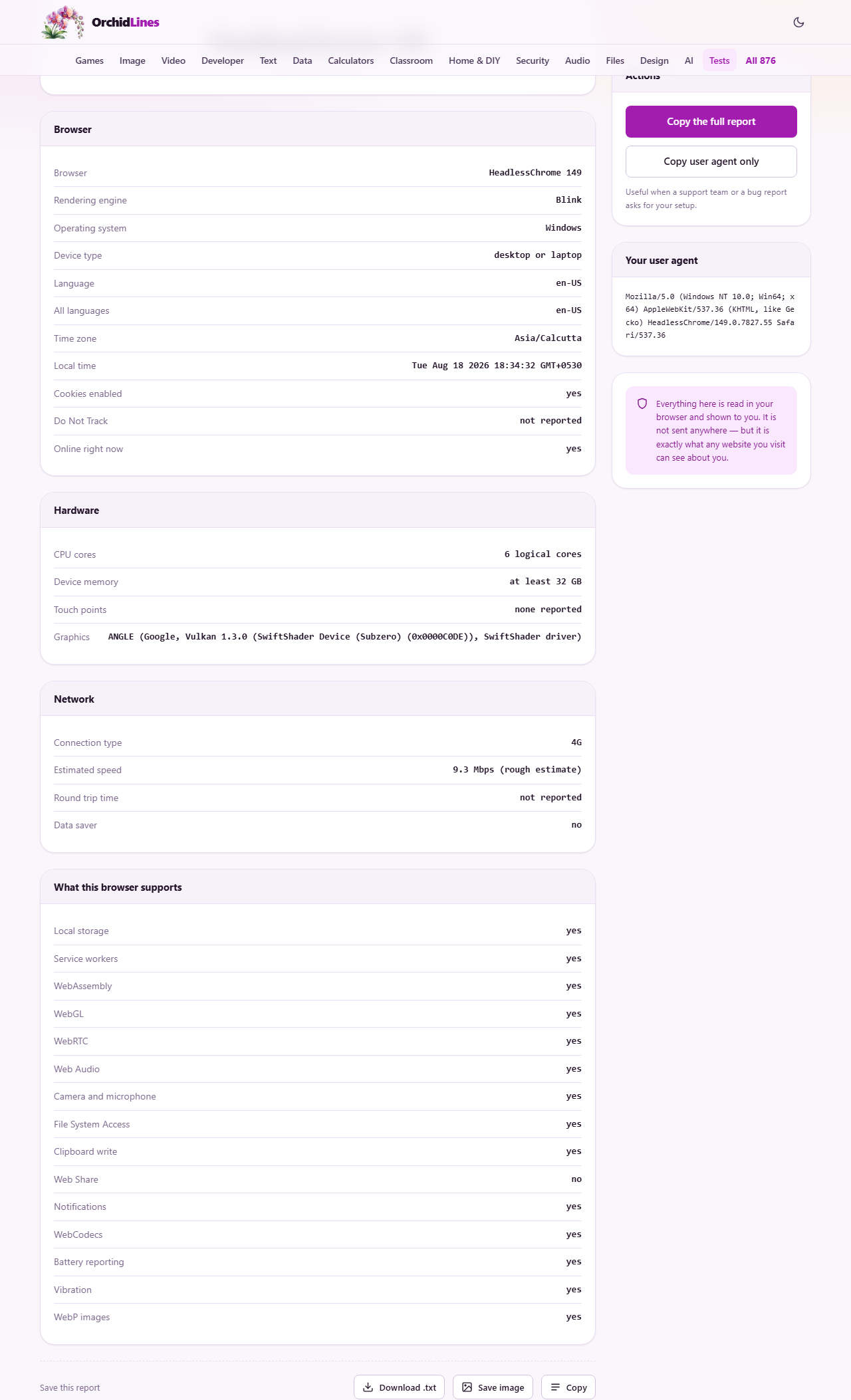
The large text at the top names your browser and its version, and below it says what operating system you are running. This is usually the only answer a support conversation needs. If someone asks you to paste it, the Copy the full report button puts the whole lot on your clipboard as plain text, ready for a support ticket or a bug report.
There is also a Copy user agent only button that grabs just the raw user agent string. Some technical support forms have a specific field for it, and pasting the raw string saves everyone a round of follow-up questions.
Why the user agent string looks so strange
In the sidebar, under Your user agent, sits a long string that probably mentions Mozilla, Chrome and Safari even if you are using none of those. This is not a mistake. It is decades of history piled on top of itself.
Long ago, websites started checking the user agent string to decide which features to offer. A browser that was not recognised would get a stripped-down page or an outright block. So every new browser added the names of the browsers that came before it, pretending to be all of them at once so that no website would turn it away. None of them can stop now, because removing those names would break older sites that still check for them.
Browsers are slowly freezing the user agent string and moving to a cleaner system instead. The page uses that newer system where it can, which is why the friendly name at the top is often more accurate than the raw string underneath.
The sections below the headline
The page groups its findings into several panels. Browser information covers the engine, the version, the language your browser is set to, and whether cookies and JavaScript are enabled. Hardware shows the number of processor cores, the amount of memory the browser is willing to report, and the screen size and colour depth. Network gives a rough idea of your connection type and speed.
Each row uses a plain label rather than a technical name. You do not need to know what navigator.hardwareConcurrency means to understand that the number next to Processor cores is how many your machine has. Where a value is not reported, the page says so rather than guessing.
What the hardware numbers mean
Processor cores is the number the browser says it has. On most machines this matches the logical core count, which includes both real cores and any threads that share a core. A four-core laptop with two threads per core will typically show eight.
Device memory is reported in wide bands. The browser rounds down to the nearest power of two: one, two, four or eight gigabytes. A machine with twelve gigabytes of RAM will usually say eight. This is deliberate. The value is meant to help a page decide how aggressively to cache things, not to identify the exact hardware. Some browsers do not report it at all.
Screen resolution shows the physical pixels, and device pixel ratio shows how many physical pixels make up one logical pixel. A ratio of two means a high-density display where everything is rendered at twice the resolution. A phone with a 1080 pixel wide screen and a ratio of three has 360 logical pixels across, which is why phone websites look different from desktop ones even when the screen is physically wide.
The network estimate
The connection type and speed shown here are not from a speed test. The browser guesses them from recent activity, looking at how fast recent downloads and page loads went. The result is a rough hint, not a measurement. It tells you whether the browser thinks you are on a fast connection or a slow one, and the guess can lag behind reality if your conditions changed recently.
If you need an actual speed measurement, a dedicated speed test is the right tool. The number here is more like a weather vane than a thermometer.
The connection type field, when it appears, says things like 4g or wifi. This comes from the Network Information API, which not every browser supports. Where it is missing, the page leaves it out rather than guessing. Even when it is there, the label describes what the browser thinks the connection behaves like, not necessarily the physical medium it is using.
Feature support and what to do about gaps
The last section lists web features and says whether your browser supports each one. These are the building blocks that websites use: things like WebGL for 3D graphics, WebAssembly for running compiled code, service workers for offline support, and various media codecs.
Most of them are optional extras. A feature marked as not supported does not mean your browser is broken. It means that particular ability is not available, and the vast majority of websites will never ask for it. The list matters when a specific site tells you something is not working and names a feature it needs.
The fix is almost always to update the browser. New features arrive with new versions, and old versions stop receiving them. If you are several versions behind the current release, updating is worth doing for security alone, and any missing features will arrive with it.
Occasionally a feature is supported but disabled behind a flag. Browser flags are experimental settings that advanced users can turn on, but for most people the right approach is to wait for the feature to ship as a default. If a site demands a feature that is only available behind a flag, that site is asking too much of its visitors.
Blank values are a feature, not a fault
Some fields say Not reported. That usually means the browser chose not to share the information, not that something went wrong. Modern browsers are steadily reducing how much they reveal, because every piece of data that a page can read makes it a little easier to identify a specific device.
The combination of your browser version, operating system, screen size, language, installed fonts, timezone and the list of supported features is surprisingly unique. Research has shown that for most visitors this combination is enough to single them out, even without cookies. Browsers that refuse to share the exact operating system version, or that round the memory figure, are making that combination less precise on purpose.
The page shows you what is visible and is honest about what is not. Where a value is withheld, it says so, and that is worth knowing in itself because it means the same value is withheld from every other site you visit.
Using the report for support requests
When a website does not work and you need to file a support ticket, the report saves a round of back and forth. Press Copy the full report, paste it into the ticket, and the support team has everything they need in one block: browser name and version, operating system, screen size, and which features are supported.
If the agent asks specifically for the user agent string, the Copy user agent only button gives you just that, without the rest of the report. Some bug tracking systems parse the user agent string automatically, and pasting only the string keeps the automation working.
Your information stays on your screen
Everything shown on the page is read locally by your browser and displayed to you alone. No data is uploaded, no report is stored, and no fingerprint is built. The irony is that this is exactly the same information any website you visit can already see. Showing it to you openly is the honest version of what normally happens silently in the background.