
Everything your browser knows about your display
When a support agent asks for your screen resolution, or a game wants to know your refresh rate, digging through system settings is slow and confusing. This page reads every detail your browser already knows about the display it is running on and puts it in front of you in plain language. No software to install, no sign-up, and nothing is ever sent to a server.
What this page actually measures
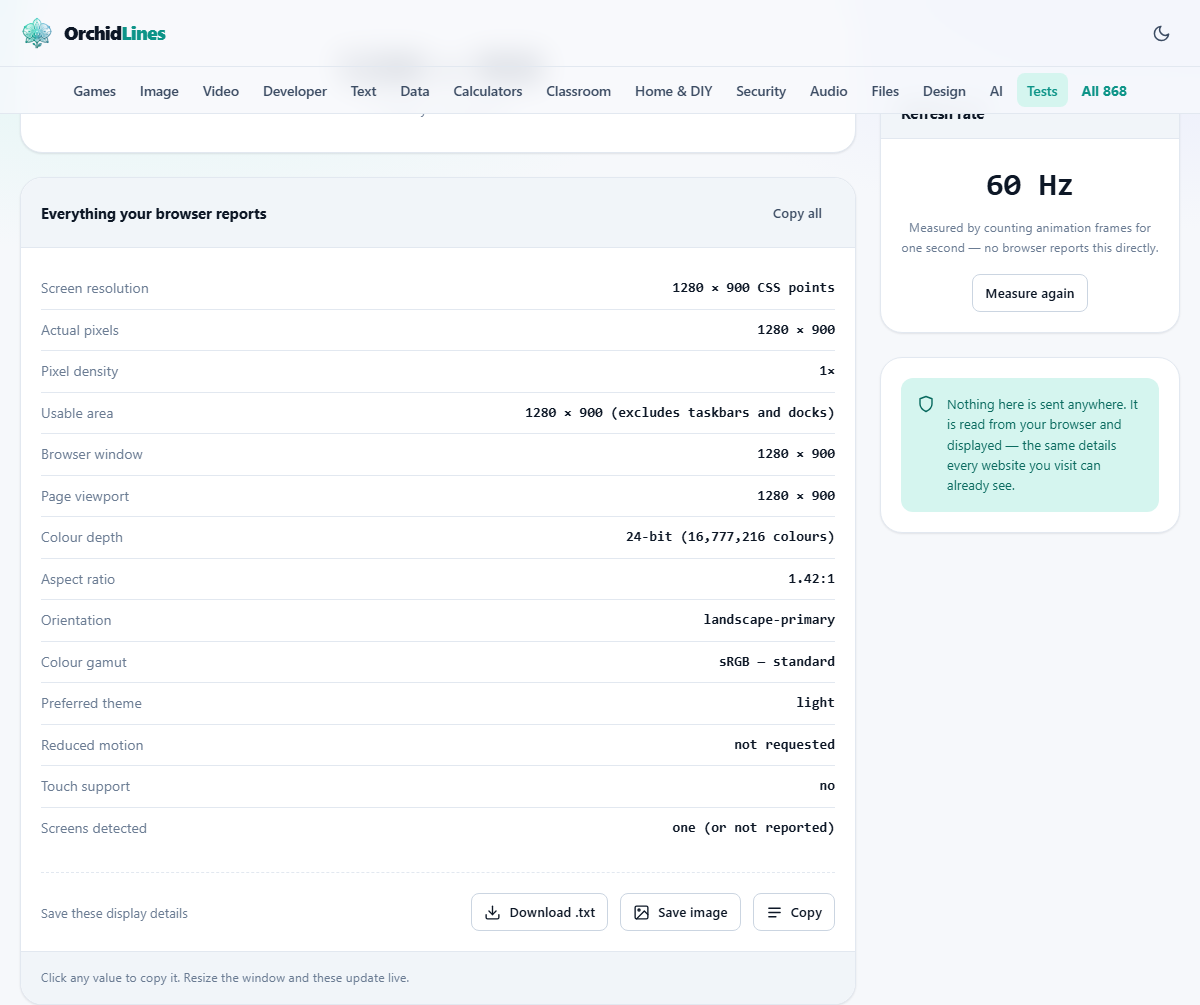
The tool reports five groups of information: the screen resolution in CSS points, the pixel density that maps those points to real hardware pixels, the usable area after the operating system takes its share for the taskbar or dock, the viewport size that a web page actually gets to draw in, and the refresh rate of the display. All of these are read from the browser itself, so they are accurate for the screen you are viewing right now.
Most people visit because someone asked them a question they could not answer: what resolution is this monitor, or how many hertz is this display. The answer is the big number at the top. Everything else on the page provides context for people who want to dig deeper, such as designers choosing export sizes or developers testing a layout.
Who needs this information
Tech support is the most common reason. A customer service agent asks for your screen resolution so they can reproduce a layout bug you reported. A game settings guide tells you to match the native resolution of your monitor, and you have no idea what it is. A colleague wants to know your viewport width so they can test a responsive breakpoint.
Designers and front-end developers visit for a different reason. They need to know the pixel density so they can export images at the right multiplier, or they want the exact viewport dimensions to build a media query. Photographers preparing images for the web check the physical pixel count to make sure their exports are sharp on high-density screens.
The big number and what it really means
The headline figure is your screen resolution in CSS points. On a standard-density monitor, this matches the hardware pixel count. On a high-density display, it is smaller. A laptop that advertises itself as having a 2880 by 1800 screen will often report 1440 by 900 here, because the operating system scales everything by a factor of two so that text stays readable.
This is not a mistake. The CSS-point figure is what almost everyone asking for your resolution actually wants. It describes how large things look on your screen, not how many tiny dots the panel contains. The pixel density reading below it tells you the multiplier, so you can always work back to the physical count by multiplying the two together.
Pixel density, and why it matters for images
If the pixel density says one, every CSS point maps to a single hardware pixel. If it says two, each point is drawn with a two-by-two block of four real pixels. Three means a three-by-three block of nine. This is why a photo that looks sharp on an old monitor appears soft on a newer phone: the phone is spreading the same number of pixels across a smaller fraction of its screen.
When you are preparing images for the web, the rule is simple. An image that will fill a 400-point-wide slot on a two-times display needs to be 800 pixels wide to look sharp. The page shows both the point resolution and the density, so the arithmetic is right there. Designers who skip this step end up with blurry logos and thumbnails on modern devices.
Viewport, window and usable area
Three rectangles nest inside each other, and the page reports all of them. The screen resolution is the full panel. The usable area is slightly smaller because the operating system reserves space for the taskbar on the bottom or the dock on the side. The viewport is smaller again because the browser itself takes room for its address bar, tabs and any sidebars you have open.
Web designers care about the viewport because it is the space a page actually gets. If you are told a layout breaks below 768 pixels wide, you can resize your browser window and watch the viewport number change in real time until it crosses that threshold. The values update live whenever the window is resized or a phone is rotated, which saves a lot of trips to the system settings.
Refresh rate and how it is measured
No browser exposes the refresh rate as a plain number, so the page measures it by counting animation frames over one second. The result is a close estimate, not a laboratory reading. On a display running at 60 hertz, you will see a figure close to 60. A 120 hertz panel will show roughly 120. A 144 hertz gaming monitor will land near 144.
There is one common trap. If the tab is in the background while the measurement runs, the browser throttles animation to save power and the figure comes out far too low. The page warns you when this happens and shows the Measure again button. Click it with the tab in the foreground and the number will settle to something sensible. Battery saver modes can also cap the rate at 60 hertz even on a faster panel, so keep that in mind if the reading seems surprisingly low.
A quick walkthrough
Open the page on the device you want to check. The resolution appears immediately at the top. Below it, a table labelled Everything your browser reports lists every value in a single place. Click any value in the table to copy it to your clipboard, which is handy when you need to paste it into a support chat. The Copy all button at the top of the table copies every line at once.
Scroll down to the side panel for the refresh rate. It takes about a second to settle. If you suspect the figure is wrong, click Measure again and make sure the tab stays in the foreground. That is the whole process. There are no settings to adjust and nothing to configure because the page simply reads and displays what the browser already knows.
Common questions and tricky results
The most frequent confusion is a resolution that seems too small. Someone who bought a 4K monitor sees 1920 by 1080 and assumes the page is broken. It is not. The operating system is scaling the display at two times, so the CSS-point resolution is half the physical one. Multiply the reported number by the pixel density and the expected 3840 by 2160 appears.
Another common question is about multi-monitor setups. Browsers only expose the screen the window is currently displayed on. If you have two monitors and want to check both, move the browser window to the other screen and the numbers will update. There is no way for a web page to read a monitor it is not being shown on without asking for a special permission that most people have not granted.
Privacy and what stays on your device
Everything this page reports is information that your browser shares with every website you visit. Resolution, viewport, pixel density and colour depth are part of the standard set of details a page receives the moment it loads. This tool simply writes those details out where you can see them, rather than using them silently in the background.
Nothing is sent to any server. There is no account, no sign-up, and no tracking beyond what the site discloses in its privacy policy. The page works entirely inside your browser, and closing the tab is the end of it.
When a different tool is the better choice
This page answers the question about your display. If you need to test whether your speakers work, the speaker test covers left, right and frequency sweeps. If you want to check that your touchscreen responds across the entire surface, the touchscreen test has a coverage grid for that. And if you are trying to measure your typing speed rather than your monitor, the typing speed test is in the same category.
For checking the actual colour accuracy of a display, this page can tell you the colour depth but not how well the panel reproduces those colours. That kind of test needs a hardware calibrator, not a web page. What this page can do is give you every number your browser makes available, quickly and without fuss.