
Checking that both speakers work and sound right
When one speaker is dead, or your headphones are on the wrong way round, you notice something is off but you cannot quite tell what. This page makes the answer obvious. It plays sound through one channel at a time, sweeps the full frequency range to find rattles, and pans audio from left to right so you can hear whether both sides are balanced. Everything runs inside the browser, nothing is uploaded, and there is nothing to sign up for.
What the tool tests
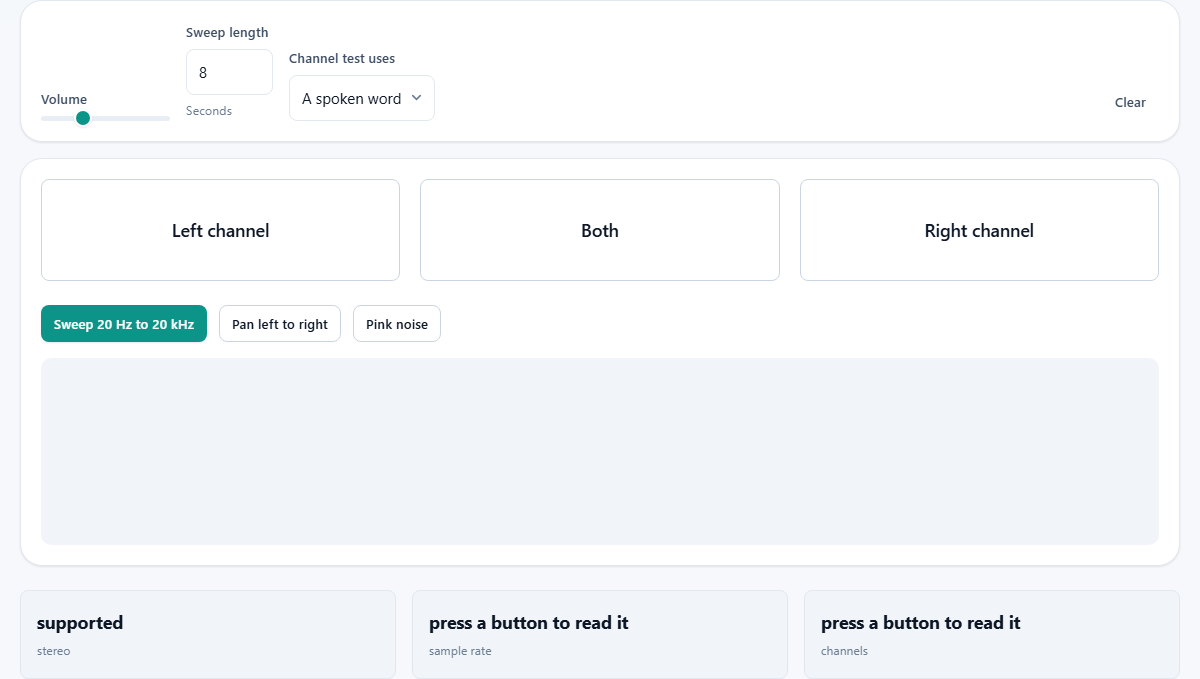
The page tests three things about your audio output. First, it confirms that each channel works by playing a sound through the left speaker only, the right speaker only, or both together. Second, it sweeps a tone from 20 hertz up to 20 kilohertz to reveal frequencies where something buzzes or rattles. Third, it pans a continuous tone from one side to the other so you can hear whether the two channels are balanced and in phase.
These three checks cover the problems people run into most often: a dead channel, headphones worn the wrong way round, a loose part that vibrates at a certain pitch, and an imbalance where one side is quieter than the other. Running through all three takes less than a minute.
Who benefits from a speaker check
Anyone who just plugged in a new pair of headphones or external speakers should run a quick channel test. It takes seconds and catches a wiring fault or a reversed pair before you spend an hour wondering why a podcast sounds strange. People setting up a home office with a monitor that has built-in speakers often discover that one side is muted in the system mixer, and a channel test makes that instantly clear.
Musicians and podcasters use the frequency sweep before a recording session to check that their monitoring speakers do not have a rattle that would colour what they hear. And people buying used headphones can run the sweep to confirm both drivers are healthy before committing to the purchase.
Every control on the page
The Volume slider runs from zero to one hundred percent and defaults to thirty. Keep it low at first, especially with headphones. The Sweep length field sets how many seconds the frequency sweep takes, from two to thirty, with eight as the default. A longer sweep makes it easier to pinpoint the exact frequency of a rattle because the tone moves more slowly through each range.
The Channel test uses dropdown offers three options. A spoken word plays a short voice sample, which makes it very easy to tell which side you are hearing. A tone plays a steady sine wave, which is simpler and avoids any confusion about what you are listening for. Noise plays a burst of broadband noise, which some people find more natural for judging balance. The Clear button resets any results or logs.
The channel buttons and what to listen for
Three large buttons sit in a row: Left channel, Both, and Right channel. Press Left channel and sound should come from your left speaker or your left ear only. If you hear it on the right, your headphones are on the wrong way round. Press Right channel and confirm the sound appears on the right. Press Both and confirm both sides play at roughly equal volume.
This simple test catches a surprisingly common problem. Many people wear over-ear headphones backwards for months without realising it. The stereo image in music, games and films is quietly reversed the whole time, and everything sounds slightly wrong without being obviously broken. A single tap of the Left channel button settles the question.
The frequency sweep and finding rattles
The Sweep 20 Hz to 20 kHz button plays a tone that starts at the lowest frequency humans can hear and rises steadily to the highest. As it climbs, listen for any sudden buzz, rattle, or vibration that was not there a moment before. If you hear one, it will be tied to a narrow band of frequencies.
Almost every time, that rattle is not the speaker itself. It is something nearby resonating at that pitch: a loose panel on the desk, a screw in the laptop case, a glass on the shelf, or an object resting against the speaker. Move the speaker, put something soft under it, or tighten whatever is loose, and the rattle usually moves or disappears. A genuine driver fault sounds different. It produces a dry crackle or distortion that gets worse with volume and appears across many frequencies rather than just one. The sweep is good at telling these two apart.
Pan and pink noise
The Pan left to right button plays a tone that moves smoothly from the left channel to the right and back again. If both speakers are working and balanced, the sound should travel in an even arc with no jumps or gaps. A sudden drop in volume partway through the pan suggests one channel is quieter than the other, which can point to a driver starting to fail or a system setting that has shifted the balance.
The Pink noise button plays a continuous signal that contains every frequency at an even loudness. It sounds like a soft hiss. The reason it is useful is that your ear is very good at comparing two things that should sound the same. Play pink noise through both channels, cup one ear and then the other, and any difference in brightness or fullness between the two sides becomes obvious. A channel that sounds thinner or duller has either a frequency response problem or a volume imbalance.
Step-by-step walkthrough
Set the volume to around thirty percent. Press Left channel and confirm the sound is only on the left. Press Right channel and confirm the right. Press Both and check that the volume is even. If you are wearing headphones, you now know they are the right way round.
Next, press Sweep 20 Hz to 20 kHz. Listen for rattles or buzzes as the tone climbs. Note any frequency that triggers something. If you hear a buzz, try pressing a hand on the surface near the speaker to damp it. If the buzz stops, the speaker is fine and the surface is the problem. After the sweep, press Pan left to right and listen for smooth, even movement. Finish with Pink noise and compare the two sides. If everything sounds clean and balanced, your speakers are in good shape.
Common issues and what they mean
Hearing nothing at all is usually a system volume or routing problem, not a speaker fault. Check that your operating system is sending audio to the right device. On laptops, plugging in headphones sometimes fails to switch the output, and the sound keeps going to the internal speakers while the headphones stay silent.
Hearing nothing at the low end of the sweep is normal for small speakers. Laptop speakers and phone speakers physically cannot move enough air to produce deep bass. You may feel a faint vibration before you hear any tone. That is not a fault. It is the speaker doing the best it can with the size it has. A subwoofer or a pair of over-ear headphones will reach those lower frequencies without trouble.
- One side is quieter than the other. Check the system balance slider before suspecting the hardware. Many operating systems let you shift the balance without making it obvious.
- Sound crackles at high volume on every frequency. The speaker is being overdriven. Turn the volume down and the crackle should disappear. If it stays at low volume, the driver may be damaged.
- The sweep sounds fine but music sounds wrong. That can be a phase problem where the two channels are wired in opposite polarity. The pan test often makes this easier to hear because the centre image collapses when the channels are out of phase.
Privacy and how the sound is made
All the tones, noise and spoken samples are generated or played inside the browser using the Web Audio interface. No audio files are downloaded from a server during testing. Nothing you hear, and nothing about your device, is sent anywhere. The page works entirely offline once it has loaded, and there is no account or login involved.
The volume control on the page works on top of your system volume. If your system is set to full volume, thirty percent on the page slider can still be quite loud through headphones. Start low and raise it.
When a different tool fits better
This page checks the output side of audio. If you want to test a microphone instead, that is a separate concern and needs a recording tool. If the question is about your display rather than your speakers, the screen info page reports resolution, pixel density and refresh rate. The touchscreen test checks whether every area of a phone screen responds to touch, and the sensor test reads the accelerometer and gyroscope.
For professional studio monitoring, a frequency sweep in a browser gives a useful rough picture but does not replace a calibrated measurement microphone and room correction software. What this page does well is answer the everyday questions quickly: are both sides working, which side is which, and is anything rattling.