
Testing the motion sensors inside a phone
Every modern phone carries an accelerometer, a gyroscope and usually a magnetometer. Together they tell apps which way the device is tilted, how fast it is turning, and roughly which direction it is facing. This page reads all three sensors live, draws a spirit level and a compass, and shows the raw numbers so you can tell at a glance whether the hardware is working or needs attention. Nothing is uploaded, and it works entirely inside the browser.
What the tool tests and why it matters
The page checks three sensors at once. The accelerometer reports the force acting on the device along three axes, including gravity. The gyroscope reports how fast the device is rotating. The magnetometer, exposed through the browser as a compass heading, reports which direction the device is pointing. Games, navigation apps, fitness trackers and screen rotation all depend on these sensors, so a fault in any one of them can cause problems that seem unrelated.
A common reason to visit is that the screen stopped rotating, a game no longer responds to tilt, or a compass app gives wild readings. Testing the raw sensor here tells you whether the problem is the hardware or the software that uses it. If the accelerometer reads steady values on this page while a game ignores tilt, the sensor is fine and the problem is in the game.
Who needs a sensor test
Anyone buying or selling a used phone should check the sensors before the deal closes. A cracked screen can knock out the accelerometer without producing any obvious symptom until someone tries to use a spirit level or play a racing game. Repair shops test sensors after replacing a screen to make sure the ribbon cable that carries the sensor data was reconnected properly.
Developers working on motion-based apps use this kind of page to verify that the browser is actually delivering events before they start debugging their own code. And ordinary phone owners visit when auto-rotate stops working and they want to know whether a restart will fix it or whether the hardware is genuinely broken.
Granting permission and the secure connection requirement
On most phones, the browser will not share motion data with a page until the user taps a permission button. The page shows an Allow sensors button for exactly this reason. Tap it, and the browser presents its own prompt asking whether you agree. Once you allow it, the readings appear immediately.
There is a second requirement that catches people on local test pages: the connection must be secure. Browsers block motion and orientation events on plain HTTP. If you see the permission notice but tapping the button does nothing, check that the page loaded over HTTPS. On the live site this is always the case, but someone running a local copy during development may need to set up a certificate first.
Every control on the page
The Smooth the readings checkbox applies a low-pass filter to the raw data. With it on, the numbers settle down and the level moves gently. Turn it off and you see every tiny vibration the sensor picks up, which is useful when you want to confirm the sensor is alive but not very readable for everyday testing.
The Shake threshold field sets how hard you need to shake the phone before the page registers a shake event. It is measured in metres per second squared. The default of 15 is moderate. Lower it if you want gentler shakes to count, or raise it if you only want hard jolts to register. The Clear button resets all the accumulated readings and the shake log so you can start fresh.
Reading the level and the compass
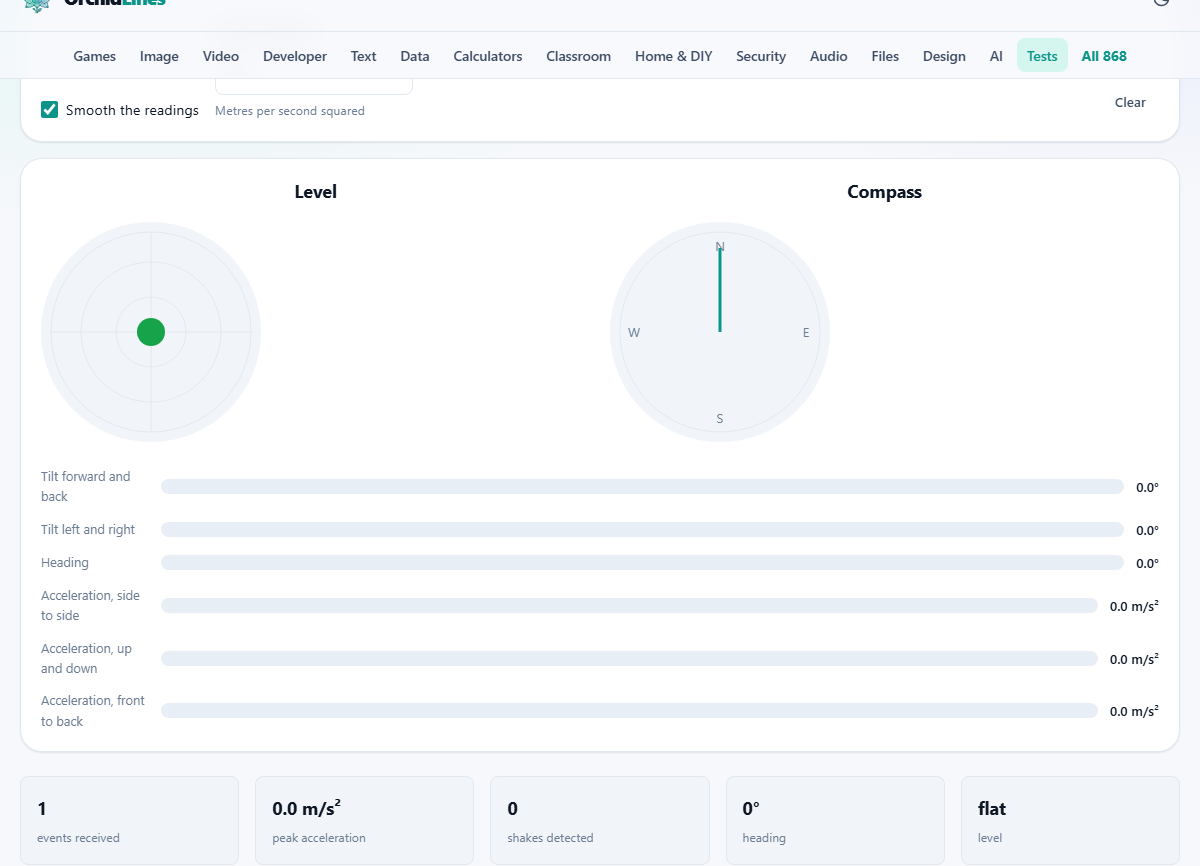
The spirit level is a circle with a dot in the middle. Lay the phone flat on a surface and the dot should sit dead centre. If it drifts to one side, either the surface is not level or the accelerometer needs calibrating. Tilt the phone and the dot tracks the tilt in real time. A dot that jumps around while the phone is perfectly still points to a sensor that is struggling.
The compass shows a needle and a heading in degrees. It works, but with a long list of caveats. The heading comes from the operating system blending the magnetometer with the gyroscope, and on many devices it reports the direction relative to where the phone was when the page loaded rather than to true north. Anything magnetic nearby, a laptop, a speaker, a car mount with a magnet, will throw it off. Wave the phone in a figure-of-eight pattern to help the magnetometer calibrate, and treat the compass as a sensor check rather than a navigation tool.
How to read the raw numbers
Below the level and compass, bar graphs show the live values for each axis. The accelerometer reads three axes labelled X, Y and Z. When the phone is lying flat and still, the Z axis should read close to 9.8, which is the force of gravity in metres per second squared. The X and Y axes should be near zero. If the Z reading is far from 9.8, the accelerometer is poorly calibrated or faulty.
The gyroscope bars show rotation speed on the same three axes. A phone sitting on a desk should show values very close to zero. Pick it up and twist it and the numbers jump. If the gyroscope bars are moving while the phone is completely still, the sensor has a drift problem. That kind of drift will make games and augmented reality apps misbehave.
Step-by-step walkthrough
Open the page on your phone. Tap Allow sensors and confirm the browser prompt. Lay the phone flat on a table and wait two seconds. Check that the level dot is centred and the Z accelerometer bar reads near 9.8. Tilt the phone to the left and watch the X bar swing. Tilt it forward and watch the Y bar. Rotate it flat on the table and watch the compass needle follow.
Now pick the phone up and shake it firmly. If the shake threshold is set to the default of 15, a moderate shake should register and appear in the log. Try turning Smooth the readings off to see the raw jitter, then turn it back on. If all three sensors respond and the numbers look sensible, the hardware is fine. If one sensor stays at zero or jumps wildly while the phone is still, that sensor has a problem.
Common problems and what they mean
The most common issue is seeing nothing at all. This almost always means permission was denied, the page is not on a secure connection, or the device simply does not have sensors. Desktop computers and most laptops have none of these sensors, so the page will be blank on those devices. That is expected, not a fault.
A compass that spins or reads nonsense is the second most common report. Magnetometers are easily confused by nearby magnets. Phone cases with magnetic clasps are a frequent culprit. Remove the case, move away from any metal objects, wave the phone in a figure-of-eight, and try again. If the compass is still wild after all that, the magnetometer may be damaged.
Privacy and data handling
Motion sensor data is read by the browser and displayed on this page. It is not recorded, stored, or sent to any server. The permission you grant is between your browser and this page, and you can revoke it at any time through your browser settings. Closing the tab ends all sensor access immediately.
The reason browsers require a permission tap is that motion data can in theory be used as a fingerprinting signal. This page asks for access only because it needs it to do its job, and it does nothing with the readings except show them to you.
When another tool fits better
This page tests the sensors that detect motion and orientation. If you want to check whether your touchscreen responds across the full surface, the touchscreen test has a coverage grid designed for that. If the question is about your screen resolution or refresh rate rather than the physical sensors, the screen info page covers that. And if you want to check your speakers or headphones, the speaker test handles left, right, and frequency sweeps.
For serious calibration work beyond what a browser can show, dedicated apps from the phone maker are sometimes needed. What this page does well is give you a quick, honest reading of whether the sensors are alive and roughly accurate, without installing anything or handing over any data.