
Getting real measurements from a screen ruler
Why an on-screen ruler is wrong by default, how calibrating with a bank card fixes it, what pixels per inch means in practice, and what you can and cannot measure once the ruler is accurate.
The problem with browser pixels
A CSS pixel is defined as one ninety-sixth of an inch. If that were true on every screen, drawing a ruler would be simple: 96 pixels across would always equal one inch. But no real screen follows that rule.
A 27-inch desktop monitor at 2560 pixels wide has about 109 pixels per physical inch. A 14-inch laptop at 1920 pixels wide has around 140. A modern phone can have over 400. The CSS definition is a convenient fiction that makes web layouts work at any size, but it means that a ruler drawn at the browser default is wrong on nearly every device.
On a typical laptop the error is large enough to notice with the naked eye. A centimetre on screen might actually be seven millimetres on the desk. That is not close enough for anything useful, which is why calibration is the first step, not an optional extra.
Calibrating with a bank card
Every bank card, credit card and most national ID cards in the world are exactly 85.60 millimetres wide. This is set by an international standard called ISO/IEC 7810, and manufacturers follow it to a tenth of a millimetre. You almost certainly have one in your pocket, which makes it the most convenient precision reference available.
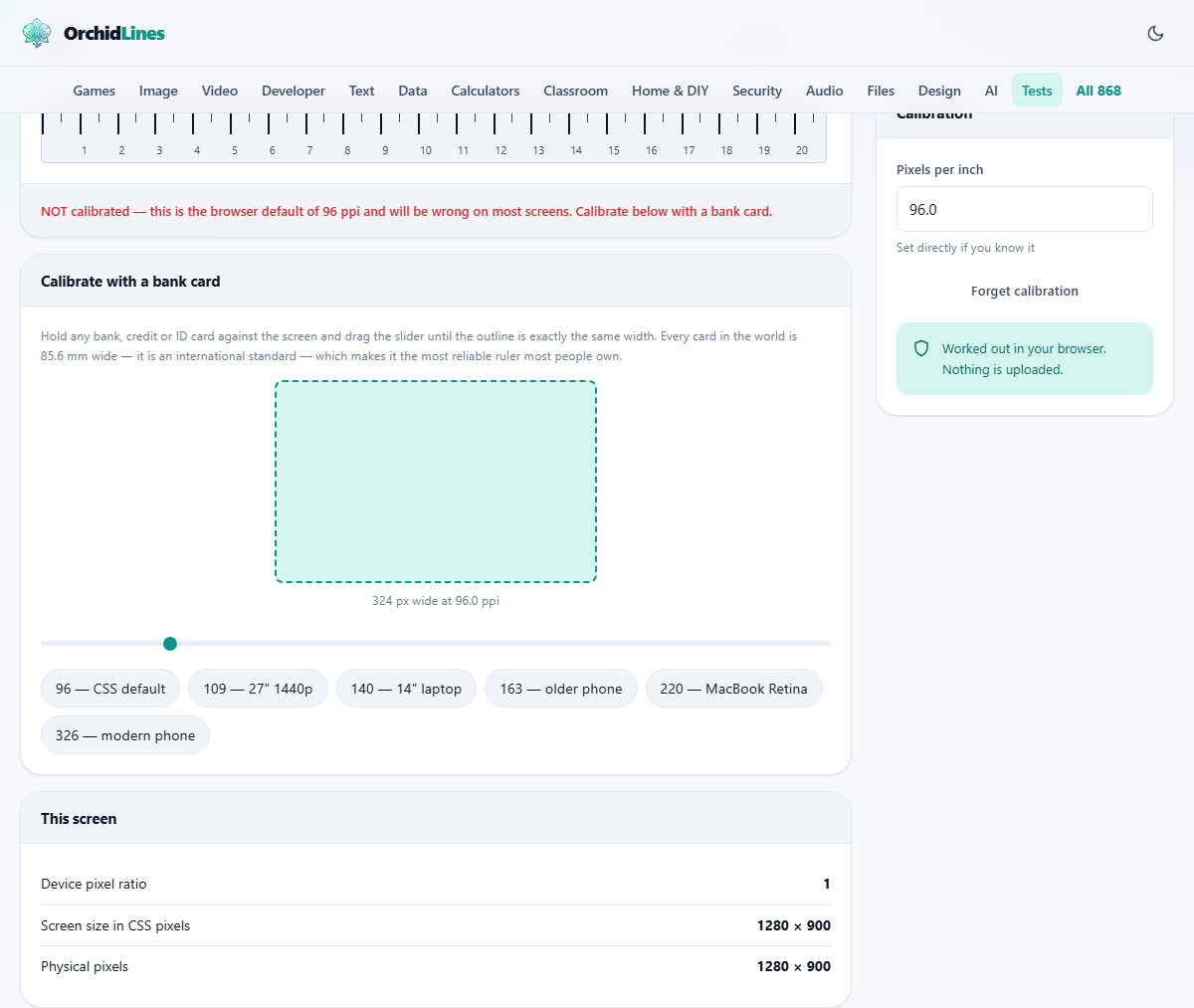
Hold a card against the outline on the screen and drag the calibration slider until the outline matches the card exactly. That one adjustment tells the tool how many real pixels fit into a known distance on your display. From that, it can draw every centimetre and inch at the correct size.
The calibration is saved in your browser. Next time you open the page on the same device, the ruler is already correct. A different device, or a different screen on the same computer, needs its own calibration because its pixel density is genuinely different.
Pixels per inch and the preset chips
The settings panel shows a field labelled Pixels per inch. If you already know the figure for your display, you can type it in directly. The card calibration arrives at the same number by a different route.
Below the slider sits a row of preset buttons for common configurations. The 96 chip is the CSS default, which is correct only on a handful of old desktop monitors. The 109 chip fits a typical 27-inch 1440p display. The 140 chip is close to many 14-inch laptops. The 220 chip matches a MacBook Retina, and 326 fits a modern phone.
Pressing a preset jumps the slider to that spot, which is useful when you know your hardware but do not have a card handy. The card method is still more accurate because your exact display may differ slightly from the round number.
Switching between centimetres and inches
The dropdown at the top of the ruler panel switches the scale between centimetres and inches. Both use the same underlying calibration, so switching is instant and does not require a new measurement.
Centimetres are the default and suit most of the world. Inches are there for anyone working with American paper sizes, woodworking plans in imperial units, or hardware that is sized in fractions of an inch. The ruler marks subdivisions clearly in both systems.
The screen information panel
Below the calibration section is a panel labelled This screen. It shows details about your display as the browser sees it: the reported resolution, the device pixel ratio, and, once calibrated, the true pixels per inch.
The device pixel ratio is a number the browser uses to scale content on high-density screens. On a Retina display it is typically 2, meaning every CSS pixel is backed by a 2x2 block of physical pixels. This ratio is why text looks sharp on a phone even though the CSS dimensions are modest. The ruler takes it into account during calibration, so you do not need to think about it separately.
What you can measure and how accurately
Once calibrated, the ruler is accurate to about a millimetre. That is good enough for many everyday tasks. Checking the length of a screw, confirming the print size of a photograph, measuring a piece of jewellery for an online listing, or seeing whether a phone case will fit a particular model are all within reach.
It is not a precision instrument. The tolerance of the card itself is a fraction of a millimetre, but the slider is set by hand, and the screen's pixel grid sets a hard floor on resolution. On a 109 PPI monitor, each pixel covers about 0.23 millimetres. You cannot read finer than that.
For anything that needs engineering precision, a physical caliper or micrometer is the right tool. The screen ruler fills the gap between having no ruler at all and needing a very good one.
Things that throw the calibration off
- Browser zoom. Zooming in or out changes how many device pixels sit behind each CSS pixel. If you zoom to 110 per cent, the ruler stretches by ten per cent. Keep the page at 100 per cent zoom, or recalibrate at whatever zoom level you use.
- A second monitor at a different resolution. If you drag the browser window to another screen, the pixel density changes and the calibration no longer applies. Recalibrate on the new screen.
- Scaling in the operating system. Display scaling at 125 or 150 per cent changes the device pixel ratio. The calibration accounts for it as long as you calibrate after setting the scale, but changing the scale afterwards will invalidate the ruler.
- Forgetting which device you calibrated on. The calibration lives in the browser storage on a specific device. Opening the same page on a different computer starts uncalibrated, which is correct because the screen is different.
Measuring objects longer than the screen
The ruler cannot stretch beyond the width of your display. For anything longer, you need to measure in stages. Place the object so one end lines up with the zero mark. Note where the screen ends. Slide the object along so the mark you noted is now at zero, and measure the remainder. Add the two figures.
This works but introduces a small error at each join. For a rough measurement it is fine. For anything where a millimetre matters, a tape measure or a straight ruler from a drawer is a better choice. Mark the join with a pencil dot on the object if possible, so you do not lose the spot as you shift it.
Using the ruler on a phone or tablet
The tool works on any device with a browser, and phones are where it is most useful. Phone screens vary enormously in pixel density, from around 260 to over 500 pixels per inch. The CSS assumption of 96 is further from the truth here than anywhere else, which makes calibration especially important.
Hold a card against the screen just as you would on a desktop. The slider is easy to drag with a finger. Once set, you can hold small objects directly against the phone screen and read off the length. This is handy for screws, batteries, memory cards, and anything else you might photograph to sell or order a replacement for.
Forgetting the calibration
The Forget calibration button in the settings panel clears the saved value and returns the ruler to the browser default of 96 pixels per inch. The status line at the bottom of the ruler reminds you that the reading is uncalibrated until you set it again.
You might want to forget the calibration if you have changed your display scaling, switched monitors, or suspect the saved value is wrong. Recalibrating takes a few seconds and a card.
If multiple people share a computer with different external monitors, each person may end up recalibrating when they sit down. That is expected. The ruler can only store one value per browser profile, and each display needs its own. Keeping the same screen connected avoids the issue entirely.
Everything stays on your own device
The ruler is drawn inside your browser. The calibration is stored in your browser's local storage on your own machine. Nothing is uploaded, and there is no server involved. You can verify this by disconnecting from the network and using the ruler normally. It works the same way, because it was never depending on a connection.