
Understanding your screen's real frame rate
What refresh rate means for the picture you see, how this tool counts actual frames rather than trusting the settings panel, what frame time variation reveals that the average hides, and how to use the motion tests to see stutter with your own eyes.
Refresh rate in plain terms
Your screen redraws its picture many times a second. Each redraw is one frame. The number of frames per second is the refresh rate, written in hertz. A 60 Hz screen draws sixty frames every second. A 144 Hz screen draws one hundred and forty-four.
Higher numbers make motion look smoother. A mouse cursor gliding across a 144 Hz display covers more intermediate positions per second than one on a 60 Hz display, so the movement appears more fluid. The same applies to scrolling, video, and games.
The settings panel on your computer will tell you the configured refresh rate. But the number in the settings and the number the screen actually delivers can be different. A cable that cannot carry the bandwidth, a power-saving mode that throttles the display, or a driver that quietly drops back to 60 Hz can all create a gap between the setting and reality. This tool measures what actually arrives.
How the measurement works
The browser provides a function called requestAnimationFrame. Every time the screen is about to draw a new frame, the browser calls that function. The tool timestamps each call and counts how many happen per second.
Because it is tied directly to the display refresh cycle, the count cannot exceed the screen rate. A 60 Hz panel will never show 144 frames, no matter how fast the computer is. The number you see is the effective refresh rate as the browser experiences it.
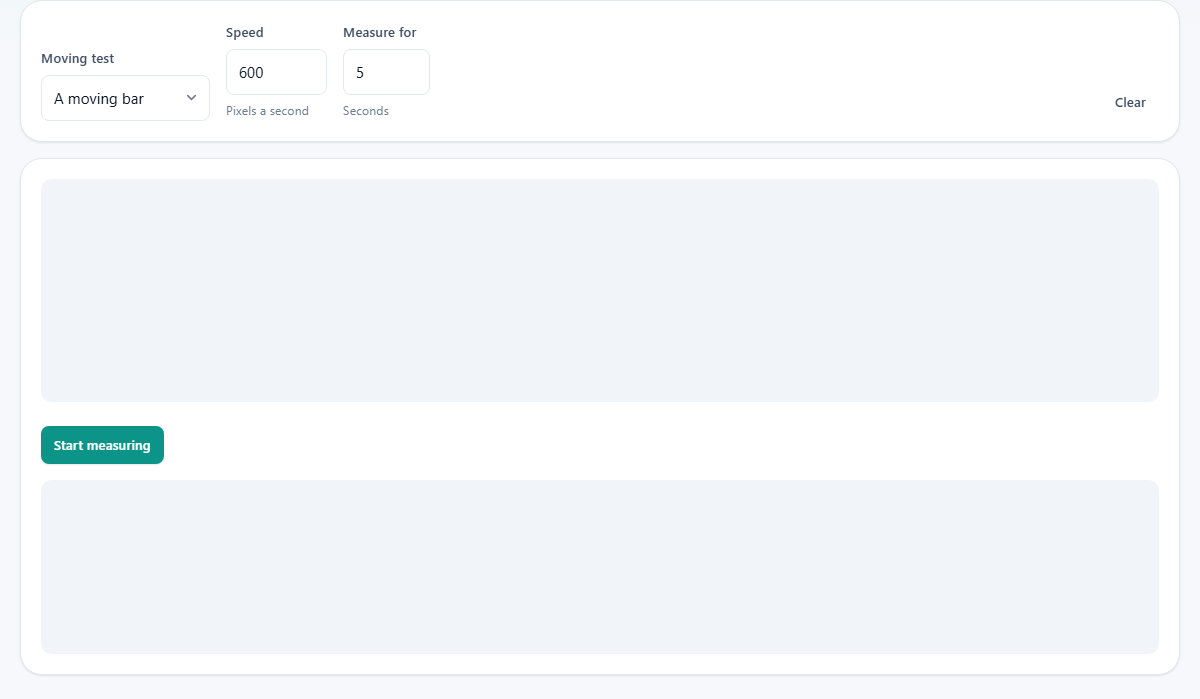
Press Start measuring and leave the page alone. Moving the mouse or switching tabs changes the load on the browser and can skew the result. The test runs for the number of seconds you set in the Measure for field, then stops and shows the result.
The average and why it is not enough
The average frames per second is the headline figure, and it answers the basic question: is my screen running at the rate I expect? If the settings say 144 Hz and the test reports 60, something is wrong.
But a correct average can still hide a problem. Sixty frames spread evenly over one second means one frame every 16.7 milliseconds. That looks perfectly smooth. Sixty frames where some arrive after 8 milliseconds and some after 25 milliseconds also average 60, but the motion looks choppy. Your eyes notice the uneven gaps even though the count is right.
That is why the tool reports frame time variation alongside the average. A low variation means the frames arrived at a steady pace. A high variation means they did not, and the motion will feel uneven regardless of what the average says.
Dropped frames and what causes them
A dropped frame is one the browser did not have time to draw before the screen asked for it. The display moved on without it, and the previous frame was shown twice. On a single frame this is invisible. When it happens repeatedly, the motion stutters.
Common causes include another tab running heavy work, a background download, an antivirus scan, or power-saving mode throttling the graphics card. On a laptop, simply unplugging the charger can cause the system to drop from the full refresh rate to a lower one to save battery.
The frame time graph makes drops easy to spot. Each frame time is plotted as a dot. A row of dots at the same height means steady delivery. A spike upward is a late frame. Several spikes in a row are visible stutter.
The three motion tests
The Moving test dropdown gives you three ways to see the frame rate with your eyes instead of trusting a number.
A moving bar slides a vertical bar across the canvas at a speed you set in pixels per second. Follow it with your eyes. On a steady 60 Hz display it should glide smoothly. On a display that is dropping frames, it will appear to jump or hesitate.
Chase the box moves a small square across the screen. Track it with your gaze rather than keeping your eyes fixed. This test is better at exposing ghosting, the faint trail that a slow-response panel leaves behind a moving object.
Alternating frames flashes the canvas between two states on consecutive frames. On a display running at its full rate, the flicker is fast and even. If the rate has dropped, the alternation slows down visibly. This mode is the quickest way to confirm whether a high refresh rate is actually active.
Speed, duration and clearing the results
The Speed field sets how fast the bar or box moves, in pixels per second. The default is 600, which is moderate. Raising it to 1500 or higher makes dropped frames more obvious because the object covers more ground per frame and a gap is easier to see.
Measure for sets how many seconds the test runs. The default is 5, which is enough for a quick check. For a more reliable average, increase it to 15 or 20. Longer runs smooth out brief interruptions and give you a truer picture.
The Clear button wipes the stats and the graph so you can start fresh. Use it between runs when you change a setting, like plugging in the charger or enabling a higher refresh rate, and want a clean comparison.
Common situations and what they mean
- The average reads 60 on a monitor set to 144 Hz. The higher rate is not active. Check the display settings in your operating system, verify the cable supports the bandwidth, and make sure the port is the right one. HDMI 1.4 often caps at 60 Hz on high resolutions.
- The average is correct but the frame time graph shows regular spikes. Something on the computer is interrupting the draw cycle at a fixed interval. A background process running every few seconds is the usual cause.
- The average drops when you unplug the charger. The laptop is switching to a power-saving profile that lowers the refresh rate. Check the power plan settings or the manufacturer's utility for a toggle.
- The motion test looks smooth at 600 pixels per second but stutters at 1500. At higher speeds, every dropped frame becomes visible because the bar jumps further. The underlying frame delivery has not changed. The stutter was always there but was too small to see at the lower speed.
- The average reads 59 instead of 60. A one-frame difference is normal rounding. Browsers time their callbacks against a real clock, and the display clock may run a fraction slower. Anything between 59 and 61 on a 60 Hz panel is correct.
Getting a clean measurement
Close all other tabs. Any animation running in another tab competes for the same frame budget and can steal time from the measurement.
Do not move the mouse while the test runs. Cursor movement triggers repaints in the browser, and the extra work can push a frame time over the limit.
If you are testing a high refresh rate, make sure the browser itself is not capped. Some browsers have a setting that limits rendering to 60 frames per second regardless of the display. Look for a frame rate limit or VSync option in the browser flags.
Test once on battery and once on power. The difference will tell you whether your laptop throttles the display when unplugged.
A practical example on a gaming monitor
You have a 165 Hz gaming monitor connected over DisplayPort. The operating system shows 165 Hz in the display settings. You open the tool, set the duration to ten seconds, pick the moving bar at 1200 pixels per second, and press Start measuring.
The average comes back at 164.8 frames per second with low variation. The bar glides across the canvas without a single hitch. That confirms the monitor, the cable and the browser are all working at the full rate.
Now you unplug the DisplayPort cable and plug in an older HDMI cable from the drawer. The settings panel still says 165 Hz. You run the test again. This time the average is 60.0 and the bar visibly hesitates at high speed. The cable does not support the bandwidth for 165 Hz at your resolution, and the display fell back silently. Without the test, the settings alone would have told you nothing was wrong.
No data leaves your device
The test counts frames inside your browser using a standard timing function. No information about your screen, your hardware or your results is sent anywhere. There is nothing to collect. The measurement is between your browser and your display, and closing the tab ends it.