
Diagnosing your printer with a single test sheet
What each section of the diagnostic page reveals, how to print it at the correct scale, how to read the ruler and the grey steps, and what the fades and fine lines tell you about ink, toner and alignment.
Why a test page exists
A printer that looks fine on plain text can be hiding several problems. A clogged nozzle might streak one colour. The paper feed might be slightly skewed. The light end of a fade might vanish into white, or the dark end might collapse into solid black. None of these faults show up in a letter or a spreadsheet. They show up in a sheet designed to expose them.
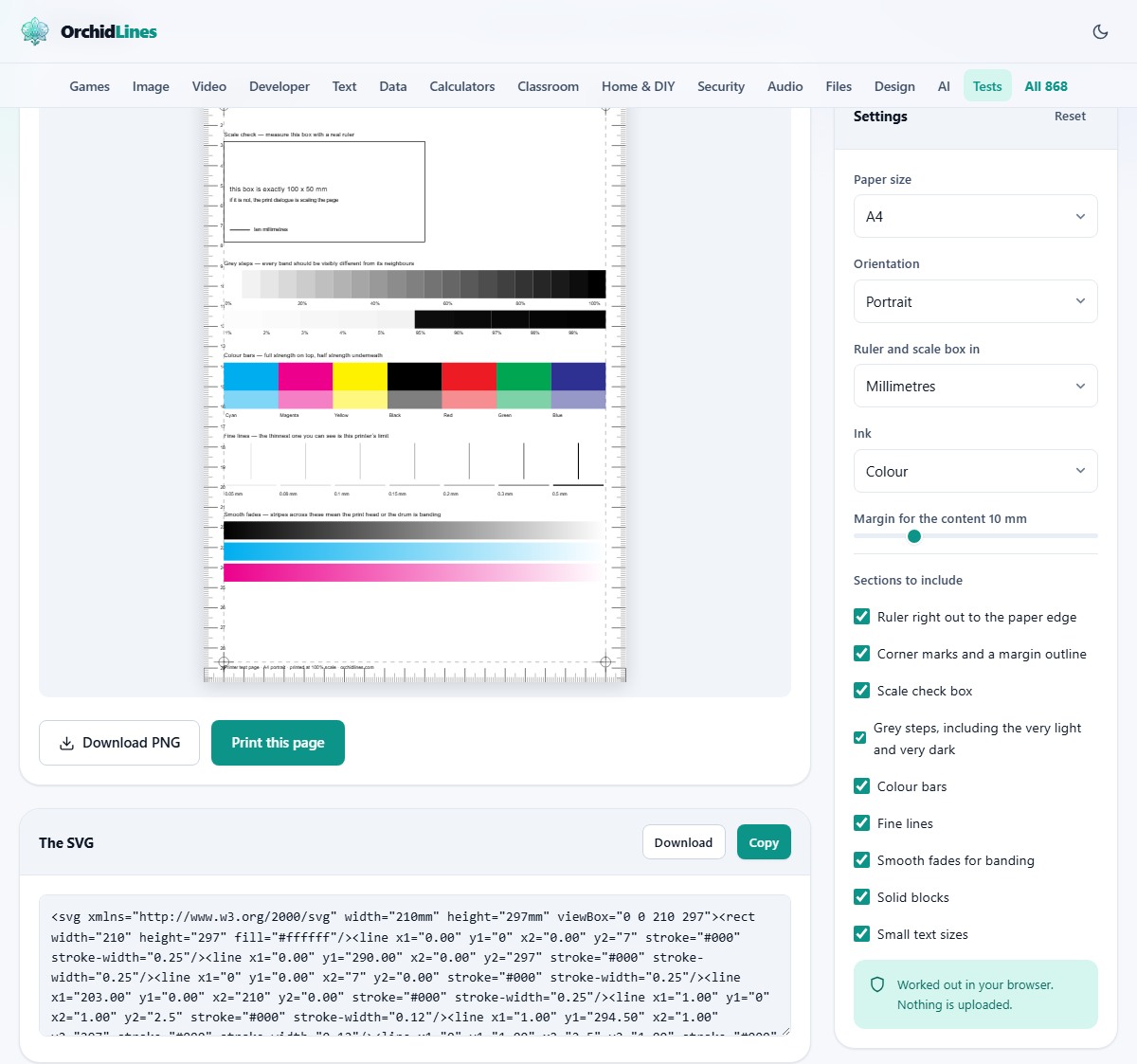
This tool builds that sheet inside your browser. It draws a ruler, corner marks, colour bars, grey steps, fine lines, smooth fades, solid blocks and small text, all sized in real millimetres. You print it, hold it up, and look closely. The printer itself does all the talking.
Choosing the paper and the settings
The settings panel lets you pick your paper size. A4, Letter, Legal, A5 and A3 are all available. Orientation can be portrait or landscape. The ruler and scale box can show millimetres or inches.
An ink selector switches between full colour and black-and-grey only. The grey option is what you want for a mono laser printer, because the colour patches would just be converted to grey by the driver anyway, and the result tells you nothing useful.
The margin slider sets how far the content sits from the paper edge. The ruler itself runs all the way to the edge on purpose, because the point of the ruler is to show where the printer stops being able to print. The rest of the content respects the margin you set.
Printing at exactly one hundred per cent
This matters more than anything else on the page. Most print dialogues default to shrinking the page slightly so nothing is lost at the edges. That is fine for a letter. It is fatal for a test page.
If the scale is off, the box that should measure 100 millimetres comes out at 96. The fine lines are thinner than they should be. The ruler ticks are in the wrong place, and the unprintable border you measure is not the real one. Every measurement on the sheet loses its meaning.
Find the scaling option in your print dialogue. It may be called Fit to page, Shrink to fit, or just Scale. Set it to 100 per cent, or choose Actual size if that option exists. After printing, hold a ruler against the scale check box. If the box is exactly the size it claims, the scale is correct. If it is short, the setting did not stick.
Reading the edge ruler
The ruler runs off the edge of the paper on every side. That is deliberate. Your printer has a strip around the outside that its print head or rollers cannot reach, and the ruler is there to measure that strip.
Look at each edge of the printed sheet. The ticks will start a few millimetres in from the paper edge. Wherever they begin is where the printable area starts. Three to five millimetres is typical. The bottom edge is often wider than the top because the feed rollers need more clearance there.
Knowing the exact unprintable border matters when you design anything that should fill the page. A poster with a coloured background, for instance, will always have a thin white frame around it unless you use a printer with a borderless mode.
What the grey steps reveal
The grey steps run from pure white at one end to solid black at the other, in even jumps. On a good print, every step is distinct. Two things commonly go wrong.
First, the lightest steps may vanish. If step two looks the same as step one, the printer is not laying down enough ink or toner at low densities. On an inkjet this can mean a nozzle is drying out. On a laser it often means the toner cartridge is low.
Second, the darkest steps may merge into a single black block. If the last three steps all look the same, the printer is over-inking the dark end. This is a driver or profile issue more than a hardware one. Adjusting the print density in the driver settings often helps.
Colour bars and solid blocks
The colour bars show strips of red, green, blue, cyan, magenta and yellow. They are there to confirm that every ink or toner colour is present and printing cleanly. A missing colour is obvious: the entire strip will be wrong or absent.
The solid blocks are large patches of each colour. Look for thin pale lines running through them. A line that appears in the same spot on every block of the same colour is a blocked nozzle. The line runs the same direction the print head travels. On an inkjet, running a head cleaning cycle from the printer menu and reprinting usually clears it.
Remember that screen colours and print colours will never match exactly. A screen mixes light and a printer mixes ink. The driver converts between them in its own way. Use the patches to spot missing or streaky colours, not to judge exact shades.
Smooth fades and the banding they expose
The fades on the sheet are perfectly smooth gradients. Any stripes or bands you see on the printed output are coming from the printer, not from the file.
Banding on an inkjet happens when the print head does not overlap its passes cleanly. Each pass lays down a thin strip of ink, and if there is a gap between strips, a pale line appears. It is most visible in areas of gentle colour change, which is why the test page includes long fades instead of flat patches.
On a laser printer, banding can come from the drum or the fuser roller. A repeating stripe at a regular interval is usually the drum. Measuring the gap between stripes and comparing it to the drum circumference in the manual can confirm this.
Fine lines and small text
The fine lines section draws lines at decreasing widths, some down to five hundredths of a millimetre. The thinnest line your printer can reproduce cleanly tells you its effective resolution. A consumer inkjet will usually manage the lines down to about two tenths of a millimetre before they start breaking up.
The text section prints the same sentence at small point sizes, starting at four points. Four-point text is very small, about 1.4 millimetres tall. If you can read it clearly on the print, the printer handles fine detail well. If it turns to mush below six points, that is normal for most home printers.
Printing twice to check the paper feed
Print the sheet a second time and lay both copies on top of each other. Hold them up to a light and check whether the corner marks line up. If they do not, the paper feed is pulling the sheets through at a slight angle. No amount of head alignment will fix a skewed feed. The problem is mechanical, usually caused by a worn pickup roller or a misaligned paper tray.
Catching a feed problem early saves a lot of confusion. A user who notices that photos come out slightly crooked on one side often blames the image or the application. Printing the test page twice rules that out in under a minute.
Downloading the SVG and keeping a record
Below the preview sits the raw SVG code. You can copy it to your clipboard or download it as a file. The SVG is the same image the print command sends to your printer, so you can open it in any graphics program, archive it, or print it from a different machine.
Keeping a test sheet from the day you install a new cartridge or toner gives you a baseline. When the print quality starts drifting weeks later, you can compare the two sheets side by side and see exactly what has changed.
The page is drawn in your browser and goes straight to your printer
Nothing is sent to a server. The SVG is generated on your own machine, and the print command delivers it directly to your own printer. There is no queue, no upload, and no copy stored anywhere outside your device.