
Measuring sound with your microphone and understanding the reading
How the decibel meter works, what the numbers mean in plain terms, why a browser reading is always an estimate, how to make it more useful with the offset slider, and when the answer matters for your ears.
What the meter actually measures
Sound is a pressure wave. Louder sounds push harder. The standard way to describe how hard is the decibel scale, which squeezes an enormous range of pressures into manageable numbers. A whisper sits around 30 dB. Normal speech is roughly 60 dB. A power drill can hit 100 dB. The scale is not a straight line: every ten-point jump means the sound is roughly twice as loud to your ears.
This tool listens through your microphone and works out the RMS level of the signal. RMS stands for root mean square, and it is the correct average for a signal that bounces above and below zero many times a second. A simple average of the raw wave would come out near zero every time, which is useless. RMS catches the energy instead.
The result is turned into a decibel figure and shown on the big readout, updated several times a second. Alongside it you get a band label such as Quiet room or Busy traffic, plus a short example so the number has a meaning you can picture.
Starting the meter and reading the display
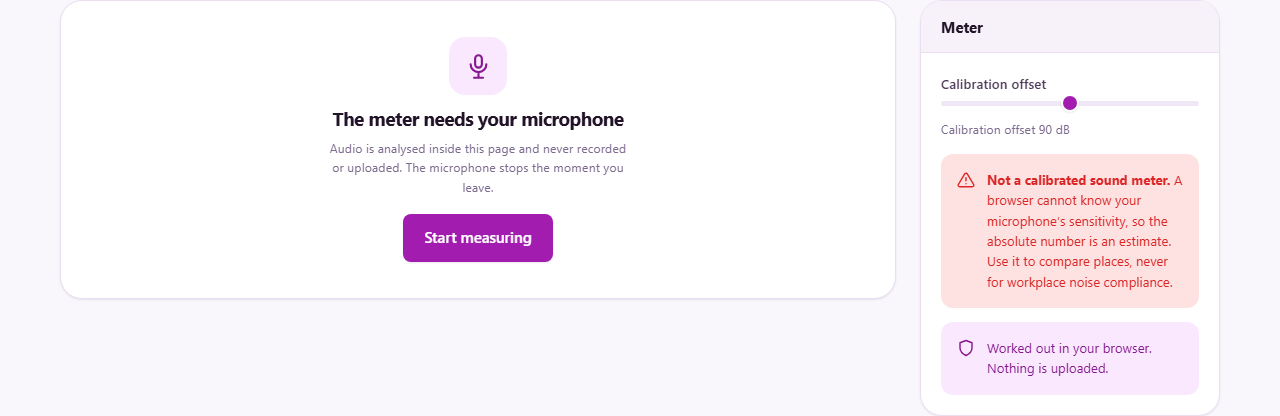
Press Start measuring. Your browser will ask for microphone access. Nothing is recorded. Each tiny chunk of audio is measured for its level and then thrown away before the next chunk arrives.
The display shows three numbers once it is running. The big one is the current level. Below it, Peak holds the loudest moment since you started, and Average gives you the overall figure across the whole session. Peak is handy for catching a brief loud event. Average is the one that matters when you want to know whether a room is generally noisy.
Underneath the numbers is a history graph. It paints a line across the screen as time passes, so you can watch the level rise and fall. A sudden spike is easy to spot on the graph long after the sound has gone. The graph scrolls with time, always showing the most recent stretch.
Why the number is an estimate
A professional sound level meter is built around a microphone with a known sensitivity, measured against a calibrated reference in a laboratory. The manufacturer prints a figure on the data sheet, and the meter uses that figure to convert the electrical signal into real sound pressure.
A browser has none of that. It receives a digital signal from your microphone, but it has no idea how sensitive that microphone is. A laptop microphone, a headset mic, and a phone all produce different voltages for the same room noise. On top of that, the operating system often adjusts the gain behind your back, boosting quiet sounds and clamping loud ones.
So the reading you see is on a plausible scale, but the absolute number could be off by ten decibels or more. The tool says this clearly rather than pretending otherwise.
Making comparisons instead of chasing absolutes
Even though the absolute figure is uncertain, comparisons within the same session on the same device are reliable. If you measure one room at 45 dB and walk into another that reads 55 dB, the second room really is about ten decibels louder. The unknown sensitivity cancels out because it has not changed between the two readings.
This makes the meter genuinely useful for everyday questions. Is the bedroom quieter with the window shut? Did the new fan make things worse? Is the office noisier on Fridays? Those are comparison questions, and the answer you get is trustworthy.
The peak and average figures help here too. Peak catches the loudest instant, while average smooths over the whole run. Together they tell you whether a room has a steady drone or occasional loud bursts. Two rooms with the same average can feel very different if one has sharp peaks and the other does not.
The calibration offset slider
The settings panel has a slider labelled Calibration offset, starting at 90 dB. It shifts the entire scale up or down. If you happen to have a calibrated meter nearby, hold both devices in the same spot and drag the slider until they agree. From that point on, the readings are roughly correct in absolute terms.
Without a reference meter, you can still improve things. A dead quiet room at night is typically around 30 dB. A normal conversation at arm's length is about 60 dB. If you know roughly where you are, nudge the slider until the reading lands close. It will not be lab-grade, but it will be in the right neighbourhood.
The offset is remembered in your browser for next time. Different devices need their own offset because their microphones differ.
The reference table and what the bands mean
Below the meter sits a table of reference levels. It lists common sound levels from a quiet library up through city traffic and rock concerts, with a short description and an example for each. The row matching your current reading is highlighted, so you can look down and see where you stand without memorising numbers.
The bands are drawn from widely published acoustic references. They are approximate, but they give you a frame. If your room reads somewhere in the Quiet office band, you know it is a reasonable working environment. If it creeps into the Noisy restaurant band, something has changed.
When loudness becomes a health question
Hearing damage depends on two things together: how loud and for how long. At 85 dB, prolonged exposure over several hours can cause harm. At 100 dB, the safe window shrinks to about fifteen minutes. At 120 dB, pain begins almost immediately.
A useful rule of thumb is the arm's-length test. If you have to raise your voice to be heard by someone standing a metre away, the sound level is above 85 dB and exposure time matters. The meter gives you a rough check, but it cannot replace a calibrated reading for any official assessment.
Workplace noise measurement requires a calibrated type 1 or type 2 meter by law in most countries. This tool cannot substitute for one, and its readings should never be presented as evidence in a compliance report.
Troubleshooting a reading that looks wrong
- The level sits at zero and does not move. The microphone permission was probably denied. Check your browser settings and allow microphone access for the page.
- The level jumps around wildly in a silent room. The operating system may be boosting a quiet signal with automatic gain control. Look for a microphone gain slider in your system sound settings and set it to a fixed level.
- The level seems far too high or too low. The offset slider may need adjusting. Try the bank card test: hold a phone playing a known tone at a fixed distance and compare against a second device or a known reference.
- The reading drops to zero when you switch tabs. Browsers throttle background tabs to save power. Keep the meter tab in the foreground while measuring.
- The graph shows flat lines with sudden jumps. This usually means the microphone sample rate is low or the browser is busy with other work. Close unused tabs and try again.
Everything stays on your own device
The microphone signal is processed inside your browser and never leaves your machine. Each frame of audio is measured for its level and discarded. There is no server, no account, no recording, and no upload. You can verify this by turning off your network connection and running the meter. It works exactly the same way, because it was never talking to anything else.
Closing the tab stops the microphone immediately. No data is kept after you leave.
A walkthrough from start to finish
You open the page and press Start measuring. The browser asks for the microphone, and you allow it. The big number settles around 38 dB, and the band reads Quiet room. The example says something like a library. The history graph draws a gentle line near the bottom.
You open a window. Traffic noise comes in and the reading climbs to 62 dB. The band changes to Normal conversation. The peak jumps to 71 dB when a lorry passes. You shut the window and watch the level drop back to 39 dB over a few seconds. The average, which started at 38, now reads 48 because of the loud stretch in the middle.
That ten-second test told you two useful things. First, the window makes a real difference, about twenty decibels. Second, traffic peaks are brief but quite loud. Neither answer needed the absolute number to be exact. The gap between open and closed is the finding, and that gap is solid.