
Catching a faulty mouse before it costs you a click
How the test box picks up every button, what the double-click warning means, why the polling rate reads lower than advertised, and how to tell a broken side button from a browser shortcut doing its job.
The two faults worth looking for
A mouse can fail in plenty of ways, but two of them account for nearly every complaint people bring to a forum or a support desk. The first is a button that registers twice from a single press. You click a file to select it and the computer opens it instead. You click a link once and the browser opens two tabs. The switch under the button is worn, and it bounces.
The second is a mouse that reports its position less often than it should. Movement feels rough or laggy, and fine aiming in a game or a design tool becomes harder than it used to be. The cable may be damaged, the wireless receiver may have interference, or the optical sensor may be on its way out.
This page checks for both of these problems in a couple of minutes.
The test box and how it works
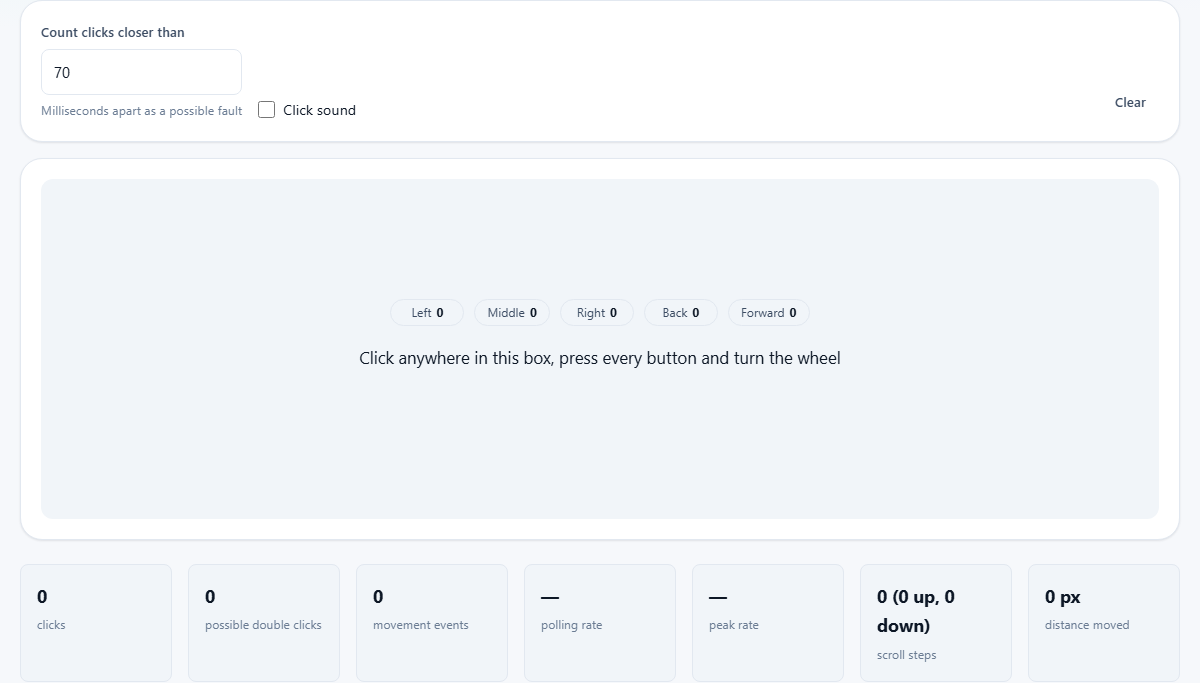
The large grey area in the middle of the page is the test box. Click anywhere inside it and each button you press lights up as a separate indicator. Left, right, middle, and the side buttons if your mouse has them all appear individually so you can tell which one fired.
The right-click context menu is suppressed inside the box so it does not interrupt the test. Outside the box, right-click works as it normally would.
A line underneath the indicators shows the last event: which button, whether it was a press or a release, and the gap between the current press and the previous one in milliseconds. That gap is the number the double-click detection watches.
Press Clear at any time to reset all the counters and start a fresh run. The test box keeps the cursor as a crosshair so you can see exactly where the pointer sits while you click.
Detecting a double-click fault
Click the left button at a normal, steady pace. One firm click at a time, the way you would click to select a file. The page measures the time between each press and the one before it.
If two presses arrive closer together than the threshold, the page flags them. The default threshold is seventy milliseconds. That is far too fast for any real human finger, so anything that trips the warning came from the switch bouncing inside the shell, not from you pressing twice.
A healthy mouse will never trip this warning when you click at a normal pace. If you see it once during a run of fifty clicks, try again to be sure. If you see it repeatedly, the switch is worn and the problem will get worse over time. On some mice the switch can be swapped out. On most, it means replacing the whole mouse.
The fault usually shows up on the left button first because it takes the most clicks over the life of the mouse. But it can happen to any button, so test the right and middle buttons the same way.
The polling rate and why it looks low
Move the mouse steadily inside the test box. A polling rate figure appears, measured in hertz. It tells you how many times per second the browser received a new position report while you were moving.
If your mouse is advertised as running at a thousand hertz, do not expect to see a thousand here. Browsers do not pass every raw hardware report through to a web page. They bundle several reports together and deliver them in step with the screen refresh rate, which is usually sixty or a hundred and twenty times a second. The operating system may throttle them further on top of that.
A good thousand-hertz mouse commonly shows somewhere between a hundred and twenty and five hundred in this test. That is completely normal. The number itself matters less than its steadiness. A figure that holds roughly constant while you move means the signal path is healthy. A number that drops sharply, jumps around wildly, or falls to zero for a moment points to a cable fault, a weak wireless link, or a sensor that is starting to fail.
The scroll wheel and what it reveals
Turn the scroll wheel inside the test box. Each tick registers as a scroll event, and the page counts them. Scroll up and scroll down are tracked separately so you can see the numbers side by side.
A healthy scroll wheel registers cleanly in one direction at a time. A worn encoder inside the wheel occasionally fires a tick in the wrong direction while you are scrolling. One upward tick appearing in the middle of a long downward scroll is the scroll-wheel version of the double-click fault: a mechanical part that no longer makes clean contact. If it happens often, the wheel is near the end of its useful life.
If your mouse has a tilt wheel or a horizontal scroll function, try that too. It uses the same encoder principle and wears out the same way.
Side buttons and browser shortcuts
Many mice have two extra buttons on the side, usually positioned under the thumb. In most browsers these are mapped to back and forward navigation. Pressing them takes you away from the page rather than registering in the test box.
That is the browser doing its normal job, not a fault in the mouse. If you need to confirm the side buttons work, watch whether the browser actually goes back a page when you press them. If it does, the button is sending its signal just fine.
Some gaming mice have more than two side buttons. The additional ones may register inside the test box if the browser does not have a built-in shortcut mapped to that particular button number.
Adjusting the threshold and using the click sound
The field labelled Count clicks closer than lets you change the double-click detection threshold. The default of seventy milliseconds works well for most people.
Lower it if you are a very fast clicker and the page is giving you false warnings. Raise it if you want to catch even marginal switch bounce that only appears occasionally. Anything below about forty milliseconds is probably too sensitive for normal use. Anything above a hundred and fifty starts flagging legitimate fast double-clicks rather than faults.
The Click sound option plays a short tone on each press so you can hear the timing as well as see it. It is helpful when you are staring at the mouse itself rather than the screen, checking for a physical rattle or a mushy feel on a button.
A practical check when you are thinking of returning a mouse
You have a new mouse and the left button feels odd. Open the test page and click steadily in the box, fifty or sixty times at an even pace.
If the double-click warning appears even once during those fifty clicks, the switch is bouncing. That is a manufacturing defect on a new mouse. It will show up more often as the switch wears in, not less.
Move the mouse smoothly back and forth across the box and read the polling rate. If the number is wildly below what the packaging advertises, even after accounting for the browser throttle, the sensor or the cable may be faulty.
Scroll the wheel up for ten ticks and down for ten. If any ticks register in the wrong direction, the encoder is unreliable. You now have something concrete to describe when you take the mouse back or file for a replacement.
Nothing leaves the page
Every click, movement, and scroll event is handled inside your own browser and discarded once it has been counted. No data is stored. No data is sent to any server. There is no account, no log file, and nothing running in the background.
You can confirm this by disconnecting from the network and running the test again. The buttons still light up, the polling rate still shows a number, and the scroll counter still ticks. The page reads mouse events from the browser and draws the results. That is the whole of it.