
Nine reasons to fill your screen with a single colour
Why a plain white, black, or coloured screen is more useful than it looks, how the colour picker and brightness slider work, what the preset swatches are for, and how the page keeps the display awake while you need it.
A surprisingly useful trick
A screen showing nothing but one solid colour sounds like the simplest thing a computer can do. It turns out to be one of the handiest. A white screen placed behind a webcam is a soft fill light for a video call. A black screen reveals every speck of dust and every scratch on a monitor. A green screen is a quick chroma key background. A red screen keeps your eyes adjusted to the dark.
The reason it works is that a screen is a light source. An average laptop display at full brightness puts out enough light to illuminate a face from a couple of feet away. It is not a studio lamp, but it is already in the room, it is free, and it is much better than nothing.
The page lets you pick the colour, adjust the brightness, and fill the entire display with that colour in a single click. It also tries to stop the screen from going to sleep while you are using it as a light.
Picking a colour
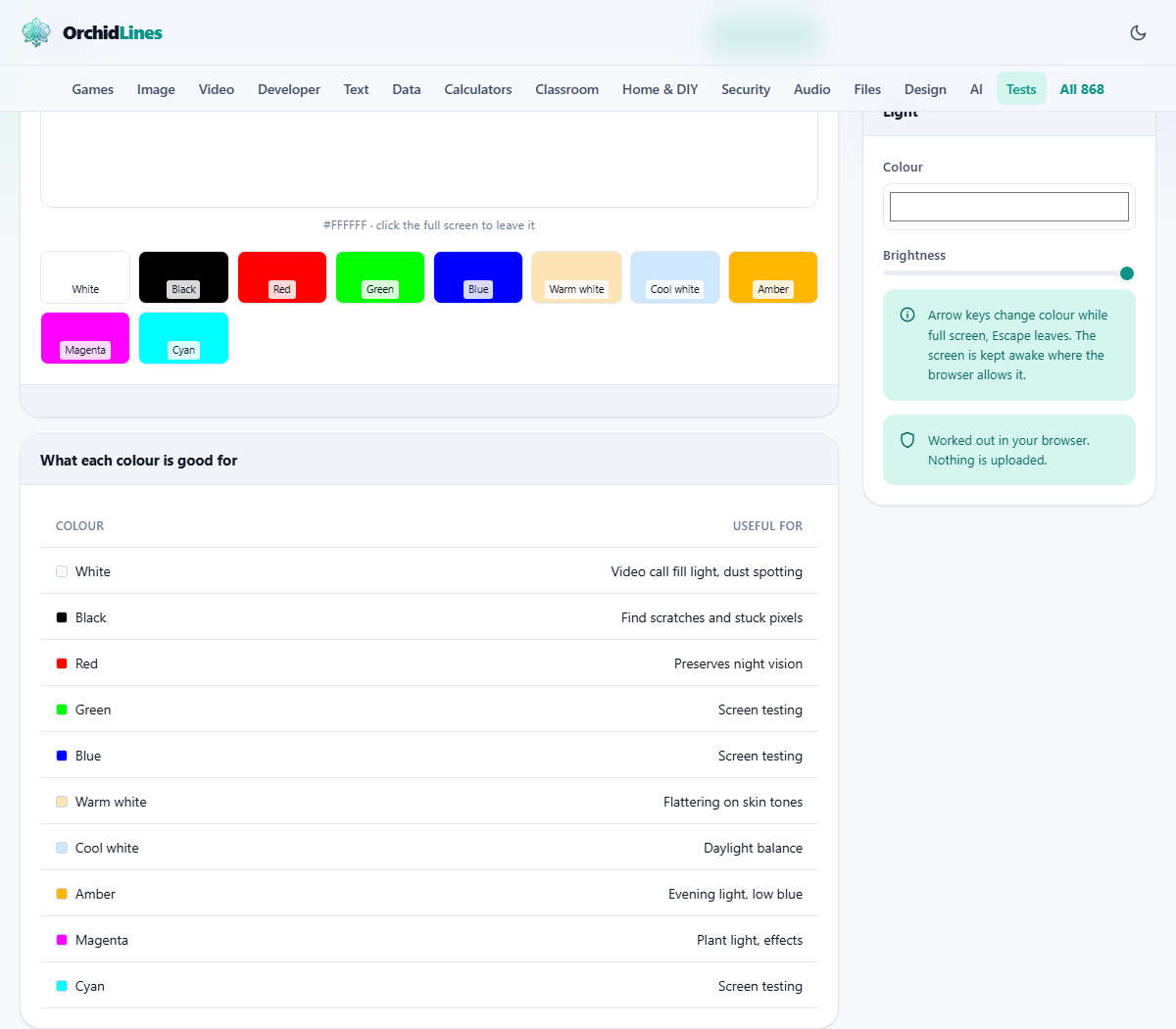
The page offers a row of preset swatches for the most common uses: white, warm white, black, red, green, blue, and a few others. Click one and the preview square updates immediately.
If none of the presets match what you need, the colour well in the side panel opens your system colour picker. You can enter a hex code directly if you know the exact shade you want. Any colour the picker can produce, the page can fill a screen with.
The brightness slider underneath runs from five percent to a hundred percent in steps of five. At a hundred the chosen colour is shown at full strength. Lower it and the colour darkens, which is helpful when a pure white screen is too harsh in a dim room or when you want a softer, gentler glow for reading at night.
Going full screen and coming back
Press Fill the screen and the entire display is taken over by the chosen colour. The browser chrome, the taskbar, and everything else disappear. What remains is a single rectangle of light.
Click anywhere to leave, or press Escape. While you are in full screen, the left and right arrow keys step through the preset colours without dropping out. This is the fastest way to cycle through white, black, red, green, and blue when you are inspecting a monitor for dead pixels or scratches.
On a phone, the same full-screen view fills the display. Tap the screen to come back. A phone makes a surprisingly handy pocket-sized light panel when you need one in a pinch.
Keeping the screen awake
A light that turns itself off after thirty seconds is not a light. When the browser supports it, the page asks the operating system to keep the display on for as long as the colour is showing. A note at the bottom of the panel tells you whether the wake lock is active.
Not every browser honours this request, and some devices override it when running on battery. If the screen still dims, plug the device in and raise the sleep timeout in your system settings. That is the reliable fix when the software approach has no effect.
On phones, remember to turn the system brightness all the way up as well. The page can control which colour it draws, but the overall screen brightness is set by the device itself.
Using it as a video call light
Open the page on a second monitor or a tablet. Choose white or warm white and set the brightness to a hundred. Place the screen just behind or beside your camera, roughly at face height, and a foot or two away from you.
The effect is a soft, even wash of light that fills in the shadows under your eyes and chin. It will not replace a proper ring light, but it is noticeably better than the overhead ceiling lamp that most people rely on for calls. Warm white is more flattering than pure white on most skin tones because it avoids the blue cast that makes people look tired.
If you are using two screens, keep the call on one and the light page on the other. A laptop screen angled to face you while the call runs on an external display works well. The laptop becomes the fill light and the external display carries the meeting.
Finding dust, dead pixels, and scratches
Set the colour to white, go full screen, and look closely at the monitor. Dust shows up as tiny dark specks against the bright background. Dead pixels appear as dots that stay dark or stay one colour while everything around them is white.
Now switch to black using the arrow key. Scratches and smears that were invisible on white become obvious against a dark background. Stuck pixels, which are the opposite of dead ones, glow as tiny coloured dots on the black field.
Cycling through red, green, and blue isolates faults in individual sub-pixels. A pixel that looks fine on white but wrong on pure red has a failing red sub-pixel. This is the standard way to inspect a display before buying it, selling it, or sending it back under warranty.
Do this in a dimly lit room for the best results. Bright overhead lighting washes out the screen and makes faint faults harder to spot. The closer you look, the more you see, so bring your face within a few inches of the display for the final pass.
Red light and dark-adapted eyes
Human eyes adapt to darkness over about twenty to thirty minutes. A single flash of white light resets that process almost completely. Red light, on the other hand, barely affects dark adaptation, which is why observatories, ships, and military vehicles use red lighting at night.
Set the page to red and go full screen. You can read a star chart, check a map, or find something in a bag without losing your night vision. It is also useful in a tent or a shared bedroom when you need enough light to see by without waking the person next to you.
Red works because the rods in your eyes, which handle low-light vision, are barely sensitive to long wavelengths. White light excites them strongly and resets them, but red light passes through without waking them up. Astronomers have used this principle for decades.
Other uses you might not have thought of
- A white screen behind a sheet of paper turns a laptop or tablet into a basic light box for tracing drawings or reading faded documents.
- A white screen is a clean white-balance reference for a camera. Point the camera at it, set the white balance, and the camera knows what neutral white looks like in that room.
- A coloured screen behind a small product gives you a solid-colour background for a quick photo without a physical backdrop or a sheet of card.
- A bright screen in a dark room acts as a reading light when nothing else is available. Set it to warm white and lower the brightness to reduce eye strain.
- A green screen at full brightness can serve as a rough chroma key background for a webcam, though any wrinkle in the light will show as a shade difference in the key.
Nothing is sent anywhere
The page fills a rectangle with a colour. That is all it does. There is no data to collect, no file to process, and no server to talk to. The page runs entirely inside your browser and works the same way with no internet connection.
You can test this by switching to airplane mode or unplugging the cable. The colour fills the screen, the brightness slider adjusts it, and the arrow keys cycle through the presets. The page is doing nothing more than telling your display which colour to show.
There is no account, no upload, and no record of which colours you used. Close the tab and the page is gone entirely.