
Finding out whether your controller still works properly
How to wake a controller in the browser, what stick drift is and how to measure it, how the deadzone setting hides wear, and what the vibration test can and cannot prove.
Why controllers need testing
A controller is a bundle of moving parts. Sticks pivot on potentiometers that wear with use. Triggers ride on springs that fatigue. Buttons sit on rubber domes that flatten over thousands of presses. Every one of these parts degrades, and the degradation is usually gradual enough that you do not notice it until a game stops behaving the way it used to.
A test page that reads every input live and shows you the raw numbers lets you see the wear before it costs you a match. It also settles arguments. A stick that drifts in one game but not another could be the game's deadzone masking the fault, not the stick being fine.
Connecting and waking the controller
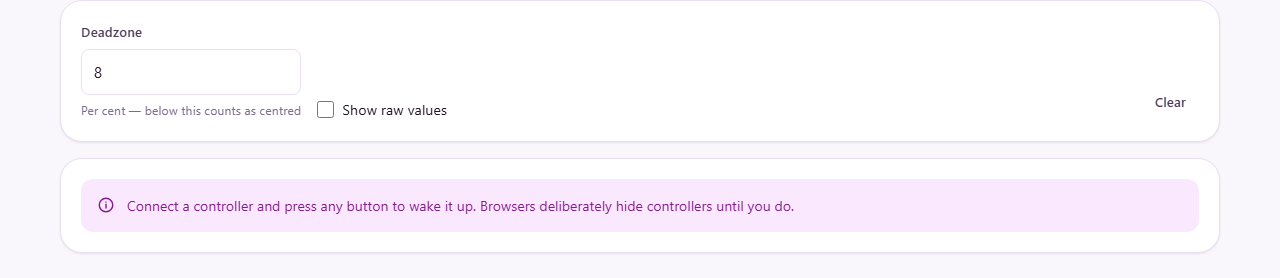
Plug the controller into a USB port or pair it over Bluetooth, then press any button on the pad. Browsers deliberately hide controllers from web pages until a button is pressed. That is a privacy measure, not a bug. Without it a page could fingerprint you by reading what controllers are attached.
Once you press a button, the page picks up the controller and the display area appears. If you have more than one controller connected, they are listed separately. If nothing appears after pressing a button, check that the controller is in the right mode. Some pads have a switch for different platforms, and the wrong mode can stop the browser from seeing it at all.
Reading the sticks
Two circular canvases show the left and right stick. A dot tracks the position in real time. Push the stick to any corner and the dot should reach the edge of the circle cleanly. If it stops short, the stick's range is not reaching its full physical travel. Try all four corners and the full circle. Some faults only show up in one direction.
Let go and the dot should snap back to the centre. If it sits a little way off centre while you are not touching anything, that is drift. The page measures it and shows the figure as a percentage. Zero means the stick sits perfectly centred. Two per cent is normal and most people will never feel it in play. Five per cent is the point where most games start to show unwanted movement. Above that, the stick needs attention.
Test both sticks separately. They wear at different rates. The left stick is used for movement in most games and typically sees more hours of hard use. It is almost always the first one to develop drift.
What stick drift actually is
Inside each stick is a pair of potentiometers, one for the horizontal axis and one for the vertical. They are small variable resistors that change their output voltage as the stick moves. Over time, dust and fine metal particles from the wiper build up on the resistive track. The voltage stops returning to the exact centre position when the stick is released.
The result is a tiny phantom movement. In a first person shooter the camera slowly creeps to one side. In a driving game the car pulls left. The fault is mechanical and it gets worse with use, never better.
Cleaning around the base of the stick with compressed air can help in early cases. It blows loose particles off the track and sometimes resets the reading to near zero. Once the track itself is scored, only replacing the sensor module fixes it.
The deadzone and why it is a mask, not a cure
The Deadzone field sets a percentage. Any stick reading below that value is treated as centred. At the default of eight per cent, a drift of five per cent never reaches the game. The dot on the canvas stays locked to the middle.
Raising the deadzone hides worse and worse drift, but it costs you something. Fine control near the centre of the stick is where precise aiming happens. A large deadzone creates a numb zone around the rest position. You push the stick a little and nothing happens. Push it past the threshold and the response jumps in rather than gliding.
If you find yourself raising the deadzone beyond ten or twelve per cent just to keep the camera still, the stick is worn enough that the cost in precision is real. At that point the right fix is a repair, not a bigger mask.
Triggers and buttons
Triggers appear as bars that fill from empty to full as you pull them. A healthy trigger should fill smoothly and return to zero when released. A jerky bar that jumps or sticks at certain positions suggests dirt on the potentiometer or a spring problem.
Buttons light up when pressed. Press every one and check that each lights up on its own without lighting up any neighbour. A button that registers as two buttons at once has a mechanical or contact fault.
Button numbering follows the standard gamepad layout that browsers use internally. Button 0 is the bottom face button regardless of what your controller calls it. The exact label, whether it is A, cross or B, depends on the manufacturer.
Testing vibration
Press Test vibration to fire both motors. Most controllers have two: a heavy one for deep rumble and a lighter one for sharp buzzes. If the controller vibrates, the motors are working. If nothing happens, it does not necessarily mean the motors are broken.
Vibration support in browsers depends on both the browser and the operating system. Some combinations simply do not support it. Chrome on Windows handles it well for most controllers. Firefox and Safari have more limited support. A pad that does not vibrate here may vibrate perfectly in a game running outside the browser.
Raw values and what they tell you
Tick Show raw values to see the numbers the browser receives from each axis and button. Axes run from minus one to plus one. Buttons are zero when released and one when pressed, with fractional values for triggers and any button that reports pressure.
These numbers are useful when something feels off but the graphical display looks normal. A stick that reads 0.03 at rest has mild drift that might be invisible on the canvas but could still cause slow movement in a game with a tight deadzone. A trigger that never quite reaches 1.0 has reduced travel, which means full throttle in a racing game is not actually full throttle.
Wired versus wireless
If something reads oddly, try a cable before concluding the controller is faulty. Bluetooth interference from nearby devices can produce jittery stick readings. Low battery voltage can shift the centre point of a potentiometer because the reference voltage drops with the charge.
A wired connection removes both of those variables. If the problem disappears on a cable, the controller is fine and the wireless link is the issue. If the problem stays, the fault is in the hardware.
Resetting the drift measurement
Press Reset drift measurement to clear the recorded peak drift and start measuring again. This is useful after cleaning a stick. Blow compressed air around the base, then reset and leave the controller untouched for a few seconds. The new drift figure tells you whether the cleaning helped.
The measurement tracks the highest value seen while the stick is untouched. It does not average. A single spike from bumping the desk will lock in as the peak. Resetting lets you start a clean observation.
Common problems and what they point at
- Camera drifts slowly in one direction: stick drift. Check the percentage here and clean or replace.
- A button does not register at all: could be a worn rubber dome or a broken contact. Press firmly and watch the display. If it never lights up, the fault is physical.
- Trigger reads less than one hundred per cent at full pull: reduced travel from a broken stop or dirt under the trigger mechanism.
- Controller disconnects randomly on wireless: interference or low battery. Switch to a cable to confirm.
- All inputs register but nothing feels right in a game: the game may remap the layout. The standard browser layout and the game's own mapping do not always agree.
All readings stay in your browser
The page reads the controller through the browser's own gamepad interface. No data about your inputs or your hardware is sent anywhere. There is no server, no account and no log. The readings exist only for as long as the tab is open. Closing it is the only cleanup you need.