
Judging a display with your own eyes
What each test pattern reveals about your monitor, the order that matters when adjusting brightness and contrast, how gamma and banding work, and where a visual check ends and a hardware probe begins.
Why test patterns exist
A new monitor arrives looking fine. The desktop background is blue, the icons are sharp, and the colours feel natural. That impression is almost worthless. Without a known reference on screen you have no way to tell whether shadow detail is being lost, whether the white end is clipping, or whether a gradient that should be smooth is breaking into visible steps.
Test patterns fix that. Each one isolates a single property of the display and shows you what a correct result looks like. The idea is older than flat panels. Television engineers used them decades ago, and the principles have not changed.
Preparing the room
Ambient light ruins the black level check more than any monitor setting does. A desk lamp bouncing off the panel floods the darkest bars with reflected light. They vanish, and you cannot tell whether brightness is wrong or the room is too bright.
Dim the room as much as you can. Close curtains and turn off overhead lights. If you work in an office with fixed lighting, wait until evening or accept that the test will be less useful.
Let the display warm up. Panels shift measurably in the first fifteen to twenty minutes after they are turned on. Judging colour on a cold screen means judging it again later.
Black level comes first
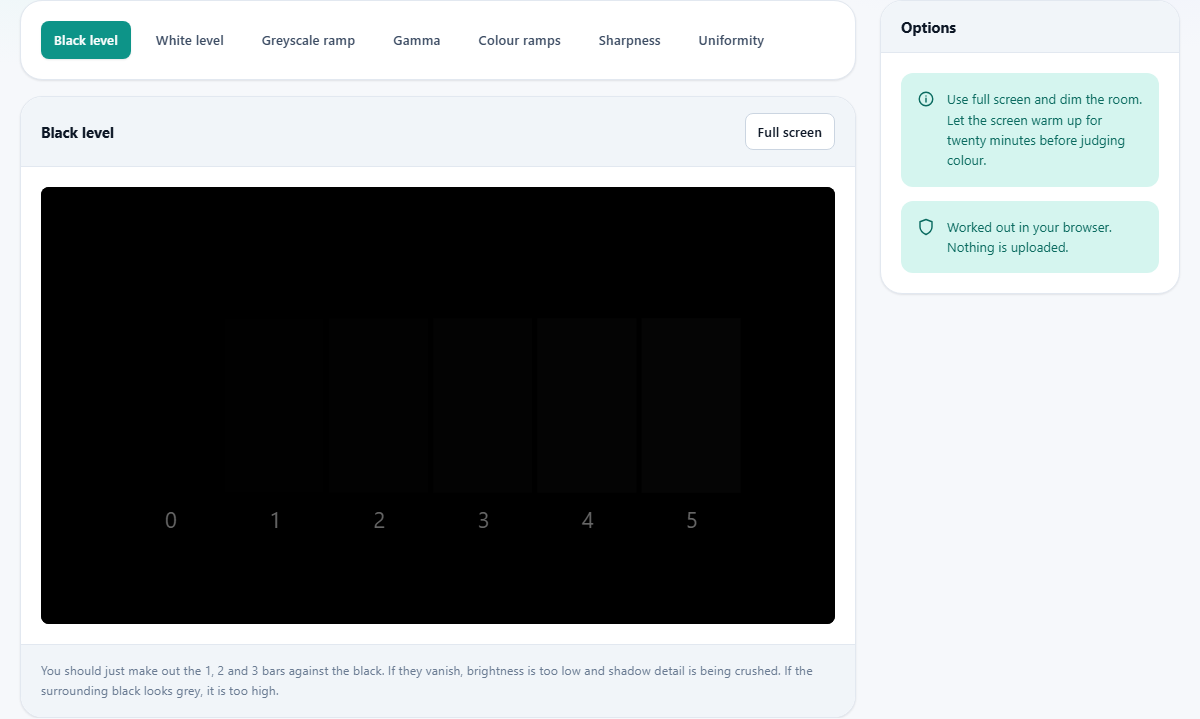
The black level pattern fills the screen with black and lays numbered bars across it. The bars count up from zero. Zero is pure black itself, so it is invisible by definition. Bar 1, bar 2 and bar 3 are almost as dark.
Open the monitor's own menu and find the brightness control. Raise it until bars 1, 2 and 3 are just visible against the black field. If they vanish, brightness is too low and shadow detail in photos and films is being crushed. If the surrounding black looks grey rather than black, it is too high.
This control is sometimes called backlight on newer panels. The label does not matter. What matters is that the darkest tones separate from pure black without lifting black itself into grey.
White level comes second
The white level pattern is the mirror image. A white field holds bars at 255, 254, 253 and so on. Pure white is 255. The bars just below it should be separately visible.
Lower the contrast control in the monitor's menu until the 250 through 254 bars each stand apart from white. If they all merge into one flat white, contrast is too high and the bright end of every image loses its detail.
Brightness and contrast interact. After setting one, go back and check the other. It usually takes two passes to get both right.
Reading the gamma pattern
Gamma describes the curve between the number a pixel is told to display and the brightness your eyes see. Most content is made for a gamma of 2.2. If your display sits at a different value, midtones come out too light or too dark.
The gamma pattern shows several vertical strips. Each strip has a half filled with fine alternating black and white lines and a half filled with a solid grey. Step back from the screen and squint. The fine lines blur into a tone. The strip where that blurred tone matches the solid grey tells you the gamma of your display.
If 2.2 is the match, you are set for the vast majority of photo and video work. If 1.8 matches instead, midtones will look brighter than the creator intended.
Banding and the greyscale ramp
The greyscale ramp draws a smooth sweep from black to white across the width of the screen. Below it sits a stepped strip for comparison. A good panel shows the smooth sweep without visible jumps or tinting.
Banding means visible steps where the sweep should be continuous. The usual cause is a six-bit panel that can only produce 64 shades per channel and fakes the rest with dithering. Another common cause is a colour depth setting in the operating system or the cable that limits the signal to fewer than eight bits per channel.
Check your display settings first. If the cable or the driver is restricting depth, fixing that removes the banding. If the panel itself is six-bit, no software change will help.
- HDMI at certain resolutions can quietly drop to limited range. Make sure the driver sends full range.
- Laptop panels often have six-bit depth even on expensive machines. The stepped strip makes this obvious.
- A tint in the grey means the white balance is off. Most monitors have a colour temperature setting, and 6500 K is the standard.
Colour ramps and channel tracking
Six colour bands run from dark to bright: red, green, blue, cyan, magenta and yellow. Each should be a smooth ramp without banding and without a shift in hue. A red band that turns orange near the top means the green channel is rising faster than the red, and the channels are not tracking together.
This pattern catches problems that the greyscale ramp misses. A display can have a clean grey sweep and still show tracking errors in saturated colour.
Sharpness and native resolution
The sharpness pattern draws a fine grid of alternating black and white pixels. On a flat panel running at its native resolution the grid looks crisp and even. Softness, shimmering or coloured fringes mean the panel is scaling from a different resolution.
Every flat panel has exactly one resolution where each pixel in the signal maps to one physical pixel on the glass. Run it at any other size and the panel interpolates, which smears the grid. The fix is to set the operating system to the native resolution.
A grey patch sits in the middle for comparison. It should be a flat, neutral tone. If the grid beside it shimmers when you move your head slightly, the display may have a poor viewing angle rather than a resolution problem.
Uniformity and backlight bleed
The uniformity pattern fills the screen with a single flat grey. It starts at mid grey, value 128, and you can change the level with the control in the options panel. Set it low for checking backlight bleed, and set it high for spotting clouding.
Look for corners darker or brighter than the centre and for patches of colour tint. Every LCD panel has some variation. The question is whether you notice it during normal use, not whether the test reveals it.
A faint grid divides the screen into thirds so you can describe where a problem sits. Top left corner bright, centre clean, bottom right warm is the kind of note worth keeping if you intend to compare the panel over time.
Adjust the monitor, not the operating system
All of these adjustments belong in the monitor's own menu. The brightness slider in an operating system or graphics driver usually works by crushing the signal rather than by changing the backlight. That means what looks like a brightness reduction is really a loss of tonal range.
The same applies to contrast. The system level slider can clip the ends of the range while appearing to do its job. Use the physical controls on the display itself.
Where this stops being enough
These are visual test patterns, not a colorimeter. They will find a badly set up screen and let you fix the obvious problems by eye. For photo editing or print work, true colour accuracy needs a hardware probe. Your eyes adapt to whatever they are looking at, and no amount of squinting at patterns can measure a colour temperature to three significant figures.
For everyday use, though, getting the black level, white level and gamma right makes a genuine difference. Films stop looking washed out. Dark scenes stop hiding things. And a gradient in a photo looks like a gradient rather than a set of steps.
Everything stays on your own machine
The patterns are drawn in your browser and nothing about your display or your settings leaves your device. There is no server involved and no account to create. You can disconnect from the network, reload the page and run every pattern without a hitch, because there was never anything on the other end to talk to.