
Finding out what your machine can actually do
What the four benchmark tests measure, why the sustained run matters more than the peak score, how to get a fair result, and what the numbers mean when you compare two devices side by side.
Four tests in a row
The benchmark runs four separate workloads, one after another. Each one targets a different part of the machine. Arithmetic pushes the processor through raw number crunching. Memory tests how fast data can be moved around. String handling measures how quickly the engine can chop up, search and rebuild text. Drawing puts shapes on screen using the graphics system.
Each test produces its own score, and the four are combined into a single overall number. The combined score is useful for quick comparisons, but the individual scores are often more interesting, because they show where a device is strong and where it is not.
A phone might score well on arithmetic but poorly on drawing. A laptop with a dedicated graphics chip might do the opposite. Looking at the breakdown tells you something about the balance of the machine, which matters more than a headline number when you know what kind of work you will be doing.
Quick, normal and sustained
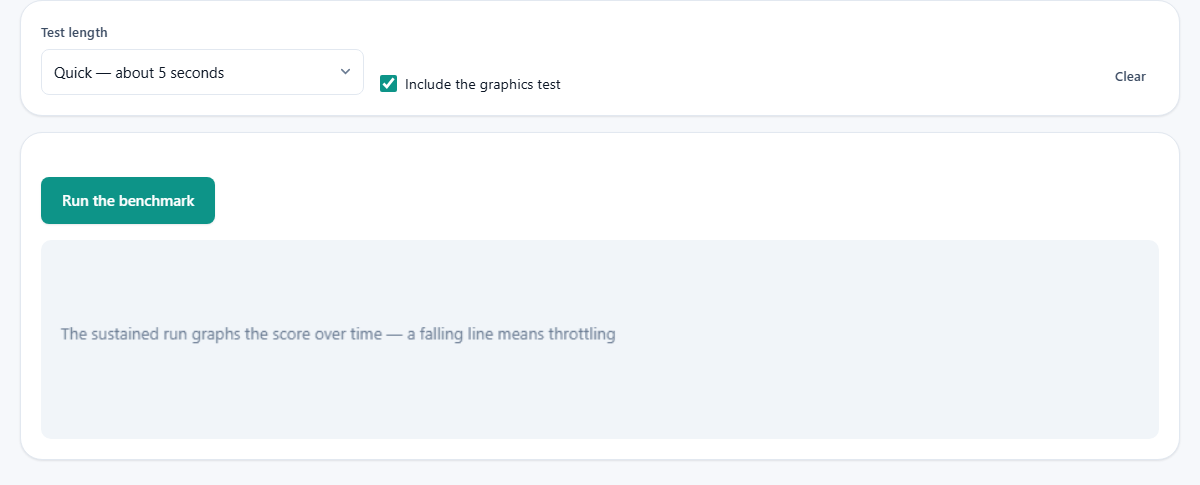
The Test length dropdown offers three choices. Quick runs for about five seconds and gives you a number fast. Normal takes about fifteen seconds and produces a steadier result. Sustained runs for a full minute and repeats the tests over and over, recording the score each time.
The quick and normal options measure the peak. They finish before the device has time to warm up, so the number reflects what the hardware can do in a burst. That is interesting but not very honest. Nearly every thin laptop, tablet and phone can hit a high peak for a few seconds and then slow down as the heat builds.
The sustained run reveals that drop. The graph plots the score over the full minute, and the shape of the curve tells you more than any single number. A flat line means the cooling system keeps up and the performance you see in the first five seconds is the performance you get in the fifth hour. A curve that sags after twenty seconds is a device that will feel fast in a shop demo and slow when you actually use it for anything demanding.
What throttling looks like
Throttling is a device deliberately slowing itself down to avoid overheating. The processor has a maximum temperature it is allowed to reach, and when it gets close, the clock speed drops until the temperature falls. In a thin laptop with a small fan, or a phone with no fan at all, this can happen in under thirty seconds of hard work.
On the graph, throttling shows as a downward slope that eventually levels off at a lower score. The gap between the peak and the plateau is the throttling penalty. A 40 per cent drop is common on fanless machines. A desktop with a decent cooler may show no drop at all.
This is why benchmarks that finish in a few seconds can be misleading. They measure the sprint, not the marathon. If you are choosing between two laptops for video editing or compiling code, the sustained score is the one that predicts your real experience.
Getting a fair result
Close every other tab before you start. Each tab is a separate process competing for the same processor, and a tab playing a video or running an animation can pull the score down noticeably. Close other applications too, if you can. Anything that wakes up in the background, a sync client, a chat program, an updater, takes time away from the test.
Leave the page alone while it runs. Switching to another tab during the test may cause the browser to throttle the benchmark tab, which lowers the score for a reason that has nothing to do with the hardware. Keep the tab in front and do not touch the mouse or keyboard.
Run it more than once. The first run on a cold machine often gives a higher score than the second, because the device is starting cool. Two or three runs in a row show you the pattern, which is worth more than any single figure.
Plugged in versus battery
Most laptops run slower on battery power. The operating system drops the clock speed and turns off the boost to stretch the charge, and the difference can be dramatic. A laptop that scores 8,000 plugged in might score 4,000 on battery. That gap is larger than the difference between two generations of processor.
If you are comparing two machines, test them both in the same power state. Either both plugged in or both on battery. Mixing the two makes the comparison meaningless.
Power mode settings matter too. A machine set to power saver will score lower than the same machine on high performance. Check the setting before you conclude one laptop is faster than another.
The graphics checkbox
Include the graphics test is ticked by default. It draws a large number of shapes on a canvas and times how many frames the engine can manage. On most machines this is fine, but on very old hardware or a machine with a struggling graphics driver it can produce a low score that pulls the overall number down.
Unticking it removes the drawing test and gives you a score based only on the three computation tests. That is useful when you know the graphics hardware is not what you are interested in, or when you want to compare two machines purely on processor and memory speed.
The canvas test measures the browser's drawing performance, which includes the graphics driver and the compositing path the browser chose. Two browsers on the same hardware can give different canvas scores because they take different routes to the screen.
What the scores do and do not mean
The scores are only meaningful when compared within the same browser. Chrome and Safari compile JavaScript differently, lay out the drawing pipeline differently, and manage memory differently. A higher score in Chrome than in Firefox on the same laptop does not mean Chrome is better at everything. It means Chrome runs these particular tasks faster, and the next page you open may tell a different story.
There is no online leaderboard and no shared database. You cannot compare your score against strangers on the internet. That is deliberate. The point is to compare machines you have in front of you: is this laptop faster than that one, does plugging in make a difference, has the new operating system update changed anything.
When the score moves between runs
A score that varies by five or ten per cent between runs is normal. Background work, the thermal state of the processor, and power management decisions all shift it. A twenty per cent swing means something else is competing for the processor, and you should close whatever it is and try again.
The sustained graph is the best tool for spotting interference. A sudden dip in the middle of an otherwise steady line is usually a background process waking up for a moment. A slow decline is thermal throttling. A jagged line that never settles is a machine that is too busy to give a clean measurement.
Temperature plays a role even before throttling kicks in. A laptop that has been sitting idle in a cool room will often score a few per cent higher on the first run than on the third. The processor has thermal headroom to boost above its base clock, and that headroom shrinks as the heat builds. This is normal, and the third run is the more truthful number.
Practical uses for the numbers
- Comparing a new laptop against an old one to see whether the upgrade is worth it.
- Checking whether a particular power mode or battery setting hurts performance.
- Spotting thermal throttling before you commit to a long job.
- Testing whether a fresh operating system install runs faster than the cluttered one it replaced.
- Proving to yourself that closing thirty browser tabs really does make a difference.
- Verifying that a cooling pad or a laptop stand with better airflow actually changes the sustained performance.
Nothing leaves the page
The benchmark runs entirely in your browser. The scores are not sent to a server, not stored in a database, and not visible to anyone else. The Clear button wipes the results and the graph, and closing the tab removes everything that was there. There is no account, no login and no history kept between visits. The workload itself is harmless. It pushes the processor hard for a short time, which is exactly what the processor was built for. The machine will get warm, just as it would running any other demanding task, and it will cool down the moment the test stops.