
What your browser can and cannot say about your battery
Which browsers still report battery data, what the page reads and how it measures the actual drain rate over time, why the system estimate is often wrong, and the privacy reason some browsers have removed the feature entirely.
Why browser battery data exists at all
Years ago, browsers added an interface that lets a web page ask about the battery. The idea was simple: a page could notice that the battery was low and switch to a lighter mode, perhaps loading smaller images or pausing background work. It seemed helpful.
The feature never became widely used for that purpose. But it did get used for something its designers had not intended: tracking. The exact percentage and the estimated seconds remaining change slowly enough that two different websites, visited minutes apart, can match the same device by comparing those numbers. That works even in private browsing, because the battery does not know which mode the browser is in.
Firefox removed the feature entirely. Safari never added it. Chrome and Edge still offer it, and that is where this page works. On everything else it says the feature is not available, and that is a deliberate privacy choice by the browser makers rather than a bug.
What appears on the page
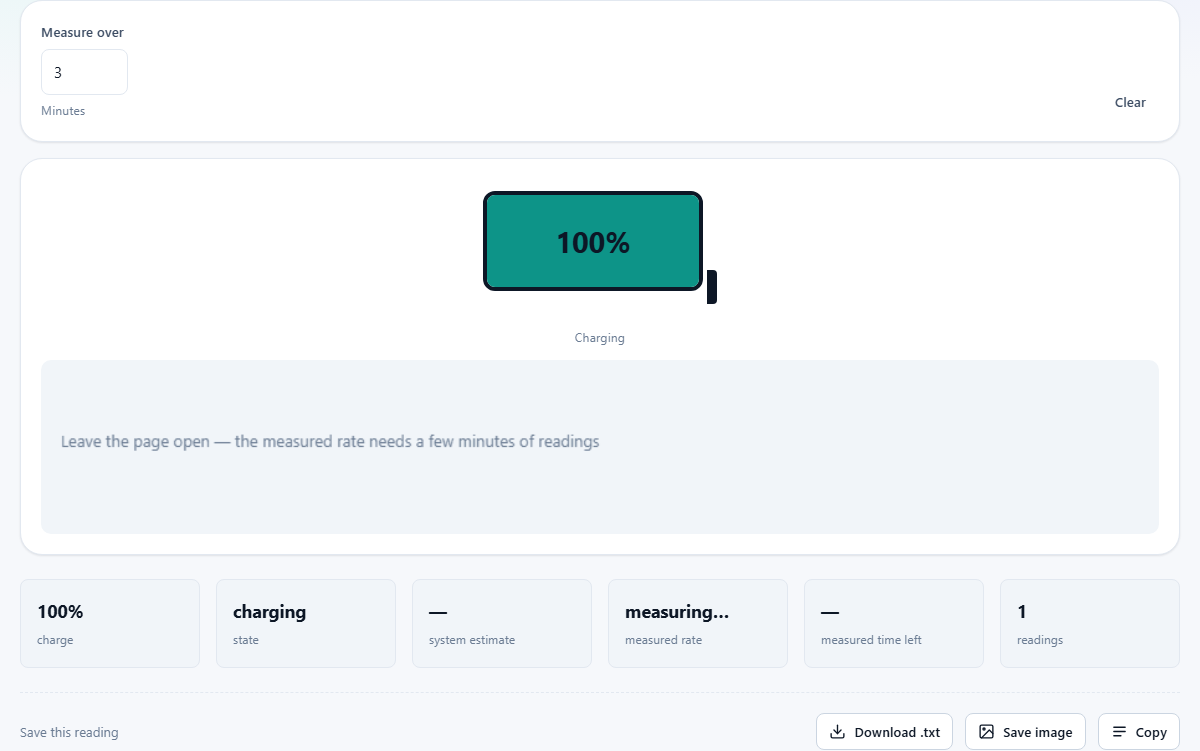
Open the page in Chrome or Edge on a laptop, phone or tablet and you get a battery icon with the current charge level, shown as a percentage. Below it the page says whether the device is charging or discharging, and if the system provides an estimate of the time to full or the time to empty, it shows that too.
A graph records the charge level over time as long as the page stays open. The line rises while charging and falls while on battery. It updates every few seconds, and after a few minutes the slope of the line becomes visible, which is already more informative than a single snapshot.
Below the graph a set of stats summarises what the page has gathered so far. These update as more readings come in. The longer you leave the page open, the more data it has to work with and the steadier the numbers become.
The measured drain rate
The system estimate comes from the operating system, and it assumes your recent usage will continue. That assumption is almost always wrong. If you were watching a video and then switch to a text editor, the system still expects video-level power draw for a while before it catches up.
The measured rate on this page takes two charge readings a few minutes apart and works out the actual percentage change per hour from what really happened in between. The Measure over field sets the window, starting at three minutes. A longer window gives a steadier figure. A shorter one reacts faster to changes.
The Clear button wipes the graph and starts the measurement fresh. Use it after plugging in or unplugging, since a rate that mixes charging and discharging is meaningless.
Checking a charger
One of the more practical uses is checking whether a charger is actually doing its job. Plug in, open the page, and watch the charging rate for a few minutes. Then try a different cable or a different adapter and compare.
A cable that is worn or too thin will charge noticeably slower. A low-wattage adapter on a laptop that expects a high-wattage one will show the same thing. In some cases a weak charger cannot even keep up with the drain, and the battery slowly drops even though it says it is charging. The graph makes that visible immediately.
If you have two chargers and you are not sure which one is faster, this is a straightforward way to find out without buying any extra equipment. USB-C chargers in particular vary widely. A cable rated for data but not for full-speed charging will work, but the wattage it delivers can be a fraction of what the port expects.
What the page cannot tell you
No browser exposes the original design capacity of the battery. That means the page cannot tell you how much wear the battery has suffered or what percentage of its factory capacity remains. Your operating system can usually show this: on Windows, a command-line battery report gives the design capacity and the current full charge capacity side by side. On macOS, system information has the cycle count and condition.
The percentage shown is always relative to whatever the battery can hold right now. A battery that has lost a third of its capacity still shows 100 per cent when it is as full as it can get. The number shrinks faster than it used to, and that is the clue, but it is not something the page can quantify.
Tips for a longer battery life
Modern lithium batteries do not like being held at 100 per cent all the time. The chemistry ages faster at the extremes, both very full and very empty. Keeping the charge between roughly 20 and 80 per cent, when you can, reduces that stress.
Many laptops now have a setting that stops charging at 80 per cent when the machine is plugged in most of the day. It trades a shorter session on battery for a battery that holds its capacity over years instead of months. The setting is usually buried in the manufacturer's power management software rather than in the operating system itself.
Heat is the other enemy. A laptop running hard on a soft surface with blocked vents warms the battery along with everything else. Battery degradation roughly doubles for every ten degrees above the comfortable range. Keeping the machine cool is the simplest thing you can do.
When it says not available
If you see a message saying the battery status is not available, the most likely reason is your browser. Firefox, Safari, Brave and several others have removed the feature for the privacy reasons described earlier. There is no workaround and no setting to turn it back on.
On a desktop computer without a battery the feature is also meaningless, and some browsers report it as unavailable rather than showing a permanent 100 per cent. That is the correct behaviour.
If you are using Chrome or Edge and it still says not available, check whether the page is being served securely. The battery interface requires a secure context, which means the address must start with https. A plain http connection is refused.
Why the system time remaining is often wrong
Operating systems smooth the estimate over a long window. A sudden change in workload takes minutes to show up in the predicted time. You close a game, and the system still thinks you are gaming for a while. You open a heavy application, and the system is still predicting the idle drain rate from five minutes ago.
The measured rate on this page has the opposite problem. It reacts to what is happening right now, so it can swing around if your usage changes during the measurement window. Neither figure is perfectly right, but watching both gives you a better picture than trusting either one alone.
A practical example: a laptop at 45 per cent with the system predicting two hours remaining. You close three browser tabs and a video call, and the system still says two hours. The measured rate, after a few minutes, shows the drain has halved and you really have closer to four hours. That gap is real and it matters when you are deciding whether to pack a charger.
What drains a battery fastest
The screen is almost always the biggest single drain. Brightness matters more than anything else running on the machine. Turning it down by a third can add an hour to a laptop and far more to a phone.
Wireless radios are next. Wi-Fi, Bluetooth and mobile data all draw power even when they are idle, and they draw more when the signal is weak because the radio has to shout louder. A phone with one bar of signal in a basement drains noticeably faster than the same phone near a tower.
Background applications are harder to spot. A video call left running in a minimised tab, a cloud sync grinding through a large folder, or a piece of software checking for updates every few seconds can each pull enough power to shift the drain rate by several percentage points. Closing everything you are not using is the simplest win after dimming the screen.
Your battery data stays in your browser
The charge level, charging state and drain rate are read locally and displayed on your screen. None of it is uploaded, stored or shared. The graph lives only in the page's memory and vanishes when you close the tab. Ironically, the same battery data that other sites could use to track you is shown here purely so you can see what they would see, without it going anywhere else.