
Measuring the delay your ears already suspect
What round-trip audio latency actually is, how the test measures it on the audio clock rather than guessing from the main thread, what the controls and results mean, and why wireless headphones add so much more delay than you might expect.
What round-trip latency is
Sound leaves your speakers, crosses the air, enters the microphone, and arrives back inside the software. The time that journey takes is the round-trip latency. It includes everything: the operating system handing audio to the speakers, the speaker turning electricity into vibration, the air between the speaker and the microphone, the microphone turning vibration back into electricity, and the operating system handing the result back to the page.
At 30 milliseconds or less the delay feels instant. Most people can play an instrument or sing along without noticing anything wrong. Up to about 60 milliseconds is comfortable for talking and casual use. Once the number passes 100 milliseconds you can hear yourself coming back late, and past 200 it becomes impossible to keep time with anything.
How the measurement works
The page plays a short, sharp click at a precise moment on the audio clock. At the same time, it watches the microphone input for a sudden spike in volume. When the spike arrives, it notes the exact sample number and works out how long the gap was.
The key word there is sample number. Inside an audio worklet the code sees every block of audio data along with the exact position it occupies on the timeline. That position is pinned to the hardware clock, not to the browser's main thread. If the main thread happens to be busy drawing something or running a garbage collector, the audio worklet keeps counting samples regardless. That is the difference between a measurement and a guess.
On a browser that does not support audio worklets the page falls back to a coarser method. It still works, but the resolution drops to one processing block instead of one sample, and it tells you it has done so rather than quietly claiming precision it does not have.
Setting up for an honest result
Use the built-in speakers and built-in microphone. Turn the volume up enough that the click is clearly louder than the background noise in the room. The page measures the room noise before it starts and shows you the level, so you can tell whether the room is too loud before wasting a run.
Sit still while the test runs. Each click is timed on its own, and a cough or a bump that lands on top of one click will show up as an outlier in the list rather than dragging the average. But steady background noise is harder to separate, and a very noisy environment can swamp the click entirely.
The page asks the browser to turn off echo cancellation, noise suppression and automatic gain control. These are signal-processing features designed for voice calls, and every one of them can interfere with the measurement. If the browser refuses to turn any of them off, the page says so rather than reporting a number that means nothing.
The controls and what to do with them
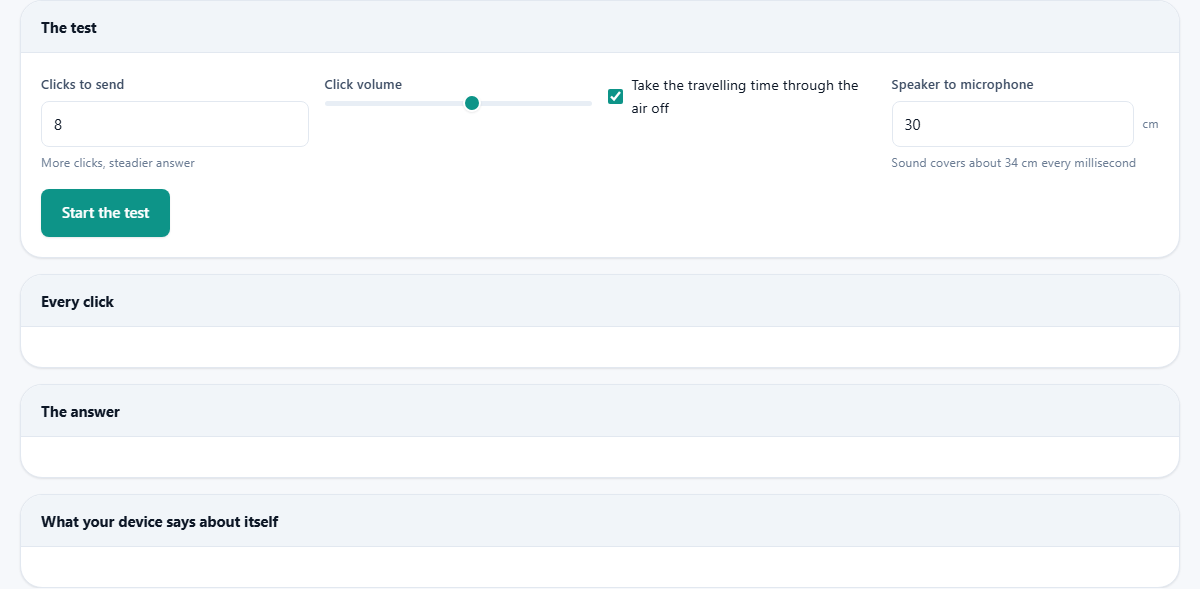
Clicks to send sets how many clicks the test will fire. The default is eight. More clicks give a steadier average, but each one needs a quiet gap around it, so the test takes longer. For a quick check, five is enough. For a careful comparison between two setups, fifteen or twenty gives a clearer picture.
Click volume is a slider from 10 to 100 per cent. Louder is better up to a point, because a louder click stands further above the noise floor. But if the speakers distort at full volume the shape of the click changes and the detection can land on the wrong moment. Start around 60 per cent and only push it higher if the page says the click was not heard.
Take the travelling time through the air off is a checkbox, on by default. Sound moves at about 343 metres per second, which is roughly 34 centimetres every millisecond. If the speaker is 30 centimetres from the microphone, that adds nearly a millisecond to the round trip that has nothing to do with your device. Put the distance in and the page subtracts it.
Reading the results
Each click appears as a small chip with its own timing. You can see straight away whether they cluster tightly or scatter. A tight cluster means the device is consistent. A wide spread means something is unsteady, often the operating system stealing time for background work.
The answer panel shows the average, the lowest and the highest reading, and the spread between them. If you asked the page to subtract the air travel, that subtraction is already done.
Below the results sits a panel called What your device says about itself. This reports the sample rate, the buffer size the browser chose, and whether the audio processing features were successfully turned off. The buffer size is worth a look: a smaller buffer means less delay but more risk of crackling, and the browser picks it based on what it thinks the hardware can handle.
Why wireless adds so much
Bluetooth audio is compressed at the sending end and decompressed at the receiving end. Both steps need a buffer, and those buffers are the delay. The codec itself takes time, the buffer has to fill before it can be sent, and the receiving end has to buffer again before it can play.
A wired output typically comes in at somewhere between 10 and 40 milliseconds round trip, depending on the hardware and the operating system. A Bluetooth connection routinely adds another 100 to 200 milliseconds on top of that. Some newer codecs are faster, but none of them are as fast as a wire.
This is why singing along to a backing track over wireless earbuds never quite lines up. The delay is not a fault in the earbuds or the phone. It is a consequence of how wireless audio works, and no browser setting can remove it.
Headphones and why they change the picture
With wired headphones on and the volume up, the sound goes into your ears and not into the room. The microphone hears the room and not the click, so there is nothing to find and the test reports silence.
If you want to measure a headset with its own microphone, the earpiece has to be close enough to that microphone for the sound to reach it. Cupping the earpiece against the microphone works, though the distance is hard to measure precisely.
For most purposes the useful comparison is between two setups rather than one absolute number. Measure the round trip with the laptop speakers, then measure it again with Bluetooth. The difference between the two is the honest part, because the room and the volume cancel out. That relative figure holds up even if the absolute numbers move between runs.
When the test says no click was heard
Turn the volume up. Move the microphone closer to the speaker. Check that the microphone the browser selected is the one you expect. Some machines have two or three inputs and the browser may pick one that faces the wrong way.
A very noisy room can swamp the click even at full volume. The measured room noise figure tells you whether that is the problem. If the noise is high, try again somewhere quieter or move nearer to the speaker.
Echo cancellation that the browser refused to turn off is another cause. The whole point of echo cancellation is to strip out the sound that the speakers just played, which is exactly what this test is trying to hear. The page warns you if it is still active. Automatic gain control can also cause trouble by quietly lowering the volume until the click no longer rises above the detection threshold.
Making the number useful
- Run the test more than once and take the pattern. A single run can land on a busy moment.
- Compare setups rather than chasing one figure. Wired against wireless, or one buffer size against another.
- If you care about latency for music, test with the audio software you actually use. The browser adds its own overhead that a dedicated audio driver may not.
- Remember that the number includes the air. If you did not subtract it, a few milliseconds of the total are just the speed of sound.
Nothing is recorded or sent
The microphone stream is watched for a loud spike and nothing more. No audio is stored, no recording is made, and nothing leaves your device. The microphone permission is needed purely to listen for the click coming back. Close the tab and the stream stops immediately.