
Hiding messages where nobody thinks to look
Steganography tucks a message into a picture so the picture looks the same as before. This article explains how the trick works at the pixel level, walks through every control on the page, and covers the mistakes that lose a message before the other person ever sees it.
The idea behind least significant bit hiding
Every pixel in a photo is stored as three numbers, one each for red, green and blue. Each number runs from 0 to 255. Changing the last digit of any of those numbers shifts the colour by a fraction so small that no human eye can spot it. That spare bit, the least significant one, is where the message goes.
A single pixel offers three spare bits, one per colour channel. A 1000 by 1000 photo has a million pixels, so it holds three million bits of message space when one bit per channel is used. Divide by eight to get bytes, and you can hide roughly 375 000 characters in a single image. The picture looks the same on every screen, and nobody who does not know the trick has any reason to look.
Choosing a cover picture
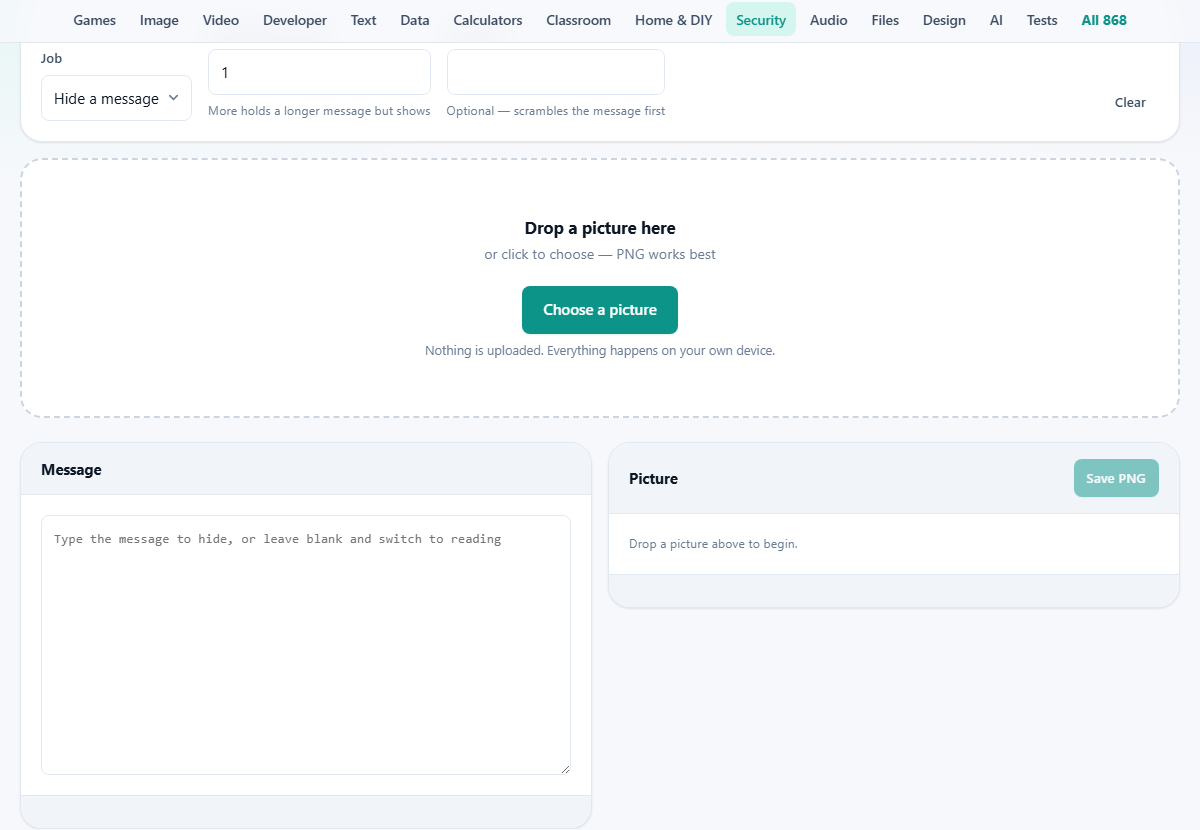
The drop zone at the top accepts any common image format. Drag a file in, click to browse, or paste from the clipboard. The tool loads it into memory and shows a preview on the right side of the screen.
Not every picture is equally good at hiding. A busy photograph full of noise, texture and varied colour is ideal, because the tiny changes blend into what was already there. A flat graphic, a logo on a white field, or a sky with smooth gradients is far worse. Changes in smooth areas cluster together, and an observer with the right tools could notice a faint mottling. When in doubt, pick a photograph with lots of detail.
The controls and what each one does
The Job dropdown switches between the two modes. Hide a message is the default: you type the text you want to conceal. Read one back does the opposite and extracts whatever is already hidden in the picture you loaded.
Bits used per colour decides how many of each colour value carry message data. At the default of one, only the single least significant bit is changed, and the result is invisible. Set it to two and capacity doubles, but very close inspection might reveal something in the smoothest regions. At four the image has visible speckle in flat areas, and the secret is no longer well hidden.
The Password field is optional. When you set one, the text is scrambled before it goes into the pixels. Anyone who extracts the bits without the password gets noise instead of readable words. This is not the same as proper encryption, but it adds a layer that stops casual discovery. The same password must be entered when reading the message back.
Hiding a message step by step
Suppose you have a holiday photo that is 4000 by 3000 pixels and a short note you want to tuck inside it. Drop the photo in. The message area on the left updates to show how much room is available. At one bit per colour, a 4000 by 3000 image holds over four million characters.
Type or paste the note. As you write, the capacity counter tracks how much space you have used. Set a password if you want the text scrambled. When you are ready, press Save PNG. The download is a PNG file that looks exactly like the original photo. Send it however you like, as long as the recipient gets the actual file and not a compressed version of it.
Reading a hidden message back
Switch the Job dropdown to Read one back. Drop the PNG you received, and if it contains a message the text appears in the message panel. If a password was set during hiding, enter the same password before loading the file. Without it, the recovered text will be garbled because the scrambling has not been reversed.
If the tool says no hidden message was found, the most likely reason is that the picture was changed after hiding. A single resize, crop, filter, or save to a different format destroys the hidden data. The tool writes a short header at the start of the pixel data. When that header is missing, it knows immediately that there is nothing to find.
Why format matters so much
PNG is a lossless format. It stores every pixel exactly as it was written, and the next time you open the file every bit is still in place. That is why the tool saves as PNG and why the Save PNG button is the only output option.
JPEG works differently. It achieves small files by rounding off the fine detail the eye does not notice, and that fine detail is exactly where the message lives. One save as JPEG destroys the hidden data completely, with no way to get it back. The same is true of any process that alters pixels: a resize, a rotation, a colour adjustment, or uploading to a service that re-compresses images. Most social networks and chat apps fall into this category because they shrink photos to save bandwidth. The file must reach the other person as the exact PNG you saved, whether that means an email attachment, a file sharing service, or a USB drive.
Understanding the trade-off between capacity and visibility
The bits per colour setting is the single control that governs how much you can store and how well it stays hidden. At one bit per colour the capacity is roughly one byte for every three pixels. A modest 800 by 600 picture holds about 160 000 characters, which is more than a full novel. Most practical messages do not come close to that limit.
Raise the setting to two and the room doubles, but now the two least significant bits in each channel are yours. The colour can differ from the original by up to three units out of 255, still very hard to see in a busy photo but potentially noticeable in a flat blue sky. At three, the difference can reach seven units. At four, it can reach fifteen, and anyone comparing the cover with the original in the same area will see a rough pattern.
Unless you are hiding a very long text in a small image, leave the setting on one. It is invisible in every practical sense and there is no benefit to filling bits you do not need.
Common mistakes and how to avoid them
Most lost messages come from the same handful of errors.
- Saving the result as JPEG instead of PNG. The tool defaults to PNG, but a slip in a separate editor later can lose everything.
- Sharing through a platform that re-compresses images. If you paste the picture into a chat thread rather than sending it as a file, the app will almost certainly resize it.
- Forgetting the password. There is no recovery. If the scramble password is lost, the message cannot be read.
- Using a flat or very small cover picture. A logo on a solid background has few pixels and very little variation to hide behind. Choose a detailed photograph.
- Editing the image after hiding. Even a harmless-looking crop removes the header that tells the reader where the message starts.
What steganography is not
This is concealment, not encryption. The message is spread across the pixels using a known method, and anyone who suspects it is there can extract it with the same technique. The password scramble makes the recovered bytes unreadable without the key, but it is a simple stream cipher, not a battle-tested encryption standard.
If the message is truly sensitive, encrypt it with a proper tool before you paste it into this page. The steganography then hides the encrypted text, and an attacker who finds it still faces the encryption. Hiding and encrypting are complementary. Used alone, hiding relies entirely on nobody looking, and that is a fragile guarantee.
Practical uses worth considering
The most common reason to hide text in a picture is simple curiosity. People want to see it work. Beyond that, photographers sometimes embed a copyright notice in their images so they can prove ownership later if the photo appears somewhere without credit. Others use it to carry metadata that a viewer does not need to see, like a batch reference or an internal note for a production pipeline.
A less obvious use is as a backup verification tag. Embed a short hash or a date string in a reference copy of an image. If the image is later altered, the hidden data will be lost, and its absence proves the file was changed. This is not tamper-proof security, but it is a quick sanity check that costs nothing to set up.
Privacy on this page
The entire process runs inside your own browser. The picture you drop in, the message you type, and the password you set are never transmitted anywhere. You can disconnect from the internet after loading the page and every feature continues to work, because there is no server involved at any stage. The finished PNG is built in memory and saved directly to your downloads folder.