
Understanding Public-Key Cryptography and PEM Key Pairs
This article explains what public-key cryptography does, how RSA and elliptic-curve algorithms compare, and how to generate, export and verify key pairs using this browser-based tool.
What public-key cryptography solves
Ordinary encryption uses a single shared secret. Both sides need the same key, so you face a puzzle: how do you get that key to the other person without someone else reading it along the way? Public-key cryptography removes the puzzle entirely. It gives you two keys instead of one. They are linked by hard mathematics, but knowing one does not reveal the other.
One key is public. You hand it out freely. The other is private. You never show it to anyone. A message locked with the public key can only be opened with the private one. A signature made with the private key can be checked with the public one. That asymmetry is the whole idea, and it is what makes secure web connections, code signing and encrypted email possible without ever meeting in person to trade a secret.
RSA and ECDSA compared
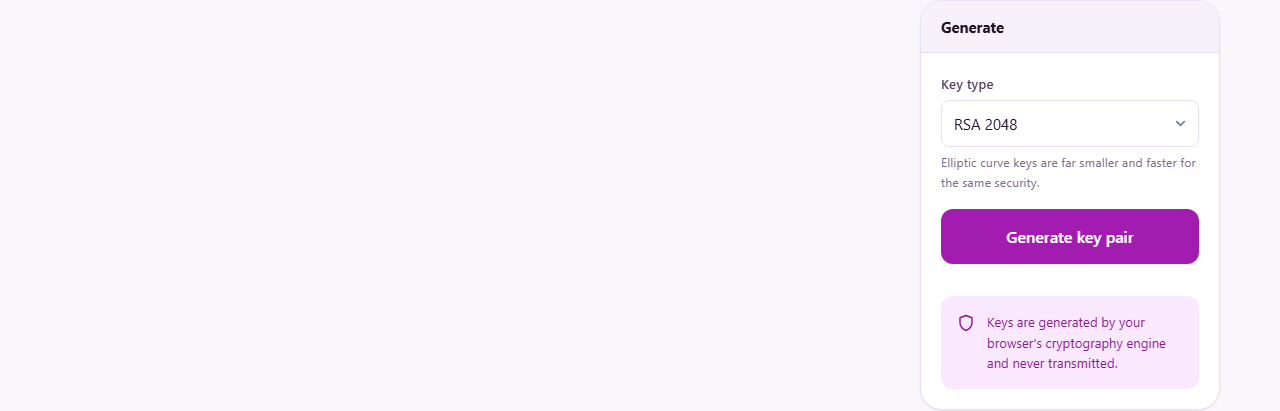
The Key type dropdown offers two families of algorithm. RSA works by multiplying two very large prime numbers together. Breaking it means undoing that multiplication, which is currently impractical at large enough sizes. ECDSA works on a different problem from a branch of mathematics called elliptic curves. Both are well studied and widely trusted.
RSA keys are long. A 2048-bit RSA public key fills about six lines of text. An ECDSA P-256 key, at roughly the same security level as RSA 3072, fits in less than two. Shorter keys mean faster operations, smaller certificates and less data on the wire. If the system you are working with supports elliptic curves, there is little reason to choose RSA. The main case for RSA is compatibility: older hardware, older libraries and some embedded devices only accept RSA.
The tool offers three RSA sizes. RSA 2048 is still accepted everywhere and remains the minimum for most standards. RSA 3072 is the conservative step up. RSA 4096 adds a margin that some projects require by policy. On the elliptic-curve side, P-256 is the workhorse, P-384 is common in government contexts, and P-521 provides the widest margin but is rarely needed in practice.
Step by step: generating a key pair
Open the Key type selector and pick an algorithm. For most learning and testing, ECDSA P-256 is a good starting point because it finishes instantly and produces compact output.
Press Generate key pair. For an elliptic-curve key, the result appears right away. For RSA, the browser must search for two prime numbers, which takes a moment. A 4096-bit RSA key can take several seconds on a slower machine. The status line shows what is happening while it works.
Once generation finishes, three panels appear. The public key panel shows the key you would share. The private key panel is hidden behind a reveal button so it does not appear on screen by accident. The fingerprint panel shows a short hash you can use to confirm the key later.
Reading the output panels
The public key appears in a text area with a Copy button and a Save .pem button. It begins with the line BEGIN PUBLIC KEY and ends with END PUBLIC KEY. Everything between is the key data encoded in base64. This is the part you would paste into a server, add to a configuration file or send to a colleague.
The private key area starts hidden. Pressing Show the private key reveals it. The warning above it is direct: anyone holding this key can act as you. In a real system the private key file would be further protected by a passphrase, but the keys generated here have no passphrase. That is deliberate, because the point of this tool is visibility and learning, not producing keys for real infrastructure.
Below both keys is the public key fingerprint. It is the SHA-256 hash of the public key, shown as pairs of hexadecimal digits separated by colons. Fingerprints are useful when two people need to confirm over a phone call that they are looking at the same key. Reading thirty-two pairs of hex is much faster than reading a whole key block.
What PEM format is and where it goes
PEM stands for Privacy Enhanced Mail, a name that survives from the early days of internet security. The format is simple. A header line names the content. Then comes base64-encoded binary data. Then a footer line closes the block. Nearly every tool that handles keys or certificates understands PEM, which is why it is the default output here.
The binary data inside is encoded according to a standard called PKCS number eight for private keys and SPKI for public keys. You do not need to know those names to use the keys, but they explain why some tools describe the same file differently. When you save a key with the Save .pem button, the file downloads with the name public-key.pem or private-key.pem and can be opened in any text editor.
When to use these keys and when not to
These keys are real. The browser uses its own built-in cryptography engine, the same one behind every secure web connection. The maths is correct and the randomness comes from a proper source. The trouble is everything around the generation, not the generation itself.
A key that has been drawn into a web page sits in memory shared with every tab. Browser extensions can read page text. If you copy the key, clipboard managers may keep a record. None of that applies to a key generated on the command line of the machine that will use it.
The right uses are learning, test fixtures, throwaway development certificates and quick demonstrations. The wrong uses are SSH access, signing releases, protecting anything in production or any situation where the key might be used for more than a few hours. For those, generate the key on the target machine, protect it with a passphrase and do not let it move.
Worked example: creating a test certificate key
Suppose you are setting up a local development server and need a key pair for a self-signed certificate. Select ECDSA P-256 from the Key type list. Press Generate key pair. The result appears instantly.
Copy the private key and save it as server.key in your project. Copy the public key for the certificate signing step. The fingerprint gives you a quick way to verify later that the certificate matches the key you intended. If someone else on the team generates a different pair, comparing fingerprints settles the question in a few seconds.
When you are done testing and move toward production, throw these keys away and generate fresh ones on the server. That is the pattern this tool fits: fast, visible, disposable.
Troubleshooting common problems
If RSA 4096 takes a very long time, that is normal. Prime-number searches are unpredictable. Occasionally the browser needs many attempts. Switch to ECDSA if you do not specifically need RSA.
If you paste the key into another tool and it complains about the format, check that you copied the entire block, including the BEGIN and END lines. Missing a single character breaks the base64 encoding and the file will not parse. Also check that no extra whitespace was added at the start or end of the block.
Some tools expect different header labels. For example, an older application might want BEGIN RSA PRIVATE KEY instead of BEGIN PRIVATE KEY. The difference is the encoding standard inside. If you hit this, the key data is the same, but the wrapper needs converting, which is a job for a command-line tool rather than this page.
Privacy and how generation works on your device
The key pair is generated entirely inside your browser. The page calls the built-in cryptographic API, which draws randomness from the operating system. No network request is made during generation, and nothing is sent to any server. You can disconnect from the internet after the page loads and the tool still works.
The keys exist only in the page while it is open. Reloading the page destroys them. There is no storage, no logging, and no analytics on the key material. The Save and Copy buttons write to your local device only.