
Turning a message into something only the password holder can read
Sometimes you need to send a note that only one person can read. This tool takes your message and a password, and hands back a block of scrambled text that is unreadable without that password. This article walks through the controls, explains the cryptography in plain terms, shows a complete example from typing to decrypting, and covers the common mistakes that defeat the protection.
Everyday reasons to encrypt a message
You are sharing a login credential with a colleague. You need to send an API key to a developer on another team. You want to keep notes in a shared document that only you can read. You are passing a recovery phrase to a family member and want it protected in transit. These are all cases where the information is short, the channel is not fully trusted, and you want something quick.
The tool fits in the gap between doing nothing and setting up a dedicated secure channel. It is not a replacement for end-to-end encrypted messaging, but when you need one-off protection for a piece of text and both sides can agree on a password, it does the job in seconds.
The two text areas and what goes where
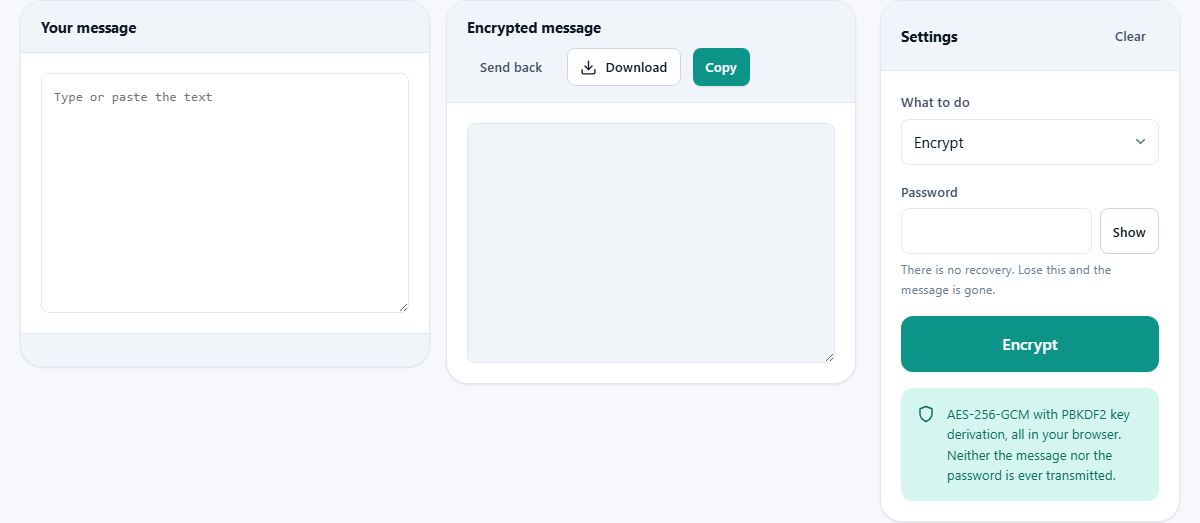
The left panel is labelled Your message when encrypting. Type or paste the text you want to protect. There is no length limit beyond your browser's memory. The right panel is labelled Encrypted message and starts empty. After you press Encrypt, the scrambled output appears there.
The labels swap when you switch to decrypt mode. Your message becomes the place you paste the encrypted block, and the right panel shows the recovered original. A Send back button copies the right panel into the left one, which is handy when you receive an encrypted block, decrypt it, and want to edit the result before encrypting it again with a different password.
The settings panel
What to do has two choices: Encrypt and Decrypt. Switch to Decrypt when you have received an encrypted block and want to recover the original text. The button at the bottom changes its label to match.
Password is where you type the shared secret. The tool requires at least eight characters. A Show button beside the field toggles visibility so you can check for typos before committing. A Clear button at the top of the panel empties both text areas and the password field at once.
Below the main button, a note confirms the algorithm: AES-256-GCM with PBKDF2 key derivation. Both of those terms are explained further down this article.
What happens under the surface
When you press Encrypt, three things happen in order. First, a fresh random salt of 16 bytes and a fresh random initialisation vector of 12 bytes are created. These are different every time, even if you encrypt the same message with the same password twice. That matters because reusing them would be a serious weakness in the algorithm.
Second, your password is fed through PBKDF2 with SHA-256 for 600,000 rounds. This is the slow step, and it is slow on purpose. Each round takes almost no time on its own, but six hundred thousand of them add up to about a second. For you, that is a brief wait. For an attacker trying every possible password, it means each guess costs a full second of computation, which makes brute-force attacks far more expensive.
Third, the derived key encrypts your message with AES-256 in GCM mode. GCM adds an authentication tag to the output, which means any change to the encrypted text, accidental or deliberate, is caught during decryption rather than producing wrong output silently.
What the output looks like
The encrypted output is a single string that starts with a short identifier, followed by three base64-encoded segments separated by dots: the salt, the initialisation vector, and the ciphertext. The whole thing is wrapped at 76 characters per line so it survives being pasted into email clients and chat applications that might otherwise mangle long strings.
You can copy the block with the Copy button, save it as a text file with the Download button, or select it directly from the text area. It is plain text and contains no special characters that would break when pasted, so it goes anywhere that text goes. The recipient pastes it back into the same page, enters the password, and presses Decrypt.
A complete worked example
You need to send a database connection string to a contractor. Type the string into the left panel. In the Password field, type a passphrase you have agreed on over a phone call: purple giraffe running east. Press Encrypt. After a brief pause for key derivation, the right panel fills with a block of scrambled text.
Copy that block and paste it into an email to the contractor. They open this same page, switch What to do to Decrypt, paste the block into the left panel, type purple giraffe running east into the Password field, and press Decrypt. The original connection string appears in the right panel. The password never appeared in the email, so anyone who reads the email in transit sees only the encrypted block, which is useless on its own.
Error messages and what they mean
If the password is wrong, the tool says it could not decrypt and suggests either the password is wrong or the message has been altered. GCM cannot tell the difference between those two situations because both fail the same authentication check. If you are certain the message is intact, try the password again carefully, watching for extra spaces, wrong case, or a trailing newline that might have been copied accidentally.
If the encrypted block is damaged, missing characters, extra line breaks inserted by an email client, or a chunk truncated by a chat application, the same error appears. Ask the sender to copy the block again from their end. The format is resilient to whitespace changes because the tool strips all whitespace before decoding, but missing characters cannot be recovered.
How to share the password safely
The encrypted text and the password should never travel through the same channel. If you email the encrypted block, send the password by text message, a voice call, or in person. If both pieces go through the same path, anyone with access to that path has everything they need.
A good pattern is to agree on the password before you send the encrypted text. Call the person, agree on a phrase, then send the block. That way the password never exists in any written channel at all. If you must write it down, use a different messaging service from the one carrying the encrypted block.
When a different approach is the better choice
If you need to encrypt an entire file rather than a block of text, the file encrypter on this site handles that with the same algorithm and the same key derivation. It produces a binary container rather than a paste-friendly text block, so it is better suited for documents, images, and archives.
If both sides already use a messaging application with built-in end-to-end encryption, there is little reason to add another layer. The value of this tool is that it works with any channel, including ones that have no encryption of their own, such as ordinary email or a public paste service.
Limits of the protection
The algorithm is the same one that serious security tools use, and it is not the weak point. The weak point is always the password. A short or guessable password can be attacked offline once someone has the encrypted block. The deliberate slowness of key derivation buys you time, but only in proportion to how hard the password is to guess. Four random words are much stronger than an eight-character string with a number tacked on.
This tool is well suited for casual privacy: credentials, notes, short messages you would rather not leave in plain text. For protecting something against a resourced and motivated adversary, use tools that have been formally audited, and keep your key management just as careful as the encryption itself.
Nothing is transmitted at any point
The text you type, the password you choose, and the encrypted output all stay inside your browser tab. You can disconnect from the internet after loading the page and the tool still works because there is no server to call. That is easy to verify: open the page, go offline, and encrypt something. The result is identical to what you would get while connected, because the page has no back end and makes no network requests during the operation.