
Generating Secure Passwords and Understanding What Makes Them Strong
This article walks through every setting in the password generator, explains how the strength meter works, and covers the practical decisions behind choosing a random password or a memorable passphrase.
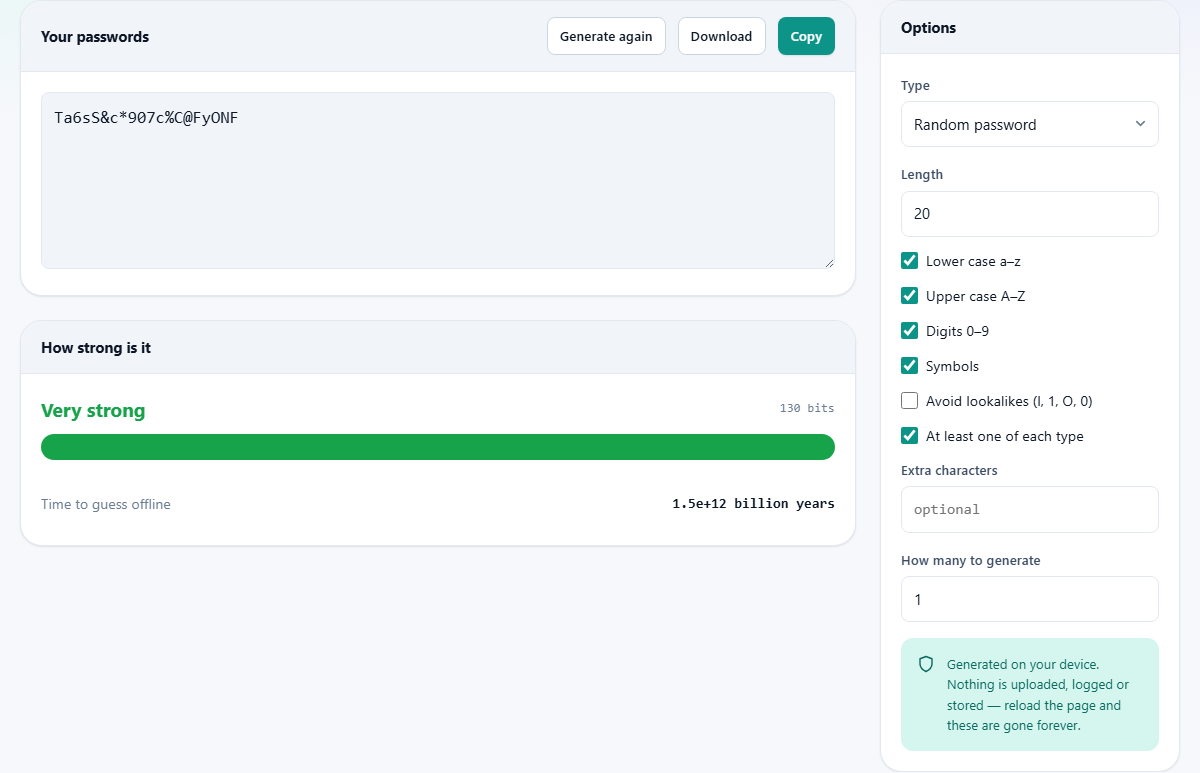
Two modes for two different jobs
The Type selector at the top of the options panel offers two choices: Random password and Memorable passphrase. They solve different problems. A random password is a string of letters, digits and symbols with no pattern at all. It is the strongest option per character, but nobody can memorise it. That is fine when a password manager holds it and types it for you.
A memorable passphrase strings together several random words separated by a chosen character. It is longer in terms of characters but far easier to type from memory. You need passphrases for the handful of credentials you must enter by hand, like the password that unlocks the manager itself or the passphrase on your laptop's disk encryption.
Setting up a random password
When Random password is selected, a set of controls appears. The Length field sets how many characters the output will be. The default is twenty, which is a strong starting point for most accounts. Anything above sixteen is solid. Shorter passwords lose strength quickly, especially if they also lack symbol variety.
Four checkboxes control which character types go into the pool. Lower case a-z, Upper case A-Z, Digits 0-9 and Symbols are all turned on by default. Turning any of them off shrinks the pool and reduces the possible combinations. If a particular site rejects symbols, turn that checkbox off but increase the length by a few characters to compensate.
The Avoid lookalikes checkbox removes characters that are easy to confuse. It strips out the letter l, the digit 1, the letter O, the digit 0 and a handful of other ambiguous glyphs. Turn this on if you ever need to read the password aloud, copy it by hand onto paper, or type it from one screen into another.
At least one of each type is checked by default. It guarantees that the password includes at least one character from every selected set. This prevents the rare but annoying case where a purely random draw produces a string with no digits, which some sites reject.
Adding custom characters
The Extra characters field lets you type in additional characters to include in the pool. If a site requires a specific symbol like a tilde or a curly brace that the default symbol set does not include, add it here. The characters you type are merged with the selected sets, and duplicates are removed automatically so no single character gets a higher chance of appearing.
This also works in reverse. If a site accepts only a limited set of symbols, you can turn off the built-in Symbols checkbox and type the allowed ones into Extra characters instead. The strength meter updates immediately to reflect the new pool size, so you can see exactly what that restriction costs.
Setting up a memorable passphrase
Switching the Type selector to Memorable passphrase hides the character controls and shows a different set of options. How many words sets the word count. The default is seven. This tool uses a curated list of 533 short, common English words, which gives each word about 9.1 bits of entropy. Seven words from this list is about as strong as five words from a full 7,776-word diceware list.
The Separator control lets you choose what goes between words. Hyphen, Dot, Underscore and Space are the options. Hyphens are the most universal choice and the least likely to cause trouble on login forms.
Capitalise each word turns the first letter of every word to upper case. It makes the phrase easier to read but adds no meaningful security, since the pattern is predictable. Add a number at the end appends a random two-digit number. This helps satisfy sites that demand at least one digit.
Reading the strength meter
Below the password output is a panel labelled How strong is it. A coloured label reads Weak, Reasonable, Strong or Very strong. Beside it is the exact bit count. Below is a visual bar that fills toward the right as strength increases.
The bit count measures the total number of possible outputs given the current settings. For a random password it is calculated from the pool size and the length. For a passphrase it comes from the word list size and the word count. The formula is simple: the number of choices raised to the power of the number of positions, then converted to a base-two logarithm.
Below the meter is a line labelled Time to guess offline. This estimates how long a dedicated attacker with fast hardware would need to find the password by trying every possibility. The estimate assumes ten billion guesses per second, which reflects modern consumer graphics cards cracking a weak password hash. Against a strong hash like bcrypt the actual time would be many orders of magnitude longer.
Generating more than one at a time
The How many to generate field lets you produce up to fifty passwords in one go. Each appears on its own line in the output area. All of them share the same strength because they use the same settings. Generating several is useful when you are setting up multiple accounts at once, or when you want to browse a few passphrases and pick the one that sticks in your memory.
Copy copies the entire output. Download saves it as a plain text file named passwords.txt. If you generate a batch for account setup, save the file, work through the list, then delete the file when you are done.
The Generate again button draws a completely fresh set without changing any of the settings. Use it when you want another batch of the same kind. Every click produces new output from the cryptographic generator, so no two presses will ever give the same result.
Worked example: a twenty-character password for a new account
Leave the Type on Random password. Set Length to twenty. Keep all four character-type checkboxes on. Leave Avoid lookalikes unchecked unless you plan to type this by hand. Set How many to generate to one.
A password like Mv8#kLp2!xRnQ6@dYw3j appears in the output area. The strength meter shows around 131 bits, labelled Very strong. The time to guess offline reads something in the trillions of years. Copy the password and paste it into both the new account form and your password manager. You will never need to remember it yourself.
Now suppose the site refuses symbols. Uncheck Symbols but raise the Length to twenty-four to make up for the lost pool size. The strength meter drops slightly but stays well above the strong threshold. Making the password a few characters longer compensates fully for the smaller set of characters.
Why you should question any website that generates passwords
The honest answer is that you are trusting the page not to send what it generates somewhere else. The claim is easy to verify. Open your browser's developer tools and switch to the network tab. Generate a password. No request leaves the page, because the tool runs entirely inside your browser using its built-in cryptographic random number generator.
You can also disconnect from the internet after the page loads. Everything still works. There is no server involved at any point. If you would rather not place any trust in a website, your password manager almost certainly has its own generator built in. Using that is a perfectly reasonable choice.
There is a deeper question about the quality of randomness. This tool uses the browser's cryptographic random number generator, which is designed for exactly this purpose. It uses rejection sampling to avoid the subtle bias that simple modular arithmetic introduces. That means every character in the pool has an exactly equal chance of being picked, which is what makes the strength calculation honest.
Privacy and how generation works locally
The passwords are created by your browser's cryptographic random number generator, the same mechanism that secures every encrypted web connection you make. No data is uploaded, logged or stored. The output exists only in the page. Reload and it is gone forever. Copy anything you want to keep before you close the tab.
There are no cookies, no local storage entries and no analytics on the generated values. The tool is a static page with no back-end process. That is a claim you can verify in thirty seconds with the network monitor, and it is worth doing once rather than taking on trust.