
The maths behind the six digits on your phone
Two-factor authentication adds a second check to a login: something you know plus something you have. The something you have is usually a phone showing a six-digit code that changes every half minute. This article explains the machinery inside that process, walks through every setting on this page, and covers the situations where using a web page for TOTP codes is and is not a good idea.
What happens when you scan the QR code
When a service asks you to set up two-factor authentication, it shows a QR code or a text string. That code contains a shared secret, a random key that both sides will use from that point on. Your authenticator app stores it. The service stores it. Neither side ever sends it again.
From then on, every thirty seconds, both your phone and the server take that secret, combine it with the current time, run a hashing calculation, and extract a short number from the result. Because both sides use the same secret and the same clock, they arrive at the same number without any communication. The login form checks whether the number you typed matches the one it computed, and if it does, you pass.
The secret key field and how to fill it
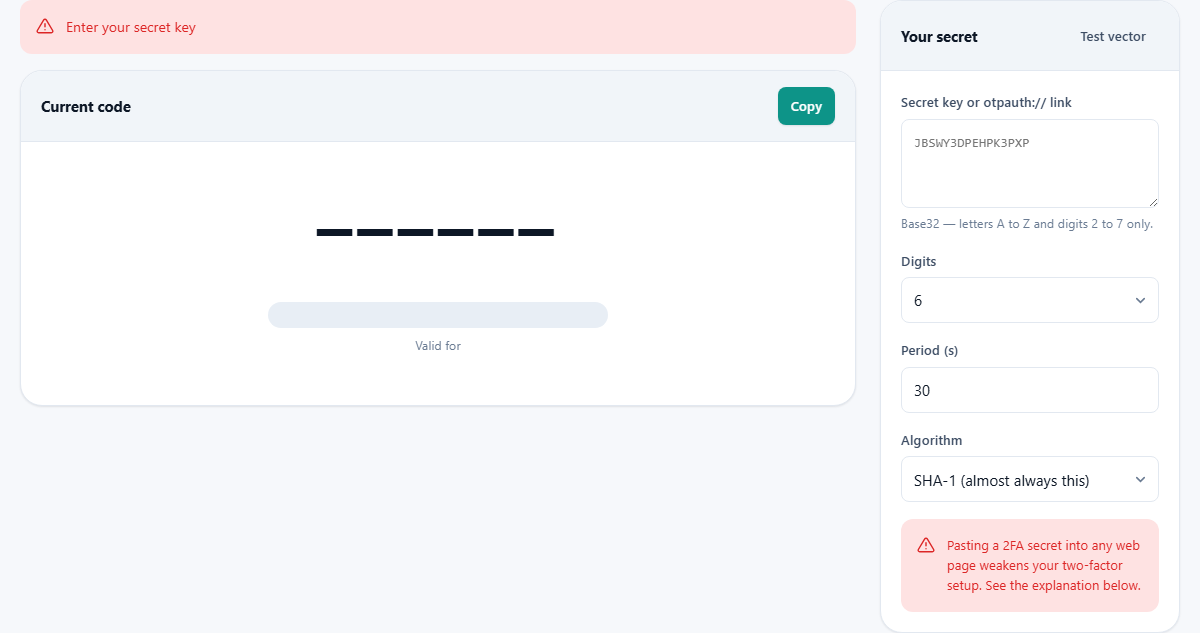
The panel on the right has a text area labelled Secret key or otpauth:// link. You can paste two different things into it.
The first is the base32 string itself. This is the text a service shows during setup, usually a string of capital letters and the digits 2 through 7. Spaces and trailing equals signs are stripped automatically. If you paste characters outside that set, the page shows an error explaining which characters are valid.
The second is a full otpauth:// link. This is the data encoded inside the QR code, and some services let you copy it directly. When you paste one, the page extracts the secret and fills in the other settings, including the number of digits, the time period, and the algorithm, so you do not need to set them by hand. If the link carries a label, such as the issuer name and your account, that appears as a note below the code display.
The settings you rarely need to change
Three fields sit below the secret key area. Digits is a dropdown offering six, seven, or eight. The overwhelming majority of services use six, and that is the default. Period is a number field for the window length in seconds, with a range from 10 to 120 and a default of 30. Algorithm is a dropdown offering SHA-1, SHA-256, and SHA-512, with SHA-1 as the default because it is what nearly every service actually uses.
If you pasted an otpauth link, these fields are already correct. If you typed only the secret, leave them alone unless the service told you otherwise. Changing any of them to the wrong value produces codes that look perfectly valid but do not match what the server expects.
Reading the code display
The large panel on the left shows the current code. For a six-digit code, it is grouped into two halves of three digits with a space between them, which makes it easier to type into a login form without losing your place.
Below the code, a progress bar fills from left to right and shows how many seconds remain before the code changes. The exact countdown is also printed as a number. When the bar drops below five seconds, it turns red as a warning that you should wait for the next code rather than risk typing one that expires mid-entry.
Under the bar, a lighter line previews the next code. This is the one that will appear when the current window ends. It is useful when the timer is about to run out: you can copy the next code early and paste it as soon as the window turns over.
The Copy and Test vector buttons
The Copy button at the top of the code panel places the current code on the clipboard as plain digits, without the display space. Paste it straight into a login field.
The Test vector button in the settings panel loads a specific secret from the official TOTP specification. This secret is well-known and has published expected outputs for various timestamps and algorithms. Loading it lets you verify that the page produces correct codes. If the output matches the published tables, the implementation is right, and any code it generates from your own secret will be correct too. The test vector sets the digits to eight and the algorithm to SHA-1 because those are the values the specification uses in its examples.
When the code does not work
The most common reason a generated code is rejected is a clock that disagrees with the server. TOTP divides time into windows, and both sides must agree on which window they are in. A device clock that is one minute ahead or behind will produce codes for a different window, and the server will reject every one. The fix is to turn on automatic time synchronisation in your operating system settings.
The second most common problem is a wrong secret. If even one character is different, every code will be wrong. When a service shows the secret during setup, copy it exactly and check that no character was dropped or changed. If you have any doubt, scan the QR code again or copy the otpauth link from the setup page.
A third cause is a mismatch in the settings. If the service uses SHA-256 and the page is set to SHA-1, or the period is 60 seconds instead of 30, the codes will differ even though the secret is correct. These mismatches are rare for most services but do appear in custom setups.
Why this page should not replace your authenticator app
The whole point of a second factor is that it lives somewhere separate from the first. Your password is in your browser or your memory. Your TOTP secret should be on a different device, typically a phone running a dedicated authenticator app. If you paste the secret into the same browser where you sign in, both factors live in one place. Anyone who gains access to that browser now has the password from the saved credentials and the TOTP secret from wherever you left it.
This does not make the page dishonest. Nothing is transmitted, and the calculation is correct. The risk is about where the secret ends up, not about what the page does with it. The legitimate cases for using a web-based generator are checking that a secret was copied correctly during setup, recovering access when your phone is lost and you still have the backup key, and testing two-factor flows in something you are building. For daily logins, a separate device is the safer choice.
Backup codes and what to keep offline
When you first set up two-factor authentication, most services give you a set of single-use recovery codes. These are your safety net if the phone breaks, gets lost, or is wiped. Each code works exactly once and bypasses the TOTP check entirely.
Store these codes somewhere safe, offline if possible. A printed sheet in a locked drawer is a classic approach. So is an encrypted file on a drive that is not connected to the internet. The codes are as powerful as the password and the secret combined, because they skip both, so they deserve at least as much protection.
If you also saved the original secret key, you can set up a new device by entering it again. That is the situation this page is built for: pasting the saved secret to generate codes while you re-enrol a new authenticator app.
A setup verification walkthrough
Suppose you are enabling two-factor authentication on a new account. The service shows a QR code and, somewhere nearby, the text version of the secret. Copy the text secret and paste it into this page. The code display shows a six-digit number. Open your authenticator app, scan the QR code, and compare the code your app shows with the one on this page. If they match, both sides have the correct secret and the clocks agree. Go ahead and enter the code into the service to finish setup.
If the codes do not match, check the settings on this page. The service may have specified a different algorithm or period, and if you typed the secret by hand rather than pasting the otpauth link, those settings will not be filled in automatically. Adjust them, compare again, and only proceed when the two codes agree.
Nothing leaves your browser
The TOTP calculation runs entirely in your browser tab using the built-in cryptography functions. The secret, the codes, and every intermediate value stay on your device. There is no server call, no log, and no stored history. You can confirm this by watching the network tab while using the page, and you can run it offline once it has loaded.