
Locking a file with a password before it leaves your hands
Password-protecting a file before storing it online or sending it to someone means that anyone who gets hold of the file without the password sees nothing useful. This article explains how the tool works, what the output looks like, how to get the original back, and what the practical limits are.
Who reaches for this and why
The usual reason is that you want to store a file somewhere you do not fully control. A cloud drive, an email attachment, a shared folder at work. The file itself might be harmless, but you would rather not leave it readable to anyone who stumbles across it or anyone who has access to the storage provider.
A second common case is sending something sensitive to someone who does not have a secure channel set up. You encrypt the file, send it one way, and pass the password a different way. Even if the file is intercepted, it is useless without the password. Tax documents, contracts, medical records, and credential files are the kinds of things people protect this way.
Loading a file and choosing a direction
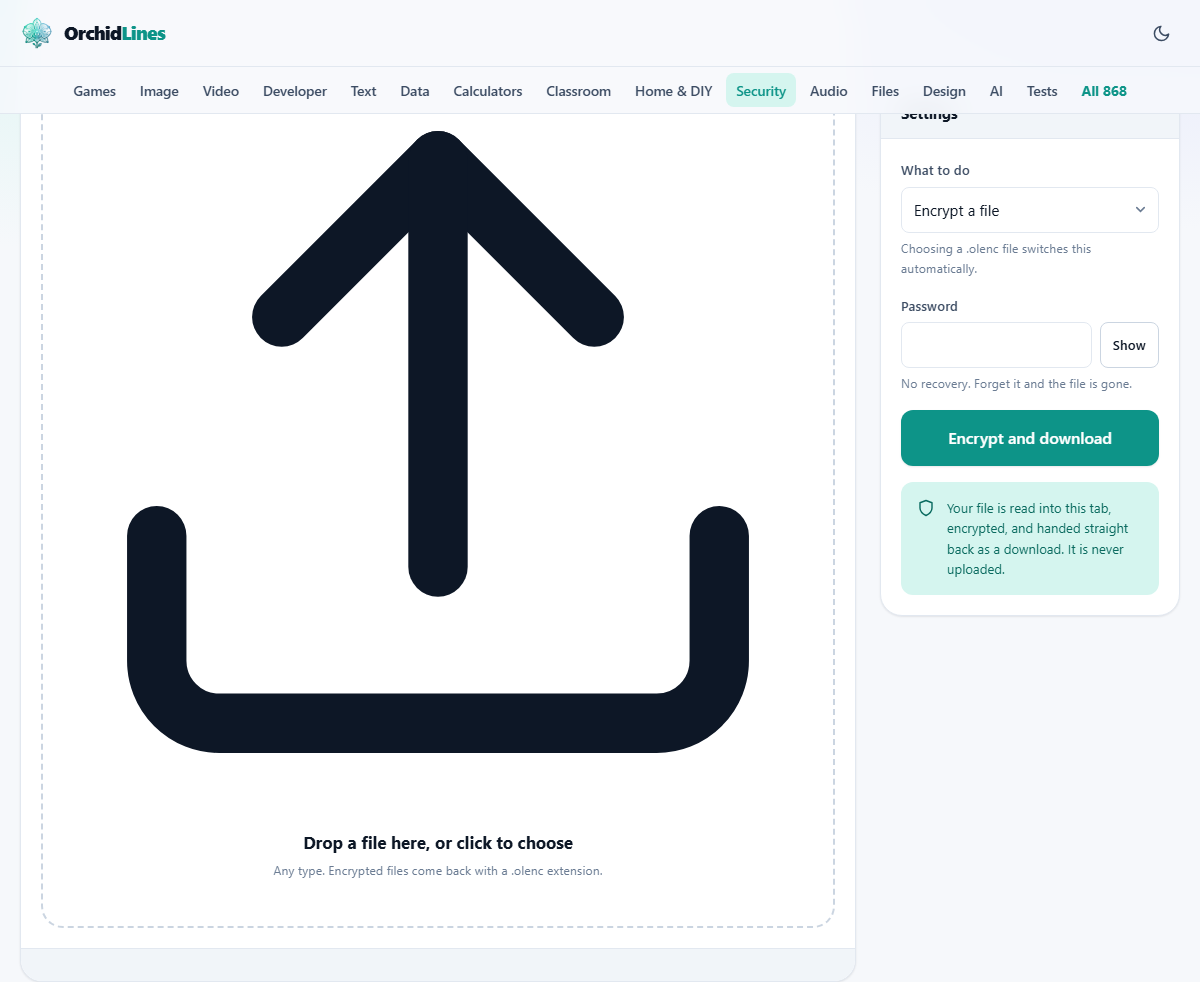
The drop zone accepts any file type. Drag a file onto it or click to open a file picker. Once a file is loaded, its name and size appear in a confirmation bar below the zone. The What to do dropdown in the settings panel has two options: Encrypt a file and Decrypt a .olenc file. If you drop in a file whose name ends in .olenc, the mode switches to decrypt automatically so you do not need to change it by hand.
There is no limit on what kind of file you can encrypt. Documents, photos, archives, videos, and database exports all work the same way. The tool reads the file into your browser tab, processes it there, and hands back the result as a download. Nothing crosses any network.
Picking a good password
The Password field is the only thing standing between your file and anyone who has the encrypted copy. The tool requires at least eight characters, but longer is better. A passphrase of four or five unrelated words is both stronger and easier to share than a short string full of symbols. Something like correct horse battery staple is a classic example of the idea.
The Show button next to the field toggles between hidden and visible text so you can check what you typed. There is no confirmation field, so look carefully before you press the button. If you mistype the password during encryption, the file is locked with whatever you actually typed, and you will need to remember that exact mistake to open it again.
What happens when you encrypt
Pressing Encrypt and download starts a two-stage process. First, the tool derives a cryptographic key from your password. This step uses PBKDF2 with SHA-256 and runs 600,000 rounds of hashing, which takes a second or two on purpose. That deliberate slowness means an attacker who tries to guess your password by brute force has to spend the same time on every single guess, which makes short-password attacks far more expensive.
Second, the tool encrypts the file contents with AES-256 in GCM mode. AES-256 is the same algorithm used to protect classified information in many governments. GCM mode adds authentication, which means that if anyone changes even a single byte of the encrypted file, decryption will fail with an error rather than silently producing a corrupted result.
The output is a file with the same name plus a .olenc extension. The original file on your disk is not touched. A fresh random salt and a fresh random initialisation vector are generated for every encryption, so encrypting the same file with the same password twice produces different output. This is important because reusing those values with GCM would be a serious weakness.
Decrypting to get the original back
Drop the .olenc file onto the same page. The mode switches to Decrypt a .olenc file. Enter the password and press Decrypt and download. The tool reads the container, extracts the salt and initialisation vector, derives the same key from your password, and decrypts the contents. If everything checks out, the original file downloads with its original name restored.
If the password is wrong or the file has been altered, you get an error message. GCM cannot tell you which of those two things happened because both look the same to the authentication check. If you are sure the password is right, the file may have been damaged in transit. If you are sure the file is intact, double-check the password for extra spaces or wrong case.
The container format and its limits
The .olenc container is specific to this tool. It stores a short header, the salt, the initialisation vector, the original file name, and then the encrypted contents. You cannot open a .olenc file with other encryption programs because they do not know this layout. To share an encrypted file, both sides need to use this same page.
The practical size limit is about 300 MB. The whole file and its encrypted copy both sit in your browser tab at the same time, so very large files will exhaust the available memory. If you need to encrypt something bigger, a desktop tool is the right choice. The tool checks the size before it starts and gives you a clear message rather than crashing the tab.
A practical workflow for cloud storage
Say you keep tax returns on a cloud drive. Each year you have a folder of scanned documents. Before uploading them, drop each file onto this page, set a strong password that you keep in your password manager, and upload the .olenc versions instead. The cloud provider stores bytes it cannot read. When you need a document, download the .olenc file, decrypt it here, and you have the original.
This approach lets you keep the convenience of cloud storage without trusting the provider with your plaintext. It also protects you if someone gains access to your cloud account, because the files themselves are still locked. The one risk is losing the password. There is no reset, no recovery question, and no backdoor. If the password is gone, the files are gone.
Mistakes that lose files
A few errors come up often enough to warn about.
- Deleting the original before testing. Always decrypt the .olenc file once to confirm it works before you remove the source. A typo in the password means the original is your only copy.
- Sending the password alongside the file. If the encrypted file travels by email, send the password by a different channel, a phone call or a messaging app. Both in the same email defeats the purpose.
- Forgetting the password entirely. There is no support desk, no master key, and no way around it. Store the password in a manager or write it down somewhere safe.
- Renaming the .olenc file. You can rename it freely because the original file name is stored inside the container. Decryption restores the real name regardless of what the outer file is called.
When a different tool is the better choice
If you need to encrypt a short message rather than a file, the text encrypter on this site does the same job but produces a block of text you can paste into an email or a chat. If you need to protect a file larger than 300 MB, use a desktop program that can stream the data rather than holding it all in memory. And if you need the recipient to open the file without visiting a web page, consider an archive format that supports password protection, though those often use weaker encryption by default.
This tool is best suited for files up to a few hundred megabytes that you want locked quickly, without installing anything, and without trusting a third-party server to handle the plaintext.
Your file never leaves your device
The entire process, reading the file, deriving the key, encrypting, and assembling the container, happens inside your browser tab. No part of the file, the password, or the encrypted output is sent to any server. You can confirm this by turning off your internet connection after the page loads; the tool works exactly as before. That is the reason it can handle large files without any quota and the reason there is no account to create.