
Understanding SPF and DMARC Records Without Guessing at the Limit
This article explains what SPF and DMARC records do, how to paste them into this checker, what every term and setting means in the output, and how to read the lookup count that trips up nearly everyone who manages email for a domain.
What these records control
Two DNS records decide whether your email is believed. The first, SPF, lists which machines are allowed to send mail for your domain. When a message arrives, the receiving server looks up this record and checks whether the sender's address is on the list. If it is not, the message may be marked as suspect or rejected outright. The second, DMARC, tells the receiving server what to do when a message fails both the SPF check and the signature check, and where to send you a report about what happened.
Both records are published as text entries in your DNS. Both are easy to get subtly wrong. The checker on this page reads the records you paste, explains every part, and flags the mistakes that matter.
How to paste your records
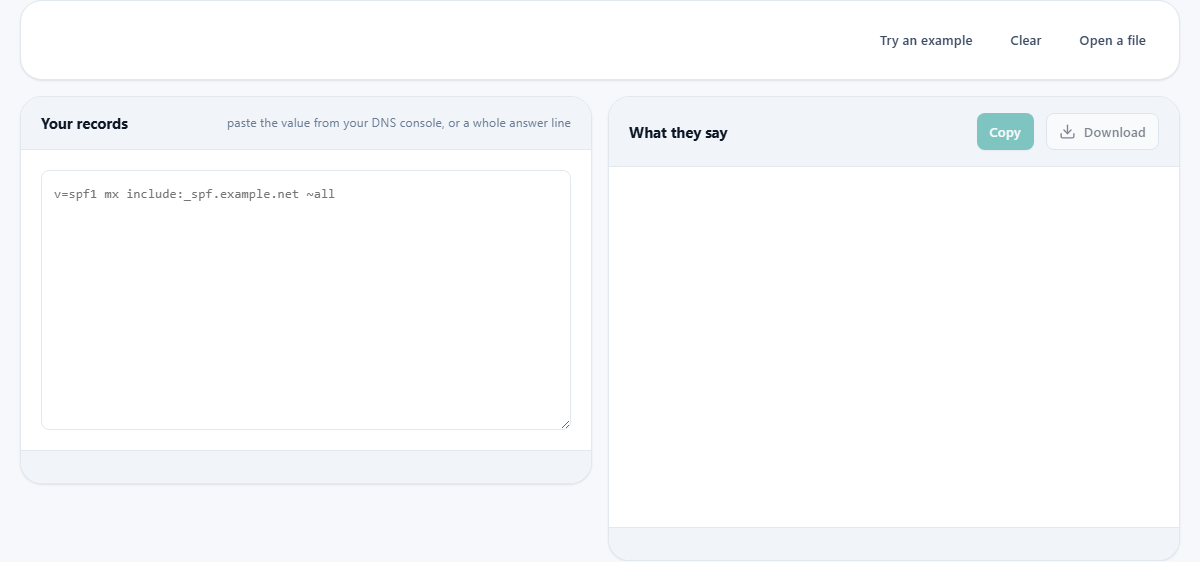
Copy the record from your DNS console or from a command-line lookup tool. Paste it into the left text area labelled Your records. The tool accepts many formats: a bare record starting with v=spf1 or v=DMARC1, a quoted TXT value, or a full answer line with the domain name and record type in front. You can paste several records at once, each on its own line. If your SPF record includes other domains, paste those records too. The lookup count is over the whole chain, so checking only the top-level record gives you a floor, not a total.
Press Try an example to load a sample set of records with a deliberately high lookup count, a DMARC record and a chain of includes, so you can see what the output looks like before you paste your own.
The ten-lookup limit explained
The SPF standard allows at most ten DNS lookups when evaluating a record. Go past ten and the check fails with a permanent error. The receiving server does not merely slow down or skip the extra terms. It stops and treats the result as though no record existed at all. That means mail you did send starts being treated as forged, and it fails silently because your own test messages often still arrive from servers that are checked early in the list.
The terms that cost a lookup are include, a, mx, ptr and exists. The redirect modifier also costs one. The terms ip4 and ip6 cost nothing because they carry the address right there in the record with no lookup needed. The all mechanism also costs nothing. The critical point is that the count is over everything, not just your own record. If your record has four includes and each of those pulls in three more, you might be at fourteen without anything in your own DNS settings showing you that.
Reading the SPF output
For each SPF record you paste, the checker shows a progress bar of DNS lookups used out of ten. Below it is a table with every term, its meaning, what it does and how many lookups it costs. Each term has a qualifier: a plus means pass and the sender is allowed, a minus means fail and the sender is rejected, a tilde means soft fail and the message is accepted but marked as suspect, and a question mark means neutral with no opinion. The all term at the end sets the default for senders not matched above.
Errors are listed separately from warnings. An error means the record is wrong now. A warning means something that will cause trouble eventually. Having +all, for instance, is an error because it tells every receiving server that any machine on the internet may send as your domain.
Reading the DMARC output
For a DMARC record, the output shows each setting, its value and what it controls. The p setting is the policy: none means do nothing and send reports, quarantine means put suspect messages in spam, and reject means refuse them. The rua setting is the address where daily aggregate reports are sent. The adkim and aspf settings control how strictly the domain in the message must match the domain in the record, either relaxed or strict.
Below the settings table, the checker shows how the matching is configured and suggests the next sensible step. If you are at p=none, it tells you to stay there until you recognise every sender in the reports. If you are at quarantine, it tells you to raise the percentage and then move to reject. If you are at reject, it tells you the job is done and to keep the reporting address working.
The safe order for tightening a policy
The right way to move from no policy to full rejection is one step at a time. Start with p=none and an rua address. Read the reports for a few weeks. They show you every server sending mail for your domain, including ones you may have forgotten about, such as a booking system, an invoicing tool or a marketing service. Fix any senders that are failing. Then move to p=quarantine with pct=25 so only a quarter of failing messages are affected. Watch the reports. Raise the percentage to 50, then 100. Only then move to p=reject.
Skipping to reject on day one silently deletes your own legitimate messages. Because they are rejected rather than bounced, nobody tells you it happened. The checker warns you if it sees a strict policy with no reporting address.
Common mistakes the checker catches
Two SPF records on the same domain is an error. The check fails entirely, which is worse than having none. Merge them into a single record. A tilde before all when you meant a minus is a warning. The tilde says accept but mark as suspect. The minus says reject. Almost every record on the internet has a tilde, and almost every one was meant to become a minus eventually.
Terms written after all are never reached because evaluation stops at all. The ptr mechanism is formally discouraged by the standard because it is slow and depends on other people's name servers. A record longer than 255 characters must be published as two or more strings joined end to end, and a record over 450 characters is awkward for some resolvers. The checker counts and reports all of these.
- Two SPF records on one domain: merge them into one
- Tilde-all when you meant minus-all: change it when you are ready to enforce
- Terms after all: they are never reached, so remove or reorder them
- Reports sent to an outside domain need an authorising record at that domain
Forwarding and why it breaks the sender check
A frequently asked question is why forwarded mail fails the SPF check. The answer is straightforward. When mail is forwarded, the forwarding server sends it onward from its own address, which is not listed in the original sender's SPF record. That is not a bug in your record. It is the expected result of sending from a machine the record does not know about. The standard was designed with this in mind, which is why a DMARC policy accepts either a passing SPF check or a passing signature check. A forwarded message may fail SPF but still pass the signature check, because the signature travels with the message and is not tied to the sending server.
If forwarded mail is consistently failing both checks, the forwarding service may need to be set up to re-sign the messages, or you may need to adjust the matching rules from strict to relaxed so that a subdomain under the same registered domain is close enough.
Privacy and what is not checked
Nothing on this page contacts your DNS or any other server. You paste the text and the published rules are applied to it in your browser. The tool will happily explain a record for a domain that does not exist. It cannot tell you whether the record is actually published, whether the included domains resolve correctly, or whether your mail is actually arriving. It reads the words and applies the grammar. Everything runs on your own device with nothing uploaded.
How to get started if you have nothing yet
If your domain has no SPF or DMARC record at all, start by publishing a simple SPF record that lists only the servers you know send mail for you. Include mx to allow your mail servers, add an include for each third-party service that sends on your behalf, and end with ~all. Then publish a DMARC record at _dmarc.yourdomain with p=none and an rua address pointing to a mailbox you will actually check. Wait a few weeks, read the reports, and adjust from there. The checker is most useful during this tuning phase, when you are adding or removing terms and need to know how many lookups each change costs.
You can paste a draft record before you publish it. The checker reads text, not live DNS, so it works just as well on a record you have not committed yet. That makes it a safe place to test changes without risking your live mail.