
How Digital Signatures Prove Who Wrote Something
This article covers what digital signatures do, how to generate a key pair, sign a message and verify a signature using this tool, what each option controls, and the one question no tool can answer for you.
What a digital signature actually proves
A digital signature answers two questions at once. First, was this message written or approved by the person who holds a particular private key? Second, has the message been changed since it was signed? If even a single character is different, the signature fails. That combination of identity and integrity is what makes signatures useful. You can send a signed message over any channel, and the recipient can check both questions without needing to share any secret with you.
A signature does not hide the message. The text remains perfectly readable. Signing proves who wrote it. Encryption hides what it says. They are separate operations and this tool handles signing only.
The three jobs on this page
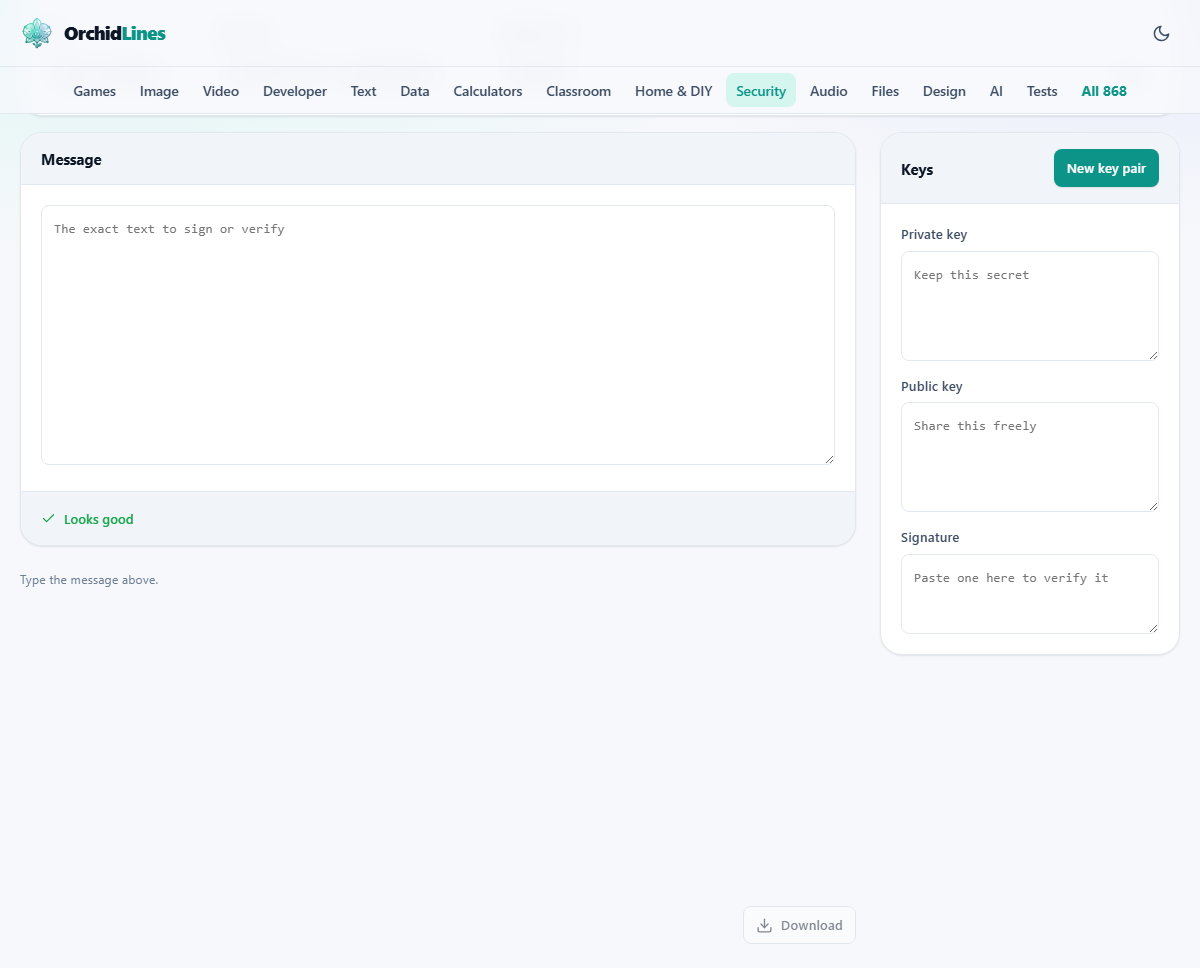
The dropdown labelled Job lets you choose between three modes. Sign a message takes your private key and the text you type and produces a signature. Verify a signature takes a public key, a message and a signature and tells you whether they match. Make a key pair generates a fresh private key and public key. The private key stays with you and must be kept secret. The public key can be shared freely.
Each mode shows and hides the relevant fields. When you are signing, the Private key field is visible and the Signature field fills in automatically. When you are verifying, the Private key field is hidden and the Signature field is where you paste the value to check. When you are making a key pair, neither the message nor the signature matters.
Generating a key pair
Set Job to Make a key pair and pick a key type from the Key type dropdown. Press New key pair. The two text areas on the right fill in: one with the private key in PEM format, starting with BEGIN PRIVATE KEY, and one with the public key, starting with BEGIN PUBLIC KEY. Copy the private key somewhere safe before you close the page. It is not stored anywhere. The public key can go on a website, in an email footer or anywhere else somebody might need it to verify your messages.
Choosing a key type
The Key type dropdown offers three choices. ECDSA P-256 is the default. It produces small keys and small signatures and is strong enough for nearly every purpose. ECDSA P-384 is a step up in strength and is the right choice if a policy or a compliance rule asks for it. RSA 2048 produces much larger keys and signatures but works with everything. Choose RSA only if the system you are working with does not accept elliptic curve keys.
A 256-bit elliptic curve key provides roughly the same strength as a 3072-bit RSA key, but the key itself is a fraction of the size. That is why ECDSA P-256 is the default.
Signing and verifying a message
To sign, set Job to Sign a message. Paste or type the message into the text area labelled Message. Paste your private key into the Private key field on the right, or generate one first. The signature appears below the message and also fills in the Signature field. The Signature as dropdown lets you pick between Base64 and Hex encoding. Base64 is shorter and more common. Hex is longer but sometimes easier to handle in certain tools.
To verify, set Job to Verify a signature. Paste the exact message into Message. Paste the sender's public key into the Public key field. Paste the signature into the Signature field. The tool tells you either that the signature is valid or that it is not. If it says not valid, either the message has been changed, the signature is from a different message, or it was made with a different key. Make sure the key type matches the one that was used for signing.
A worked example
You want to prove that a particular announcement came from you. You set Job to Make a key pair, leave the key type at ECDSA P-256, and press New key pair. You copy the private key to a secure note on your own machine. You post the public key on your website. Later, you write an announcement, paste it into the Message field, paste your private key into the Private key field, and the signature appears. You send the announcement, the signature and a link to your public key. The recipient pastes all three into this tool on the Verify tab and sees a green banner saying Valid.
If somebody altered a single word of the announcement, the verification would fail. If somebody tried to forge the signature with a different key, the verification would also fail, because the public key on your website matches only your private key.
The hard part no tool can solve
Verification tells you that the message was signed by whoever holds the private key matching the public key you were given. It says nothing about whether that person is who they claim to be. If an impostor sends you a message, a signature and their own public key, everything verifies perfectly. The missing piece is getting the right public key in the first place, from a source you already trust. That might be in person, from a website you have used for years, or signed by somebody whose key you already have. This is the oldest problem in public key cryptography and no calculator can fix it.
Real-world systems solve this through certificate authorities, web-of-trust models or simple out-of-band confirmation. This tool does not handle that layer. It handles the arithmetic. The trust decision is yours.
Why the exact text matters
The signature is computed over the exact bytes of the message. An extra space at the end, a different line ending or a changed character all produce a completely different signature. There is no concept of close enough. This strictness is the whole point. If a signature still passed after a small edit, an attacker could make small edits and the signature would cover something the signer never approved.
When you copy a message from one place to another, watch for invisible changes. Some email programs add line breaks, some chat apps convert straight quotes to curly ones, and some systems strip trailing spaces. Any of these will cause verification to fail even though the visible text looks the same. If a signature fails and you are sure nothing was changed, compare the byte lengths of both copies.
Downloading the result
After signing, the tool can produce a text file that bundles the message, the signature and the public key together. This makes it easy to send all three as one package. The file includes the algorithm and the encoding so the recipient knows which settings to use when verifying. The private key is never included in this file. The recipient can paste the contents into the verify tab to check the signature without having to find the public key separately.
Common mistakes when verifying
The most frequent reason a valid signature fails to verify is a mismatch between the key type used for signing and the key type selected in the verifier. If the signer used ECDSA P-256 and you set the dropdown to RSA 2048, the check will fail with an error about importing the key. Always match the key type setting to whatever was used to sign.
Another common mistake is pasting the private key into the public key field or mixing up the signature and the key. The fields are labelled clearly, but the values are all long blocks of characters and it is easy to grab the wrong one. If verification fails and you trust the source, double-check which value is in which field before concluding the signature is bad.
Privacy and practical limits
Keys are generated by your browser using its built-in cryptography and never leave the page. Closing the tab erases them. There is no account, no storage and no recovery. For anything that matters in the long term, generate and keep keys with dedicated tools on a machine you control. A browser tab is a fine place to demonstrate or test a signature, but it is not a safe place to store a key you depend on. Everything here runs on your device with nothing sent to any server.
When this tool is not the right choice
This tool is designed for signing and verifying plain text messages. It is not a full public key infrastructure. If you need to sign files, sign software releases or manage a collection of keys with expiry dates and trust chains, you need dedicated software running on your own machine. If you need to encrypt a message so that only one person can read it, you need an encryption tool rather than a signing tool. The two are related but they solve different problems.
For a quick demonstration, a one-off proof of authorship, or learning how the process works, this tool does the job cleanly. For anything you will depend on over months or years, treat this as a starting point and move to proper key management.