
Scanning Code and Config Files for Leaked Credentials
This article explains how the secret scanner detects credentials in text, what the confidence levels mean, and how to use the redacted output safely before sharing code or configuration publicly.
What the scanner looks for
The tool scans text for the shapes that credentials take. It knows the fixed prefixes and lengths of access keys from major cloud and code-hosting platforms. It recognises private key blocks wrapped in PEM headers. It detects signed tokens by decoding them and checking for a valid algorithm field. It finds passwords buried inside connection strings and authentication headers. And it spots settings whose names contain words like SECRET, TOKEN or PASSWORD when the value beside them looks substantial.
On top of those specific rules, the scanner also looks for anything that is long, mixed in character types and irregular enough to be a randomly generated secret. These broader detections are labelled as guesses because the tool cannot tell the difference between a real key and a build hash or file digest from their shape alone.
The three confidence levels
Each finding is labelled with a confidence level. High-confidence findings match a well-known credential shape with a fixed prefix or format. A twenty-character string starting with AKIA is an access key identifier or it is nothing. There is very little room for a false positive.
Medium-confidence findings match a structural pattern. A three-part base64 string that decodes to JSON with an algorithm field is a signed token, but a webhook address or a bearer token in an authorisation header might be a test value rather than a live credential. The tool flags them so you can decide.
Low-confidence findings come from the entropy pass. They are strings that score high on randomness and use a mix of character classes. A package version hash, a content digest and a session key all look the same from this angle, so these are guesses. Each one says why it was picked, which makes it quick to dismiss the ones that do not matter.
Using the controls to tune what appears
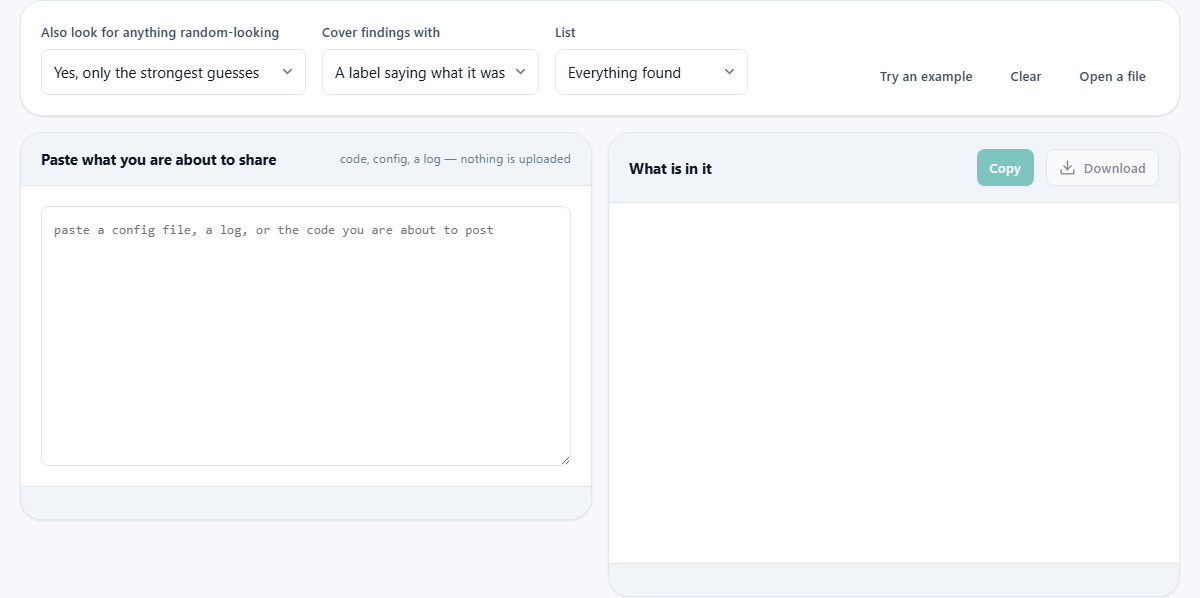
The Also look for anything random-looking selector has three settings. The default, Yes only the strongest guesses, applies strict thresholds: a string must be at least twenty characters long, use three or more character classes and have high entropy per character. Yes and include the weaker ones lowers those thresholds, which catches more secrets but also produces more false positives. No only known shapes turns off the entropy pass entirely and shows only findings that match a named rule.
Cover findings with controls what the redacted copy uses in place of each detected value. A label saying what it was replaces the secret with a tag like REDACTED ACCESS KEY. Stars replaces it with a row of asterisks. The first few characters keeps the opening four characters and the final two, with a redacted marker in between, which helps you identify which credential is which without revealing the full value.
The List selector toggles between Everything found and Only the definite ones. The latter hides all low-confidence guesses from the results panel, which cleans up the display when you only care about the things you must act on immediately.
Reading the findings panel
Findings are sorted by severity, not by position in the text. The ones that need action first appear at the top. Each finding shows a panel with the rule name, the line number, a confidence chip and a preview of the matched value. Long values are truncated in the preview.
Below the preview is an explanation of why this kind of credential matters. For signed tokens the tool also decodes the middle section and reports what is inside: the subject, the issuer, the expiry date and whether the token has already expired. For basic authentication headers it decodes the value and shows the username, since the encoding is not encryption and never was.
The redacted copy and how to use it
At the bottom of the results is a panel labelled Safe to paste elsewhere. It shows the full text with every detected secret replaced according to your chosen covering style. The Copy button and the Download button both give you this redacted version rather than the original.
Before you paste the redacted copy anywhere, read it yourself. The tool only covers what its rules matched. A secret with no recognisable shape, sitting in a setting with an ordinary name, will pass through unchanged. A short password embedded in a line of prose looks no different from a normal word to any automated scanner. The redacted copy is a starting point for review, not a certificate of safety.
What to do when the scanner finds a real credential
The right response is to revoke the credential and issue a new one, in that order. Removing the line from the file is housekeeping, not a fix. If the credential reached this file, assume it also reached everything that backs the file up: version control history, automated backups, CI logs and the clipboard of anyone who copied it.
For cloud access keys, go to the provider's console and deactivate the key before you generate a replacement. For tokens, check whether they have an expiry. An expired token is less urgent but should still be rotated, because the habit of leaving old credentials around is how live ones eventually leak. For passwords inside connection strings, change the password on the service itself, then update every file that references it.
How placeholders are handled
Real code repositories are full of lines like PASSWORD=changeme and API_KEY=your-key-here. Reporting every placeholder would flood the results with noise and make the tool useless within a day. The scanner filters these out before they reach the results.
A value is treated as a placeholder if it matches common dummy text, contains fewer than five distinct characters, or looks like a template variable waiting to be filled in. Template markers like curly braces, dollar signs and percent signs are all recognised. The goal is to show you only the values that could actually be live credentials.
Worked example: cleaning a config file before asking for help
You have a deployment configuration that is not working and you want to post it in a forum to ask for advice. Paste the entire file into the input area. The scanner runs immediately.
Suppose it finds a database connection string with a password, a code-hosting personal access token and two entropy guesses that turn out to be build hashes. Review each finding. The connection string and the access token are real credentials. The build hashes are harmless. Leave the covering style on A label saying what it was so the forum reader can see what kind of value was there without seeing the value itself.
Press Copy to grab the redacted version. Read it once more before posting. If there is anything else you recognise as sensitive that the tool did not catch, remove it by hand. Then paste the cleaned text into your forum post.
Limits of any automated scanner
No scanner can promise that a file is safe to publish. This tool finds shapes it knows and values that look random. A secret stored under a generic name like config_value, with a short or low-entropy value, will pass through without being detected. A password like Monday1 is invisible to any tool that measures randomness, because it does not look random enough to stand out.
Use the scanner as a last check before sharing something publicly, not as proof that the file contains nothing sensitive. The strongest protection is to never put real credentials in files that might be shared, but when that rule has already been broken, the scanner helps you find and cover most of what leaked.
Privacy and how scanning works locally
Nothing you paste into this tool is transmitted anywhere. The scanning happens entirely inside your browser tab. There is no upload, no reporting, no logging of any kind. For a tool whose job is to find secrets in text, this is not optional. A scanner that sent your file to a server for analysis would leak exactly the credentials you were trying to find.
The tool works by running a set of regular expressions and an entropy calculation over the input text. All of that happens in your browser's own scripting engine. You can verify it by watching the network tab while you scan, or by disconnecting from the internet and checking that everything still works.