
Building a password file for web server authentication
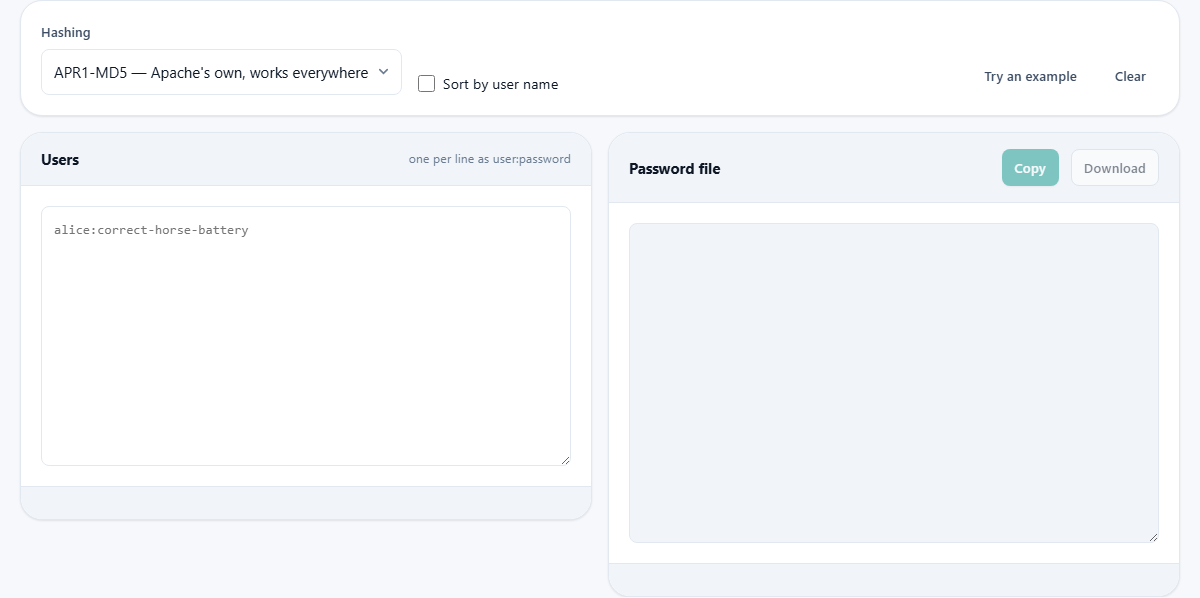
When you need to put a quick password prompt in front of a staging site or an internal dashboard, the simplest way is basic authentication. The server reads a flat file of user names and hashed passwords, and this tool generates that file entirely in your browser. This article walks through every control, explains the hashing options, and covers the practical limits of this approach.
What basic authentication is and when to use it
Basic authentication is the oldest form of password protection on the web. When a browser requests a page that requires it, the server sends back a challenge. The browser shows a small dialog box asking for a user name and password. If the credentials match an entry in the password file, the page loads. If they do not, the dialog appears again.
This scheme is adequate for keeping casual visitors and search engines away from a page that is not ready for the public. A staging server, a development build, an internal dashboard that only three people ever open -- these are the cases where basic authentication earns its keep. It is not a login system. There is no logout button, no session management, no lockout after failed attempts, and no password reset flow. If the thing behind the prompt handles real user data or needs any of those features, a proper application login is the right choice.
Entering users and passwords
Type into the left pane labelled Users. Each line holds one entry, written as the user name, a colon, then the password. For example, alice:correct-horse-battery-staple. Spaces before and after the user name are trimmed, but the password is taken from the character after the colon to the end of the line, exactly as typed. That means a password with spaces or colons in it works without any quoting.
Click Try an example to fill the input with three sample users. The output appears immediately on the right: each line shows the user name, a colon, and the hashed password in the format the web server expects. Lines that do not contain a colon are quietly ignored, so you can leave blank lines or comments between entries without causing errors.
The hashing options and what they mean
The Hashing dropdown offers three choices. APR1-MD5 is the default and the best choice when the server reading the file is Apache. It runs a thousand rounds of an MD5-based construction with a random salt. That is old by modern standards, but it is supported everywhere and it is what the Apache documentation describes. SHA-1 produces a simpler hash: one pass of SHA-1, stored in base-64 with the prefix {SHA}. Choose this when the server is nginx, because nginx does not understand the APR1 format.
The third option, Plain text, writes the password without hashing it at all. The status bar turns red and warns that this should never be used on a real server. It exists only for testing: when you are debugging whether the server reads the file correctly and want to rule out the hashing step as a source of confusion.
A note on bcrypt: it is the strongest option for password files and several web servers now support it, but it cannot be generated in a browser. Bcrypt is deliberately slow, which is the entire point, and the library it needs is large. If your server supports bcrypt, use the command-line htpasswd tool that ships with it to generate those entries.
A worked example from start to finish
Suppose you are setting up a staging server for a team of three people. Type these lines into the input pane: alice:magnolia-sunset-42, bob:frostbite-rally-99, and carol:timber-creek-77. Leave the hashing on APR1-MD5. The output immediately shows three lines, each beginning with the user name and ending with a string that starts with $apr1$ followed by eight characters of salt and twenty-two characters of digest.
Copy the output and save it as a file on the server, somewhere outside the document root. In your server configuration, point the authentication directive at that file and name the directory you want to protect. Restart the server and visit the page. The browser shows the familiar dialog. Entering alice with magnolia-sunset-42 lets you through. Entering a wrong password shows the dialog again.
Where to save the file and how to protect it
The file must be stored where the web server process can read it but the public cannot download it. That means outside the document root. A password file sitting inside the web directory can be fetched by anyone who guesses its name, which is worse than having no password at all because it hands the attacker the hashed credentials for every user in the file.
The conventional name is .htpasswd, with a dot at the start. On most systems, dot-files are hidden by default, but do not rely on that for security. The server configuration is the right place to deny access. If the file must live inside the web root for some reason, add a rule that returns a 403 for any request to it.
Keep the file as short as possible. Every user listed in it can log in, and there is no audit trail. When someone leaves the team, remove their line and reload the server configuration. There is no central management and no way to force a password change.
Sorting and the download button
The Sort by user name checkbox reorders the output alphabetically by user name. This is purely for readability. The server reads the file from top to bottom every time it checks a credential, so the order does not affect performance in any meaningful way for the small files basic authentication typically uses.
The Download button saves the output as a text file called htpasswd.txt. You can rename it on the server to whatever your configuration expects. The Copy button puts the text on your clipboard for a quick paste into a terminal session or a configuration panel.
Password strength warnings
If any password in the input is shorter than twelve characters, the status bar calls it out. Short passwords weaken the whole scheme regardless of the hashing algorithm. APR1 runs only a thousand rounds of MD5, and SHA-1 runs just one pass. Neither is slow enough to make brute force difficult when the password is short or predictable. A passphrase of three or four unrelated words is far better than a short string of mixed characters, and it is easier to type into the browser dialog.
The tool does not enforce a minimum length. It warns and leaves the decision to you, because a staging server that only exists for an afternoon may not need the same standards as a production system.
Limits of basic authentication
The password is sent on every single request. It is encoded in base-64, which is not encryption: anyone watching the network sees it in plain text. Over HTTPS this is not a problem, because the whole connection is encrypted. Over plain HTTP it is a serious exposure. Never use basic authentication on a site that does not have HTTPS.
There is no way to log out. Closing the browser tab sometimes clears the credential, but not reliably and not in every browser. There is no session timeout. There is no way to tell one user from another in the server logs beyond the user name. There is no two-factor support.
- Always use HTTPS with basic authentication.
- Treat it as a lock on a gate, not as a login system.
- Keep the password file outside the web root.
- Remove users promptly when they no longer need access.
Everything stays in your browser
The passwords are hashed right here on your device and never sent anywhere. That is the whole reason this tool exists: the alternative is typing your password into somebody else's server and trusting them not to store it. The salt for each APR1 hash is generated from your browser's own random number source, so every run produces a different output even for the same password. The SHA-1 hash is computed using the browser's built-in cryptographic functions. Nothing leaves the page at any point during the process, which means you can safely use it to generate credentials for internal systems without any risk of interception.