
Requesting a certificate without trusting a stranger with your key
A certificate signing request is the document you hand to a certificate authority when you want an SSL certificate. It carries the names you want certified and your public key, but not the private key that matches it. This article explains what each field on the page does, walks through a realistic example, and covers the details that trip people up when they do this for the first time.
When you need one of these
Every secure website uses a certificate, and every certificate starts its life as a request. You fill in your domain name, choose a key type, and submit the request to a certificate authority. They check that you own the domain and hand back a signed certificate. Your web server then presents that certificate to visitors so their browser can set up an encrypted connection.
Most hosting panels generate the request for you behind the scenes. You reach for this tool when you need to see what goes into the request, when you want the private key to exist only on your own machine, or when the certificate authority expects you to paste a CSR rather than letting them create one. System administrators and developers who manage their own servers are the people who use this most.
The subject fields on the right
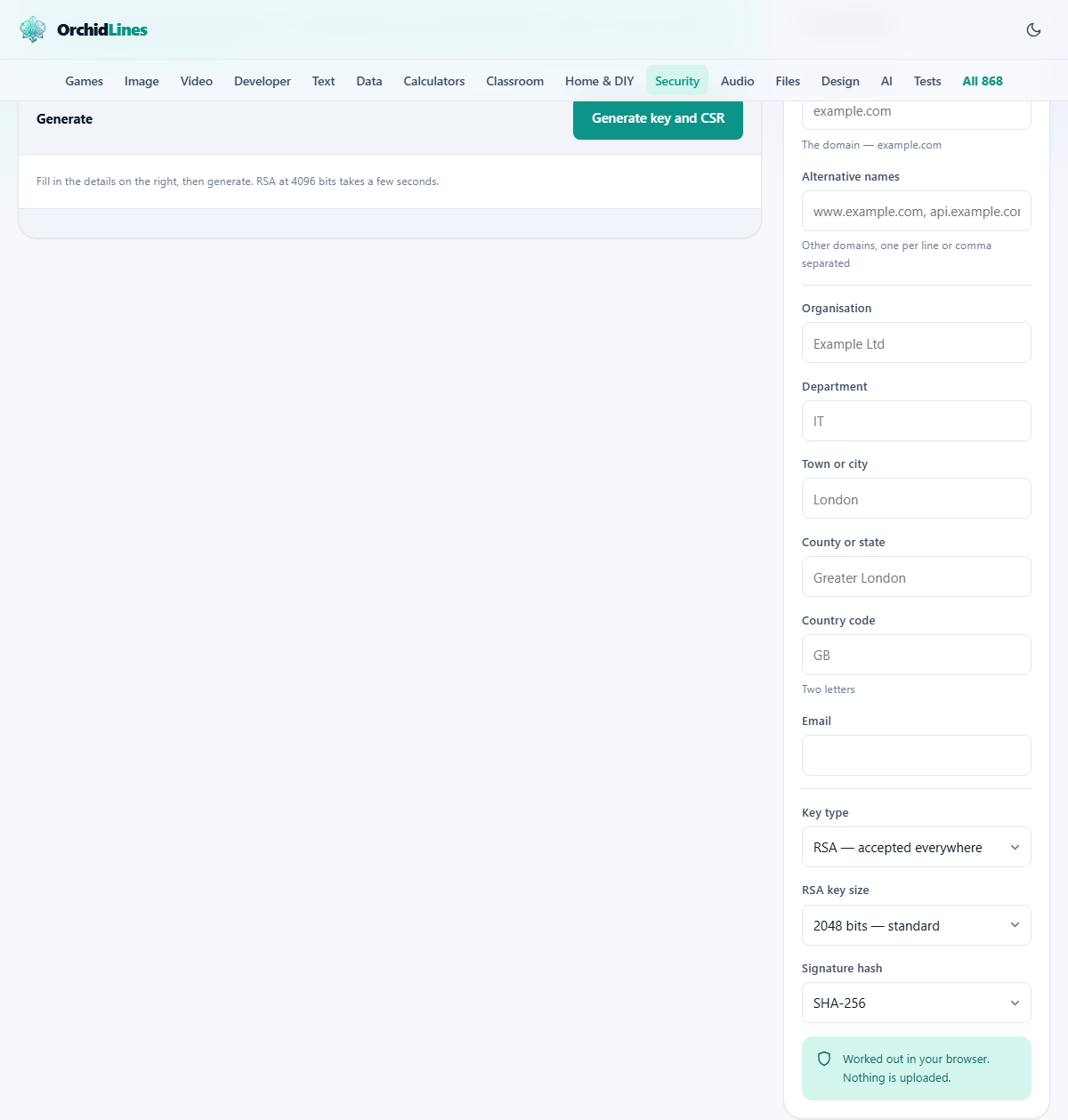
The right-hand panel holds every field that goes into the certificate subject. Common name is the only one that is required. Type your domain here, such as example.com. The rest are optional and many certificate authorities ignore them for standard domain-validated certificates, but they matter for organisation-validated ones.
Alternative names is the field that actually counts for browsers. Modern browsers read only the subject alternative name list when deciding whether a certificate matches a domain. The tool adds your common name to this list automatically so you do not end up with a certificate that fails for its own primary domain. If you need the certificate to cover more than one hostname, list them here separated by commas. A wildcard like *.example.com covers one level of subdomain but not the bare domain itself, so include both.
Organisation, Department, Town or city, County or state, and Country code fill in the rest of the distinguished name. Country code must be exactly two letters, such as GB or US. Email is rarely used in modern certificates but it is there if you need it.
Choosing between RSA and ECDSA
The Key type dropdown offers two families. RSA is the older standard. At 2048 bits it is accepted by every client you will ever meet, including very old ones. The 3072 and 4096 options provide longer keys for a higher security margin, but 4096-bit keys take noticeably longer to generate and produce larger handshakes on every new connection.
ECDSA is the newer option. A P-256 key gives security comparable to RSA 3072 with a key that is a fraction of the size. Handshakes are faster, certificates are smaller, and every current browser and certificate authority supports it. Pick ECDSA unless you know you have to talk to clients that are a decade old.
The Curve dropdown appears when ECDSA is selected and offers P-256 or P-384. The Signature hash dropdown controls which hash function signs the request. SHA-256 is the standard choice and the only one needed for nearly all purposes.
What happens when you press the button
Pressing Generate key and CSR tells your browser to create a fresh key pair and build the request from the fields you filled in. The browser uses its built-in cryptography for the key generation, the same code that handles every secure connection you make. Once the key pair exists, the tool assembles the request in DER format, signs it with the private key, and shows both pieces in PEM-encoded text areas.
Two output panels appear. The first contains the certificate signing request, which you give to your certificate authority by pasting it into their order form or uploading the downloaded file. The second contains the private key, which goes on your server and nowhere else. Each panel has a Copy button for the clipboard and a Download button that saves a file with a sensible name based on your common name.
A worked example for a small site
Suppose you run a shop at bakery.example.com and want a certificate that also covers www.bakery.example.com. Type bakery.example.com in Common name. In Alternative names type www.bakery.example.com. Fill in your company name under Organisation, your city, and your two-letter country code.
Leave Key type on RSA and the size on 2048. Press Generate key and CSR. A summary panel confirms what was requested, including both domain names in the alternative names list, the key type, and the signature hash. Copy the CSR block and paste it into your certificate authority's order page. Download the .key file and transfer it to your server, placing it somewhere only the web server process can read it.
Once the certificate authority issues your certificate, install it alongside the key file. If they were generated separately the certificate will not match the key, and your server will refuse to start. Keep those two files paired and never send the key file by email or any other open channel.
Verifying the output before you rely on it
Once you have the .csr file, you can inspect its contents on any machine that has openssl installed. The command openssl req -in request.csr -noout -text prints the subject, the alternative names, and the key details in plain language. Running that once is a reasonable habit with any tool that produces cryptographic material.
Check three things in the output. First, make sure the common name and the alternative names match exactly what you intended. A typo here means the certificate authority signs the wrong name and you start over. Second, confirm the key type and size are what you chose. Third, look at the signature algorithm to be sure it is the hash you selected.
Why the key cannot be recovered
The private key exists in your browser tab and nowhere else. The page does not store it in any local storage, does not write it to a cookie, and does not send it to any server. When you close the tab, the key is gone. That is deliberate. A tool that saves private keys is a tool that can leak them later, and the whole point of generating one locally is to avoid exactly that risk.
This means you must download the key before you close the page. If you forget, there is no recovery. Generate a new pair and submit a new request. Losing a key before a certificate is issued costs you nothing but a few minutes. Losing a key after the certificate is installed means you need a new certificate.
Mistakes that cost time
A few errors come up often enough to be worth listing.
- Forgetting to list the bare domain alongside a wildcard. A certificate for *.example.com does not cover example.com itself. Add both.
- Closing the tab before saving the key. The page warns you, but in a rush it is easy to miss. Always download both files first.
- Sending the private key to the certificate authority. No legitimate authority ever asks for it. If something in their process seems to want it, stop and re-read the instructions.
- Using a 4096-bit RSA key without a reason. The generation is slower, the handshakes are larger, and for most sites the extra margin over 2048 is not needed. Choose it only when a compliance requirement asks for it.
- Leaving alternative names empty. Even if you only have one domain, it must appear in the SAN list for browsers to accept the certificate.
When to use a different approach
If your certificate authority has an automated system that generates the key and the request together on their side, that is simpler and there is nothing wrong with it as long as you trust them. The reason to generate your own is control: you know the key never left your machine because you watched it happen.
For high-value keys that protect banking, healthcare, or government systems, the standard practice is to generate them offline on a hardened machine using command-line tools. A browser-based generator is more than adequate for standard web certificates, development environments, and internal services.
Everything stays on your machine
The cryptographic work is done by your browser on your device. No key material, no domain name, and no form field is transmitted anywhere. You can verify this by disconnecting from the internet after the page loads and running the generator; it works exactly the same way. The page has no back end to call and no server to trust.