
Verifying a downloaded file with a checksum
Every time you download a file from the internet, there is a small chance it arrived differently from what the publisher intended. A checksum is the fix for that uncertainty. It is a short string of letters and numbers that acts like a fingerprint for the file. If your copy produces the same fingerprint as the one the publisher listed, the file is intact. This guide explains what a checksum is, how to use the verifier, and what to do when the numbers do not match.
What a checksum actually is
A checksum is the result of feeding every byte of a file through a mathematical function that produces a fixed-length output. That output is usually written as a string of hexadecimal characters. For SHA-256, the output is always sixty-four characters long regardless of whether the file is one kilobyte or ten gigabytes. Change a single byte in the file and the output changes completely. This sensitivity is what makes it useful: if the checksum matches, the file has not been altered, truncated, or corrupted.
The name checksum dates back to simpler functions that literally summed the bytes, but modern algorithms like SHA-256 are far more sophisticated. They are designed so that it is practically impossible to create two different files that produce the same output. That property is called collision resistance, and it is what separates a security-grade hash from a simple error-detection code.
How to use the verifier step by step
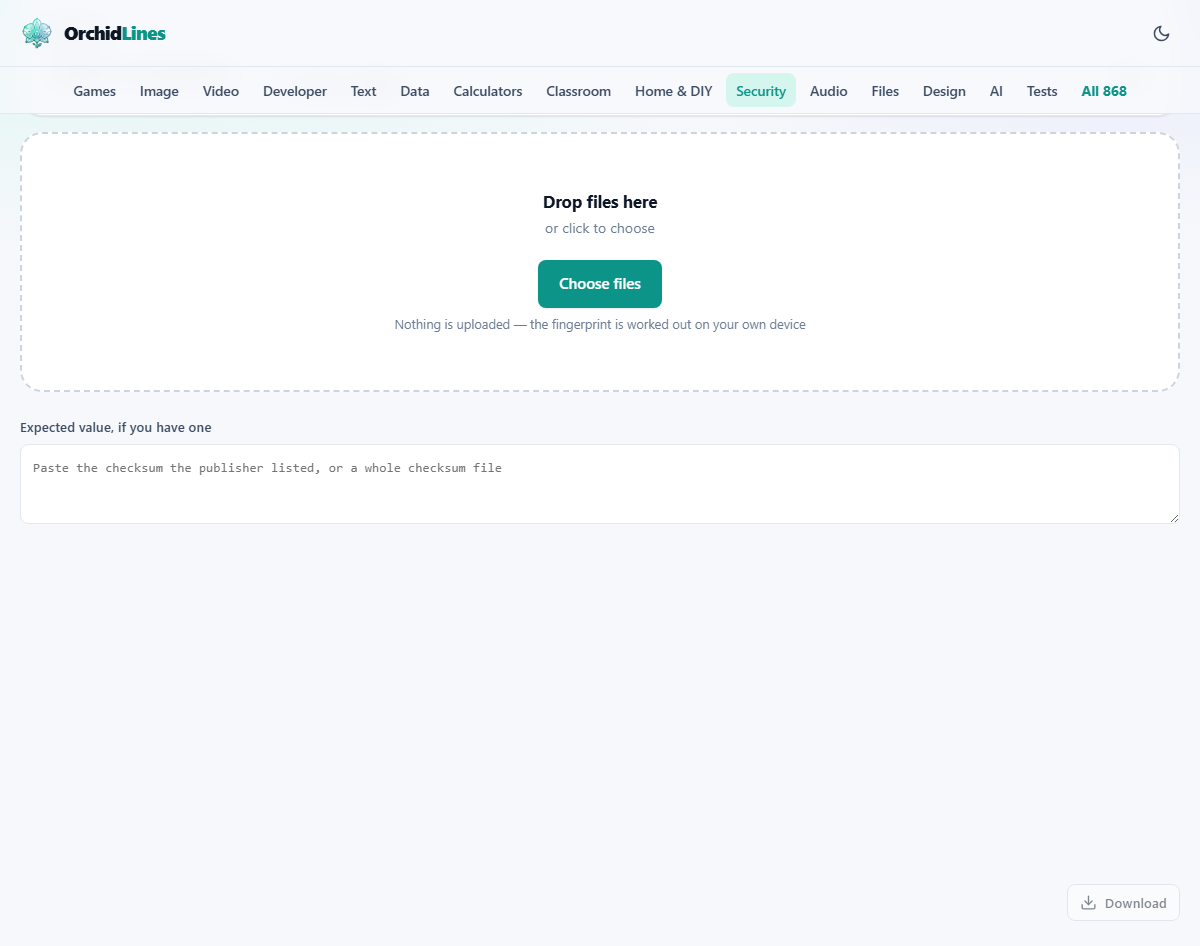
Drop your file into the drop zone on the page, or click it and choose the file from your system. The file is read directly from your disk by the browser and never leaves your device. While it is being processed, a row appears in the results table showing the file name, its size, and a working indicator. When the calculation finishes, the checksum appears in the table.
If you have the expected value, paste it into the text area labelled Expected value. The tool compares what it calculated against what you pasted and shows a verdict: matches in green or does not match in red. You can paste a single bare checksum or an entire checksum file with multiple lines. The tool searches for the line that mentions your file by name and pulls the right value from it.
Choosing an algorithm
The Algorithm selector offers five options. SHA-256 is selected by default and is the right choice in most situations. It is the algorithm most publishers use when they list a checksum alongside a download. SHA-1 is an older algorithm that you might still encounter on older projects. SHA-384 and SHA-512 produce longer outputs and are sometimes used by security-focused distributions. CRC32 is a lightweight check that catches accidental corruption but is not suitable for security purposes because it is too easy to fool.
The rule is simple: use whatever algorithm the publisher listed. If you have a SHA-256 value from the download page, select SHA-256. If the publisher listed SHA-512, switch to SHA-512. If no algorithm is named but the string is sixty-four characters long, it is almost certainly SHA-256.
Checking more than one file at a time
You can drop several files into the verifier at once. Each one gets its own row in the results table with its own checksum. If you paste a checksum file that lists multiple files, the tool matches each computed value against the right line by looking for the file name in the text. This is useful when you download a release archive that comes with a companion file listing every checksum.
The table shows the file name, its size in a readable format, the computed checksum, and the verdict. Any mismatch is highlighted so it stands out. If you only want to compute checksums without comparing them, leave the expected value field empty and the verdict column will show a dash.
What a mismatch actually means
A mismatch tells you that the file you have is not identical to the file the publisher described. There are several possible causes, and not all of them are sinister. The most common one is a download that was interrupted or corrupted in transit. A browser crash, a network timeout, or a flaky connection can all produce a truncated file that looks normal but is missing its last few bytes.
The second possibility is that you are comparing against the wrong value. Maybe the publisher listed checksums for several versions and you grabbed the line for a different operating system. Check that the file name on the checksum line matches the file you actually downloaded.
The least likely but most serious cause is deliberate tampering. If someone replaced the file on a download mirror with a modified version, the checksum will not match the original. This is exactly the scenario checksums were designed to catch, and the correct response is to not run the file, download it again from a different source, and verify once more.
A worked example: verifying a software release
You have downloaded an archive from an open source project. The project's release page lists a SHA-256 checksum: a string of sixty-four hex characters next to the file name. Open the verifier, make sure SHA-256 is selected in the Algorithm dropdown, and drag the archive file into the drop zone. After a moment the computed checksum appears.
Copy the sixty-four character string from the project page and paste it into the Expected value field. The verdict column updates. If it reads matches, the file is exactly what the project published. If it reads does not match, download the file again. If the second download also fails to match, get it from the project's primary site rather than a mirror, or look for a signed checksum file that you can trust more than a web page.
Why a checksum from the same source as the file has limits
If someone can replace the file on a download page, they can usually replace the checksum listed on that same page. Both will agree perfectly, and the verification tells you nothing. The check is strongest when the checksum comes from a different place than the file. For instance, you download the file from a community mirror but check the checksum on the project's own website over an encrypted connection. Or the project publishes a signed checksum file that you can verify against their public key.
Even when the checksum and the file come from the same source, the verification still catches accidental corruption, which is by far the more common problem. Corrupted downloads are an everyday event. Deliberate tampering is rare. Both are worth catching, but the first one alone makes verification worth the few seconds it takes.
Why MD5 is not on the list
The algorithm menu does not include MD5. This is a deliberate choice. MD5 has been broken for security purposes for many years. Researchers have demonstrated practical attacks that produce two different files with the same MD5 checksum. Using MD5 gives a false sense of confidence because the check can pass even when the file has been tampered with. SHA-256 does the same job and does not have this weakness, so there is no reason to offer the weaker option.
Large files and how they are handled
The file is read in chunks so the browser stays responsive during the calculation. A file of several gigabytes will take longer than a small download, but the page does not freeze because each chunk is processed and then the browser gets a moment to breathe before the next one. You will see the working indicator until the process finishes.
There is no size limit imposed by the tool itself. The practical limit is whatever your device can read from disk. Even a large disk image can be verified here, as long as you give it a minute or two to work through the bytes.
Privacy: the file never leaves your device
The file is read from your disk by code running in your browser. It is never uploaded, and no data about it is sent anywhere. This makes the verifier safe for confidential files, proprietary software, or anything else you would rather not share with a third party. The checksum is computed locally from the first byte to the last. You can also toggle the Show in capitals checkbox if the expected value you are comparing against uses upper-case hex characters.