
Reading an SSL certificate without the command line
An SSL or TLS certificate is a small file that ties a set of domain names to a cryptographic key, signed by an authority that vouches for the connection. When something goes wrong with one, the error message rarely tells you which field is the problem. This guide walks through every piece of information the decoder shows you, explains the two fields that cause almost every real-world failure, and gives you a method for diagnosing certificate trouble without leaving your browser.
What a certificate contains and why you would read it
A certificate is a structured document with a handful of important fields. It names a subject, which is the entity the certificate was issued to. It names an issuer, which is the certificate authority that signed it. It has two dates: the moment it became valid and the moment it expires. It carries a public key, a signature algorithm, a serial number, and a version. On top of these basics, modern certificates include extensions, the most important of which is the list of domain names the certificate actually covers.
You read a certificate when something breaks. A website shows a security warning, a server fails to start because the certificate is rejected, or an automated renewal ran but the new file does not work. In each case the answer is inside the certificate itself, and the question is which field went wrong.
Pasting the PEM block
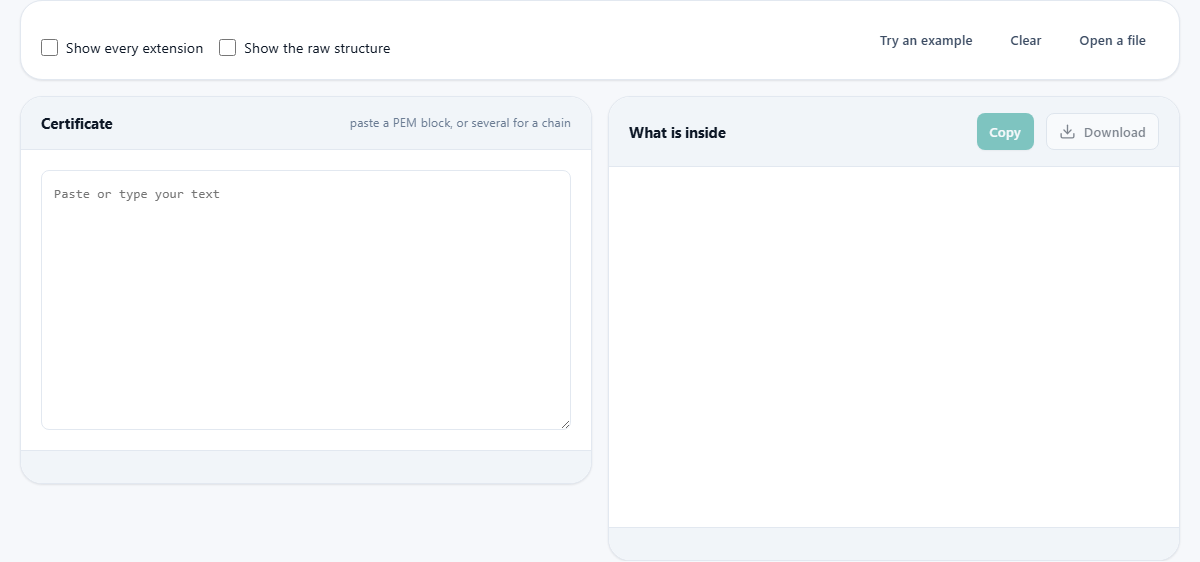
Certificates are usually stored in a text format called PEM. A PEM block starts with a line that reads BEGIN CERTIFICATE, followed by rows of encoded data, and ends with END CERTIFICATE. Copy the entire block, including both marker lines, and paste it into the input area. The decoder reads the encoded bytes and lays out every field in plain language.
If your file contains more than one certificate, paste the whole thing. Web servers often bundle the site certificate with one or more intermediate certificates in a chain. The decoder handles each one in order, showing a separate panel for every certificate it finds. You can also paste a certificate signing request, which uses BEGIN CERTIFICATE REQUEST markers, and the decoder will show whatever fields a request contains, though it will not have validity dates because requests do not carry them.
The subject, the issuer, and what each tells you
The subject line names the entity the certificate was issued to. It may include a common name, an organisation, a locality, a state, and a country. The issuer line names the authority that signed it. In a chain, the issuer of one certificate matches the subject of the next one up.
For diagnosing problems, the issuer tells you whether the certificate came from an authority your systems trust. If the issuer is unfamiliar, the certificate might be self-signed or signed by a private authority that your server or client does not recognise. The subject used to be where browsers looked for the domain name, but that changed years ago, and the subject alternative names extension took over entirely.
Subject alternative names and why the common name does not matter
Browsers no longer check the common name field in the subject. They look only at the subject alternative names extension, which is a list of every domain name the certificate is allowed to cover. A certificate with a common name of example.com but no subject alternative names at all will be rejected by every modern browser, producing a name mismatch error that looks impossible until you know where to look.
The decoder shows the full list of alternative names and flags any certificate that has none. Wildcard names appear here too. A wildcard like *.example.com matches www.example.com and api.example.com, but it does not match example.com by itself and it does not match names with an extra level such as deep.api.example.com. Wildcards cover exactly one level of subdomain, no more.
Dates, expiry, and the thirty-day warning
Every certificate has a not-before date and a not-after date. Outside that window, the certificate is invalid. The decoder shows both dates in plain text, calculates the days remaining, and flags anything under thirty days with a warning. An expired certificate is flagged immediately with an error.
Certificate expiry is the single most common cause of outages related to certificates. Automated renewal systems handle most cases, but when they fail silently, the first sign is often a user seeing a browser warning. Checking the days remaining before a renewal window closes tells you whether the renewal actually worked.
Fingerprints and how to use them
A fingerprint is a hash of the entire certificate, computed in your browser. The decoder shows two fingerprints: one using SHA-256 and one using SHA-1. These are useful when someone gives you a fingerprint to verify against. If you received a certificate through one channel and a fingerprint through another, comparing the two confirms that the certificate was not altered in transit.
Fingerprints are also how you can tell two certificates apart when they share the same domain name. A renewed certificate for the same site will have a different fingerprint from the old one, because the underlying data changed even if the names stayed the same.
Certificate chains and why order matters
A server typically sends its own certificate followed by one or more intermediate certificates that link it back to a trusted root. This sequence is the chain. The decoder handles a pasted chain by showing each certificate in its own panel, in the order they appear.
Order matters because some clients read the chain strictly. The server certificate must come first, then each intermediate issuer in sequence. A chain pasted in the wrong order may work in one browser but fail in another, or work on a desktop but fail on a mobile device. If you are debugging a chain problem, compare the issuer of each certificate with the subject of the next one. They should match all the way up.
A worked example: diagnosing a name mismatch
Suppose a web server at app.example.com is showing a browser warning that says the connection is not private. You export the certificate from the browser, paste the PEM block into the decoder, and look at the results. The common name field says example.com. That looks correct at first glance. But the subject alternative names list shows only example.com and www.example.com. The name app.example.com is not in the list.
There are two fixes. One is to issue a new certificate that includes app.example.com in its alternative names. The other, if the certificate already has a wildcard like *.example.com, is to confirm that the wildcard actually covers app.example.com, which it does because app is one level deep. If the problem were with deep.app.example.com, the wildcard would not reach it.
Extensions and the raw structure
Two checkboxes on the page let you see more. Show every extension lists every extension the certificate carries, including key usage, extended key usage, basic constraints, and authority information. These are relevant when you need to verify that a certificate is allowed to sign other certificates or that it is restricted to a specific purpose. Show the raw structure displays the underlying data structure for anyone who needs to see exactly how the bytes are laid out.
For most troubleshooting, neither of these is needed. Dates, names, and the chain order cover the vast majority of real problems. The extensions are there for the cases where a certificate is being used for something specific, such as code signing or client authentication, and you need to confirm it was issued with the right permissions.
Privacy and where the certificate is decoded
The certificate is decoded entirely in your browser. Nothing is uploaded and nothing leaves your device. Certificates themselves are public by nature, since a server sends its certificate to every visitor who connects. But a certificate signing request contains information about a key you have not yet deployed, and that is worth keeping private. Because the same page decodes both certificates and signing requests, the fact that everything stays local matters. You can also load a certificate from a file using the Open a file button rather than pasting, which is convenient when the certificate is stored on disk rather than copied from a terminal.