
Turning unreadable XML into something you can follow
What tidy and minify actually do to a document, how every setting on the page changes the output, a full walkthrough with broken markup, and the difference between a well-formedness check and a schema check.
Two opposite jobs, one text area
XML is everywhere and almost nobody writes it by hand. It arrives as a single enormous line from an API, a config export, or a log dump, and you need to read it. Or it arrives nicely indented and you need to squash it flat for a POST body or a deployment file. This page does both.
Paste the markup into the left pane and the formatted result appears in the right pane. If the document is broken, you do not get a result at all. You get a red status line that names the exact line and column where the parser gave up. That is not a side feature. For many people it is the whole reason they came.
Getting your XML in
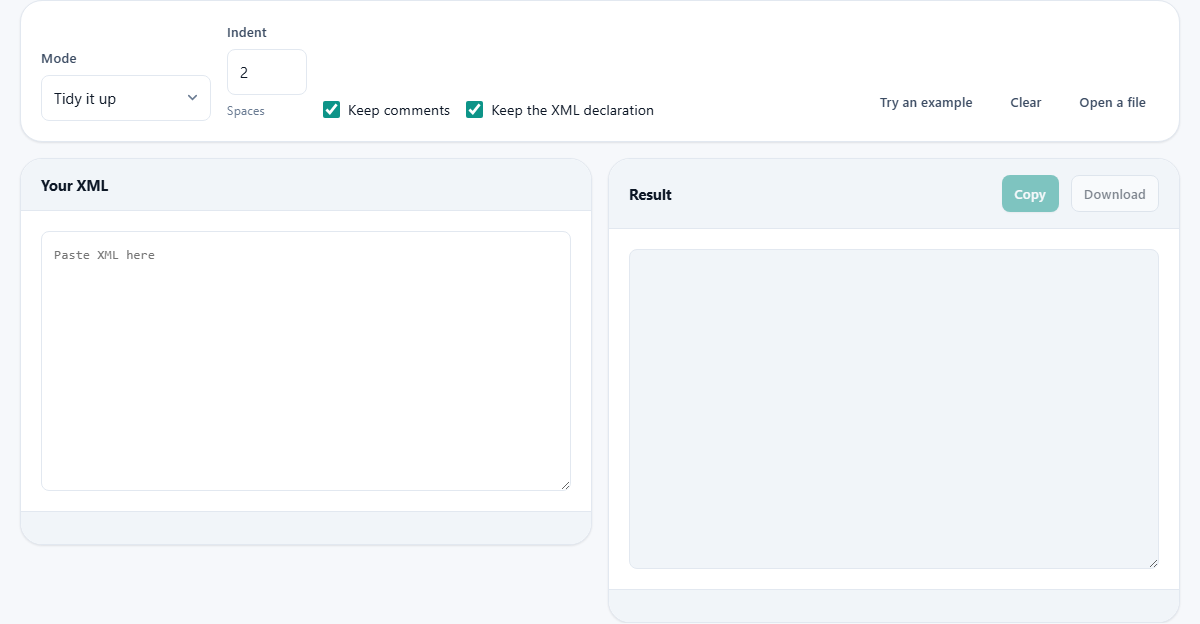
Three ways to load a document. The most common is to paste it straight into the text area labelled Your XML. The second is to press Open a file and pick a file from disk. The third is to drag a file and drop it onto the input pane.
The page reads anything your browser treats as XML. That includes RSS feeds, sitemaps, SOAP envelopes, Android layout files, Maven POMs, SVG drawings, and .config files from the .NET world. If the file ends in .xml, .svg, .rss, or .xsl, it will open. If it is plain HTML with unclosed tags, it will not, because HTML is not XML.
Press Try an example to load a small sample document. It is useful the first time you visit, and it is handy for checking that your settings produce the output shape you expect before you paste the real thing.
The Mode dropdown
Mode offers two choices. Tidy it up takes the document and writes it out with each element on its own line, nested according to depth, with the number of spaces you choose. Short text content stays on the same line as its opening and closing tags. This is the default, and it is the one that turns a wall of angle brackets into something a person can scan.
Squash to one line does the opposite. Every line break and every run of whitespace between tags is removed. The document comes out as a single unbroken line. Use this when you need to drop a document into a request body, a database field, or any slot that expects the markup to carry no formatting of its own.
Indent, comments, and the declaration
The Indent field sets how many spaces each nesting level adds. Two is the most common choice and the default. Four is popular in Java projects. Zero puts each element on its own line with no leading space, which is occasionally useful when you want to see the tree structure but do not want to scroll sideways on a deep document.
Keep comments is a checkbox, on by default. Turn it off and every comment block is stripped from the output. This is often what you want when you are minifying, because comments add bytes that nobody on the receiving end will read.
Keep the XML declaration is another checkbox, also on by default. The declaration is the line at the top that reads something like xml version 1.0 encoding UTF-8. Some systems require it, others choke on it. Toggle the checkbox and see the result change in real time.
Reading the status line
The bar at the bottom of the input pane changes colour depending on what it finds. Green means the document parsed successfully. It also shows a count of the elements and attributes in the document, which is a quick way to confirm you pasted the whole thing.
Red means the document is broken. The message names the line number and the column where the parser stopped. Common causes are an unclosed tag, a stray ampersand that was not written as an entity, a second root element, or a byte order mark before the declaration that looks invisible but the parser cannot ignore.
The status updates as you type or edit. Fix the reported line and the status goes green again, often revealing a second problem further down. Work through them one at a time and the document will eventually parse.
The result pane
When the input is valid, the right pane fills with the formatted output. Two buttons sit at the top. Copy puts it on the clipboard. Download saves it as a file. Both give you exactly what you see in the pane, so what you copy is what you paste.
A row of small chips at the bottom of the result pane shows counts. Elements, attributes, and the total size in characters. If the document shrank or grew after formatting, the size difference tells you how much whitespace was added or removed.
The result is read-only, so you cannot accidentally edit it and wonder why the copy does not match. If you need to make changes, work in the input pane on the left. The right pane always reflects the latest valid parse of whatever is on the left.
Walking through a broken document
A colleague sends you an XML export that will not load into your application. You paste it into the input pane and the status line turns red: line 47, column 12. You scroll down and find that an ampersand in a company name was written as a bare character instead of the entity. You fix it, and the status goes green.
You switch Mode to Tidy it up, leave Indent at two, and read through the structure. You notice a section near the bottom is nested one level too deep. You fix that in the input pane. The result pane updates and the tree looks right. You press Copy, paste it into your application, and it loads.
The whole job took two minutes. Without the line number, you would have been staring at three thousand characters on a single line trying to spot a missing bracket by eye.
Things the formatter does not do
It checks well-formedness, not schema validity. A well-formed document has every tag closed, every entity written properly, and exactly one root element. That is all the XML specification requires. Whether your feed has the right fields for a particular reader, or whether your config file has the keys your application expects, is a question about the schema, and answering it needs the schema file as well.
It does not format HTML. Ordinary HTML has void elements like img and br that never close, and it has optional closing tags that XML forbids. If you paste regular HTML you will get a red status line, and the right tool is the HTML formatter instead.
It does not reorder attributes or rename namespace prefixes. Both of those would produce a document that is technically equivalent but may break software that reads the markup by position or by prefix name.
CDATA and mixed content
A CDATA section is a block that can contain angle brackets and ampersands without escaping them. Formatting XML with a regular expression or a text search will eventually damage one of these, because the tool sees a bracket and thinks it found a tag. This formatter uses the browser's own XML parser, so CDATA blocks pass through exactly as they went in.
Mixed content is a different kind of tricky spot. When an element holds both plain text and child elements on the same line, adding whitespace would change the content of the document. The formatter leaves these elements on a single line rather than risking a space that was not there before.
The document never leaves your browser
The parsing and formatting happen inside the page itself. Nothing is sent to a server, there is no account, and the page works offline after it has loaded once. You can verify this by opening the network tab in your browser's developer tools and watching that no requests go out when you paste and format.
For a config file that holds database credentials, or a SOAP message with customer records, that matters. The document stays on your device, and closing the tab is the end of it.