
Tidying and validating JSON without uploading it
What the formatter does with your input, how each control changes the output, a hands-on fix for a broken document, and the syntax rules that trip people up most often.
What JSON is and where it shows up
JSON stands for JavaScript Object Notation. It is the most common text format for sending data between programs. APIs return it. Configuration files use it. Browser developer tools show it in network panels. Mobile apps exchange it with their servers hundreds of times a day.
The format is small. It has six value types: strings, numbers, booleans, null, objects (curly braces) and arrays (square brackets). That simplicity is its strength and its weakness. There is very little to learn, but also very little room for error. One missing comma or one wrong quote mark and the whole document is rejected.
Who uses a formatter
Developers debugging an API response. The server returns one long line of JSON with no spaces. A human cannot read it until it is indented. Paste it in, and the right panel shows a clean, colour-coded tree.
Writers editing a configuration file. The file works, but it is messy. Keys are in random order, indentation is uneven, and old values sit next to new ones with no pattern. Formatting it brings the structure to the surface.
Students learning the syntax. They type something that looks right, and the error message says it is not. The tool points to the exact character and says why, which is far more useful than a blank "parse error" from a runtime.
Getting data into the tool
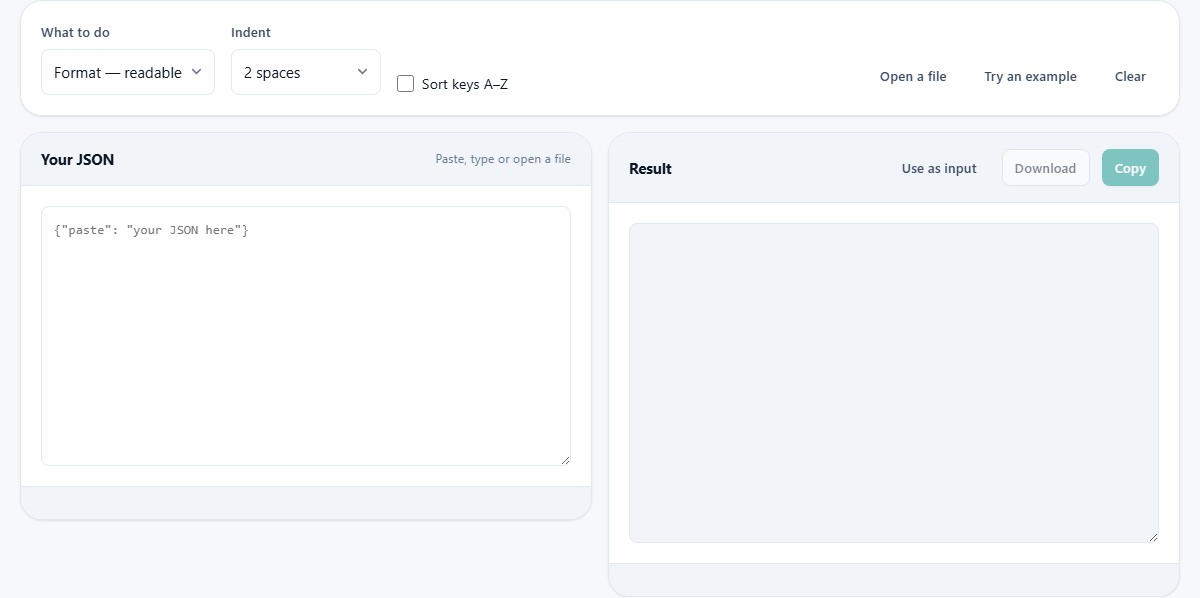
The left panel is labelled Your JSON. You can paste text directly into it, type from scratch, or press Open a file to load a file from disk. The file must be valid text, typically with a .json extension, though .txt works too.
Try an example fills the input with a short document that has several nested objects and arrays. It is meant for a quick look at how formatting, minifying and sorting behave before you bring your own data. Clear empties the input and the result.
What to do and how it changes the result
The What to do dropdown has two options. Format produces a readable version with line breaks and indentation. Minify removes every space, tab and line break that is not inside a string, producing the smallest possible output.
When Format is selected the Indent dropdown appears. It offers 2 spaces, 4 spaces and Tab. Two spaces is the most common convention in web development. Four spaces is popular in Python and Java projects. Tab is preferred by people who want each editor to display the width it is configured for.
Sort keys A-Z is a checkbox. When it is on, every object in the document has its keys arranged in alphabetical order. This does not change the meaning of the JSON. Key order is not significant in the specification. Sorting is useful when you want to compare two files side by side or when you want a stable order for version control.
Reading the result panel
If the input is valid the Result panel on the right fills with the formatted or minified output. A stats row at the bottom shows the number of lines, the character count and the byte size.
If the input is broken the Result panel stays empty and the status bar under the input turns red. The error message names the problem and gives the line and column where the parser stopped. A caret points at the exact character. This is far more helpful than the browser's built-in error, which often just says something like "Unexpected token" and leaves you to hunt for the cause.
Copy puts the result on the clipboard. Download saves it as a .json file. Use as input sends the result back to the left panel. That button lets you chain operations: format first, then sort, then minify, each step building on the last.
Fixing a broken document, step by step
A common situation: you paste a JSON response into the tool and the status bar says Unexpected token at line 4, column 18. You look at line 4 and see a key followed by a value, but the comma after the previous value is missing.
Add the comma, and the error moves. Now it says Unexpected token at line 9, column 3. Line 9 has a string wrapped in single quotes instead of double quotes. JSON requires double quotes around every string. Replace them, and the document validates. The right panel fills with clean output.
This find-and-fix loop is the normal way to repair JSON that was hand-edited or assembled from several sources. Each pass of the parser catches the first problem it meets. Fix it, and the next one surfaces. On a short document two or three passes is typical.
Syntax rules people break most often
- Trailing commas. A comma after the last item in an object or array is valid in JavaScript but illegal in JSON. The parser rejects it.
- Single quotes around strings. Only double quotes are allowed. A string wrapped in single quotes fails immediately.
- Comments. JSON does not support them. Lines starting with // or blocks wrapped in /* */ are syntax errors. If you need comments, use a format that allows them, such as JSON5 or YAML.
- Unquoted keys. In JavaScript you can write { name: 'Alice' }. In JSON every key must be a double-quoted string.
- Numbers with a leading zero. 007 is not a valid JSON number. Write 7 instead.
- Missing closing brackets. Easy to do when nesting is deep. The error message usually points to the end of the file, because the parser reaches it while still inside a structure.
When sorting keys helps and when it does not
Sorting is most useful when two files hold the same data in a different key order. Format both with Sort keys A-Z turned on, and the keys line up. A quick scroll through both outputs reveals the genuine differences.
Sorting does not change the meaning of any document. The JSON specification says that key order has no significance. A server that returns keys in one order today and another tomorrow is behaving correctly.
One edge case: some tools read JSON files and preserve the order they find. If you sort the keys and save the file, the next person who opens it may notice a large diff in version control. That diff is harmless but noisy. Decide as a team whether sorted keys are your standard before applying it to shared files.
Minifying for production
Minified JSON removes every optional whitespace character. The content is identical, but the file can be 20 to 40 percent smaller. For a configuration file that is loaded once at startup the saving barely matters. For an API response that is sent thousands of times a minute the saving adds up fast.
Switch What to do to Minify and the result collapses to a single long line. The Indent dropdown disappears because it no longer applies. Sort keys A-Z still works: you can sort and minify in one step.
A quick size check: the stats row under the result shows the byte count. Compare the formatted and minified versions to see exactly how many bytes you save. On a deeply nested document with long key names the difference is substantial.
When another tool is the one you need
- If you have two documents and want to know what changed between them, the JSON Diff tool walks them side by side and lists every difference by path.
- If you want to turn a JSON response into typed code for a project, the JSON to Code tool generates interfaces and classes.
- If you need structured data markup for search engines, the Structured Data Generator builds the right JSON-LD.
- If you are working with YAML instead of JSON, a YAML-specific formatter is a better fit.
Your data stays on your device
The whole operation happens inside your browser. The JSON is parsed by the same engine that runs every website you visit, and the formatted output is assembled right there. Nothing leaves your machine. You can prove it by disconnecting from the internet after the page loads and running the tool offline. API responses full of tokens and personal records are safe to paste here, because there is no server on the other end.