
Finding text with patterns instead of scrolling
What a regular expression does, how the pattern box and flags work together, how capture groups pull pieces out of a match, how the replace preview saves time, and what to do when a pattern runs too slowly.
What a regular expression is for
A regular expression is a small language for describing patterns in text. Instead of searching for a fixed word, you describe the shape of what you want. A date looks like two digits, a slash, two digits, a slash, four digits. An email has letters, an @ sign, and a dot somewhere after it. A phone number has a country code, then groups of digits. You write the shape once and the engine finds every piece of text that fits.
That makes it useful in places where a plain search falls short. Cleaning up log files, pulling IDs out of a CSV, checking that user input follows a format, rewriting imports across a codebase. The pattern does the looking. You do the thinking about what shape to look for.
The trouble is that the syntax is dense. A handful of dots, slashes and question marks can be hard to read, and a small mistake changes the meaning completely. Testing the pattern against real text before using it is the safest way to catch those mistakes early.
Writing a pattern and watching the highlights
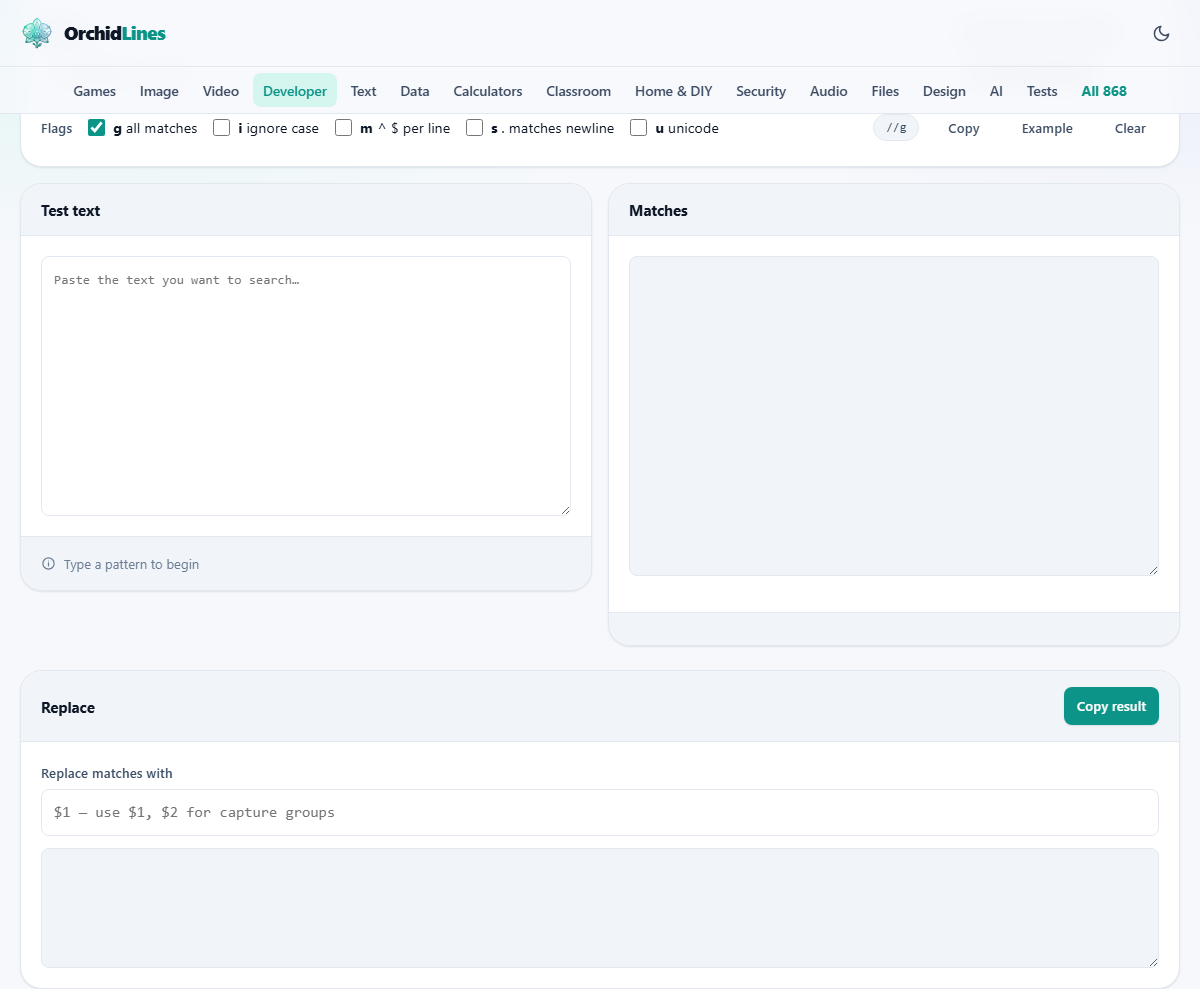
Type a pattern into the Pattern box at the top of the page. Below it, paste the text you want to search. Every piece of text that matches the pattern is highlighted right away, and the highlights update as you change either side.
Matches are shown in alternating colours so you can see where one ends and the next begins. This matters when two matches sit right next to each other with no gap between them.
If you do not have a pattern in mind, the Or start from one of these dropdown offers a library of common patterns. Pick one, and it fills in the pattern box as a starting point that you can edit. The Example button fills in both the pattern and some sample text so you can see the whole page working before you paste your own data.
The five flags and what each one changes
Below the pattern box sits a row of checkboxes, one for each flag. They change how the engine reads your pattern.
g means global. With it on, the engine finds every match. With it off, it stops after the first one. This flag is on by default because most of the time you want to see all results.
i makes matching ignore the difference between upper and lower case. Without it, hello does not match Hello.
m changes what the start and end anchors do. Normally ^ and $ match the very start and end of the whole text. With m turned on, they match the start and end of each line, which is what you usually want when your text has many lines.
s changes the dot. Normally a dot matches any character except a line break. With s turned on, it matches line breaks too. This matters when a pattern is meant to span two or more lines.
u turns on full Unicode handling. You want it when your text has accented characters, non-Latin scripts, or emoji. Without it, a word boundary may land in the wrong place inside a multibyte character.
Capture groups and what the brackets do
Brackets in a pattern do two things. They group part of the pattern so you can apply a repeat to it, and they capture whatever text that part matched. The captured pieces are listed below the matches under the heading for each result.
Suppose you have dates written as 15/08/2026 and your pattern is (\d{2})/(\d{2})/(\d{4}). The first pair of brackets captures the day, the second captures the month, and the third captures the year. Each capture is shown numbered: group 1 is 15, group 2 is 08, group 3 is 2026.
If you only want to group without capturing, use (?:) instead of (). This keeps the match list shorter and is a little faster, though on normal sized text the speed difference is invisible.
Named groups are another option. Instead of plain brackets, write (?<day>\d{2}) and the group is labeled by name in the results. This makes complex patterns easier to read later, especially when they have more than three or four groups.
Previewing a replacement before you commit
Below the match panels sits the Replace section. Type what each match should become in the Replace matches with box, and the full result appears in the text area below it. Nothing is changed anywhere outside this page. It is a preview, and the Copy result button copies the replaced text to your clipboard when you are ready.
You can refer to captured groups in the replacement string. $1 inserts whatever the first pair of brackets captured, $2 inserts the second, and so on. This is how you rearrange text rather than just remove it. The date example above could be rewritten as $3-$2-$1 to turn 15/08/2026 into 2026-08-15.
If you do not use any dollar signs, every match is simply replaced with the literal text you typed. An empty replacement string deletes every match, which is a fast way to strip unwanted characters.
Building a pattern one piece at a time
The fastest way to get a working pattern is to start wide and then narrow it down. Begin with something simple that matches too much. Then add one restriction. Watch the highlighting change. Add another. Repeat until only the text you want is highlighted.
For example, suppose you want to find prices in a product list. Start with \d+ to match any run of digits. That matches too much, so add a dollar sign before it: \$\d+. Now add the decimal part: \$\d+\.\d{2}. Each step removes some false matches, and the instant highlighting lets you see the effect of each change without re-running anything.
This iterative approach is far easier than trying to write the complete pattern from scratch. Even experienced users work this way. The live highlighting turns what used to be a guess-and-run cycle into something you can see and adjust in real time.
Patterns that freeze the page, and how to avoid them
Some patterns can take an extremely long time to run. The classic example is nested repeats like (a+)+ applied to a long string of the letter a followed by something that does not match. The engine tries every possible way to divide the string among the inner and outer repeats, and the number of combinations grows so fast that the browser freezes.
There is no way to stop a running regular expression in a browser mid-way. The only escape is to close the tab. Because of this, the tool limits how much text you can paste. That limit exists to protect you, not to restrict you.
If you need to match long stretches of text, make your repeats as specific as possible. Replace .+ with [^\n]+ when you do not want to cross line breaks. Avoid nested quantifiers when a single one will do the job.
The JavaScript flavour and how it compares
This tool runs your pattern through the JavaScript regex engine, which is what every browser uses. Most everyday syntax is the same across languages, but a few advanced features differ.
Lookbehind assertions are supported in modern browsers but not in older ones. Named capture groups use the syntax (?<name>...) and are widely supported now. Possessive quantifiers and atomic groups, which exist in Java and Perl, are not part of JavaScript regex at all.
If you are writing a pattern for Python or another language, the result here will usually be correct. The differences only show up in edge cases that most patterns never touch. For everyday tasks like matching emails, URLs, dates, or log entries, the syntax is identical.
Your data stays on your own device
Both the pattern and the text you paste are processed entirely inside your browser. Nothing is sent to any server. There is no queue, no login, and no storage.
That means it is safe to test against production log files, customer data, or anything else that should not leave your machine. Disconnect from the network after the page loads and everything still works. Closing the tab throws it all away. There is no history, no saved session, and nothing to delete.