
Reading what a login token actually says
What the three parts of a JWT are, how to spot an expired one, why the signature is not checked here, and the security habits that keep tokens from becoming liabilities.
What a JSON Web Token is
A JSON Web Token is a small block of text that a server hands to a client after login. The client sends it back on every request to prove who it is, without the server having to look anything up in a database each time.
The token has three parts separated by dots. The first part is the header, which says what signing algorithm was used. The second is the payload, which holds the claims - facts about the user such as their name, role, and when the token expires. The third is the signature, which proves the token has not been changed since the server created it.
All three parts are Base64 encoded. That is a way of writing binary data using only letters, numbers, and a few symbols. It is not encryption. Anyone who has the token can decode the first two parts and read every claim in them, which is exactly what this page does.
Pasting a token
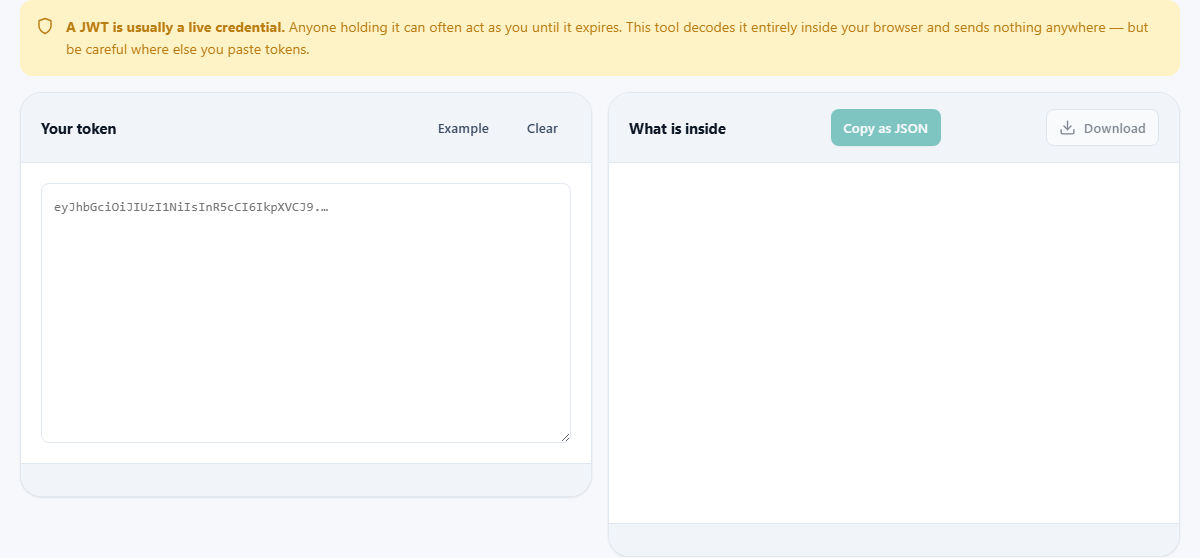
The left panel is labelled Your token. Paste the whole string. It typically starts with eyJ, because that is what the opening brace of the JSON header looks like after Base64 encoding.
If you copied the token from an HTTP header, you may have the word Bearer in front of it. That is fine. The tool strips it automatically. Press Example to see a sample token decoded, or Clear to start over.
A warning banner sits above the panels reminding you that a JWT is usually a live credential. Anyone who holds it can act as you until it expires. The tool decodes it inside your browser and sends nothing anywhere, but you should still be careful about where else you paste tokens.
What appears on the right
The right panel is labelled What is inside. It shows two sections: the header and the payload, each broken down into labelled fields.
The header usually contains just two fields. alg tells you the signing algorithm, such as HS256 or RS256. typ is almost always JWT. If alg is set to none, that is a red flag. Some older libraries accepted unsigned tokens, which was a serious security hole. A modern server should reject them.
The payload holds the claims. Standard claims have short names. sub is the subject, usually a user ID. iss is the issuer, the server that created the token. aud is the intended audience. iat is the time the token was issued. exp is when it expires. nbf is when it becomes valid, if that is different from when it was issued.
Custom claims can be anything. A token from an authorization service might include a list of roles or permissions. One from a payment gateway might carry a transaction reference. Whatever the server put in, it appears here.
Expiry and the status line
The status line below the token input tells you the state of the token straight away. A valid token that has not yet expired shows a green status. An expired token shows a warning with how long ago it stopped working. A token that has a nbf claim set in the future shows that it is not active yet.
Time claims in a JWT are stored as Unix timestamps. That is the number of seconds since 1 January 1970. The decoder converts each one into a normal date and time, then adds a human note like expires in 3 hours or expired 2 days ago. This saves you from having to look up a timestamp converter.
Expiry is the most common reason people decode a token. A request that was working suddenly gets a 401 response. The first question is always whether the token has run out, and the status line answers it in plain language. You do not need to paste the timestamp into a separate converter or do mental arithmetic. The answer is right there next to the claim.
Why the signature is not verified
The third part of the token is the signature. Checking it would prove the token was created by your server and has not been tampered with. This tool does not check it, and that is deliberate.
Verifying a signature requires the signing secret or the public key. Pasting your secret into any website, no matter how trustworthy it looks, would give that site the ability to forge tokens for your entire system. That is not a risk worth taking for a quick inspection.
If you need to verify a signature, do it in your own code. Libraries exist for every language. The decoder here is for reading what is inside a token, not for confirming it is genuine.
What you should and should not put in a token
A JWT is readable by anyone who holds it. That means passwords, card numbers, and any private information must never go inside one. If you can decode it on this page without a key, so can anyone else.
Put identifiers in the token - a user ID, a session reference, a role name. Keep the actual sensitive data on the server and look it up using the ID when you need it. The token is a ticket that says who you are, not a folder that carries your whole file.
Keep tokens short. Every request sends the token in a header, and headers have size limits. A token stuffed with redundant claims slows every request down and can be rejected by proxies that enforce header size caps. A good token carries just enough to authorize the request and nothing more.
Copying the decoded output
Press Copy as JSON to put the header and payload on your clipboard as formatted JSON. This is useful for pasting into a bug report, a support ticket, or a test fixture.
Be careful with what you share. A decoded token still contains the claims, and some of those may identify a real person. Strip out anything sensitive before you paste the JSON into a public issue tracker or a team chat. The user ID and email sitting in a sub or email claim are real data about a real account.
Common claims and what they mean
- sub - the subject, typically a user ID or username.
- iss - the issuer, which server or service created the token.
- aud - the audience, which server or service the token is intended for.
- exp - the expiry time, after which the token should be rejected.
- nbf - not before, the earliest time the token is valid.
- iat - issued at, when the token was created.
- jti - a unique ID for this particular token, used to prevent replay.
- scope or permissions - what the holder is allowed to do, added by many authorization servers.
Debugging a failed request
A 401 or 403 from your API is often a token problem. Here is a quick checklist for working through it.
First, paste the token and check whether it has expired. If it has, the fix is to request a fresh one. Second, check the iss and aud claims to make sure the token came from the right server and is aimed at the right service. A token issued for a staging environment will not work against production if the audience is checked. Third, look at the roles or permissions claims to confirm the user has the right access level.
If all the claims look correct and the token has not expired, the problem is likely on the server side. The signature may be checked against the wrong key, or the clock on the server may be out of sync.
Your token never leaves this tab
The entire decoding process runs inside your browser. The token is split on the dots, each part is Base64 decoded, and the resulting JSON is parsed and displayed. No network request is made.
This is especially important for JWTs because a valid token is often as good as a password. If it were sent to a server, whoever ran that server could use it to access your account. Here, the only copy of the token is in your browser's memory, and it disappears when you close the tab or clear the input. You can prove it by disconnecting from the network and pasting a token. The decoding still works, because there was never an outside connection involved.