
Checking downloads with fingerprints you can trust
How file hashing works, which algorithm to pick, every control on the page explained with its real label, a worked example that verifies a downloaded file, the mistakes that produce wrong results, and why nothing ever leaves your machine.
What a hash actually is
A hash is a fixed-length string of letters and numbers calculated from a piece of data. Feed in a four-gigabyte video and you get a short line of text. Feed in a single word and you get a line of the same length. The output is often called a fingerprint, because it identifies the input without revealing what the input contains.
Change one character in the source and the hash changes completely. There is no pattern to the change. It does not shift by one digit or look slightly different. It looks like a totally unrelated value. That property is what makes hashing useful. Two files that produce the same hash are, for all practical purposes, the same file.
Hashing is a one-way operation. You cannot feed a hash back in and get the original text out. Any site that claims to decrypt an MD5 is really just searching a big table of values it already hashed. If your input was never in that table, there is nothing to find.
Who needs this and why
The most common reason is checking a download. Software publishers often print a hash next to the download link. You download the file, hash your copy, and compare. If the two match, your file arrived without corruption and nobody tampered with it along the way.
Developers use hashes in many other places too. A build system might hash source files to decide which ones changed. A deployment script might compare hashes of old and new assets to skip uploading files that are already on the server. A version control system stores every snapshot of every file by its hash.
- Verifying that a downloaded installer or ISO image is identical to the publisher's original.
- Checking that a file transfer across a network did not corrupt anything.
- Spotting whether two copies of a document are really the same file under different names.
- Confirming that a backup is still readable by comparing its hash with the original.
Five algorithms and when to use each one
The page calculates all five at once, so you never have to choose before you start. But it helps to know what each one is for.
MD5 produces a 32-character string. It is fast and widely supported, but researchers showed years ago that you can deliberately craft two different files with the same MD5. That breaks its value as proof of authenticity. It is still fine for spotting accidental corruption, which is why download pages still list it.
SHA-1 gives a 40-character string and is stronger than MD5, but it has the same weakness. Deliberate collisions have been demonstrated. Like MD5, it catches accidental damage perfectly well.
SHA-256 is the one to reach for when security matters. It produces a 64-character string and has no known collision attack. If a publisher lists only one hash, it is almost always SHA-256.
SHA-384 and SHA-512 are longer still, at 96 and 128 characters. They offer a wider safety margin but are rarely needed outside specialist contexts. You will occasionally see SHA-512 on a Linux package repository or a firmware update page.
Hashing text with the controls on screen
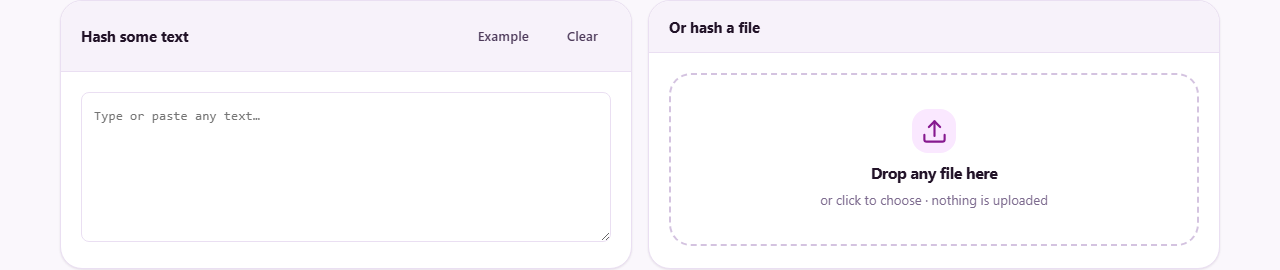
The left panel is headed Hash some text. Type or paste anything into the text box. As soon as there is text in the box, all five hashes appear in the Hashes panel below. Each row shows the algorithm name and the result, with a Copy button beside it.
The Example button fills the box with a short sample so you can see the output without thinking of something to type. Clear empties the box and hides the results.
One thing to watch: trailing whitespace matters. The text hello followed by a space produces a different hash from hello without one. If you are comparing your result with another tool and the hashes disagree, an invisible space or newline at the end is the usual cause.
Hashing a file instead
The right panel is headed Or hash a file. Drop any file onto the drop area, or click to open a file picker. The page reads the file from your disk byte by byte and never sends it anywhere. A note under the drop area confirms the file name once it is loaded.
File hashing is the reliable path. When you hash pasted text, trailing newlines and character encoding can change the result. When you hash the actual file, none of that matters. The bytes on disk are the bytes that get hashed.
There is no size limit imposed by the tool. Your browser reads the file in chunks, so even a multi-gigabyte ISO will finish. The wait depends on your disk speed, not on your internet connection, because the network is not involved.
Checking a download against a published checksum
Below the five hash rows sits a field labelled Check against a published checksum. Paste the hash that the publisher listed on their website. The tool compares it against every algorithm it just calculated and reports whether any of them match.
The comparison ignores upper and lower case. It also ignores stray spaces. So a hash copied from a web page with trailing whitespace or written in capitals will still match. A green result means your file is identical to the publisher's original. A red result means it is not, and you should not trust that file.
A practical walkthrough makes this concrete. You download a Linux installer called ubuntu-24.04-desktop-amd64.iso. The download page lists a SHA-256 hash. You drop the ISO onto the file area, wait for the five hashes to appear, then paste the published SHA-256 into the checksum field. If the result is green, the file is safe. If it is red, something went wrong during the download and you should try again.
A worked example with real values
Suppose you type the word hello into the text box. The five results appear instantly. The MD5 is 5d41402abc4b2a76b9719d911017c592. The SHA-256 is 2cf24dba5fb0a30e26e83b2ac5b9e29e1b161e5c1fa7425e73043362938b9824. Both are well-known values you can verify anywhere.
Now add a space after hello. Every hash changes. The MD5 becomes 5e8c622dffab20e0e14fafae44046778 instead. That single invisible character produced a completely different fingerprint. This is exactly the behaviour that makes hashing useful, and exactly the trap that catches people who compare pasted text across tools.
Next, save the word hello in a plain text file and drop that file onto the page. If your text editor saved the file with a trailing newline, the hash will differ from the one you got by typing. That is not a bug. The file contains different bytes, so it gets a different hash. This is the most common reason for a mismatch between two tools.
Mistakes that trip people up
- Comparing a text hash with a file hash of the same content. A text editor usually adds a newline at the end of a file. Those extra bytes change the hash.
- Expecting a hash to look similar when the input is similar. Two files that differ by one byte produce completely unrelated hashes.
- Using MD5 or SHA-1 to prove that a file has not been tampered with. Both are fine for accidental corruption but not for deliberate forgery.
- Copying a hash from a web page and not noticing a line break or space that came along for the ride. The comparison field handles this, but other tools may not.
- Thinking a mismatch always means a corrupt download. Sometimes the publisher updated the file but not the listed hash, or the hash belongs to a different version.
- Trying to reverse a hash to recover the original. Hashing is one way. There is no key, no password, and no undo.
When another tool fits better
- If you need to compare two files side by side to find the exact differences, a text diff tool will show you the lines that changed. A hash only tells you they differ, not where.
- If you want to encode or decode text rather than fingerprint it, a Base64 encoder is the right page.
- If you need to generate a password or a random token, a password generator produces something meant to be secret. A hash is not random and is not a password.
- If you want to prove who sent a file, not just that it arrived intact, you need a digital signature. Hashing is only half of that process.
Your file stays on your own machine
The entire calculation happens inside your browser. The file is read from your disk into memory, processed there, and never uploaded. There is no server waiting to receive it, no queue, and no account. You can prove this by disconnecting from the internet, dropping a file in, and watching all five hashes appear exactly as before.
That design is not just a convenience. Hashing is often done on files that carry real value, like unreleased software, signed contracts, or forensic evidence. Sending such files to a third-party server defeats the purpose of verifying them locally. Closing the tab is the only cleanup you need.