
Building campaign links that analytics can track
What the five UTM parameters are for, how to fill them in without creating a mess in your reports, how to reverse-read a tagged link somebody else built, and why the QR code that comes with it matters for print.
The problem with a plain link
When someone arrives at your site through a plain link, your analytics platform knows the page they landed on but often has no idea how they got there. If the visit came from a link in an email, an ad, a social post or a printed flyer, the referrer header might be empty, misleading or stripped by a redirect. Analytics files those visits under direct, which is the catch-all bin for traffic it cannot explain.
UTM parameters fix this. They are five extra key-value pairs added to the end of an address. They survive redirects, they travel through URL shorteners, and they show up clearly in every analytics report. The letters stand for Urchin Tracking Module, named after the analytics product that later became Google Analytics, but the convention is used across every major platform now.
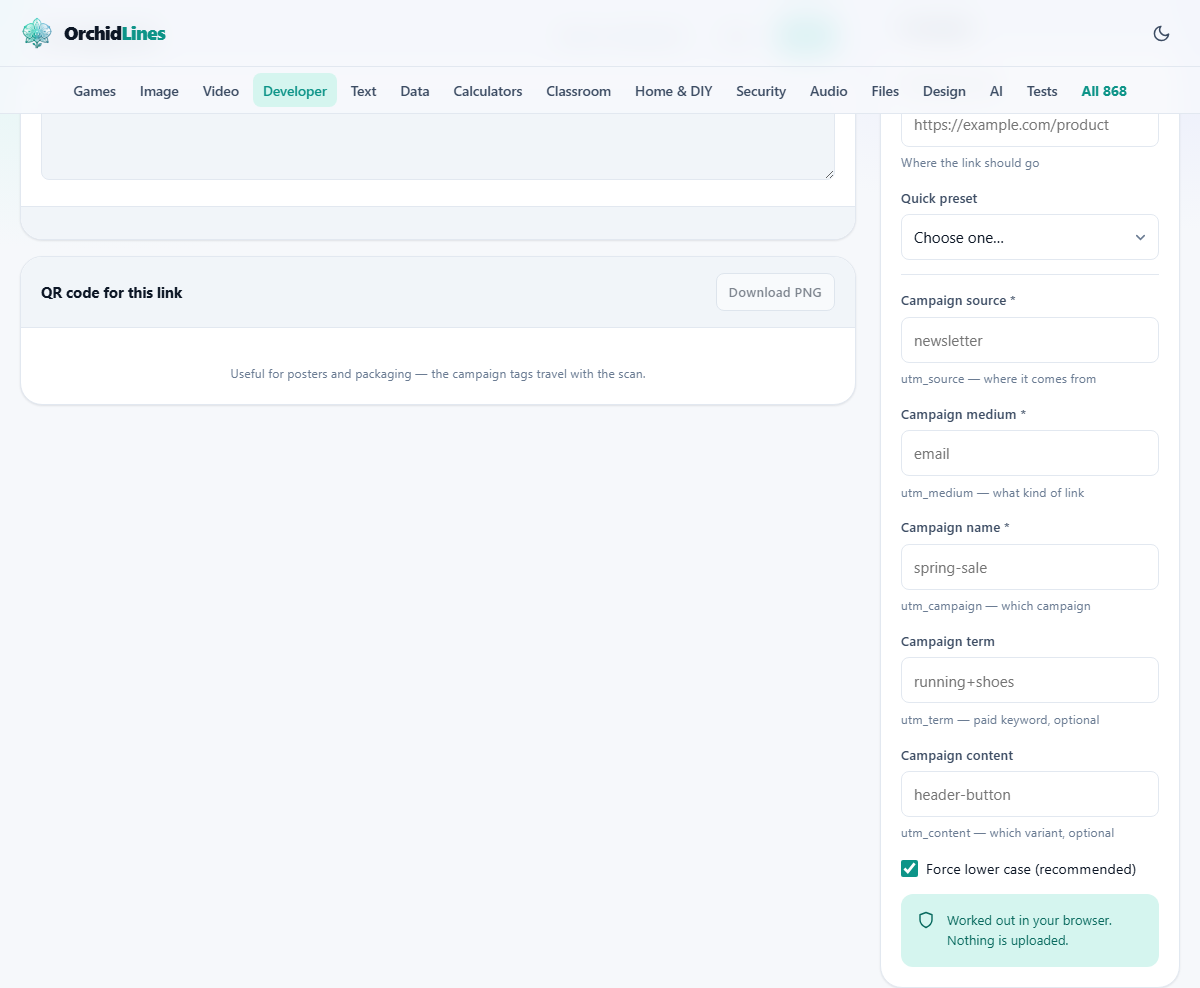
The five fields and what goes in each one
Campaign source (utm_source) answers where the visitor came from. It is the name of the site, the newsletter, the partner or the platform that carried the link. Examples: newsletter, instagram, partner-blog.
Campaign medium (utm_medium) answers what kind of link it was. This is a category, not a brand name. Examples: email, social, cpc, referral, banner. The most common mistake is putting the platform name here. Instagram is the source; social is the medium.
Campaign name (utm_campaign) groups all the links for a single campaign together. Examples: spring-sale, product-launch, weekly-digest-june. This is the name that shows up in your campaign reports.
Campaign term (utm_term) is optional and is mainly used for paid search to record the keyword that triggered the ad. For other channels it is usually left empty.
Campaign content (utm_content) is also optional and is used to tell apart different links that point to the same place. If you have two buttons in an email - one at the top and one at the bottom - you might tag them header-button and footer-button so you can see which one gets clicked more.
Using the presets to start clean
The Quick preset dropdown offers five starting points: Email newsletter, Social post, Paid search, Affiliate partner and Printed QR code. Picking one fills in the source and medium with sensible defaults. You still need to type the campaign name yourself, because that changes every time.
The presets exist to enforce the convention that source is where and medium is what kind. Starting from a preset means the first two fields are already right, and you only need to fill in the name, which is the part that varies between campaigns.
If none of the presets match, type the values yourself. The rules are the same: source is the specific origin, medium is the broad category, campaign is the name that ties everything together.
Lower case and why it is on by default
The Force lower case checkbox is ticked when the page loads, and for good reason. In analytics, Facebook and facebook are two separate sources. Newsletter and newsletter are two separate values. Every variation in casing creates a split in your reports that you then have to merge by hand.
Forcing everything to lower case before it goes into the link removes the problem at the source. Hyphens replace spaces automatically for the same reason - a space becomes %20 in the address, which is technically correct but looks broken in a report and invites confusion.
Teams that use this tool regularly should agree on a naming guide. The tool enforces consistency in casing and spacing, but it cannot know whether your team calls the source instagram or ig. That decision is yours, and making it once saves hours of report cleanup later.
Reading someone else's tagged link
The Read an existing link button reverses the process. Paste a tagged URL and the tool pulls each UTM parameter out of it and fills the corresponding field on the right. This is useful when you receive a link from a partner or an agency and want to check exactly how they tagged it.
It is also helpful for copying a tagging scheme that worked well. If last month's email campaign drove strong results and you want this month's links tagged the same way, paste one of the old links, change the campaign name, and you have a consistent set of tags without retyping everything.
Any parameters that are not UTM tags are preserved in the destination URL. The tool does not strip existing query strings; it adds the campaign parameters alongside whatever was already there.
The QR code and print campaigns
Below the tagged link is a QR code that encodes the full address, UTM parameters and all. Download it as a PNG and place it on a poster, a flyer, a product package or a business card. When someone scans it with their phone, the tagged URL opens in their browser and the visit is attributed to the campaign just like a click would be.
This is what closes the gap between print and digital measurement. Without a tagged QR code, a poster drives visits that show up as direct in your reports and you have no way to tell them apart from someone who typed the address by hand. With one, you know exactly which poster and which campaign brought the visitor in.
The QR code updates live as you change the fields. Adjust the campaign name, and the QR code changes to match. There is no separate generate step. The Download PNG button saves whatever is currently shown.
A worked example for an email campaign
You are sending a spring sale email and want to track how many orders come from the link at the top of the message versus the link at the bottom. The destination is https://shop.example.com/sale.
Pick the Email newsletter preset. It fills in source as newsletter and medium as email. Type spring-sale-2026 in the campaign name field. Leave term empty. For the top link, type hero-banner in the content field. Copy the tagged URL. For the bottom link, change content to footer-link and copy again.
Both links go to the same page. Both are attributed to the same campaign. But the content field lets you compare them in your analytics report and see which placement earned more clicks. The QR code panel shows the current link as a scannable image, which you might add to the print version of the same promotion.
Mistakes that pollute your reports
- Mixing the brand into both source and medium. Source is the specific origin (instagram), medium is the category (social). If both say instagram, your channel report loses its structure.
- Using spaces or mixed casing. Even with the lowercase checkbox, pasting a value with trailing spaces can create a ghost entry in reports. Trim your values.
- Tagging internal links. UTM parameters are for traffic coming from outside your site. If you tag a link from one page on your own site to another, the UTM overrides the original source and the visitor's true origin disappears from the report.
- Forgetting the campaign name. Source and medium alone are not enough. Without a campaign, the visit lands in a generic bucket and you cannot tie it back to the specific push that drove it.
- Putting personal data in a tag. UTM values sit in the address bar, appear in server logs and get shared when someone copies the link. Never put a name, an email or an account number in a campaign parameter.
Everything stays on your device
The link is built right inside your browser. No server sees the destination URL, the campaign name or any other field you type. This matters because the URLs you tag often point to unreleased pages, internal tools or staging environments that should not appear in a third party's logs.
The QR code is also generated locally. The image is drawn on your screen and saved from there. No image is uploaded, no scan data is collected, and no external service knows the link exists. Pull the network cable and the whole tool works exactly the same way.