
Making sense of the browser identification string
Why every browser claims to be every other browser, how to read the real information out of a user agent string, how to compare several at once, and why the whole format is gradually being retired.
A thirty-year-old compatibility hack
Every time a browser requests a web page, it sends a short line of text describing itself. This is the user agent string. It was meant to be simple: a name and a version, so the server could decide what to send. But that simplicity died in the 1990s.
Netscape called itself Mozilla. When Internet Explorer arrived and wanted the same good pages, it added Mozilla to its own string and tagged on its real name at the end. Every browser since has followed the same pattern. Chrome's string mentions Mozilla, AppleWebKit, KHTML, Gecko, Safari and finally Chrome. Each name is there because at some point a server checked for it, and a new browser that did not include it would get a stripped-down page.
The result is that a modern user agent string is not a list of what the browser is. It is a list of what the browser wants to be treated as. Reading the actual identity from that pile of names is what the parser does.
Your own string appears first
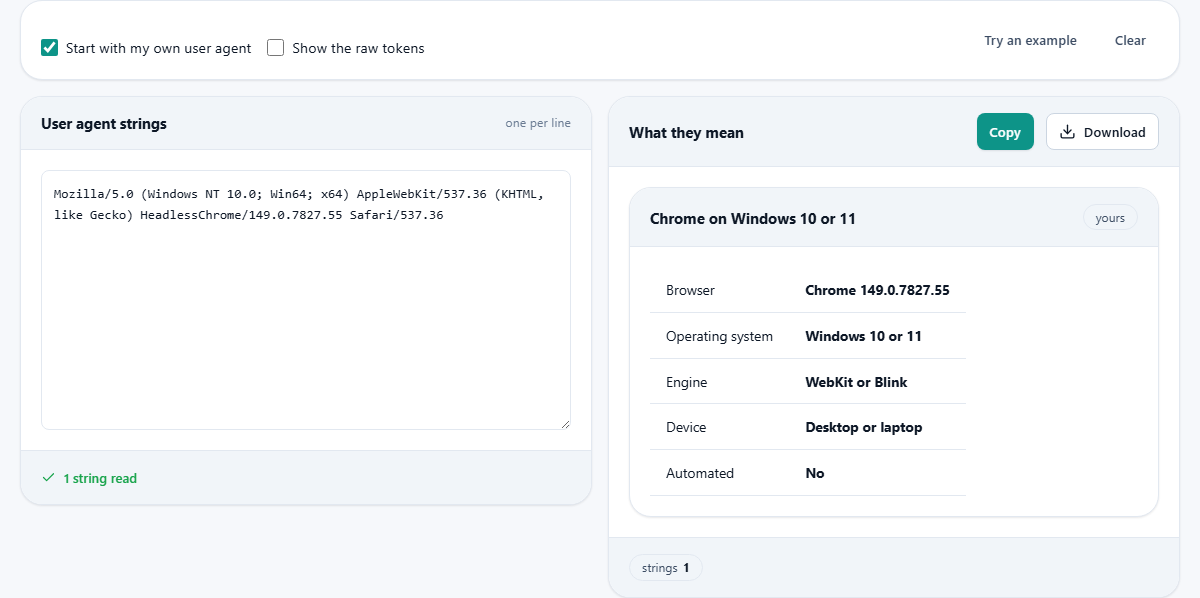
When the page loads, the Start with my own user agent checkbox is ticked and the textarea under User agent strings already contains your browser's string. The right panel, labelled What they mean, shows the parsed result: the browser name and version, the rendering engine, the operating system, the device type and whether it looks like a bot.
This is the fastest way to answer the question that brings many people here in the first place: what browser am I actually using? The user agent tells you the exact version, which matters when a web application behaves differently on one release than the next, or when a support team asks you to report it.
Pasting strings from a log
The real power of the tool is comparing several strings at once. Each string goes on its own line. The output shows a separate parsed result for each one, making it easy to scan down the list and spot patterns.
A common task is pulling user agent strings from a web server log and pasting a batch in to find out what is visiting. Real browsers stand out from bots, old versions stand out from new ones, and mobile visitors stand out from desktop ones. Sorting through a hundred log lines by eye takes far longer than pasting them in and reading the summaries.
Search engine crawlers usually identify themselves clearly. Googlebot says Googlebot. Bingbot says bingbot. The parser picks these up and labels the entry as a bot, which saves you from wading through the rest of the string to confirm it.
What each parsed field means
The browser field is the name most people care about - Chrome, Firefox, Safari, Edge, or one of the smaller browsers like Vivaldi or Brave. The version that appears next to it is the version of that browser specifically, not of the engine underneath.
The engine field tells you what rendering engine the browser uses. Most Chromium-based browsers report Blink. Firefox uses Gecko. Safari uses WebKit. This matters more than the browser name for many development questions, because two browsers on the same engine will render a page the same way.
The operating system field shows what the browser is running on. Windows, macOS, Linux, Android, iOS - each one appears with its version where the string provides it. Some strings are vague about the version, especially on mobile, where privacy changes have frozen parts of the string.
The device type field makes a simple distinction: desktop, mobile or tablet. This comes partly from the string itself and partly from the operating system. An Android string with Mobile in it is a phone. An Android string without it is a tablet. An iPad used to say iPad, but recent versions of Safari send a desktop string instead, which is one of the many reasons not to rely on user agent detection for anything critical.
The raw tokens and what they reveal
Ticking Show the raw tokens adds the unparsed pieces to the output. Each product token is listed as it appears in the string, with its version and any comment in brackets.
This is where you see the history play out. A Chrome string might contain Mozilla/5.0, a Windows NT version in brackets, AppleWebKit with a version, KHTML with a like Gecko tag, Chrome with the real version, and Safari with an older version. The Safari token is not a mistake - Chrome kept it so servers that checked for Safari would still serve the WebKit-compatible pages.
When the parser's summary looks wrong, the raw tokens usually explain why. An uncommon browser might rearrange the standard tokens, or a custom embedded browser might omit some entirely. Seeing the raw input alongside the parsed output shows you where the interpretation came from.
Why the string should not control behavior
It is tempting to look at a user agent string and make decisions based on it. Show one layout to mobile visitors and another to desktop. Block old browsers from a feature. Redirect bots to a different page. All of these seem reasonable, and all of them break in practice.
The fundamental problem is that anyone can set the string to anything. A browser extension can change it. A developer testing a site can override it. A bot can pretend to be Chrome. There is no verification, no signature, and no guarantee that the string matches the actual software sending the request.
Feature detection is the reliable alternative. Instead of asking whether the browser says it is Chrome, ask whether the browser supports the specific feature you need. If it supports CSS Grid, use CSS Grid. If it supports fetch, use fetch. This approach works even when the string is frozen, spoofed or absent.
The slow freeze
Browsers are gradually locking down their user agent strings. Chrome started reducing the information in its string in 2022, replacing specific OS versions and device models with generic values. The goal is to reduce fingerprinting - the practice of combining small details from the string with other signals to identify a visitor without cookies.
A new mechanism called Client Hints is the planned replacement. Instead of broadcasting everything in a single string with every request, the browser waits for the server to ask for specific details and then sends only what is requested. This gives the server the information it needs for practical purposes while keeping the broad fingerprint surface small.
The parser handles frozen strings correctly. It reports what it can extract, and when a version is generic rather than specific, the output reflects that. The tool does not guess or fill in what the string has chosen to withhold.
Spotting bots, scrapers and odd visitors
- Known crawlers from major search engines carry their name clearly. The parser labels them as bots.
- Strings that claim to be a very old browser version on a current operating system are usually automated tools using a hardcoded string that was never updated.
- A string that is completely empty or says just a single word is likely a script or a command-line tool like curl that did not bother to set a user agent.
- Mobile strings from regions where a specific app is dominant sometimes identify the app rather than the browser, because the app uses an embedded web view with its own custom token.
- Headless browser strings often include HeadlessChrome or a similar marker. These are testing tools or scrapers, not real visitors.
No data leaves the page
The strings you paste often come from server logs that contain visitor information. Parsing them here keeps that data on your own device. Your browser does all the work, no network request carries the strings anywhere, and closing the tab wipes the slate.
Even the display of your own user agent happens locally. The page reads it from the browser's built-in property and never sends it to a server. For a quick self-check or a batch analysis of visitor strings from a production log, that means no trace of the data beyond the normal page load. Disconnect from the internet and the tool still works, because there is nothing on the other end.