
Reading the anatomy of a web address
How a URL is built from six standard parts, what each one does, where tracking tags hide, and how to strip a link down to the pieces that actually matter.
The six parts of every address
A URL has a fixed structure. At the front is the scheme - usually https or http - which tells the browser what protocol to use. Next comes the host, which is the domain name or IP address of the server. An optional port number follows when the server is not using the default. After that is the path, which points to a specific page or resource on that server.
The query starts with a question mark and carries key-value pairs separated by ampersands. These are the parameters - the extra information the page needs to know what to show. Finally, the fragment comes after a hash sign and tells the browser where to scroll on the page.
The URL Parser splits any address into these pieces and shows each one on its own line. Paste a link and you can read every part without squinting at a wall of characters.
Pasting a link and reading the output
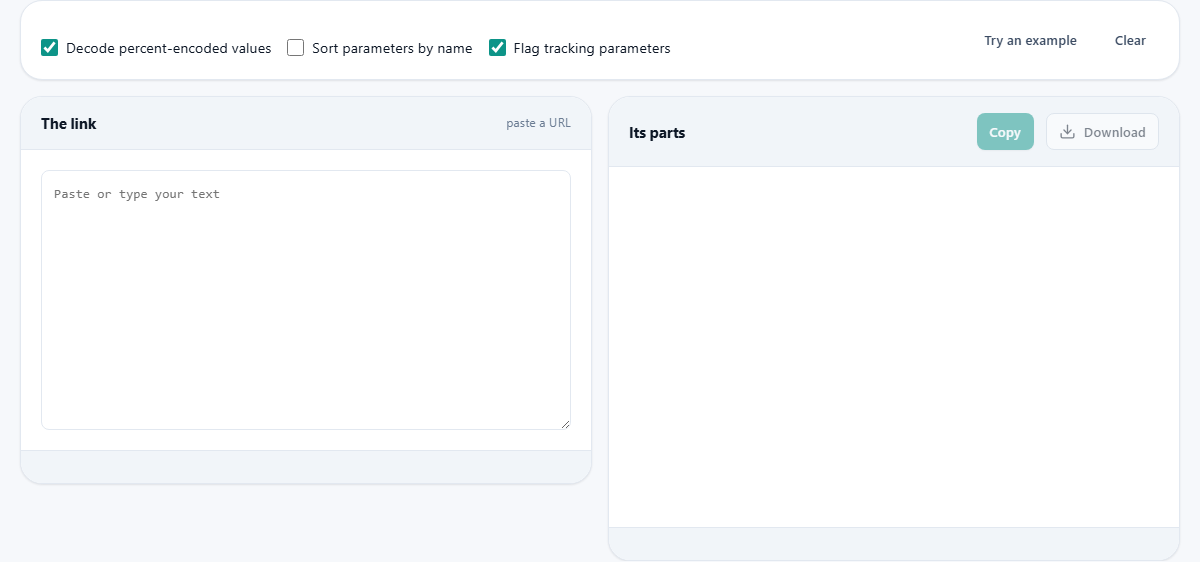
The left panel is labelled The link and accepts any URL you can find. Paste one and the right panel, labelled Its parts, fills in immediately. The output lists the scheme, host, port, path and fragment as separate fields. Below those, every query parameter appears in its own row with the key on one side and the decoded value on the other.
The decoded values are the important detail. A raw URL full of percent signs is hard to read. A parameter value like summer%20sale%20%2D%2050%25%20off becomes summer sale - 50% off once the percent codes are replaced with the characters they stand for. The tool does this by default when the Decode percent-encoded values checkbox is ticked.
The three checkboxes
Decode percent-encoded values is on by default and turns %20, %26 and similar codes back into readable characters. Leave it on unless you specifically need to see the raw encoded form.
Sort parameters by name reorders the key-value pairs alphabetically. This is useful when you are comparing two URLs that carry the same parameters in a different order. Sorting them makes the differences stand out.
Flag tracking parameters highlights any parameter that exists only for analytics. Anything whose name starts with utm_ is flagged, along with common click identifiers like fbclid and gclid. These tags do not change where the link goes - they tell the destination site where the visitor came from. Removing them gives you a shorter, cleaner link that works the same way.
Why tracking parameters deserve a closer look
Links shared on social media, in emails and in advertisements almost always carry tracking parameters. A link to a news article might have five or six utm_ values appended to it, doubling its length and making it look suspicious to the person receiving it.
The Flag tracking parameters setting marks these in the output so you can see them at a glance. Once you know which parameters are tracking, you can remove them before sharing the link. The page still loads, the content is the same, and the address is half the length.
This also helps with troubleshooting. When a link does not work, knowing which parameters are tracking and which are functional narrows the search. If the problem goes away when you remove the utm_ tags, the issue was never in the link itself but in something the analytics system was doing with the extra data.
The fragment and what it means
The part after the hash sign has a special property: the browser never sends it to the server. It is handled entirely on the client side. In a traditional web page, the fragment is used to jump to a specific heading or anchor. In a single-page application, it often holds the entire route - the part that tells the app which view to show.
This matters for privacy and for debugging. Because the fragment stays in the browser, values placed there do not appear in server logs. Some authentication systems exploit this by putting tokens in the fragment so they never travel over the network beyond the initial page load.
It also means that a link checker running on the server side cannot see the fragment. A redirect that works when you click it in a browser might fail when a script tests it, because the script only sees the part of the address that reaches the server.
A worked example with a campaign link
A marketing team sends you this link: https://shop.example.com/shoes/running?color=blue&size=10&utm_source=newsletter&utm_medium=email&utm_campaign=spring-sale&fbclid=abc123#reviews. You want to know what it actually points to and which parts are just tracking.
Paste it in. The output shows the scheme as https, the host as shop.example.com, the path as /shoes/running, and the fragment as reviews. Six parameters appear in the table. Two of them - color and size - are functional. The other four - utm_source, utm_medium, utm_campaign and fbclid - are flagged as tracking.
The clean version of this link is https://shop.example.com/shoes/running?color=blue&size=10#reviews. It still loads the same page, still shows blue running shoes in size 10, and still scrolls to the reviews section. The difference is that the analytics system no longer knows which newsletter brought you there.
Repeated parameters and edge cases
A URL can carry the same parameter name more than once. A filter page might have color=red&color=blue to select two values at the same time. The parser lists every occurrence rather than showing only the last one, which is what most quick inspection methods miss.
Some addresses carry no query string at all, just a long path with data embedded in the segments. The parser still shows the scheme, host and path cleanly, which is useful for APIs that encode their parameters in the path instead of the query.
Addresses with unusual schemes - mailto, ftp, data, custom app schemes - are also handled. The scheme field shows whatever is present, so you can quickly confirm what kind of address you are looking at before deciding how to work with it.
Practical uses outside marketing
Campaign links are the obvious use, but the parser helps with many other tasks. A developer debugging an OAuth redirect can paste the callback URL and see every parameter the authorization server sent back, including the state token and the authorization code, laid out in a readable table rather than buried in a single encoded string.
A support agent receiving a link from a customer can paste it in and see whether the address carries an expired session token, a wrong product identifier or a redirect loop parameter. Reading the individual parts is faster than asking the customer to describe what they see on their screen.
A security reviewer checking whether sensitive data travels in the address bar can paste several URLs from a flow and inspect each one. If a password, an email address or an internal identifier shows up in the query string, that is a finding worth reporting, and the decoded values make it obvious at a glance.
A content manager tidying up links for a newsletter can paste each URL and remove everything but the functional parameters. The resulting link is shorter, cleaner and less likely to break if a mail client wraps it at an awkward point.
Keeping the data on your own machine
The links people paste into a tool like this are not public. They come from internal dashboards, customer support tickets, authentication flows and debug logs. Many of them contain tokens, session identifiers or personal data encoded in the query string.
None of that data leaves your browser. The parsing happens on your device, with no server involved. You can unplug your network cable and the tool works the same way it did before, because there was never a request to send. When you close the tab, the link you pasted is gone and there is no remote record of it. For teams that handle customer URLs from support tickets or internal debug traces, that local-only guarantee removes a class of compliance risk that cloud-based tools always carry.