
Making sense of the number that stores every date
What a Unix timestamp is and where the epoch comes from, how the converter detects seconds versus milliseconds, what the live clock and the two conversion panels do, and practical advice on the formats and the traps that catch everyone at least once.
One number for any moment in time
A Unix timestamp is the number of seconds that have passed since midnight UTC on 1 January 1970. That moment is called the epoch. Every second since then has a number, and that number is the same everywhere in the world. It does not depend on a time zone, a calendar format, or a language. It is just a count.
Databases, APIs, log files, and event streams all use timestamps because there is nothing to argue about. The number 1735689600 is the same moment whether you are in London or Tokyo. The only decision is what to print when a person needs to read it, and that is what the converter is for.
You meet timestamps whenever you look at raw data. A JSON response from a web service might carry a created_at field holding a ten-digit number. A server log might print one at the start of every line. A database column might store expiry dates as integers. In each case, turning that number into a readable date is the first step to understanding what the data says.
The live clock at the top
The panel labeled Right now shows three values that tick forward every second. Unix seconds is the current timestamp in the traditional unit. Milliseconds is the same moment multiplied by a thousand, which is the unit JavaScript and many modern APIs use. ISO 8601 is the full date and time written in the standard text format, with the time zone included.
Each value has a small copy button beside it. Press it and that value goes to your clipboard. If you need the current timestamp for a configuration file, a test fixture, or a database insert, it is always right there at the top of the page without any extra steps.
The clock uses your computer's system time. It does not call a time server. If your machine's clock is off by a few seconds, the displayed timestamp will be off by the same amount. For most uses this does not matter, but for anything that needs precise synchronization you should check that your operating system's clock is set to update automatically.
Turning a timestamp into a date
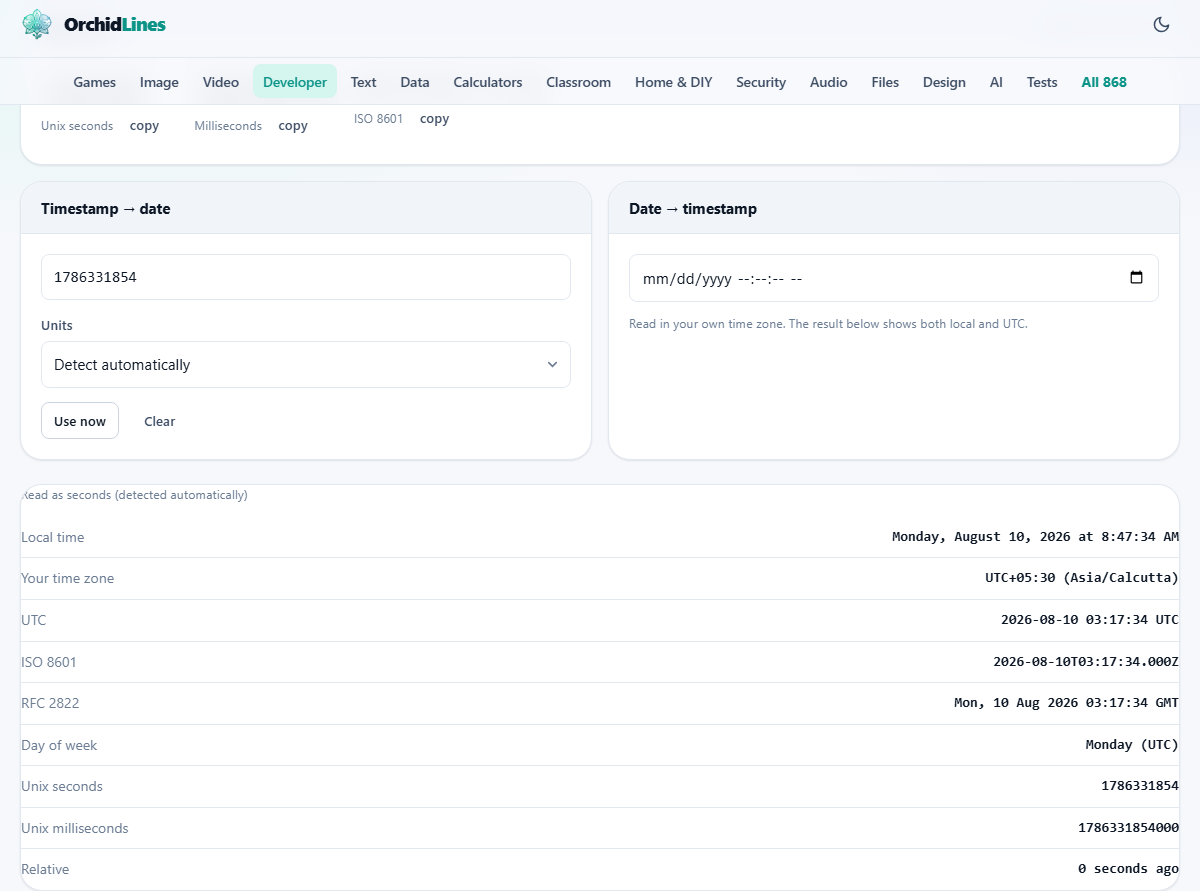
The left panel is labeled Timestamp to date. Type or paste a number and the result panel below shows the date it represents. The result includes your local time, UTC, the ISO 8601 format, the day of the week, and a human-friendly label saying how long ago that moment was.
The Units dropdown starts on Detect automatically. Ten digits is read as seconds. Thirteen digits is read as milliseconds. You can also choose Microseconds or Nanoseconds for systems that store timestamps in those units. If the auto detection gets it wrong, switching the unit fixes the result instantly.
Commas and spaces in the number are ignored, so you can paste a value like 1,735,689,600 without cleaning it first. Press Use now to fill the field with the current second. Press Clear to empty it.
Turning a date into a timestamp
The right panel is labeled Date to timestamp. Pick a date and time using the calendar input and the result panel shows the matching timestamp. The input reads your selection in your local time zone, and the result shows both local and UTC so there is no ambiguity about which moment you picked.
This direction is useful when you need a timestamp for a filter, a query, or a scheduled job. If you know the cutoff date and need the number, this is faster than doing the arithmetic. The step is set to one second, so you can pick an exact moment down to the second.
The seconds versus milliseconds trap
This mistake catches everyone at least once. JavaScript counts in milliseconds. Most other languages, databases, and APIs count in seconds. The two are a factor of a thousand apart.
Feed a seconds value to something expecting milliseconds and your date lands in January 1970, a few days or hours after the epoch. Feed milliseconds to something expecting seconds and you get a date tens of thousands of years in the future. If a date looks absurd, this mismatch is almost always the reason.
The converter tells you which unit it assumed, right beneath the result. If it says it treated your input as seconds and the date looks wrong, switch the Units dropdown to milliseconds and try again. The auto detection uses the number of digits to guess, and it is right for any date in the current era, but very old or very far future dates can fool it.
Negative timestamps and dates before 1970
The epoch is not the beginning of time. It is an arbitrary reference point chosen by the people who designed Unix. Dates before 1970 have negative timestamps. The converter handles them correctly. Type a negative number and you get a date in 1969 or earlier.
This matters when you work with historical data. A database of events from the 1960s stores those dates as negative seconds. If you see a large negative number in a log and wonder what it means, paste it in and the answer is immediate.
Some systems do not support negative timestamps. A column defined as an unsigned integer cannot hold a negative value, so dates before the epoch cannot be stored there. If you need to record dates from before 1970, check that your storage format allows signed numbers. The converter does not have that limit and will happily show you any date on either side of the epoch.
Why ISO 8601 is the safe text format
When you need to store or send a date as text rather than a number, the ISO format is the one that causes the least trouble. It looks like 2025-01-01T00:00:00Z. The year comes first, the time zone is explicit, and the string sorts correctly in alphabetical order because the most significant part is on the left.
The converter shows the ISO form in every result, and the live clock at the top keeps a running ISO string you can copy. Any time you are tempted to write a date as a text string in a format like 01/01/2025, the ISO version avoids the argument about whether that means January first or the first of January.
The year 2038 and why it matters
A signed 32-bit integer can hold numbers up to about 2.1 billion. The number of seconds from the epoch to 19 January 2038 is 2,147,483,647, which is that limit. Systems that store timestamps in a signed 32-bit number will overflow on that date and wrap around to a large negative number, landing the date back in 1901.
Modern systems use 64-bit numbers, which are good for billions of years. If you are building anything new today, 2038 is not your problem. But if you maintain older software, embedded systems, or databases with 32-bit integer columns, it is worth knowing when the cliff edge is. The converter itself uses full-precision JavaScript numbers and handles dates well beyond 2038.
Copying any value from the result
Every row in the result panel is clickable. Press any value and it goes to your clipboard. This saves a step when you need a specific format. If you want the UTC date, click it. If you want the timestamp in milliseconds, click that instead. You do not need to select text and copy it by hand.
This is especially useful when you are converting several timestamps in a row. Paste one, copy the date, paste the next, copy that date. The workflow is fast because the result updates on every keystroke and the copy is always one click away.
Everything stays on your device
The live clock and all conversions run in your browser. Nothing is sent to a server. There is no account and no data stored anywhere outside your own machine. The page works offline too. Open it, disconnect from the network, and the clock keeps ticking and the conversions keep working.
That makes it safe for timestamps from internal systems, private logs, and production databases. A timestamp from a customer record or a billing event does not leave your screen.