
Building blobs, waves, and patterns without an image editor
How each shape type works, what the variation number, complexity, and irregularity sliders do, why a section divider is the wrong color half the time, the three output formats, and how to drop the result into a real page.
Shapes that scale to any screen
Landing pages are full of soft blobs behind headings, wavy borders between colored sections, and subtle dot or line patterns in the background. Most of the time these start as images exported from a design tool. They work, but they have two costs. The file is large compared to what it shows, and it goes blurry on high-density screens unless you export it at double or triple the size.
SVG avoids both problems. A blob or a wave described as a path is a few hundred bytes of text. It scales to any size without losing sharpness, because the browser draws it from the instructions rather than stretching a fixed grid of pixels. This tool generates those paths for you, with controls for the shape, the randomness, the color, and the output format.
The eight shape types
The Shape dropdown in the settings panel offers eight options. They fall into three groups.
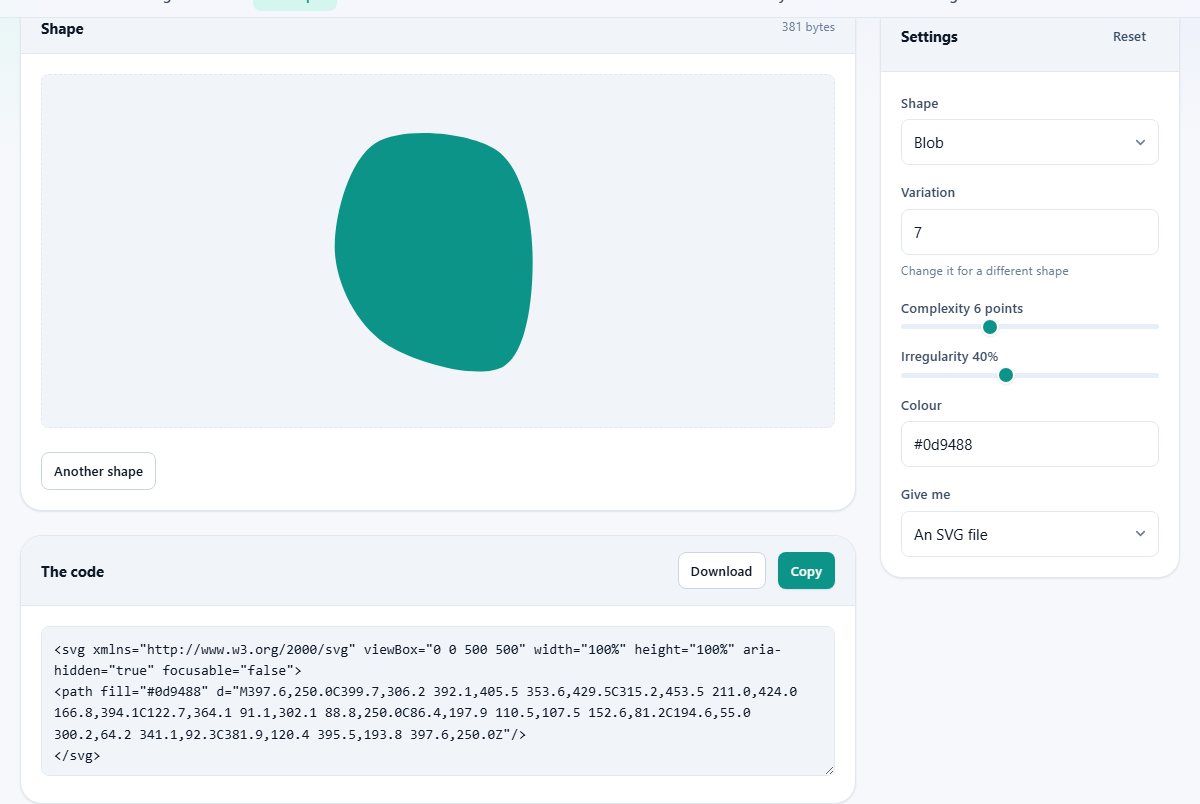
Blob produces an organic, rounded shape. It is the one you see floating behind a heading or a testimonial card. Wave divider, Layered waves, Slant, and Arc are all section dividers. They sit between two colored blocks and make the transition feel less like a hard cut. Dot pattern, Grid pattern, and Diagonal lines are repeating tiles meant for subtle backgrounds.
Each type responds to the sliders differently. Blobs use Complexity and Irregularity to control how many points the outline has and how far they wander from a circle. Waves use them to set the number of peaks and how uneven they are. Patterns use them to control spacing and density.
The variation number
The Variation field is a number between 1 and 999. It acts as a seed. Every time you change it, the shape changes while keeping the same settings. The same number with the same settings always produces the same shape, so you can note a number and come back to it later.
Press Another shape to step to the next number. If you find a blob you like at variation 42, write that number down. You can type it back in tomorrow and get the same outline. That predictability is the whole point of using a seed instead of a random button that forgets what it drew.
When you are building a set of shapes for one project, keep a note of which variation number goes with which section. Three blobs at variations 12, 37, and 85 will always look the same, even if you change the color or the output format later. The outline depends only on the seed and the complexity settings.
Complexity, irregularity, and height
Complexity sets the number of points on the path. For a blob, a low number like 4 or 5 gives a smooth, simple shape. A high number like 10 or 12 produces something spiky and detailed, closer to a paint splash than an organic blob. Five or six points is usually the sweet spot for decoration behind text.
Irregularity controls how far each point is allowed to stray from an even circle. At zero the blob is nearly symmetrical. At a hundred it is wild. Values around thirty to fifty give a natural look that does not draw too much attention to itself.
Height sets the vertical size of the preview in pixels, from 40 to 400. For a section divider this controls how tall the wave or slant is. The width always stretches to fill its container, and the viewBox in the generated SVG makes the shape responsive by default.
Picking the right color for a divider
The color fields accept any CSS color value. Type a hex code, an rgb value, or a named color. The first field sets the main fill. The second field, labeled Second colour, is used by Layered waves to draw the second layer in a different tone.
The mistake almost everyone makes the first time is coloring a wave divider to match the section it sits in. It should match the section it is joining, because what you are drawing is the top edge of the next section reaching up into the current one. Get it the other way round and you get a colored band that looks like a stripe instead of a smooth transition.
The preview sits on a neutral background on purpose. That forces you to think about which of your two sections the shape belongs to. If your page goes from white to dark blue, the wave should be dark blue, because it is the dark section starting early.
Flipping and adjusting
The Flip it over checkbox mirrors the shape vertically. A wave that curves down becomes a wave that curves up. This is useful when you want the same shape at the top and bottom of a section, one pointing each way.
After flipping, the variation number stays the same, so the outline is identical. If you need a different outline at the bottom, change the variation number as well. Two different numbers give two different waves, which looks more natural than a strict mirror.
The Slant and Arc shapes are simpler than waves. A slant is a straight diagonal line from one side to the other. An arc is a smooth curve. Both respond to the height slider, and flipping reverses their direction. They suit pages where a wave feels too playful and a straight edge feels too sharp.
Three ways to take the shape away
The Give me dropdown offers three output formats. An SVG file gives you the raw markup. You can paste it straight into your HTML, or save it as a .svg and reference it with an img tag or a CSS background. Press Download to save it to disk, or Copy to put it on your clipboard.
A CSS background encodes the shape into a background-image rule using a data URI. You copy the whole rule and paste it into your stylesheet. The shape loads with the CSS, without any extra network request. This is especially good for repeating patterns, because the CSS rule already includes the repeat settings.
A data link gives you the raw encoded URI on its own, without the CSS property around it. This is handy when you need to set the background in JavaScript or pass it to a framework that takes a URL string.
For shapes this small, the data URI is often the best choice. A blob path that is three hundred bytes long is not worth a separate HTTP request. Embedding it in the CSS keeps everything in one file and one round trip. Compared to a PNG of the same shape, the size difference is often ten to one.
Accessibility and screen readers
A decorative blob has no meaning. It is there to look good, not to communicate information. Screen readers should skip it entirely. The generated SVG already includes the attributes that tell assistive software to ignore it, so you do not need to add them yourself.
If you embed the SVG inline in your HTML, those attributes carry over automatically. If you use it as a CSS background, screen readers do not see it at all, because backgrounds are not announced. Either way, the shape stays silent for people who are not looking at the page.
The one time you might want a shape to be announced is when it carries real data, like a chart or a diagram. These decorative shapes never do, so the default is always to hide them. If you later edit the SVG to add meaningful content, remember to add a title and a description at that point.
Everything runs on your own device
The shapes are calculated entirely in your browser. The path coordinates are generated there, the preview is drawn there, and the output code is assembled there. Nothing is uploaded or sent to a server. There is no account, no watermark, and no limit on how many shapes you generate.
That also means the shapes work offline. Open the page, disconnect from the network, and every control still responds. The result is yours to use however you like, with no attribution required and no restrictions.