
Reading a source map without the guesswork
What a source map holds, how to open one and read the file table it produces, how to turn a minified position or a full stack trace back into real file names and lines, and why maps deserve more care than most files get.
The file beside the bundle
When a build tool finishes, it leaves two things in the output folder. One is the bundle, the single JavaScript file that runs in the browser. The other is a .js.map file with the same name. That map is a record of where each piece of the bundle came from before it was minified and joined together.
Inside it is a block of JSON. The interesting part is the mappings field, a long string of letters that says, for every point in the output, which original file, line and column it belonged to. There is also a list of file paths and, in most builds, the full text of every original file.
Why you would open one
Two jobs come up over and over. The first is answering the question: which file, or which package, is making this bundle so large? A single dependency can quietly add tens of kilobytes that nobody asked for, and the map is the fastest way to see it. The second job is reading a stack trace from a live error. A production stack trace points at line 1, column 24,500 of a minified file. That is not useful on its own. The map turns it back into the real file name and the real line number, so you can open the right place in your editor without guessing.
- Finding the dependency that costs the most space in the final output.
- Turning a crash report from a user into a place you can open in your editor.
- Checking whether a file you expected to be tree-shaken is still in the bundle.
- Comparing two builds to see what grew.
Opening a map and reading the file table
Press Open a file and pick the .js.map from your disk. You can also paste the contents, but maps are large blocks of JSON and opening is usually quicker. A map is just text, so dragging it from a file manager works too.
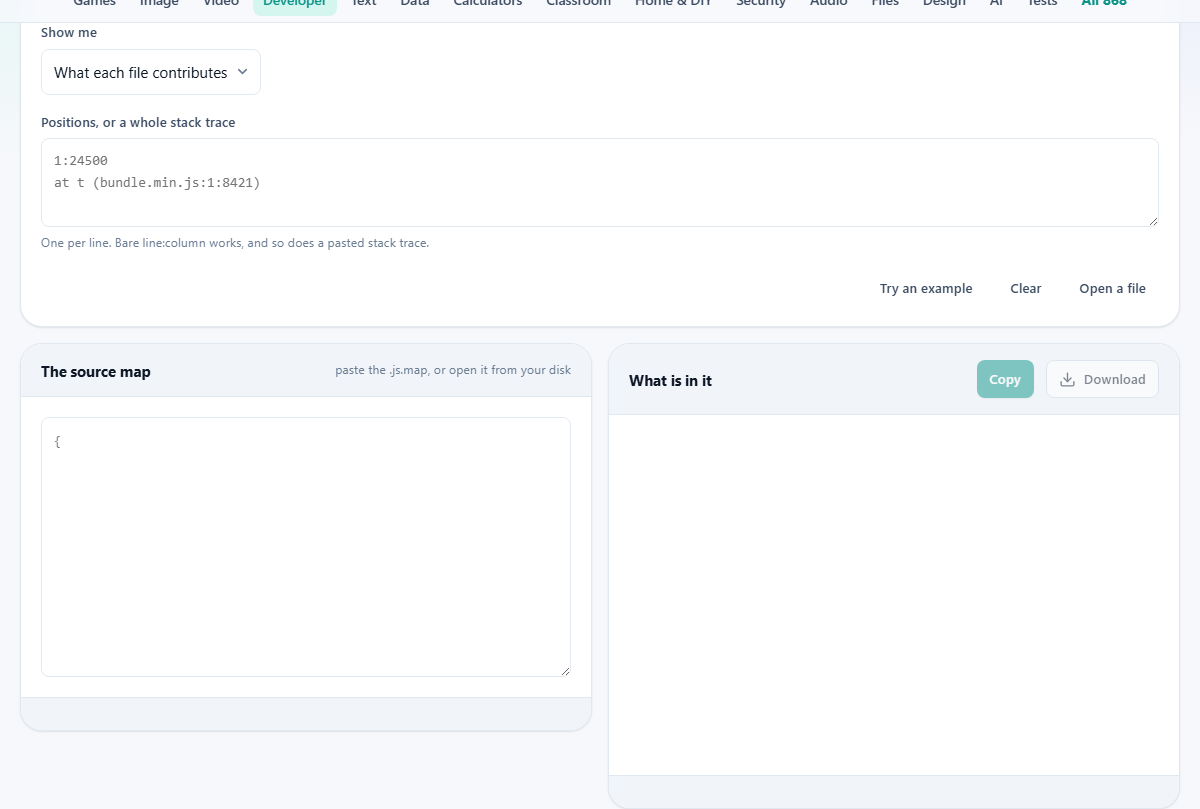
The Show me dropdown starts on What each file contributes. That gives you a table of every source file the bundle contains, sorted by how much of the output each one accounts for. Each row shows the file path, the number of bytes it is responsible for, and its share as a percentage. Below the flat list is a folder rollup that groups everything by directory, so you can see at a glance which installed package is taking the most room.
If the map was built with the original text included, you also get the size of each file before it was minified. When the text is missing, shares are still worked out from the mapping positions, but the before-and-after comparison is not available and the report says so.
Looking up a position in the source
Switch Show me to Where a position really is. A text area appears with the label Positions, or a whole stack trace. Type a position like 1:24500, meaning line 1, column 24,500, and the result tells you which original file that point belongs to, the line and column in that file, and, when the map carries your text, the actual lines of code with the one that matters marked.
You can paste several positions, one per line, and each one is resolved separately. You can also paste an entire stack trace straight from a browser console or an error reporting service. Every line that carries something that looks like a file, line and column is picked out and turned back into its original location. Lines that do not carry a position are left alone, so the trace stays readable.
A walked-through example
Press Try an example to load a small built-in map. The file table appears showing a handful of source files, each with its share. One file accounts for most of the output. The folder rollup below groups them, making the structure clear.
Now switch to the position mode and type 1:200. The result names the original file, shows the line and column in it, and, because this example map carries the text, prints the surrounding lines with the target highlighted. That is the whole loop: a number you could not read becomes a place you can open.
Back in the file table mode, notice the stats at the bottom. They count the total sources, the mapped bytes and any gap at the end of the line that only the bundle could measure. On output minified onto one long line there is a single such gap, so the figures are as good as exact.
Base-64 mappings and why they matter
The mappings string stores each position as a difference from the one before, packed into base-64 characters. That is why a map for a megabyte of code is far smaller than the code itself. It is also why every lookup starts at the beginning of the file. There is no index and no way to skip ahead. The decoder must read every character from the top to reach the one you care about.
This matters in practice for two reasons. First, very large maps take a moment to decode, and the progress bar tells you when it is working. Second, partial maps or maps that have been cut short produce results only up to the point where they stop, with everything after it missing. If a file seems to run out of data halfway through, that is usually a map that was truncated during a failed build or a bad download.
Matching maps to builds
A map is tied to the exact build that made it. If you look up a stack trace from Tuesday against a map built on Wednesday, the line numbers have shifted and the answers will look reasonable but point at the wrong code. There is nothing in the map that warns you about this. It will happily give you a wrong answer that looks right.
The safe habit is to store the map alongside the build artifact. If your deploy pipeline produces a bundle called app.abc123.js, keep app.abc123.js.map beside it. When a crash report arrives, pull the map that matches the version the user was running, not the latest one.
The last line of a bundle usually contains a comment naming its map, something like //# sourceMappingURL=app.js.map. That is how the browser knows where to look. If that line is missing or points at the wrong file, the browser's own dev tools cannot find the map either. Checking that comment is often the first thing to do when stack traces refuse to decode.
What maps reveal about your code
A bundle is minified. Variable names are single letters, comments are gone, and the structure is hard to follow. A map with the original text included reverses all of that. It holds your unminified source, your comments, your file paths, and sometimes even internal notes left in the code for other developers.
That is worth thinking about before publishing maps beside a live site. Anyone who can reach the map can read your code as clearly as you wrote it. For some projects that is fine. For others it is a reason to keep maps off the public server and only load them into an error reporting service that stores them privately.
Most build tools let you choose whether to include the original text. A map without the text is much smaller and still carries enough data for position lookups and the file table shares. What you lose is the ability to see the actual lines of code around a looked-up position.
Your map stays on your own machine
The entire decode runs in your browser. The file is read from your disk, the mappings are unpacked in memory, and the results are drawn on the page. Nothing is sent to a server. There is no upload, no queue, and no account.
That matters here more than it does for most tools, because a source map often contains your complete source code. You can prove it by opening the page, turning off your network connection, and loading a map from disk. Everything still works, because there was never anything on the other end.