
Applying and creating unified diffs by hand
What a unified diff is, how this tool applies one to a file, what offsets and fuzz mean in the report, how to reverse a patch, how to create one from two versions, and why line endings cause more failures than bad patches do.
The problem a patch solves
A patch is a text file that describes the difference between two versions of another file. Instead of sending the whole updated file, you send just the changes. The receiver applies those changes to their own copy and ends up with the same result.
This idea is older than most version control systems. The Unix patch command has been doing exactly this since the 1980s. Today patches travel as email attachments, GitHub pull request diffs, code review comments and exported changesets. The format is standardised. A line beginning with a minus sign is removed. A line beginning with a plus sign is added. Lines beginning with a space are context that the tool uses to find the right place in the file.
This page applies a patch the same way the command-line tool does. You paste a file on one side and a unified diff on the other. The result is the patched file, together with a report that tells you exactly what happened to each piece of the diff.
The three modes
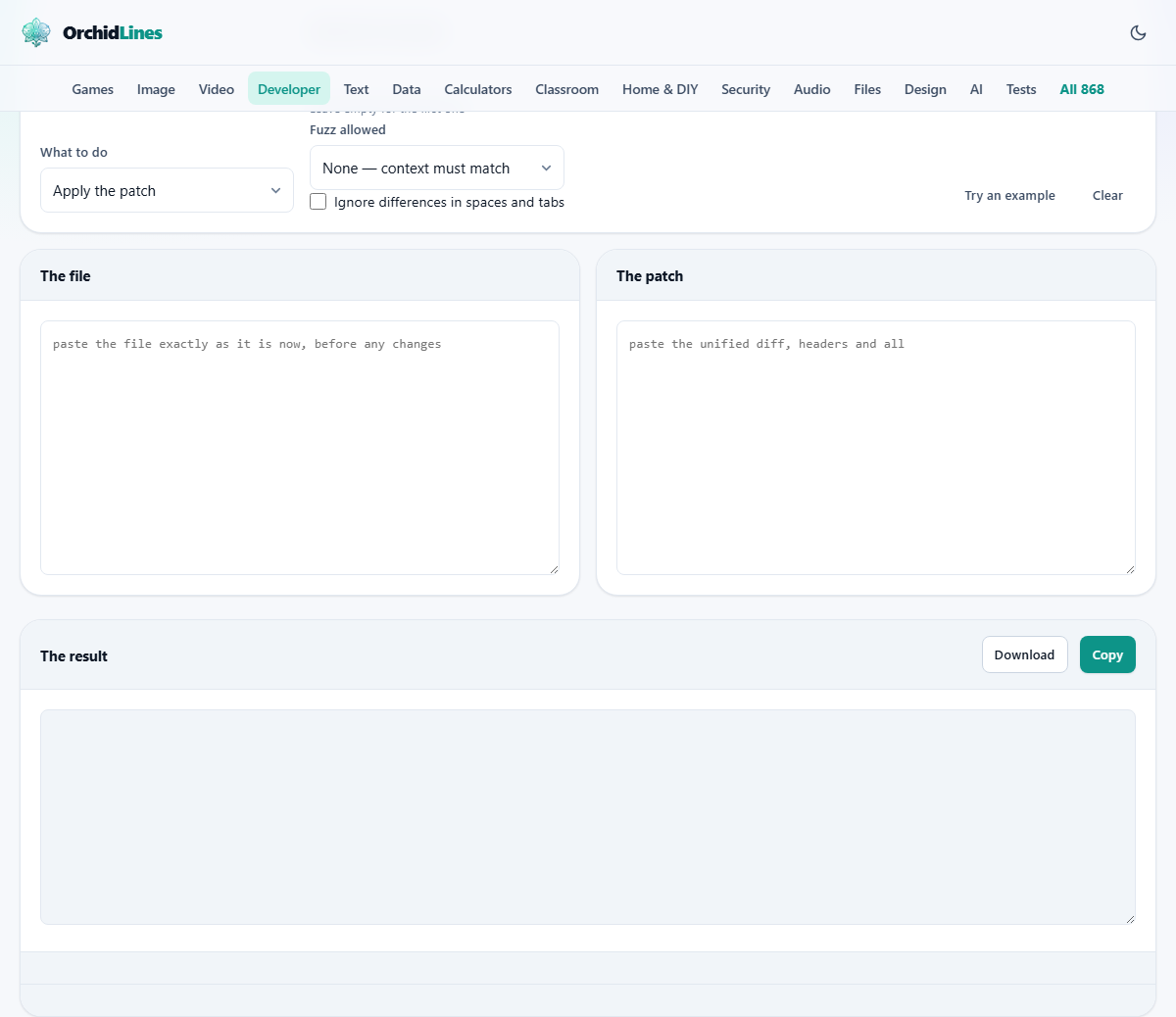
The What to do dropdown offers three choices. Apply the patch takes a file and a diff and produces the updated file. Take the patch back off reverses the process, turning additions back into removals and removals back into additions. Make a patch from two versions puts the old text on the left and the new text on the right and writes the diff between them.
Apply is the one most people need. Reverse is useful when a patch has already been applied and you want to undo it. Making a patch is useful when you want to share a change without sharing the full file, or when you need a .patch file to attach to a bug report.
Pasting the file and the diff
The left panel is labelled The file. Paste the file exactly as it stands before any change. Do not tidy it, do not fix indentation, do not strip trailing spaces. A patch matches the file character for character. Even a single trailing space that you removed by habit will cause the surrounding context to fail.
The right panel is labelled The patch. Paste the entire unified diff, starting from the --- and +++ header lines. If the patch covers several files, all of them are read. The Which file in the patch field lets you name which one to apply. Leave it empty and the first file in the patch is used.
Reading the report
After you paste both sides, the result appears below. A table reports on every hunk in the diff. Each row tells you whether the hunk applied cleanly, applied at an offset, applied with fuzz, or failed.
An offset means the hunk landed at a different line number than its header said. That happens when lines have been added or removed above the change since the patch was written. The context still matched perfectly. The hunk is in the right place. The line number was just out of date, and the offset tells you by how much.
Fuzz means one or more lines of context at the edges of the hunk did not match, but enough of the middle did to find a spot. This is riskier. A hunk that needed fuzz might have landed in the wrong place. The report shows it so you can check.
A failure means the lines the hunk expected to find are simply not in the file. Either the file has changed too much, the patch is for a different version, or the whitespace does not match.
The fuzz control and the whitespace checkbox
Fuzz allowed defaults to None, meaning context must match exactly. You can raise it to one or two lines. Each step tells the tool to ignore one more line of context at the top and bottom of each hunk when searching for a match.
Turning fuzz on is a trade-off. It makes more hunks land, but it also makes it easier for a hunk to land in the wrong place. That is why fuzz is off by default and every use of it appears in the report.
The checkbox Ignore differences in spaces and tabs loosens the matching further. With it on, a line that has four spaces where the patch expects a tab is still treated as a match. This helps when a file has passed through an editor that changed indentation style, but it also hides differences that might matter.
Making a patch from two versions
Switch What to do to Make a patch from two versions. The left panel relabels to the old version and the right to the new. Paste both, and the output is a proper unified diff.
The File name for the patch field sets the name that appears in the --- and +++ header lines. Lines of context controls how many unchanged lines appear around each change, with three being the standard default. More context makes the patch more resilient to surrounding edits. Less context makes it shorter.
The output can be saved as a .patch or .diff file and applied anywhere, including on this same page by switching back to Apply mode. It follows the same format that git diff and diff -u produce.
Line endings and the trailing newline marker
The single most common reason for every hunk in a patch to fail at once is line endings. A file written on Windows has a carriage return and a line feed at the end of each line. A file written on Linux or macOS has only the line feed. To the patch tool, those are different characters, so nothing matches.
The pattern is distinctive. When one or two hunks fail, the patch is probably for a different version of the file. When all of them fail at once, the file almost certainly went through an editor that changed every line ending.
There is also the trailing newline marker. A unified diff records whether the last line of a file ends with a newline, using a line that begins with a backslash. That marker is honoured here. A file that ended without a final newline before the patch will still end without one after.
If every hunk fails but the patch looks correct, try reversing it instead. If the reverse applies cleanly, the patch was already in the file and there was nothing to do.
A walked-through example
You have a configuration file with 80 lines. A colleague sends you a patch that changes lines 24 through 28. You paste the file on the left and the diff on the right.
The report shows one hunk. It applied at offset +3, meaning the context was found three lines below where the header said. Your copy of the file gained three lines near the top since the patch was written. The content matched perfectly. The result is correct.
Now suppose you change the indentation of that section from tabs to spaces before applying. The hunk fails. The context lines expect tabs and find spaces. Turning on Ignore differences in spaces and tabs lets the hunk land, but you should review the result because the indentation in the patched area will follow the patch, not your file.
Common mistakes and how to avoid them
- Cleaning up the file before pasting it. A patch expects the file exactly as it was when the diff was created. Removing a trailing space, fixing a typo or reindenting a line before pasting means the context will not match.
- Applying the same patch twice. The first application changes the lines the patch expects to see, so the second attempt fails on every hunk. If you are unsure whether it is already in, try reversing it. If the reverse works, the patch was already applied.
- Ignoring a fuzz warning. A hunk that needed fuzz to land may have landed in the wrong spot. Always read the context around the change in the result to confirm it makes sense.
- Forgetting to set the right file when a patch covers multiple files. The default uses the first file listed in the diff. If you need a different one, type its name in the Which file in the patch field.
- Mixing up the direction. Apply adds the changes. Reverse removes them. Applying a reverse patch or reversing a forward patch both produce wrong output without any error, because the format is the same in both directions.
Both files stay in your browser
The file and the diff are processed entirely on your own machine. Nothing is uploaded. That matters when the patch describes changes to proprietary source code, internal configuration, or anything that should not leave the building.
There is no server in the loop. The page works offline. Close the tab and everything is gone.