
Shrinking code without breaking it
What minifying actually removes, how formatting puts it back, which languages the tool covers, why JavaScript gets special treatment, and how to read the size figures that come out the other end.
What minifying takes out and why
Source code written by a person has spaces, blank lines, comments and neat indentation. None of that matters to a browser or a parser. A computer reads tokens, not whitespace. Minifying strips all of it away so only the instructions remain.
The result loads faster. Not because the code runs faster once it arrives, but because fewer bytes cross the wire. On a slow phone network, even five kilobytes saved can be the gap between a page that feels quick and one that makes the visitor wait.
CSS shrinks the most in practice. A well commented stylesheet with careful spacing often loses 20 to 30 percent of its size. JSON drops around 15 to 20 percent because the indentation that makes it readable to people is pure overhead for a machine. HTML sits somewhere in between, depending on how much of the file is markup and how much is visible text.
The six languages on offer
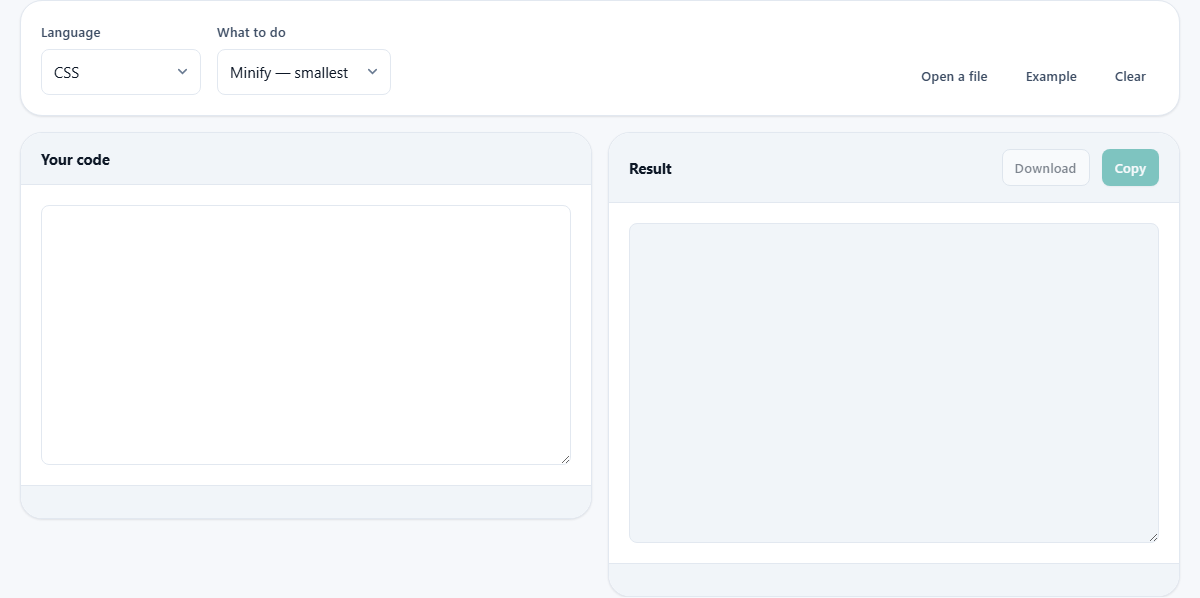
The Language dropdown lists CSS, JSON, HTML, XML, SQL and JavaScript. Pick the one that matches your file before you paste anything, because each language has its own rules about where whitespace matters.
CSS minification removes comments, collapses selectors onto one line and strips unnecessary semicolons. JSON minification removes all the indentation and line breaks that pretty-printing added. HTML minification collapses whitespace between tags while being careful about inline elements where a single space might affect rendering.
XML follows a similar path to HTML but respects CDATA sections and processing instructions. SQL folds away the blank lines and indentation that make long queries readable, without touching string literals. JavaScript is handled differently, and a note on the page explains why.
Why JavaScript gets a lighter touch
Real JavaScript minification means understanding the code. A proper minifier renames local variables to single letters, drops unreachable branches and removes dead code. Doing any of that requires a full parser that knows the difference between a division sign and a regular expression, between a keyword and an identifier, and between a string that holds code and one that holds prose.
A half-built parser produces output that looks fine and then breaks something in production. For that reason, this tool takes a safer path. It removes comments and collapses extra whitespace but leaves strings untouched and does not rename anything. The result always runs.
Expect around 20 to 40 percent saved here rather than the 50 to 60 percent a build-step tool like Terser or esbuild would give you. A warning appears when you select JavaScript, so the limit is always visible. For shipping production code, run a real minifier in your build pipeline. For quickly trimming a script before pasting it somewhere, the safe version here is enough.
Formatting in the other direction
The What to do dropdown has two choices. Minify produces the smallest output. Format produces the most readable one. They are opposite ends of the same job.
Formatting takes compressed or sloppy code and gives it clean, consistent indentation. Every opening brace pushes the indent one level deeper. Every closing brace pulls it back. Properties land on their own lines and nested blocks are easy to follow.
The Indent control only appears when you choose Format. It offers 2 spaces, 4 spaces or Tab. Two spaces is the most common convention in front-end work, four spaces is widespread in back-end and configuration files, and Tab lets each person set their own visible width in their editor.
Formatting does not restore the original file. Comments that were removed by a previous minifier are gone. The line breaks and groupings the author chose are replaced by a standard pattern. If you need the original layout, keep the source file.
Getting code in, getting results out
There are three ways to provide your code. Type or paste it into the Your code box on the left. Press Open a file and pick a file from your device. Or press Example to load a built-in sample that shows what each language looks like before and after.
The result appears on the right. Two buttons sit at the top of that panel. Copy puts the output on your clipboard. Download saves it as a file with the right extension for the language you chose.
The bottom of the result panel shows size figures. You see the original size, the output size and the percentage change. Those numbers tell you at a glance whether the effort was worth it. A file that only shrinks by 3 percent was already fairly lean.
A worked example with a real stylesheet
Suppose you paste a 14 KB CSS file that has 40 lines of comments at the top, careful grouping of selectors and generous blank lines between blocks. Language is set to CSS. What to do is set to Minify.
The result appears instantly. The status chips at the bottom read something like 14,200 bytes before, 10,100 bytes after, 29% smaller. That 29 percent is whitespace and comments that served only the developer who wrote the file.
Now switch What to do to Format. The output grows again, but it is not the same 14 KB you started with. It is clean and consistently indented, but the comments are gone and the grouping is different. The old file had blank lines between logical sections. The formatted version has none, because a formatter does not know where the logical breaks were.
That matters when someone sends you a minified stylesheet they did not write. Formatting it is the fastest way to understand what it does, because at least the nesting is visible. You trade the original comments for readable structure. The same approach works for JSON. A compact API response pasted in and formatted becomes something you can actually scan for the field you need.
Build tools versus a web page
For a real project, minifying by hand is a last resort. Every time you change the source file you would have to paste it in again and copy the output back. One forgotten step and the production file is stale.
Build tools like Vite, Webpack, esbuild and Rollup handle this automatically. They minify every file as part of the build. The source stays readable. The shipped version stays small. No paste-and-copy in between.
This page fills a different gap. You have a single file that needs shrinking once. You received a minified bundle and you need to read it. You want to see how much a stylesheet would gain from minification before adding a build step to a project that does not have one yet. In all those cases, opening a terminal and installing a tool is slower than pasting the file here. It is the difference between a five second job and a ten minute detour.
Compression and minification together
Servers can compress files on the fly with gzip or brotli before sending them. That removes far more redundancy than minification does, because a compression algorithm can spot repeated patterns across the whole file, not just strip known-safe whitespace.
Does that mean minifying is pointless if your server compresses? Not quite. Minifying still helps, but the gain is smaller than people assume. The characters that minification removes are exactly the kind of simple, repetitive patterns that gzip already handles well. So a minified-then-compressed file is only a little smaller than a formatted-then-compressed file.
If you had to choose one, enable compression on the server. It is the bigger win. If you can do both, do both. But getting the server setting right is the more urgent step.
Your code stays on your own machine
The entire job runs inside your browser. Your code is never sent to a server. There is no upload, no queue, and no copy stored anywhere outside the tab you are looking at.
That matters when the file contains proprietary source. A corporate stylesheet, an internal API schema, configuration with paths that name internal systems. Pasting it into a web tool that phones home is a security question. Here there is nothing to phone home to.
You can check for yourself. Load the page, disconnect your network cable, paste a file and press the button. Everything still works, because no part of the process ever needed a connection.