
Writing the tags that decide how a shared link looks
Which meta tags every page needs, what the Open Graph and Twitter card fields do, why preview images break so often, and how to check both the search result and the social card before publishing.
The handful of tags that matter most
When somebody pastes a link into a group chat, the app fetches the page and builds a small card from the tags it finds in the head element. When a search engine lists a page, it uses the same tags to write the blue title and the grey description underneath it.
Most pages need four things at minimum: a title tag, a meta description, a canonical link, and the Open Graph set. Without them, the chat app shows a bare URL and the search listing uses whatever text it can scrape from the body. Both look unprofessional and both get fewer clicks.
Getting these right is not hard, but remembering every tag and its exact syntax is tedious. This page writes them for you as you fill in the fields, and shows you both previews side by side so you can see the result before anything goes live.
The fields in the side panel
The right side of the page has a panel labelled Your page. Each field maps to one or more tags in the output.
Page title is the text that appears in the browser tab and at the top of the search listing. Keep it under sixty characters. The limit is really measured in pixels, not letters, so a title full of wide capital letters gets cut sooner than one with narrow lowercase letters. The counter beside the field turns red when you pass the safe length.
Description is the grey text under the search title. Aim for 150 to 160 characters. Search engines often rewrite it with their own summary of the page content, but chat apps usually show yours exactly as written.
Page address is the full URL. It goes into the canonical link and the Open Graph url property. Site name is the name of the site itself, separate from the page title. It appears on social cards next to the domain.
The preview image
Preview image address is the single field that causes the most trouble. The address must be absolute. It must start with https and include the full host name. A relative path like /images/og.png does not work because the chat app fetching the page has no idea what your domain is.
The image should be 1200 by 630 pixels for the large card format. Most platforms accept other sizes, but this ratio fills the card without cropping. For the small square card, 1200 by 1200 is the standard.
Keep the file under five megabytes. Some platforms quietly show no image at all when the file is too large, rather than giving you an error message. They also time out if the image takes too long to download, so a fast CDN helps.
Image description fills in the alt text for the Open Graph image. Screen readers use it, and some platforms show it as a tooltip.
Page type and author
Page type is a dropdown with four options. A normal page covers most cases and produces og:type set to website. An article adds tags for the published date and the author, which tells search engines and social platforms that the content is a blog post or a news piece rather than a landing page. A product and a profile are less common but generate the correct Open Graph type for those contexts.
Author is used only when the page type is set to article. It produces a meta tag and an Open Graph profile reference. Leave it blank for pages that do not have a byline. For a multi-author blog, set it to whoever wrote the piece.
Twitter and card size
Twitter or X handle is the account to credit on the card. It goes into the twitter:site tag. Twitter reads most of the other values from the Open Graph tags, so you do not need to repeat the title, description, and image. Only the card type and the handle are truly specific to that platform.
Card size offers two options. Large image shows the picture as a wide banner above the text. Small square image shows a smaller thumbnail beside it. The large card is better for pages with strong visuals. The small card is better for text-heavy pages where the image is a logo or an icon.
Canonical links and robots
Include a canonical link is ticked by default. The canonical tag tells search engines which URL is the main one when the same content is available at more than one address. A page reachable as both example.com/tools and example.com/tools/ needs a canonical to avoid being counted twice.
Include robots directives adds a meta robots tag. By default, pages are indexed and followed. Tick this checkbox when you want to add noindex or nofollow instructions. The most common use is a staging site or a preview page that should not appear in search results.
The two previews
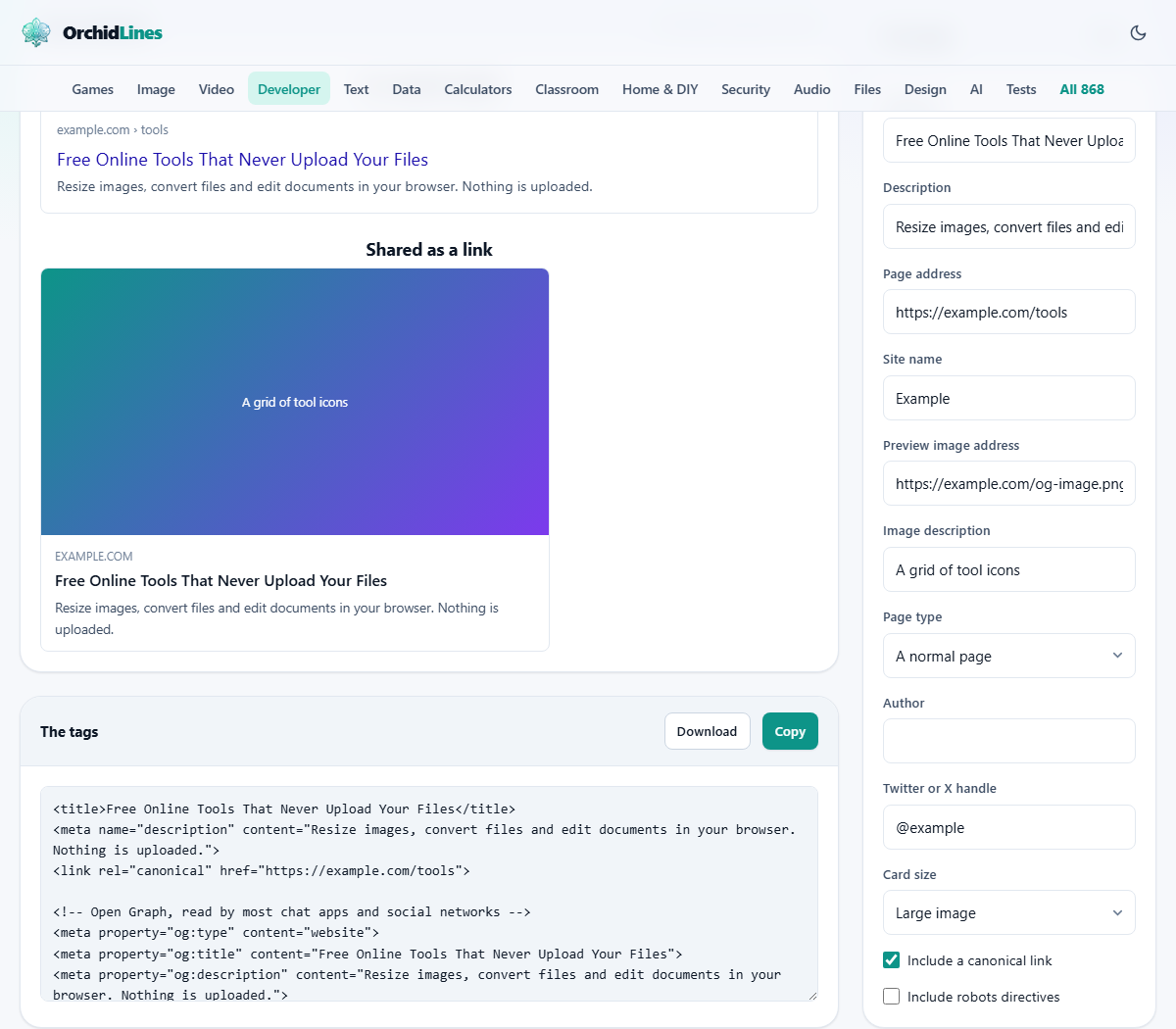
The main panel shows two mockups. In a search result draws the title in blue, the URL in green, and the description in grey, just as it would appear in a search listing. Shared as a link draws the social card with the image, title, description, and domain.
Check both as you type. A title that reads well in a search listing can look strange on a social card, because the card shows the site name separately. A description that fits the search result may be too long for the card, which tends to cut it sooner.
The previews update live. Change a field and both mockups reflect it immediately, so you can adjust the wording until both look right.
Copying and downloading the tags
Below the previews sits The tags panel. It shows the complete block of HTML that should go into the head element of your page. Copy puts it on your clipboard. Download saves it as an HTML file.
Paste the tags into your page's head element, before any stylesheets or scripts. The order within the head does not matter to the browser, but putting meta tags early means crawlers and chat app fetchers see them first, even if they stop reading partway through.
Common mistakes with meta tags
- Using a relative image address. The path must start with https and name the host. A chat app fetches the page from its own servers and cannot guess your domain.
- Writing a title that is too long. Anything past roughly sixty characters gets cut off mid-word in search results. Watch the counter as you type.
- Repeating every Open Graph tag as a Twitter tag. Twitter reads og:title and og:description when its own tags are missing. Only the card type and the handle need to be specified separately.
- Forgetting the canonical link. Without it, search engines may index the same content under several URLs and split your ranking between them.
- Never checking the card preview. A title that reads well as a search listing can sound awkward on a social card, where the site name sits right next to it.
Why the old preview keeps showing up
Social platforms cache link previews aggressively. Change the image or the title, redeploy the page, and the old card may keep appearing for hours or even days.
Every major platform has a debugging tool that forces a fresh fetch. Facebook has the Sharing Debugger. Twitter has the Card Validator. LinkedIn has the Post Inspector. Paste the URL into the right tool after making changes and the cache is cleared.
This is not a bug in your tags. It is a performance choice by the platforms. They do not want to fetch the page every time someone sees the card, so they store a copy. The debugging tool is the override that tells them to look again.
Your page details stay on your device
The tags are built entirely in your browser. The title, description, image address, and every other field you fill in are used locally and not sent anywhere.
That matters when you are preparing tags for a page that has not launched yet. The working title, the staging URL, and the preview image location are all private until you choose to publish them. Reset clears every field if you want to start fresh.