
Pulling the right values from a wall of JSON
How path expressions work, what each output format is for, a worked example with real data, and the filters that turn a long response into the three fields you actually wanted.
What a path expression does
A JSON document is a tree. Objects hold named values. Arrays hold numbered lists. A path expression is a set of directions that walks into the tree and picks out what you want.
The dollar sign stands for the whole document. A dot followed by a name steps into a key. A number in square brackets picks one item from an array. A star in square brackets picks every item. Put them together and you can reach any value, no matter how deeply it is buried.
This is not a programming language. There are no variables, no loops, and no side effects. You write one line, and the page walks the document and brings back everything that matches. If nothing matches, the result is empty and the status line says so.
Loading a document
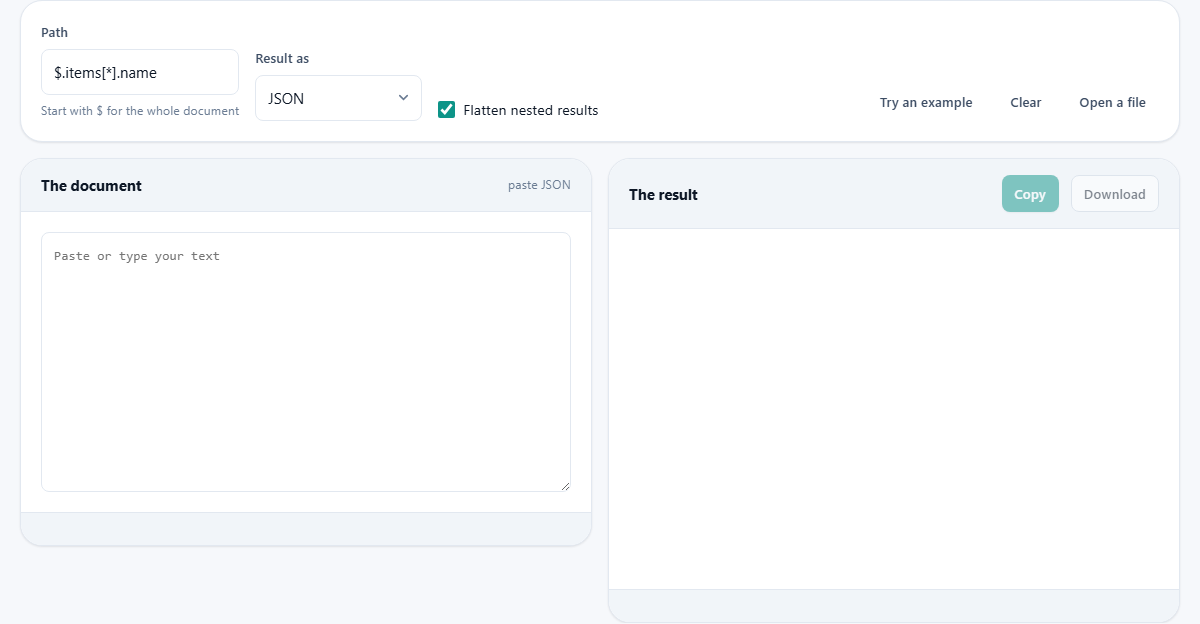
The left panel is labelled The document. Paste an API response, a configuration file, or an export. There is no size limit beyond what your browser can hold in memory, though a file over a few megabytes may take a moment to parse.
If you have the JSON saved as a file already, press Open a file and pick it from disk. The file is read locally, not uploaded. Try an example fills both sides with a small sample so you can test a path without having your own data ready. Clear empties everything.
Writing a path
The Path field sits above the two panels. It starts with $ and then spells out the route through the document. Here are the building blocks.
A dot and a key name reach into an object. $.user.email means start at the root, find the key called user, then find the key called email inside it.
Square brackets with a number reach into an array by position. $.items[0] is the first item. $.items[3] is the fourth. Positions count from zero, which trips people up at first but is the standard convention.
Square brackets with a star reach into every position at once. $.items[*].name collects the name field from every item in the array, which is the single most useful thing the tool does. Without it, you would scroll through the whole document writing down each name by hand.
You can chain as many of these as you like. $.orders[*].lines[*].sku walks into every order, then into every line of each order, and collects every SKU. That is two nested loops of work turned into a single short line.
Negative positions and slices
A negative number counts backward from the end of the array. $.items[-1] is the last item. $.items[-2] is the one before it. This is useful when you do not know how long the array is and just want the most recent entry.
A slice picks a range. $.items[1:4] returns items at positions one, two and three. The start is included and the end is not. If you leave the start empty, it begins at zero. If you leave the end empty, it runs to the last item.
Filters that narrow the list
A condition inside square brackets keeps only the items that pass a test. The syntax uses the at sign to mean the current item.
$.products[?(@.price > 50)] returns every product whose price is above fifty. $.users[?(@.active == true)] returns every user who is marked as active. You can compare numbers, match strings, and combine conditions.
Filters are the difference between getting everything and getting what matters. An API response with three hundred records becomes the twelve that match your condition, and you never had to open a code editor to do it.
You can also compare strings. $.users[?(@.role == 'admin')] returns only the administrators. The value on the right side goes inside single quotes when it is text rather than a number.
The four output formats
The Result as dropdown offers four choices. Each takes the same matched values and presents them differently.
JSON is the default. The result is valid JSON you can paste into another tool or feed to a script. If the path matched several values they come back as an array. If it matched one, you get that one value on its own.
One value per line strips the brackets and quotes and puts each match on its own line. This is what you want for quick scanning or for pasting into a spreadsheet column.
A table arranges the results as rows and columns. It only makes sense when the matched values are objects with the same keys. Each key becomes a column header and each object becomes a row. This is the clearest way to compare records side by side.
CSV is the table written out as comma-separated text with a Download button. The keys become the header row. This is for when the table is heading into a spreadsheet or a database import.
The flatten checkbox
Flatten nested results is ticked by default. When a matched value is itself an object or an array, flattening turns its inner structure into dot-separated column names so the table view still works.
With flattening off, nested values appear as raw JSON fragments inside the table cell. That is sometimes what you want when you need to see the nesting, but it makes the table harder to scan.
A worked example
Press Try an example. The document panel fills with a small JSON object containing an array of items, each with a name, a price, and a category.
The path is already set to $.items[*].name and the result shows every name as a JSON array. Change it to $.items[*].price and you see every price instead.
Now try a filter. Type $.items[?(@.price > 20)] and the result is only the items whose price passes the test, returned as whole objects with all their fields.
Switch Result as to A table and the filtered items appear in a grid. Switch to CSV and press Download to save a file you can open in any spreadsheet program. The whole sequence takes about thirty seconds and no code at all.
Real situations this saves time on
Debugging an API. You hit an endpoint and get back two hundred lines of nested objects. You only need the error codes. $.responses[*].error pulls them into a flat list in one step.
Checking a build configuration. A CI pipeline file has stages, each with steps. $.stages[*].steps[*].name tells you every step name across every stage without scrolling through the nesting.
Auditing a data export. A client sends you a JSON dump of their product catalogue. You need the prices in a spreadsheet. Write the path, pick CSV, press Download, and the file is ready to open.
Comparing records. Paste a list of users, query for their email and role with the table format, and the result is a clean grid you can scan in seconds.
Mistakes that waste five minutes
- Forgetting the dollar sign. Every path starts with it. Without it, the path is not recognized and the result is empty.
- Using a dot where you need brackets. If a key name has spaces or special characters, wrap it in brackets and quotes instead of using a dot.
- Expecting a table from flat values. The table format needs objects with keys. A list of plain strings or numbers has no columns to make.
- Pasting invalid JSON. A trailing comma after the last item in an array is the most common problem. The status line will tell you the line number.
- Confusing this with jq. This covers the common path and filter cases. jq is a much larger language with pipes, functions, and transformations. If you need those, you need jq.
Nothing leaves your browser
The JSON stays on your own machine. It is parsed inside your browser, queried there, and the result is built there. No part of the document is sent to any server.
That matters when the JSON is an API response with real user data, a configuration file with connection strings, or anything else that would be a problem if it showed up somewhere it should not. Close the tab and the data is gone. You can test this yourself by turning off your network connection and trying again. Everything still works.